Load Vans
Start by pressing the Load Vans option in the menu.
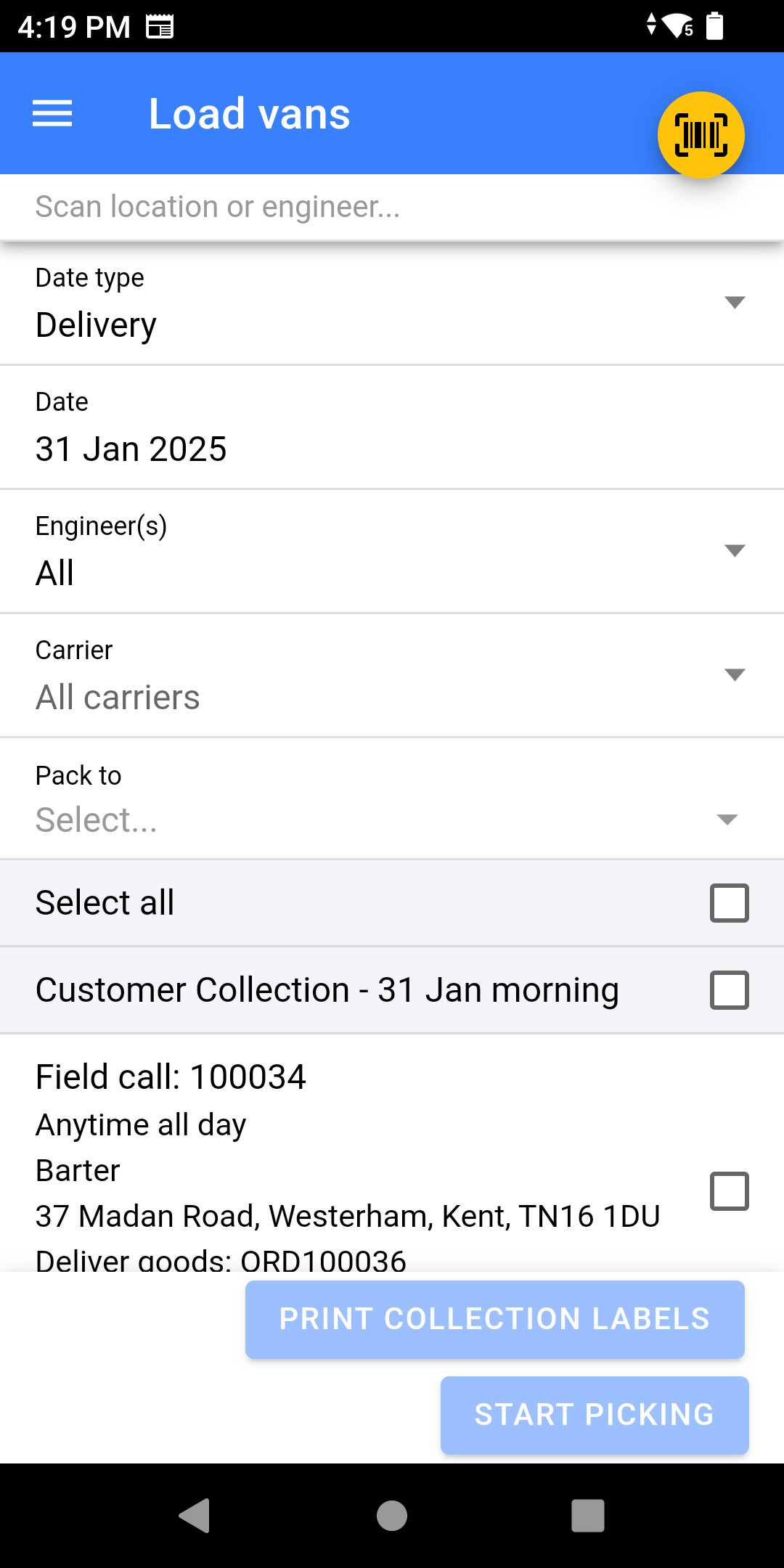
- Select a Date Type:
- Delivery - Date of Delivery
- Dispatch - Used for Carriers, this is the date of collection rather than the date of the field call.
-
Select the Date you are packing field calls for.
-
Select the Engineer you are packing for.
- Select Specific Carriers: This allows you to pick for a group of engineers, intention for this is for picking for carrier who you have multiple service levels with.
-
Scan the Location you are packing to.
You can do a multi-stage pick, whereby you pick to a holding location and then on to another location afterwards, much like a multi-stage goods-in where the goods are held before being stored in their final location.
- If you wish to pick for all calls; Click Select All, or choose Morning/Afternoon instead.
- Click Start Picking
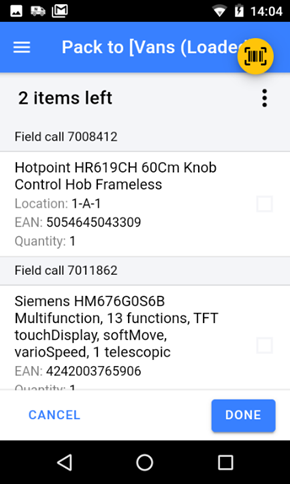
- Locate each item on the list and scan the stock number label
- Once the item is picked, it will have a tick against the item (or the item may disappear of the list)
If your configuration allows you to, you can scan a different stock number to the one displayed and NCompass will stock swap the stock number for the one you scanned.
- Once you have finished picking click DONE
Settings
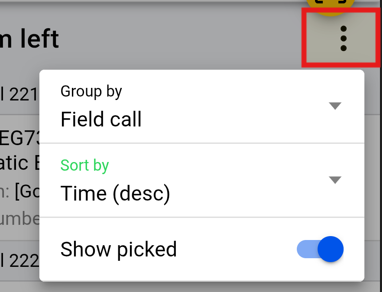
Clicking on the 3 dots gives you the option to:
- Group by:
- Stock Location - Sorts them into order by location instead of by time.
- Field Call (Default) - Sorts by time of call
- Branch - Shows all branches not just your physical location
- Sort by:
- Time DESC (Default) - logical order for loading van, first on is last off.
- Time ASC - flips the loading order
- Show Picked - Shows the item picked if enabled but with a Green Tick, otherwise they will be hidden.
Requiring Field Calls to be Locked
Field calls in NCompass can be locked to stop them being changed once the day's work has been finalised. Where a business wants the run fixed before anything goes on a van, NCompass can insist that this has happened before Load Vans will release any of the work.
This is controlled by the configuration setting Require field calls to be locked before van can be loaded, which is set to No by default. Find it in NCompass under Tools > Configuration by searching for its name.
- No – Load Vans behaves exactly as described above. Whether a field call is locked makes no difference.
- Yes – every field call for the engineer and date selected must be locked before any of them can be loaded. If a single call for that engineer and date is still unlocked, none of that engineer's work can be loaded for that date until the office locks the outstanding call.
The check is made across the whole engineer and date, not call by call, so one unlocked call holds up the entire van. That is the point of the setting: it stops a van being loaded while the run is still being changed.
Locking a field call
- A field call can be locked and unlocked from the field call itself in NCompass. Who is allowed to do this is controlled by the Allow Locking of Field Calls and Allow Editing/Unlocking of Locked Field Calls settings.
- Field calls can also be locked automatically when a route is saved, using the Lock Field Calls after routing setting. The same choice is offered as a Lock Field Calls after Routing tick box on the routing summary screen.
Sites that route their deliveries usually pair the two settings: routing locks the calls as the run is confirmed, and Load Vans then refuses to release work that has not been through that step.