Updates, Queue, and Settings
Software version and What’s New
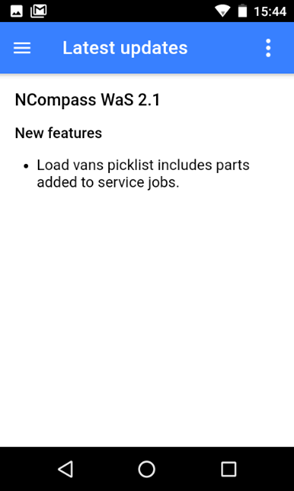
Select Latest Updates from the menu.
This will show you’re the current software version (major release Version, swipe from right to left to see incremental versions) and what’s been added in the last major release.
Check Upload Status
Select Upload queue from the menu.
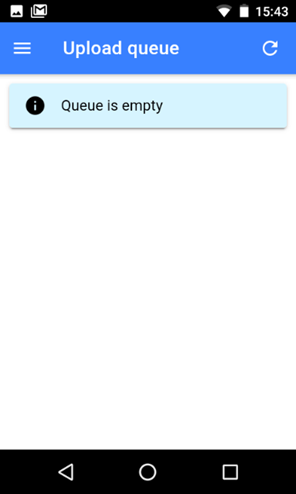
This option will let you see if there are any pending changes that have not been synced with your server.
Typically the queue will empty quite fast so normally it will show empty.
If your device loses network connectivity data may not sent to the server, the scanner stores the changes until the data network is reconnected.
You can manually remove items from the queue or force an update.
Settings
NCompass Configuration
Outlines details on what database and API the device is connecting to, this is something which the Support team may ask for when diagnosing any faults reported.
User Settings
This displays the user logged in, and can be changed with the Change button.
Data
Reload Lookup Data syncs the devices settings this is mainly used for when configuration changes are made whilst users are logged in.
Printer
- Test Printer - This is used to print a Test label out of the connected label printer. We recommend doing this before any instance of Goods In.
- Stock Error Labels to Print - This will default to 2, when doing a stock take if an item is scanned which NCompass thinks is not in stock it will produce a stock error label. We suggest to print 2; the first to stick on the product, the second to keep in a pile to action.
- Previous years in label queue date picker - This setting is used specifically for those companies who want to book the goods in on the desktop by a back office user instead of a warehouse operative, once the goods are booked in the warehouse operative can then load a list of labels to print and scan the EAN to trigger the label print. This setting is defaulting the number of years to look back for labels which have not been printed.
App Settings
Leave these settings as defaulted unless told otherwise by Support.
Photo Settings
- Photo Quality - To increase the upload speed of images taken on the scanner, and to save filling up server storage too quickly we suggest to set this to Medium on all devices. Without this being set images taken on the scanner will be in high res.
- Apply Watermark - Toggle this on if you want the images to be Date/Time stamped.
Load Van Defaults
- Date - Default the date on the loads van screen to be Today or Tomorrow
- Engineer - Default the selected engineer on load vans screen
- Stock Location - Default the Load to Location selected (not reconmended)
Picking Job Defaults
Picking Jobs will require consultancy before use.
Scanner
You won't need to use this unless instructed to by Support.
Device
These settings are used to add padding around the application, to resolve the issue where NCompass Mobile and WAS were opening too large for the screen, this is a temporary measure while the third party plug ins resolve the issue.