Bulk Move
Bulk Move is used to move large quantities of items at one time.
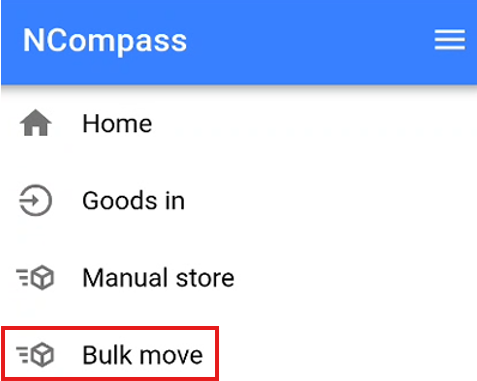
Bulk Moving By Stock Number
When the Bulk Move screen opens, you will see a message indicating that no items have been picked.
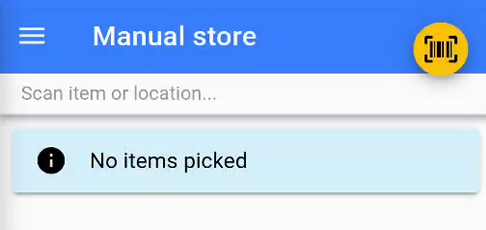
Begin scanning the individual stock numbers that you wish to move.
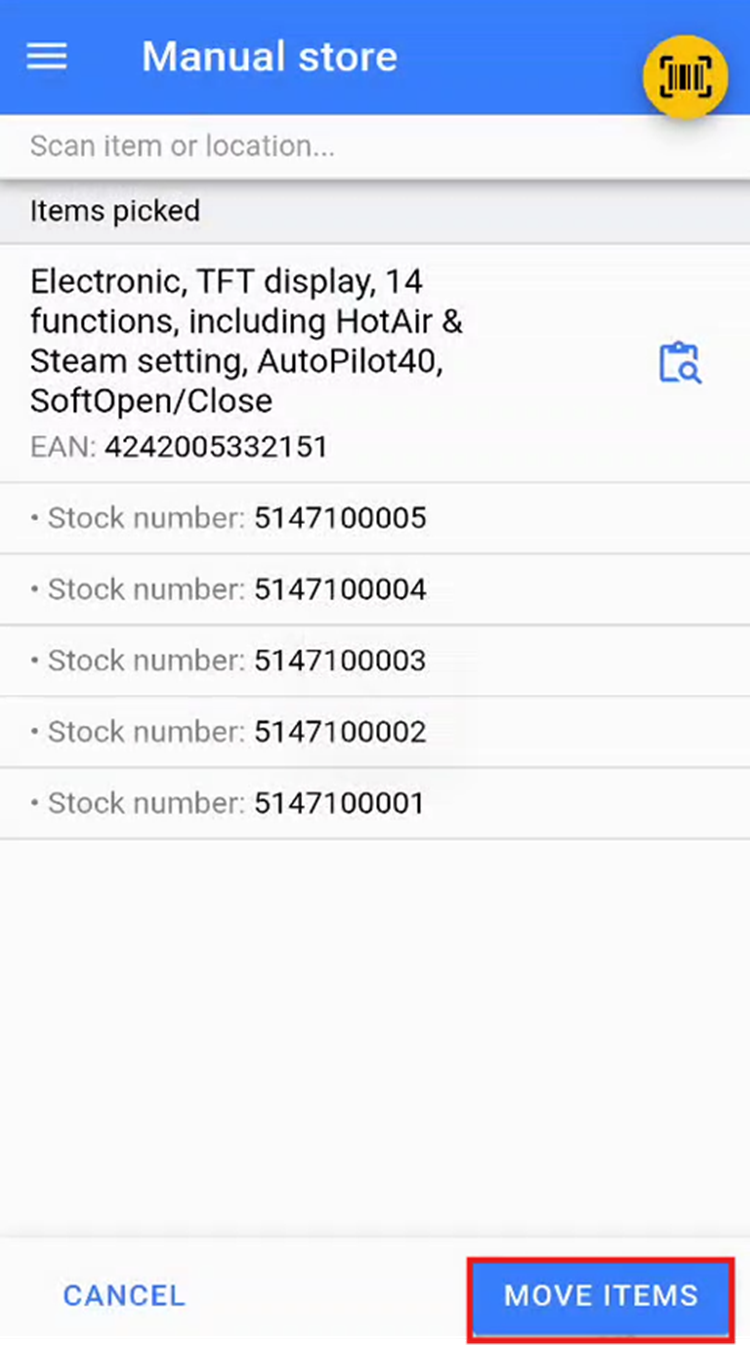
Once all required items have been scanned, click the Move Items button to confirm the selection.
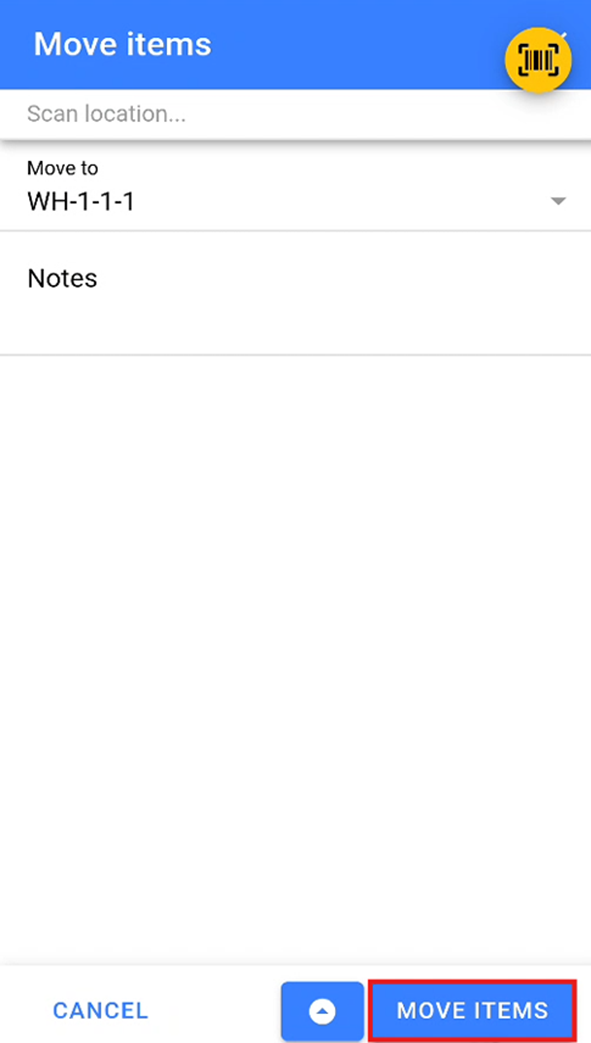
This will open the Move Items screen, where you can either scan a stock location or select one from the dropdown menu. Select the location you wish to move these items to, then click Move Items to confirm the bulk move.
Bulk Move By Stock Location
On the Bulk Move screen, you can also scan a stock location. This will return a list of all items and their associated stock numbers currently stored in the scanned location.
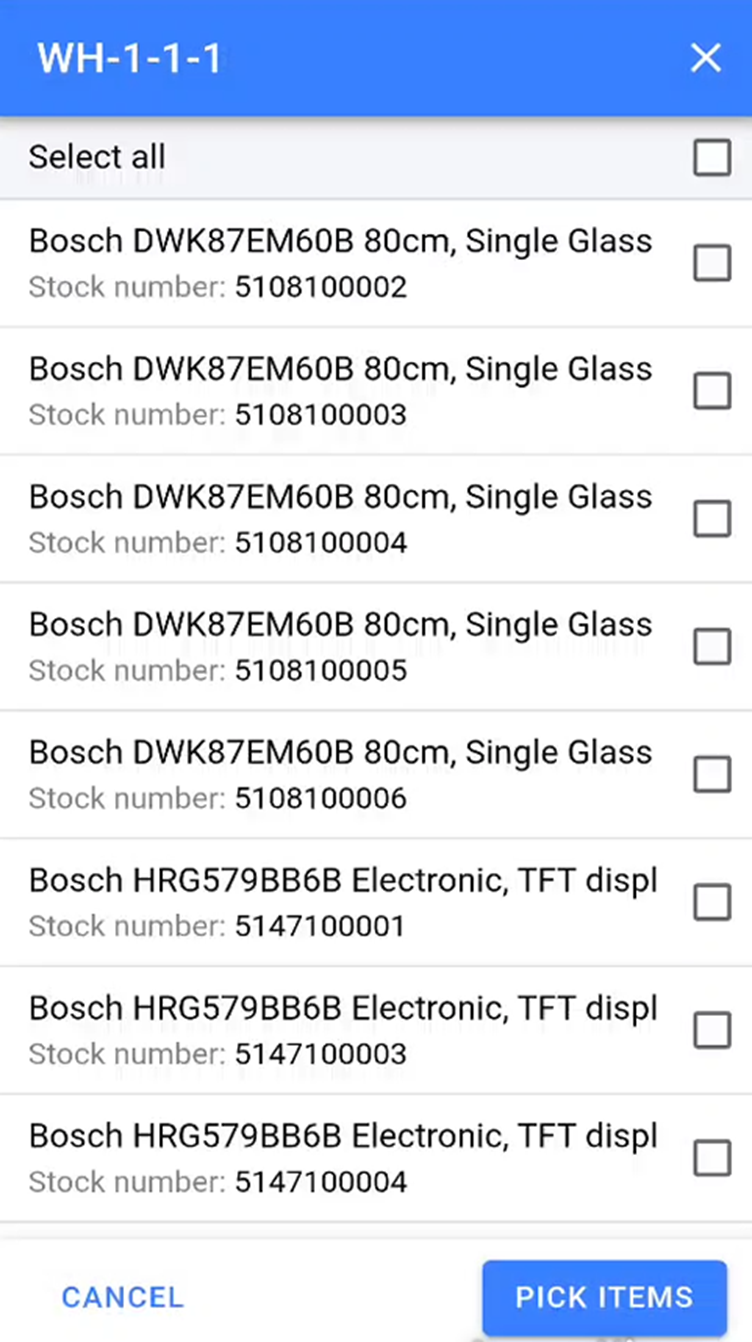
You can manually select the stock numbers you wish to move by tapping on them. Selected items will be indicated by a checked checkbox to the right of each item.
If you wish to bulk move all items from the current location, click the Select All option at the top of the list.
Once you have selected all items you wish to move, click the Pick Items button to confirm the products you are removing from this stock location.
Note: You can continue adding products onto this list again by scanning another stock location and repeating the above step or by scanning stock numbers.
Once you have selected all the items you wish to move click the move item button to confirm the items to move.
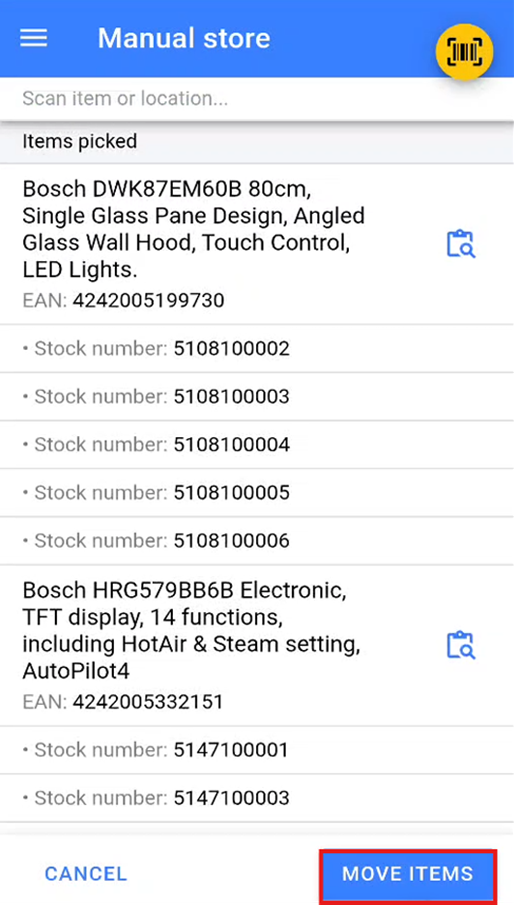
This will open the Move Items screen, where you can either scan a stock location or select one from the dropdown menu. Select the location you wish to move these items to, then click Move Items to confirm the bulk move.