Item Lists
NCompass WAS can build lists of EAN Numbers, by scanning the EAN or the Stock Number label
Start by pressing the Lists option in the Menu
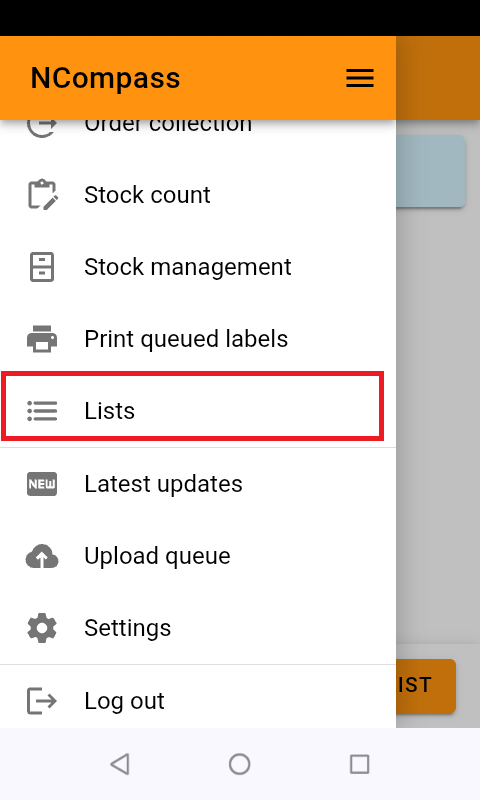
This will show you all lists that you have access to
If you have no lists, this will be empty, you can create a new list by clicking the 'Create List' button
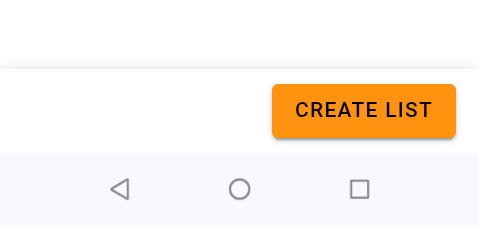
- Click the 'Show Options +' label
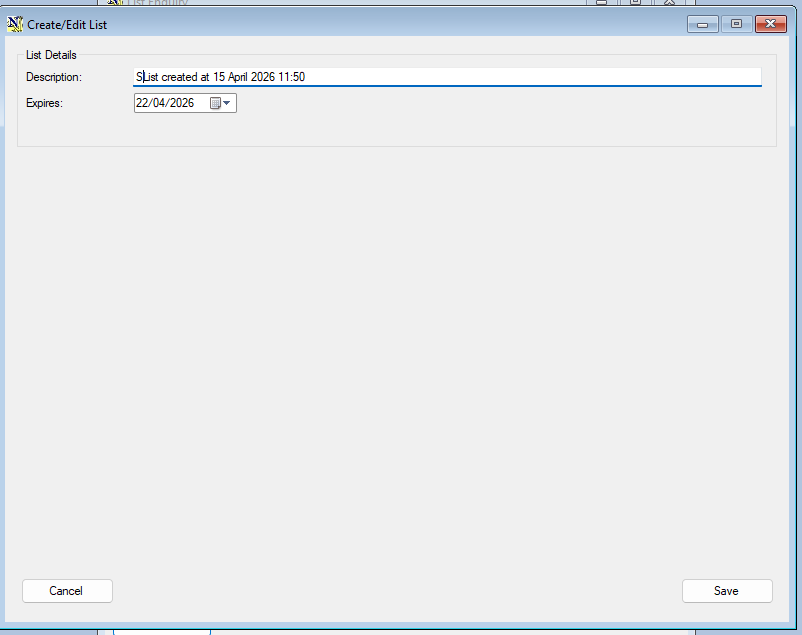
You can now give your list a description and an expiry date
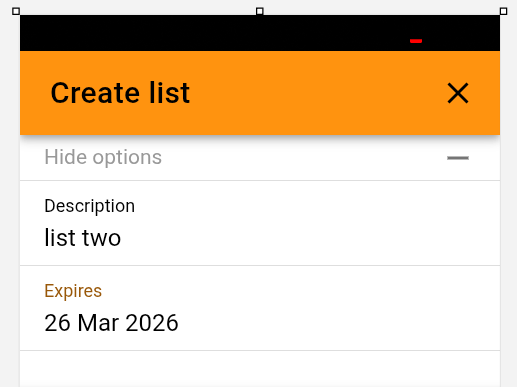
- Then Click 'Submit'
Your list will be added, and you will go back to the list selection screen
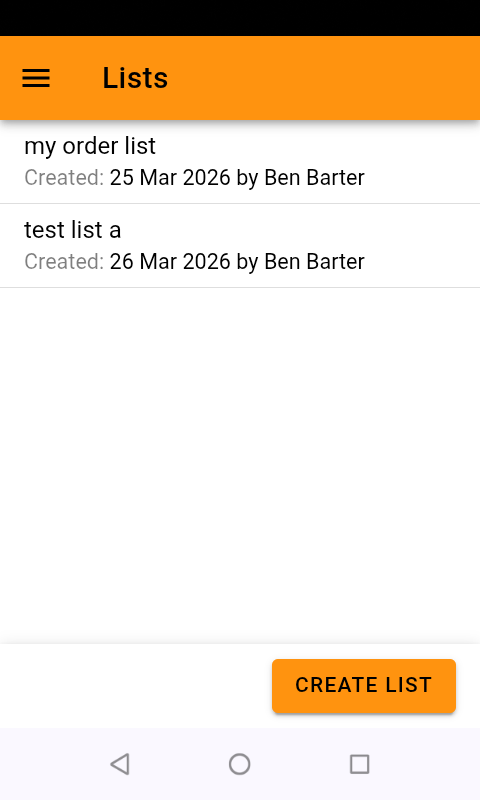
- Click into your list,
Your list will open, if you're revisiting a previous list its contents will loaded
- Scan your items onto your list
Each item will be confirmed
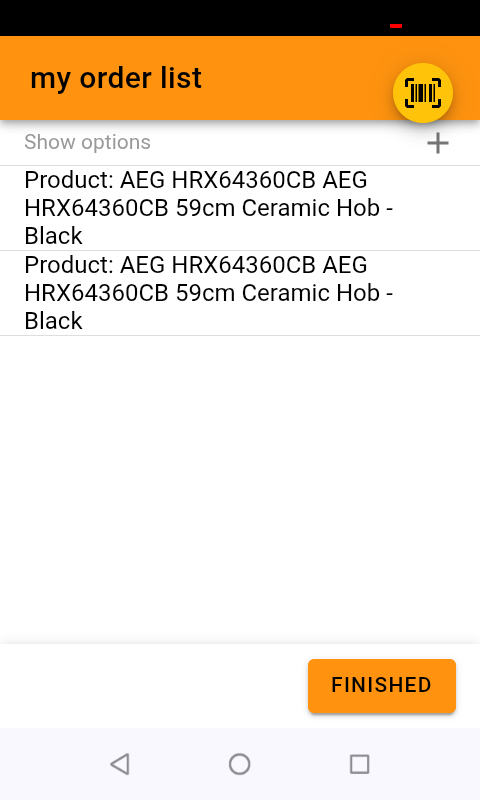
Click 'Finished' and your list will be saved
Scanning barcode that are not in your NCompass System
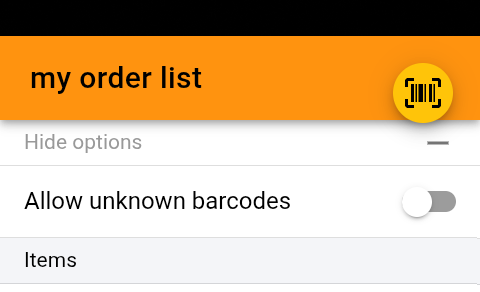
When you're in an active list, you can click the 'Show options' label
you can turn on 'Allow unknown Barcodes'
Use of Lists in NCompass
You can manage your lists in the products menu
Products > Lists >Create List
Products > Lists > List enquiry
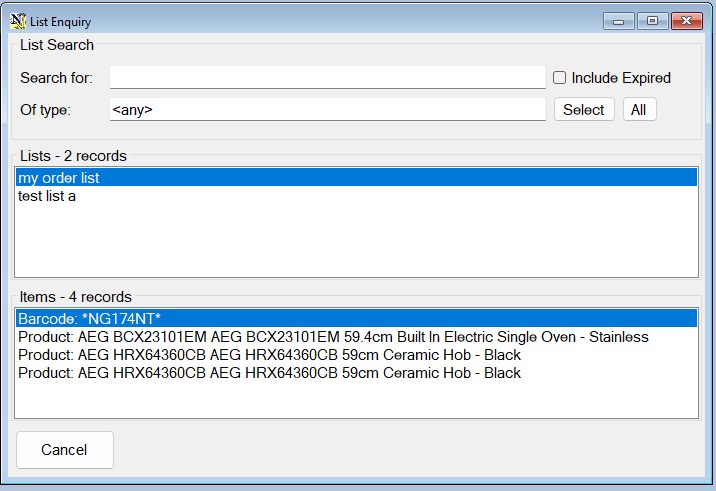
The use of list is being added to various screens in NCompass, at the time of writing, you can use lists to add products to quotes, orders and purchase orders, the lists are accessed by product enquiry
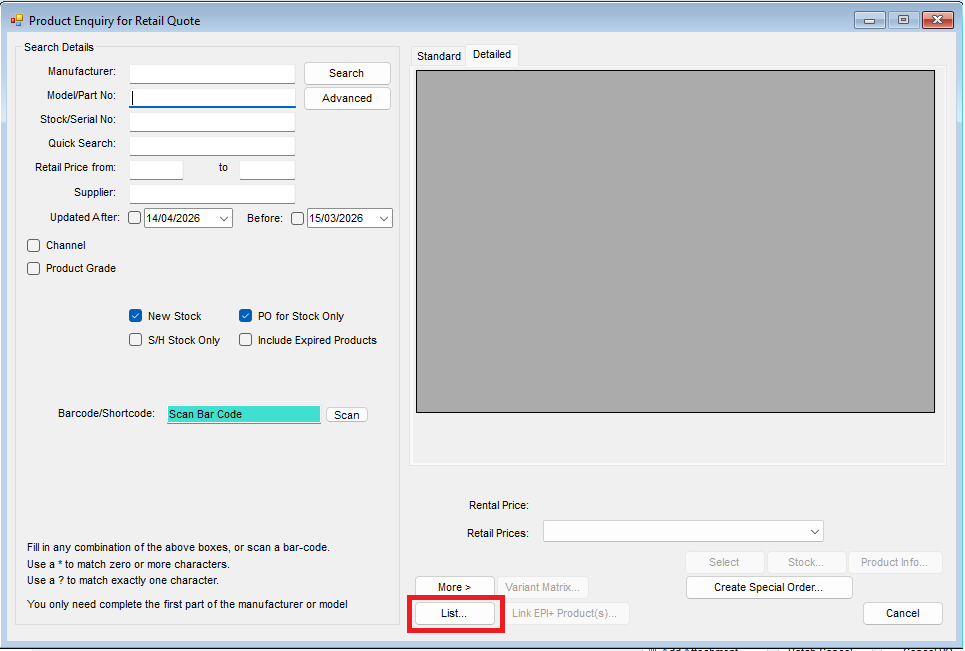
You can select the entire list, or items from the list
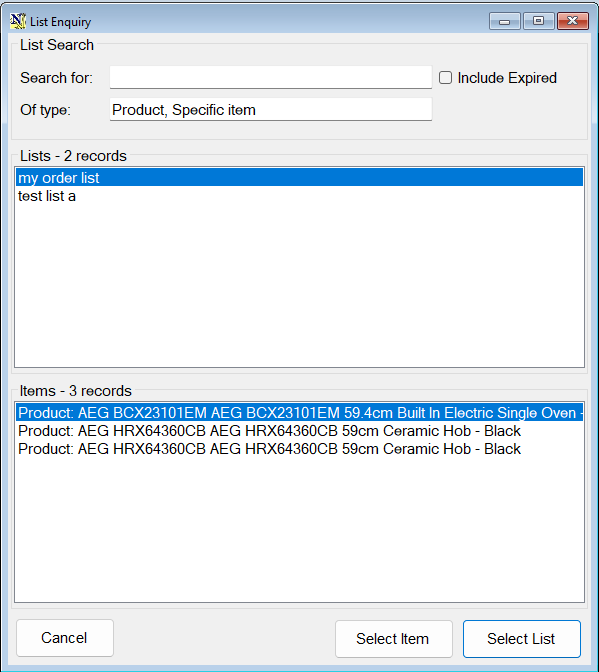
Opening a record from a list
From NCompass 11.16, entries on a list can be opened straight from the list. In Products > Lists > List Enquiry, double-click the Item Description of a stock number entry and the item history for that item opens.
The same works while editing a list: double-clicking the description of an entry opens the matching record - item history for a specific item, or the relevant screen for a listed item, field call or sale.
Entries that can be opened this way are shown as blue links, and entries that can be edited carry an edit icon, so it is clear which cells do something when you click them.
Lists can also be created from the warehouse scanner during a stock take, using the Save as List button on the stock error pop-up. See Stock Take.