Listed Item Swapping
Stock swapping now supports both stock numbers and different models.
If you’re already set up to swap stock numbers on the WAS scanner, no scanner changes are required you just need to configure the swappable products in the Desktop version of NCompass.
Create an Item Group (to Allow Swapping)
-
Go to Administration > Item Groups.
-
Click New to create a group.
-
Enter a name for the group (e.g. the skill or swap category name).
-
Tick the checkbox “Allow item swap within group.”
-
Save the group.
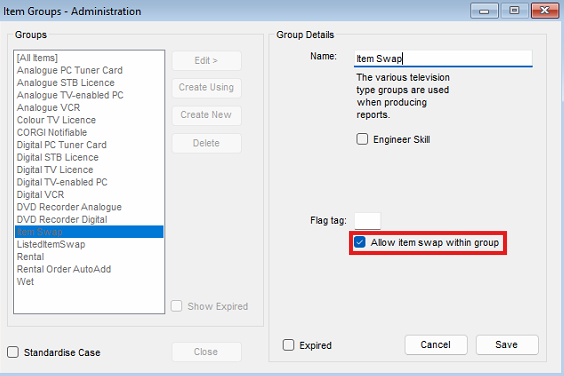
Once enabled, any products added to this group can be swapped interchangeably.
Add a Product to an Item Group
-
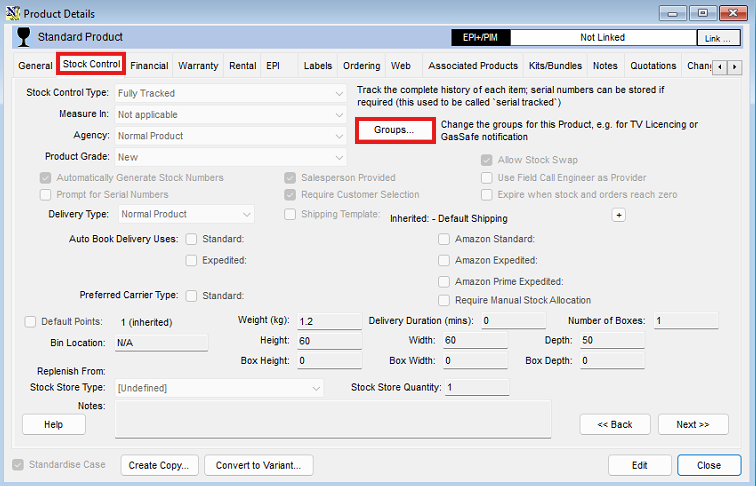
Open the Product Info record for the product you want to add.
-
Go to the Stock Control tab.
-
Click the Groups button.
-
Select the relevant item group you created.
-
Add the group to the product.
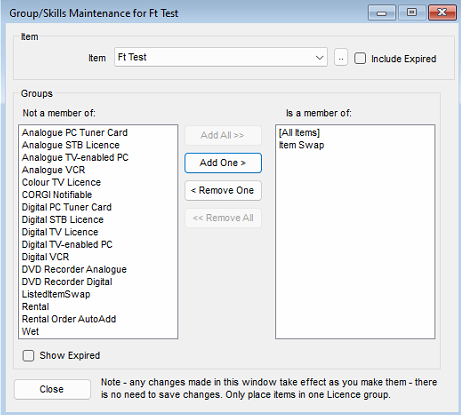
The product can now be swapped with other items in the same group.