Adding and amending Contract Versions
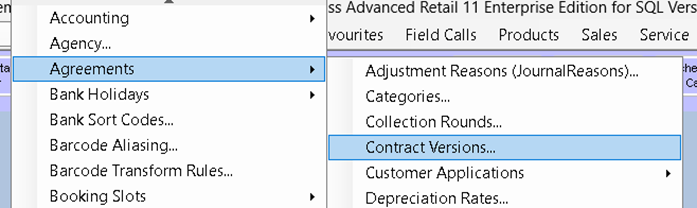
This Admin window allows you to view, add, or amend contract versions. You can also mark a contract version as ‘expired’.
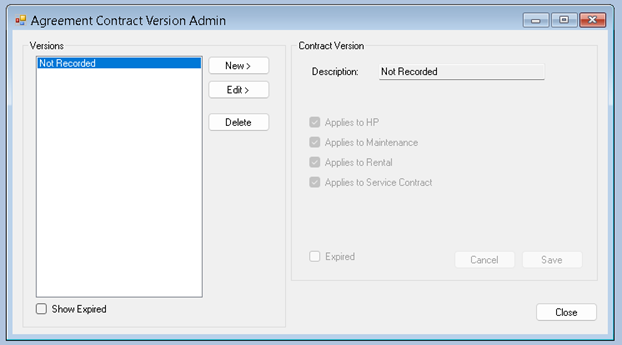
Adding a New Contract Version
- Click ‘New’.
- Enter a name for the contract version.
- Select the type of agreements this version applies to.
- Click ‘Save’.
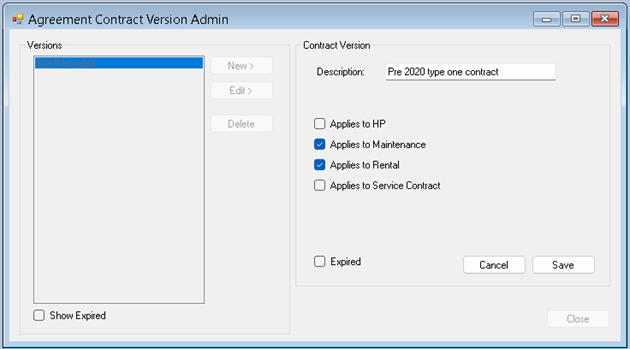
Editing an Existing Contract Version
- Select the version you want to edit and click ‘Edit’.
- You can:
- Change the name.
- Change the agreement type it applies to.
- Mark the entry as expired.
- Once you have completed your changes, click ‘Save’.
Note: Changing the entry name will apply to all agreements where this version is set.
Deleting a Contract Version
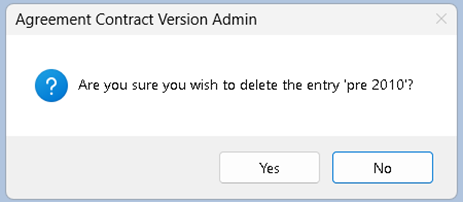
- Select the version you want to delete and click ‘Delete’.
- Click ‘Yes’ to confirm the deletion.
Note: If the entry is in use on any agreements, you will be blocked from deleting it.
Marking a Contract Version as Expired
If an entry is in use on an agreement but you don’t want it to be used in the future, you should mark the entry as expired:
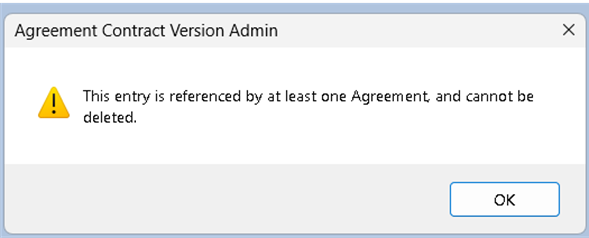
- Click the ‘Expired’ checkbox.
- Click ‘Save’.
Adding a Contract Version to an Agreement
- Start your agreement in the normal way by selecting ‘New XXX Agreement’ from the Agreements menu.
Existing Agreements
- Find your agreement by either:
- Searching for the customer with ‘Customer Enquiry’ from the Customers menu (or pressing F3).
- Selecting ‘Agreement Explorer’ from the Agreements menu (or pressing F5) and entering the agreement number.
- Press ‘Edit Agreement’.
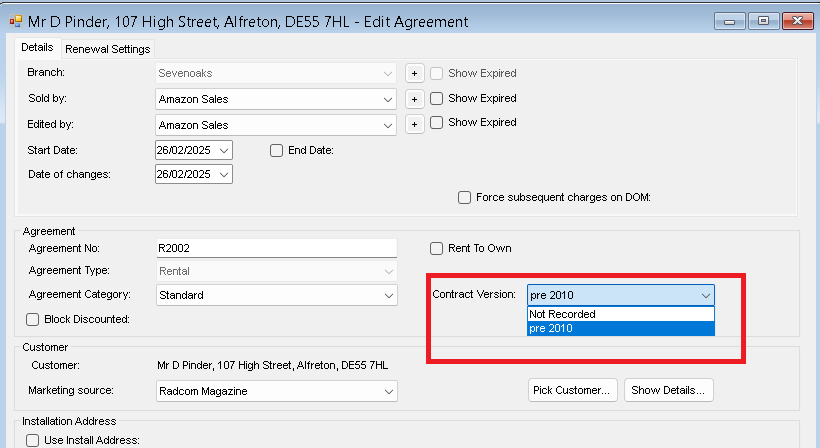
Selecting the Contract Version
- Select the contract version from the drop-down selection box.
- If you’re editing an existing agreement, click ‘Next’, ‘Next’, ‘Save’.
- For new agreements, ensure you have selected the other required fields (please see your agreement guide) and then click ‘Next’ as normal.