Letter Templates
Configuring Renewal Letters in NCompass Email System
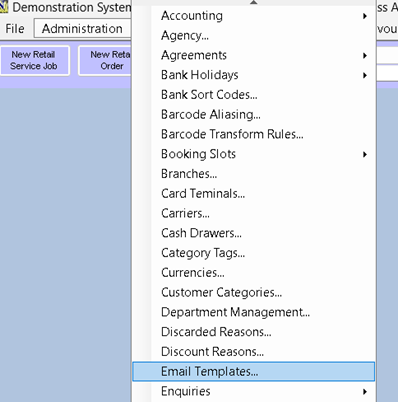
Renewal letters are sent out via the NCompass Email system, the template can be configured in the admin menu.
Assistance
Our Implementations Team will assist you in setting up templates and linking them for you. There is an additional hourly charge for this service.
Adding a New Template
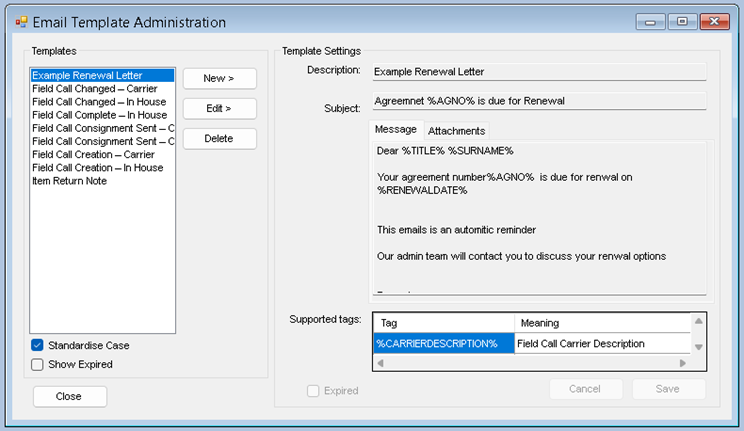
- Click ‘New’.
- Enter your email template text into the message box.
- You can add tags from the list. The tags insert customer or agreement information when the email is sent. The list of tags now includes %RENEWALDATE% and %AGNO%
To attach PDF documents (same document for all customers, e.g., general terms and conditions or promotional documentation):
Click on the ‘Attachments’ tab.
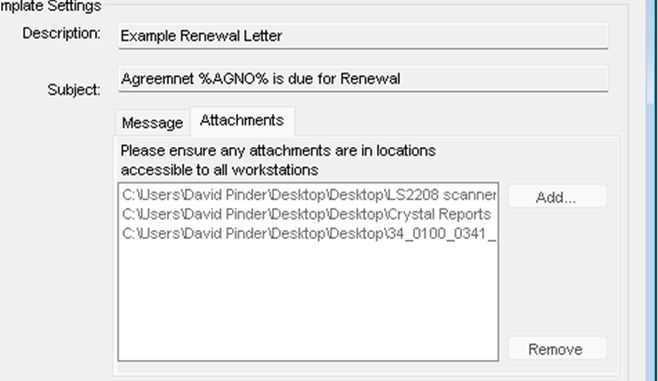
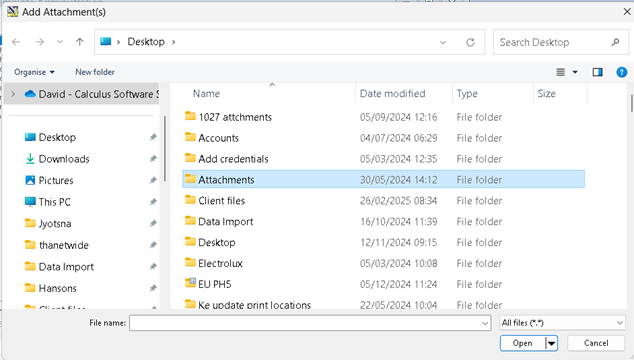
Click ‘Add’ to open a file browser and add your PDF documents.
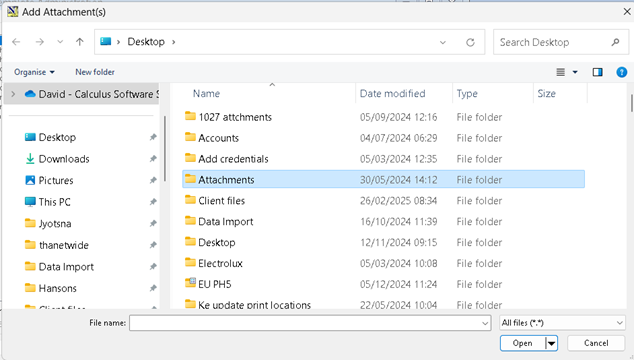
Browse to your file attachment. You can use the normal Windows browsing and selection, including highlighting multiple documents at once.
-
- Click the ‘Open’ button to add them to your list of attachment
- You can add multiple documents by clicking the ‘Add’ button again.
- Click the ‘Open’ button to add them to your list of attachment
Once your message and attachments are complete, click ‘Save’.
Deleting an Attachment
- Highlight your attachment.
- Click ‘Delete’ to remove the attachment from the list.
Editing a Template
- Highlight your template from the list.
- Click ‘Edit’.
- Amend the template as needed.
- Click ‘Save’.