Renewals
Renewal Date
There is a new tab on the agreement setup window (agreement step 1).
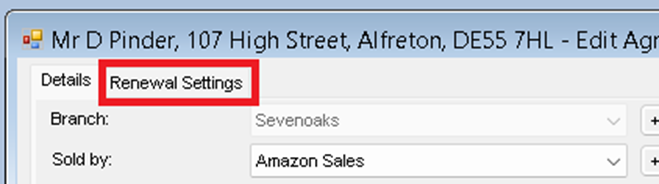
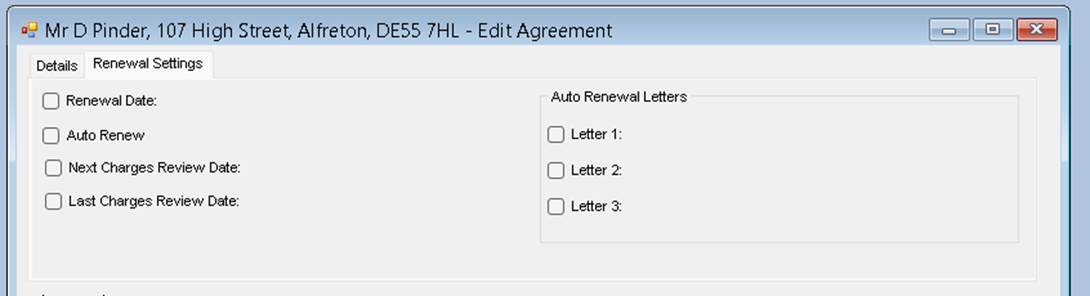
Clicking the tab flips the top part of the window to show the new Renewals section.
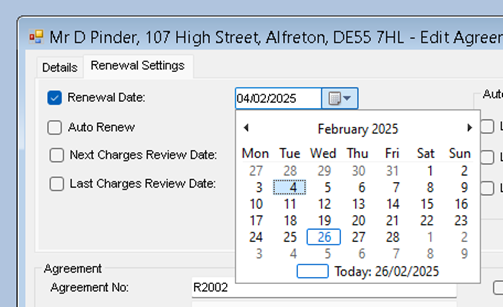
To set a renewal date:
- Click the checkbox and enter the renewal date or click the calendar icon for a drop-down date picker.
Auto Renew
- To set an automatic renewal:
- Click the checkbox.
- Set an extend-by number and a period.
Note: When auto renew is set, the system will automatically move the renewal date on by the selected time period when the agreement reaches its renewal date.

Auto Renew Letters
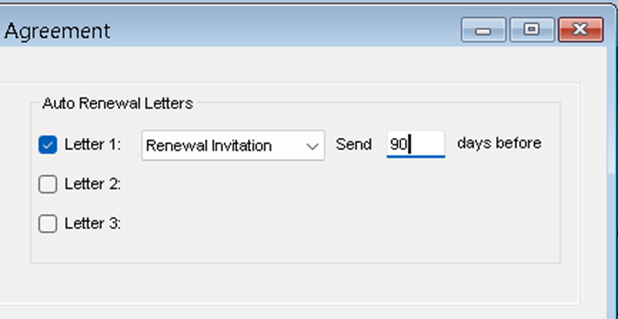
- The system can send up to three different email letters to the customer. They are sent automatically at a set number of days before the renewal date, and once sent, an entry will appear in Agreement Explorer.
- The renewal letters are sent as emails from the system's email template system and must be set up in advance of adding the letter to the agreement.
- To enable and configure the letters:
- Click the checkbox to enable letter one.
- Select the letter template from the drop-down list of templates.
- Enter the number of days in advance of the renewal date to send this letter.
- Repeat for letters two and three if required.
Note: If an agreement fails to send a configured renewal notification, it could be due to:
- An error sending the email to the customer.
- The customer not having an email address set.
NCompass will automatically create an Agreement Review of type Renewal Requiring Attention. If an open review already exists of this type, a duplicate is not created.
Next Charge Review Date
- This is the date when you next need to review the current rate on the agreement.
- To set the next charge review date:
- Click the checkbox and enter the review date or click the calendar icon for a drop-down date picker.

This will trigger an automatic review when the date is reached.
Last Charge Review Date
- This allows you to record the date the last charges were reviewed.
- To set the last charge review date:
- Click the checkbox and enter the review date or click the calendar icon for a drop-down date picker.
