Processing The Review
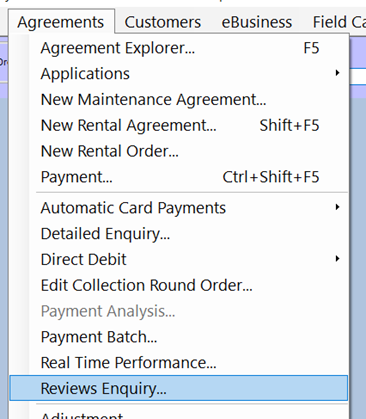
Review Enquiry
This will open the Review Enquiry window.
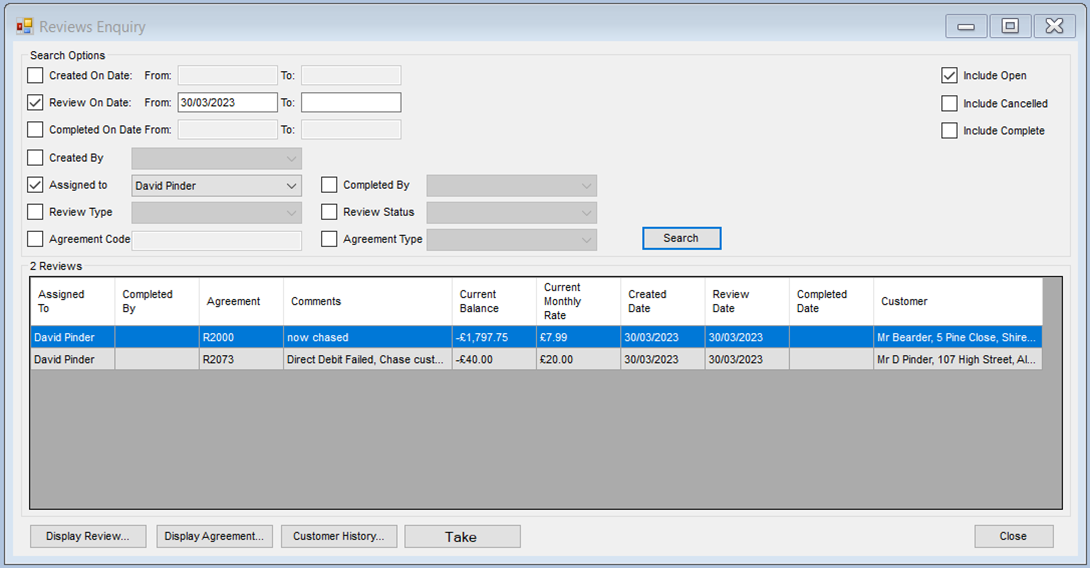
Default Enquiry Search Settings
The following defaults are normally set for the enquiry search:
- Reviews with an open status.
- Reviews that need actioning from today’s date.
- Reviews assigned to the signed-in operator.
You can check any required filters and select the available options from the drop-down lists.
Searching for Reviews
- Click the ‘Search’ button.
Button Options
- Display Review
- Display Agreement
- Customer History Notes
- Take Payments
Display Review
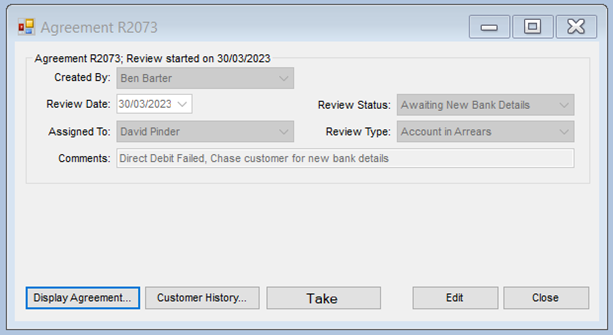
- Highlight the required review and click ‘Display Review’ (or you can double-click the entry you want).
This will open the review on screen.
Updating the Review
You can update the review by clicking the ‘Edit’ button.
Options for Updating
- Re-timing the review – Set a new date for the review to be actioned.
- Reassigning the review – Change the assigned person from the dropdown.
- Change the status – Update the status to a new one.
- Changing the comments – Extend or add new comments.
Note: If you amend the comment, the original comments remain in the customer history. The amended or new comment is also added to the customer history along with the agreement number. If you are adding notes to close a review, there is a separate note field for this.
Closing the Review
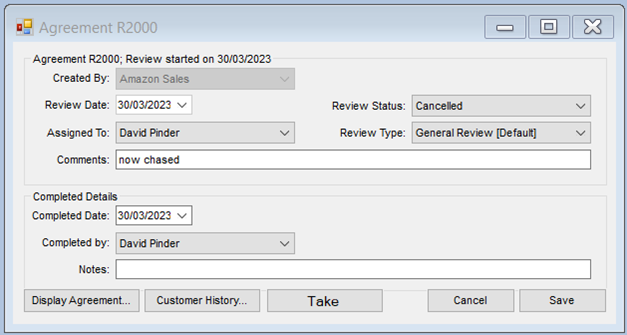
A review is closed by selecting a new status that has the ‘Treat as Complete’ attribute. When selecting this type of status, a completion details section will appear automatically.
Steps to Close a Review
- Enter a completion date.
- Enter the person completing the review from the dropdown.
- Enter any completion notes.
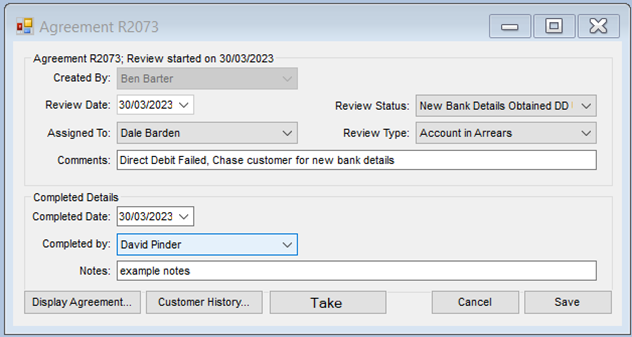
Note: Completion notes are automatically added to the customer history as well as to the review completions. If you reopen a review, the completion section will still be visible so that you can see the notes.
Cancelling a Review
Selecting any status that has a ‘Treat as Cancelled’ attribute will mark the review as cancelled. It’s the same process as completing a review.
Steps to Cancel a Review
- Click ‘Edit’.
- Select a status that’s treated as cancelled. The completion details will be displayed.
- Add the reason why the review is being cancelled in the notes section.
- Click ‘Save’.
Reopening Reviews
Once a review is marked as complete, it is automatically locked. If you require the ability to reopen completed or cancelled reviews, please speak to your systems administrator.
User Rights for Editing Closed Reviews
If your user rights allow you to edit closed reviews, you will receive a confirmation dialogue.
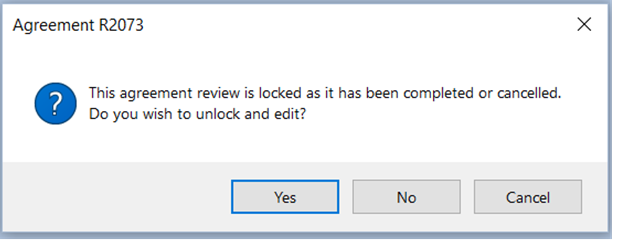
Once unlocked, the review will stay unlocked until it is given a new completion status.