Managing Search Terms & Redirects
This guide explains how to manage search terms, redirect customer searches, and create permanent (301) URL redirects in Magento 2.
Before you begin
- You must have access to the Magento Admin.
- If the website has multiple store views, confirm which store view the change should apply to.
- For category navigation managed by NCompass, create the department or category in NCompass first and allow the synchronisation process to create it in Magento.
Important: Search term redirects and URL rewrites serve different purposes. Use a search term redirect when a customer enters a particular phrase in the website search. Use a URL rewrite when an existing page address must send visitors to a different page.
1. Add a search term
Search terms can improve the customer journey by directing common queries to more relevant results or a specific landing page.
- Sign in to the Magento Admin.
- From the sidebar, go to Marketing > SEO & Search > Search Terms.
- Select Add New Search Term.
- Complete the fields under General Information:
- Search Query: Enter the word or phrase customers are expected to search for.
- Store View: Select the store view to which the term applies.
- Redirect URL: Optional. Enter the destination URL if the query should open a particular page instead of displaying normal search results. This may be an internal page or a full external URL.
- Display in Suggested Terms: Set this to Yes if the term should be suggested when a search returns no results.
- Select Save Search.
Example
A search query such as televisions could redirect customers to the main television category page.
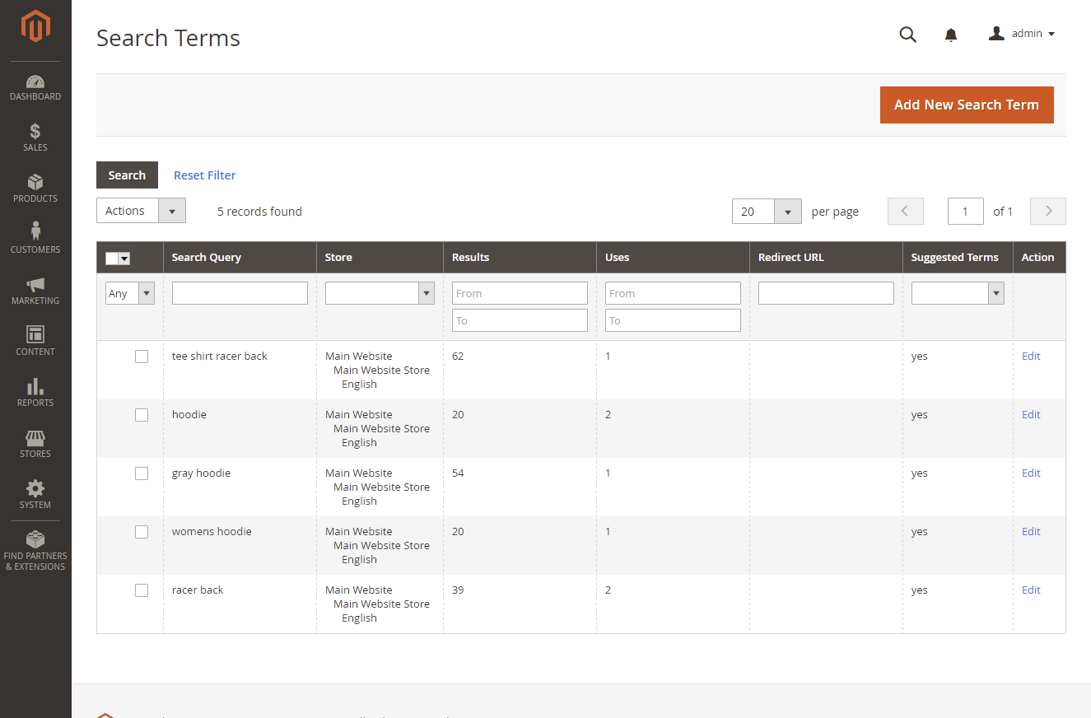
2. Edit an existing search term
- Go to Marketing > SEO & Search > Search Terms.
- Select the relevant row in the Search Terms grid to open it.
- Update the required fields.
- Select Save Search.
3. Delete a search term
A search term can be deleted from either the grid or its edit page.
Option A: Delete from the grid
- Go to Marketing > SEO & Search > Search Terms.
- Select the checkbox beside the term.
- Set Actions to Delete.
- Select Submit and confirm the deletion if prompted.
Option B: Delete from the edit page
- Open the relevant search term from the Search Terms grid.
- Select Delete Search.
- Select OK to confirm.
4. Search Terms grid reference
| Column | Description |
|---|---|
| Search Query | The word or phrase used to perform the search. |
| Store | The store view in which the query applies. |
| Results | The number of results returned for the query. |
| Uses | The number of times the query has been used. |
| Redirect URL | The destination page used when the query is redirected. |
| Suggested Terms | Shows whether the query can appear as a suggested term. |
| Actions | Opens the search term for editing. |
5. Create a permanent 301 URL redirect
Use a URL rewrite when an old or alternative URL must permanently direct visitors to a new destination. A permanent 301 redirect also tells search engines that the page has moved.
Step 1: Identify the destination
- Open the destination page on the website.
- Copy the part of its URL that appears after the domain name. For example, from
https://www.example.co.uk/televisions.html, copytelevisions.html. - In Magento Admin, go to Marketing > SEO & Search > URL Rewrites.
- Search the Request Path column for the copied value.
- Open the matching rewrite and note its Target Path. A category target may resemble
catalog/category/view/id/2966.
Step 2: Add the redirect
- Return to the URL Rewrites grid and select Add URL Rewrite.
- Set Create URL Rewrite to Custom.
- Complete the following fields:
- Request Path: Enter the old address that should redirect. Do not include the domain name or a leading slash. Example:
old-televisions.html. - Target Path: Enter the destination. For a Magento category, use the target path identified above. For another internal page, use its relative URL key or path. For an external website, enter the complete URL, including
https://. - Redirect Type: Select Permanent (301).
- Store View: Select the appropriate store view if this field is available.
- Description: Optional, but recommended. Briefly record why the redirect was created.
- Request Path: Enter the old address that should redirect. Do not include the domain name or a leading slash. Example:
- Select Save.
Internal links: Use a relative path rather than the full website domain where possible. This prevents the redirect from becoming tied to the current domain name.
Step 3: Clear the cache and test
- Go to System > Cache Management.
- Select Flush Magento Cache.
- Open a private or incognito browser window.
- Visit the old URL and confirm that it opens the intended destination.
- Confirm that the browser does not enter a redirect loop and that the destination page loads normally.
Troubleshooting
The old URL returns a 404 page
- Confirm that the Request Path does not contain the domain name or a leading slash.
- Check that the rewrite was created for the correct store view.
- Flush the Magento cache and test again.
The redirect opens the wrong page
- Check the Target Path against the URL rewrite belonging to the intended destination.
- Search the URL Rewrites grid for another entry using the same Request Path.
- For external destinations, confirm that the full URL includes
https://.
The redirect loops
- Ensure the Request Path and Target Path do not resolve to the same address.
- Check whether another Magento, web-server, or CDN redirect points back to the original URL.
Completion checklist
- The correct store view has been selected.
- The Request Path contains no domain name or leading slash.
- The Target Path points to the intended internal page or complete external URL.
- The redirect type is Permanent (301).
- The Magento cache has been flushed.
- The old URL has been tested in a private browser window.