Helpdesk Promotional Information Block
The Helpdesk supports an optional promotional/information block which is displayed at the top of the Helpdesk when content has been configured.
This block can be used for promotional banners, service announcements, important customer information, or other content that should be visible when a customer accesses the Helpdesk.
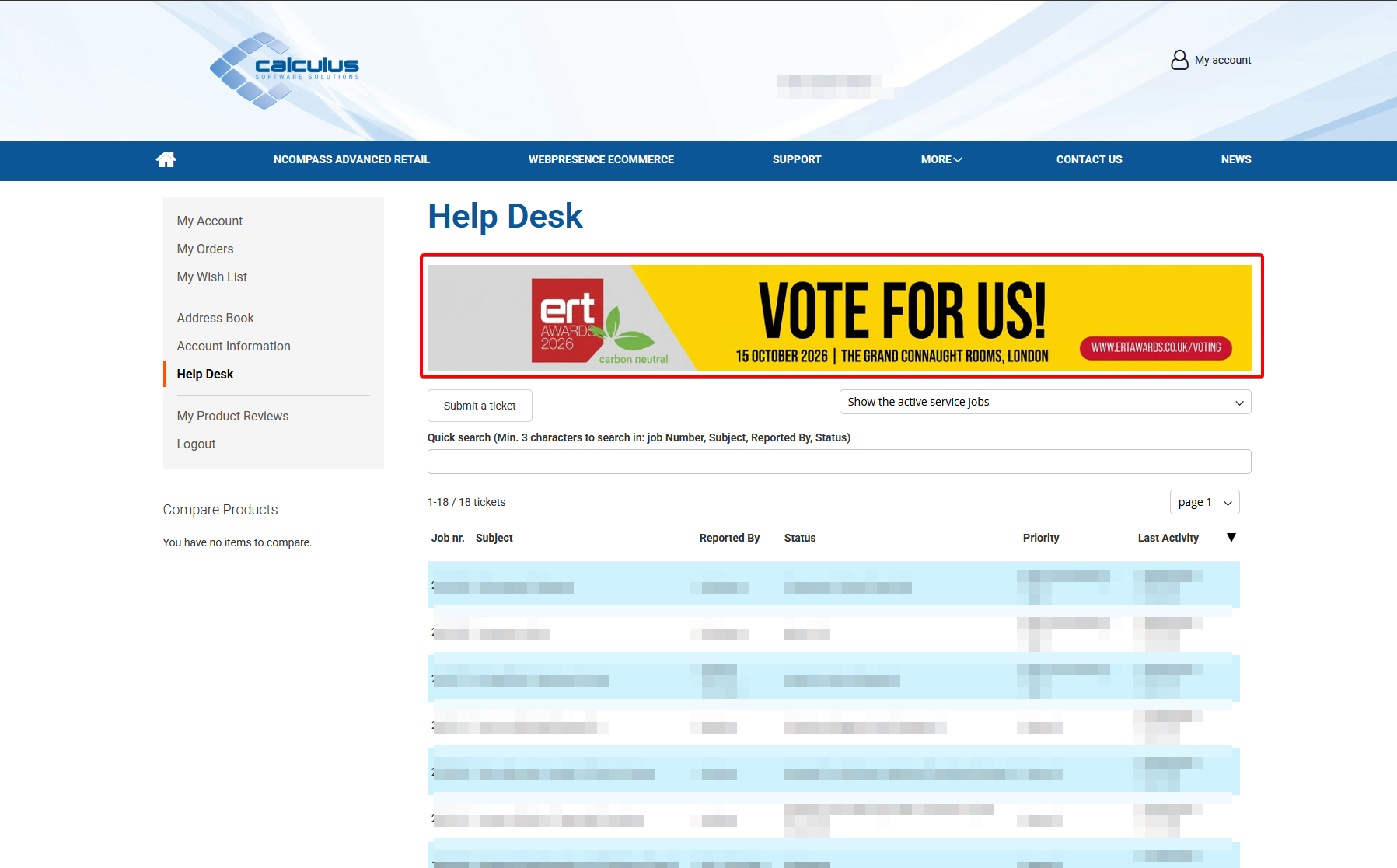
Recommended Banner Dimensions
By default, the Helpdesk information block is configured with:
-
Maximum width: 1060px
-
Maximum height: 140px
Both dimensions are configurable through the website design and can be changed if required. However, it is recommended that the default dimensions are retained where possible.
Important: Content larger than the configured dimensions may be restricted or cropped by the Helpdesk's maximum width and height settings.
Locating the Helpdesk Banner Block
To manage the Helpdesk promotional block within Magento:
-
Log in to the Magento Administration Panel.
-
Navigate to Content > Blocks.
-
Search or filter the block list for the following identifier:
helpdesk-banner -
Locate the relevant block.
-
From the Select menu, choose Edit.
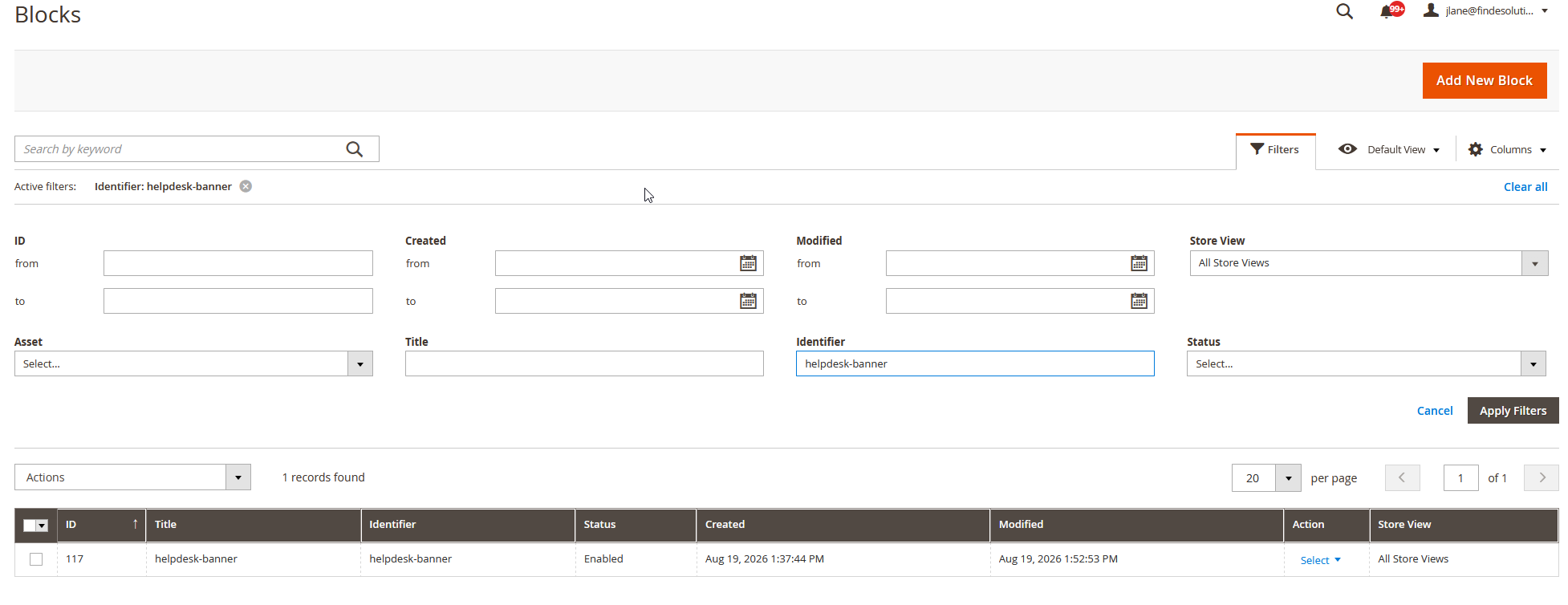
Any content configured within this block will be displayed in the promotional information area at the top of the Helpdesk.
Creating the Block
If the helpdesk-banner block does not already exist:
| Field | Value |
|---|---|
| Block Title | helpdesk-banner |
| Identifier | helpdesk-banner |
-
Add the required promotional or informational content.
-
Ensure the block is enabled.
-
Click Save.
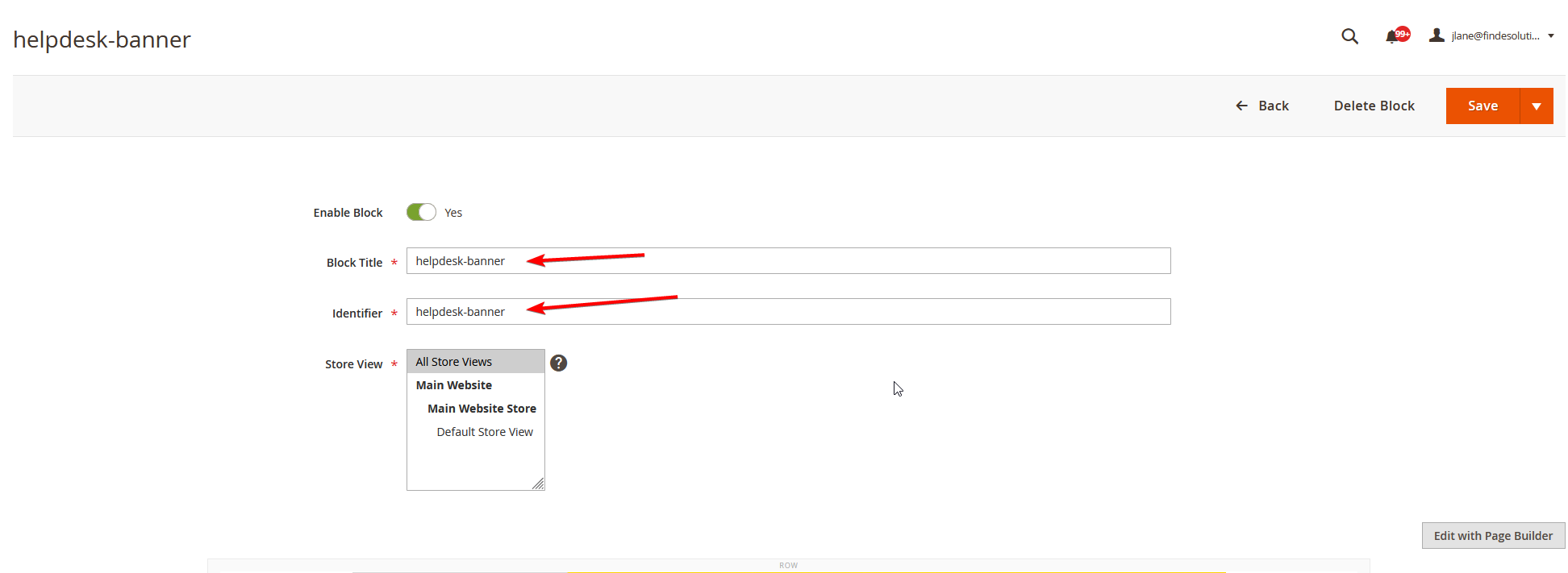
Once saved, content within this block will be available for display at the top of the Helpdesk.
Updating the Banner Content
The block can contain standard Magento CMS content, including text and imagery.
This helps maintain image proportions and avoids banners appearing distorted or compressed.
Applying Changes to the Frontend
After creating or modifying the helpdesk-banner block, flush the Magento cache to ensure the updated content is displayed on the storefront.
System > Cache Management
Then select:
Flush Magento Cache
Once the cache has been flushed, return to the Helpdesk on the frontend and confirm that the promotional information block is displaying correctly.
Removing the Promotional Block
If promotional information is no longer required, remove the content from the helpdesk-banner block or disable the block.
An empty block will prevent promotional content from occupying unnecessary space at the top of the Helpdesk.