Product Search Advisor
This module is a chargeable module, if you are interested in this module, please reach out to our admin team on the following link to inquire Click Here
If you have already purchased this module, please continue.
Introduction
Our product search advisor is a powerful tool that allows your customer to quickly search and find a product using and advanced configuration of your filters across your products to drive this quick catalogue search using a smart intuitive interface. Please see a basic user interaction using the advisor below.
To briefly explain the video, this allows the user to select a category, and using your own configuration of the advisor you can guide your customers to shop by relevant results related to those category. for example, TVs to be shopped by size, laundry to be filtered by load size, and/or installation type, and this can all be configured using our smart front end utility.
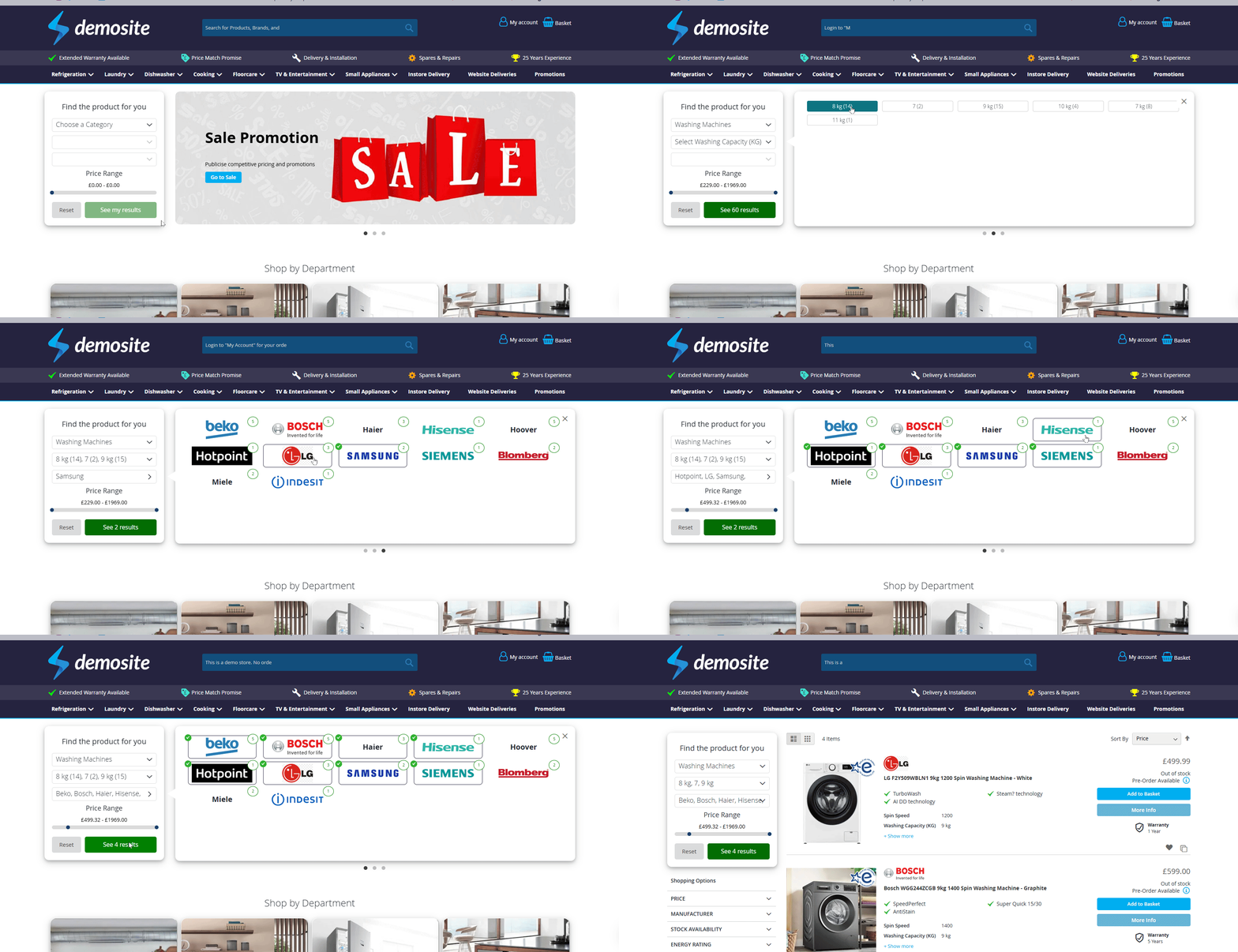
once this module is enabled for you, a front-end utility becomes available to you to use in a variety of different configurations. it will display by default all categories available to you.
Dynamic Filters Configuration
Open the Configurator
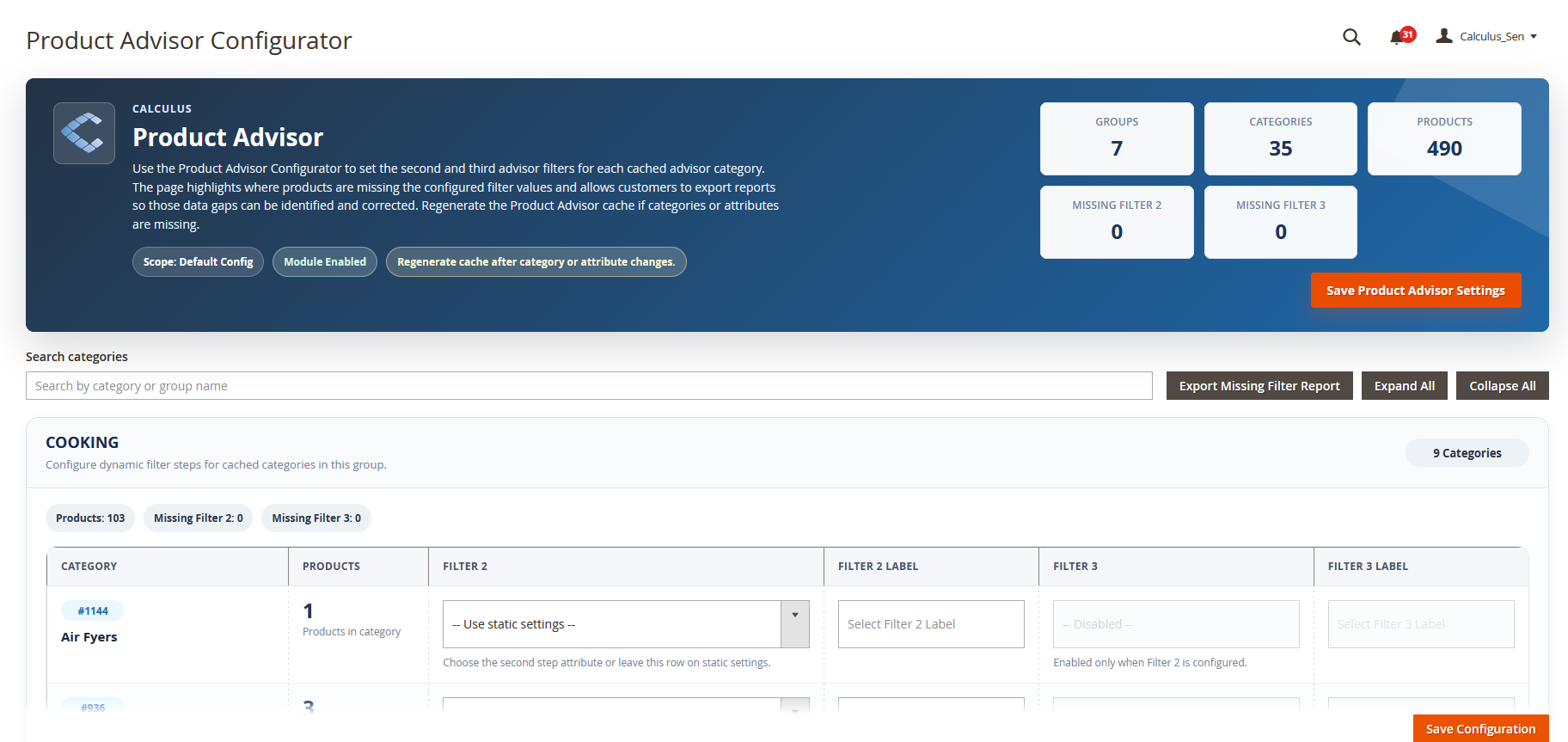
From here you will see each parent category separated into its own block. Within each block you will configure the specific attributes which will be used for the sub department.
Configure Attributes
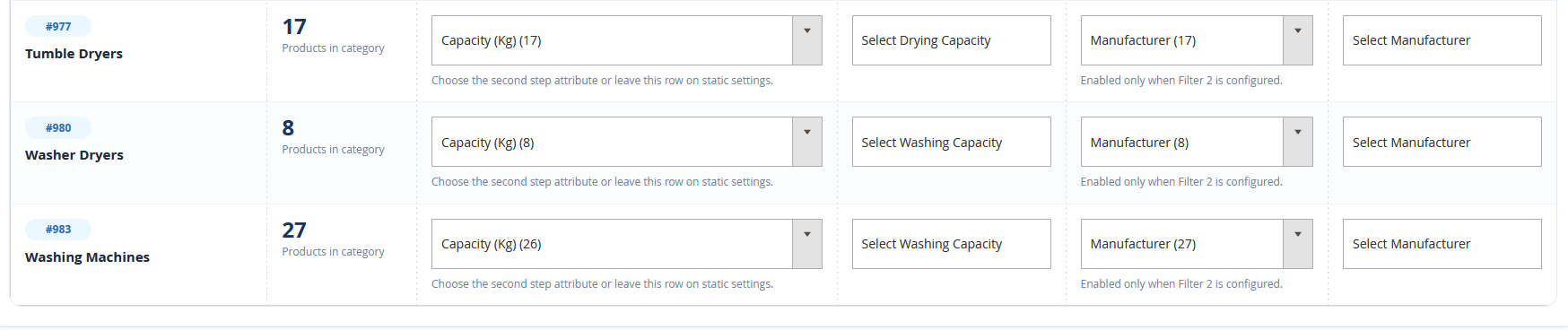
In the example bellow we have used the Washing/Drying Capacity attributes as Filter 2, the manufacturer as Filter 3 and adjusted the labels accordingly.
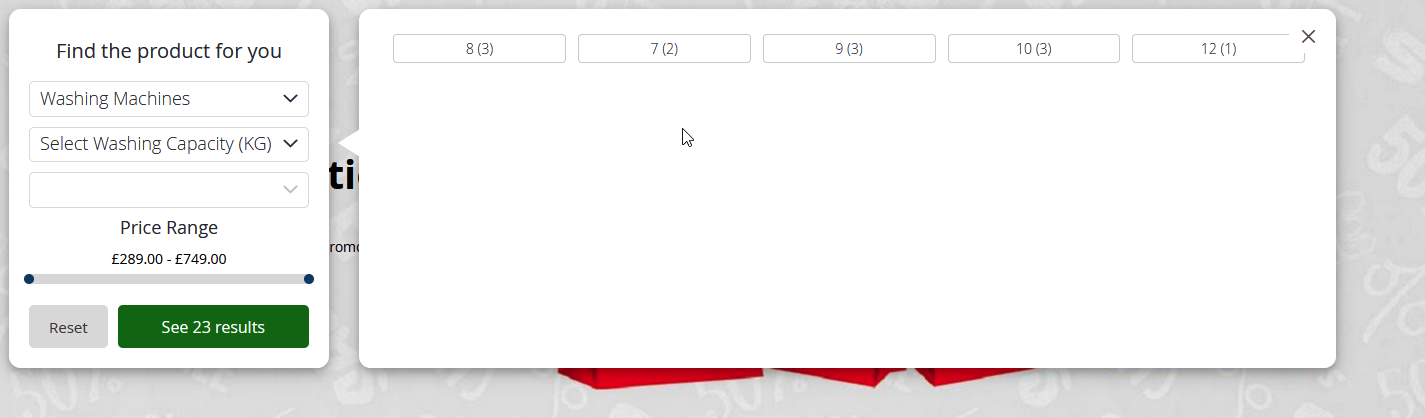
You can see how this will look on the website here:
Missing Attributes
You can see here that there are 13 products in Floorcare but only 10 have the Colour attribute.

To view all products that are missing filter attributes, click Export Missing Filter Report in the top right of the page.
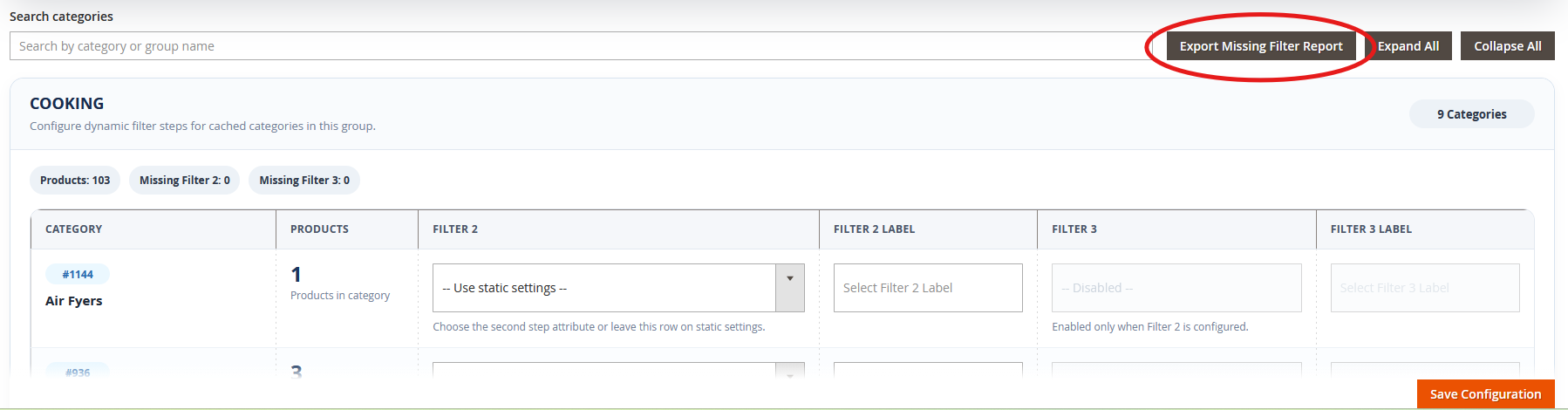
This will then generate an Excel file of all missing attributes from individual products.
Save Changes
Once you have finished configuring your filters you must press Save Configuration at the bottom of the page and flush the cache.
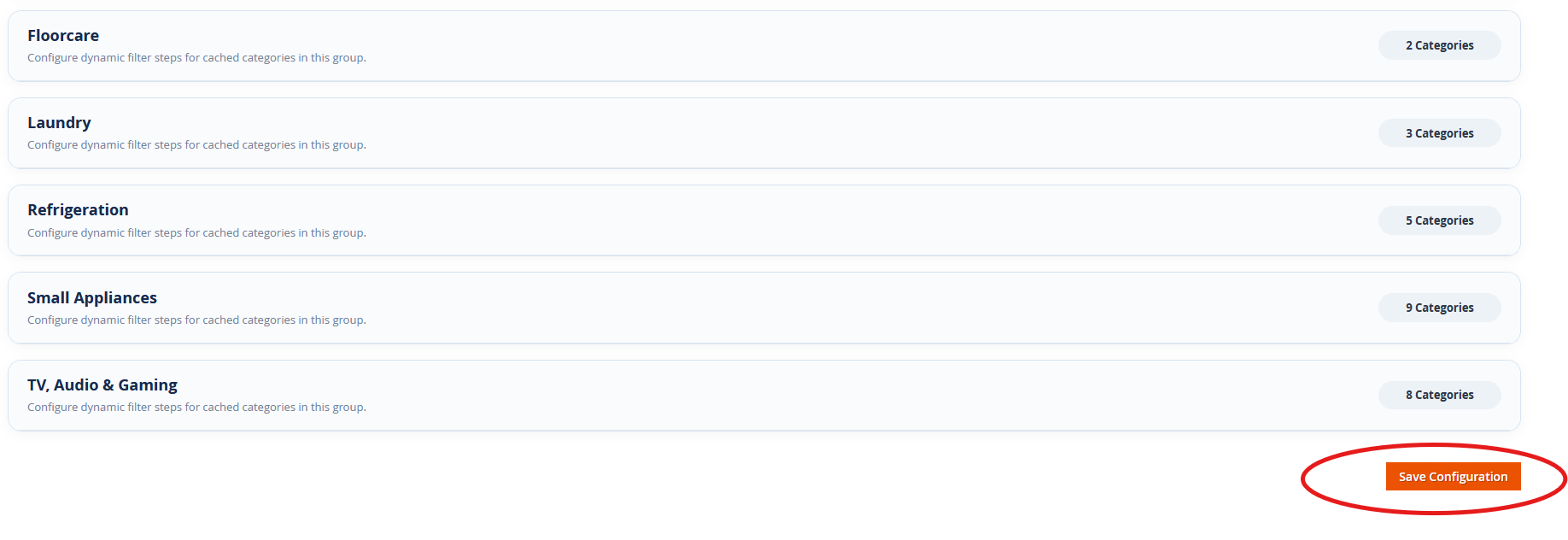
Optional: Search Advisor Widget
With the Products Search Advisor enabled you will also have the ability to inject the advisor as a widget throughout the site but with some caveats.
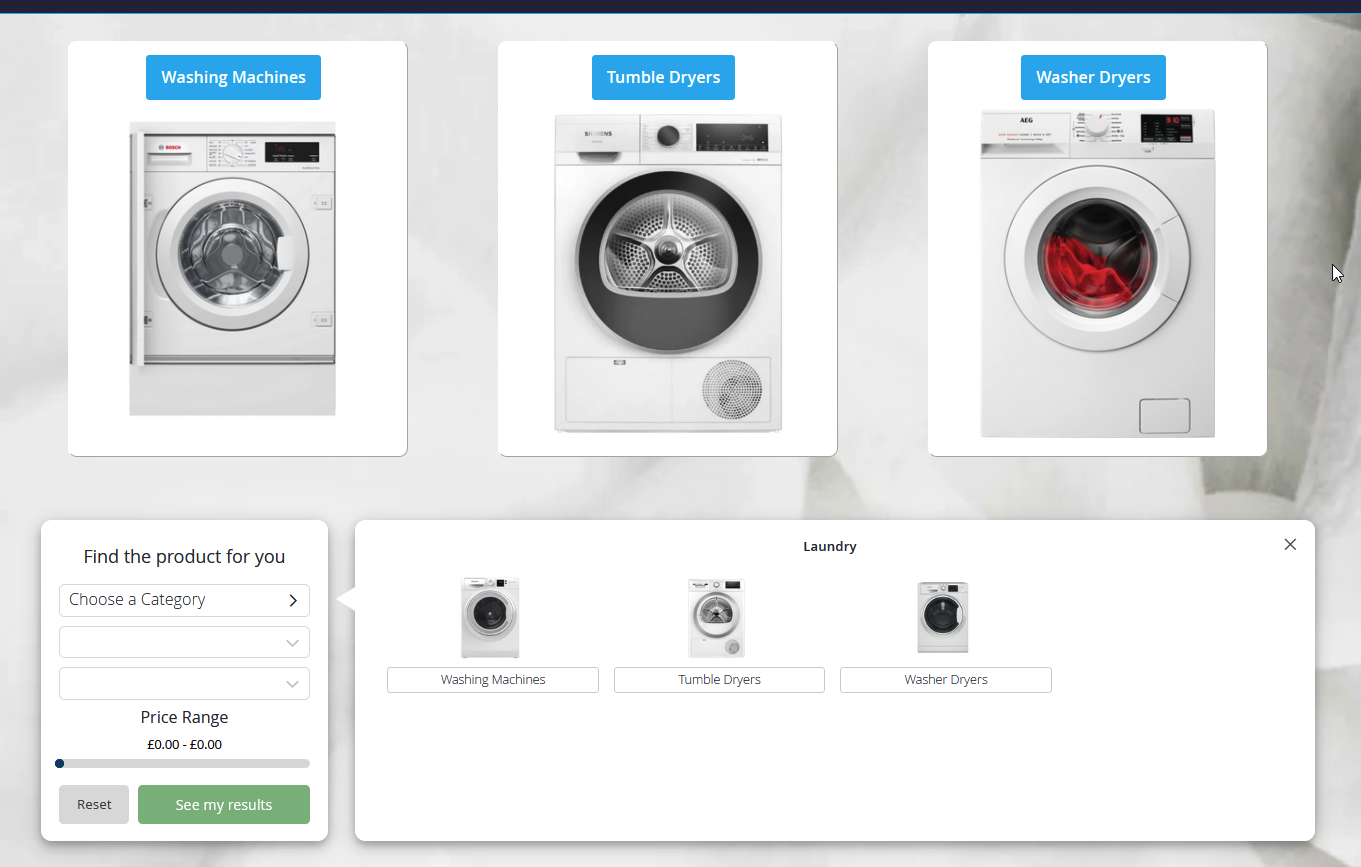
In the example above the advisor has been added to a laundry landing page and displays just the sub departments of Laundry in the first filter. This is achieved using a HTML code element in Magento's page builder.
Start with adding a HTML code element to your block or page. Once added, select the  icon that appears when hovering over the element. In here you will select
  and select product advisor from the Widget Type dropdown.
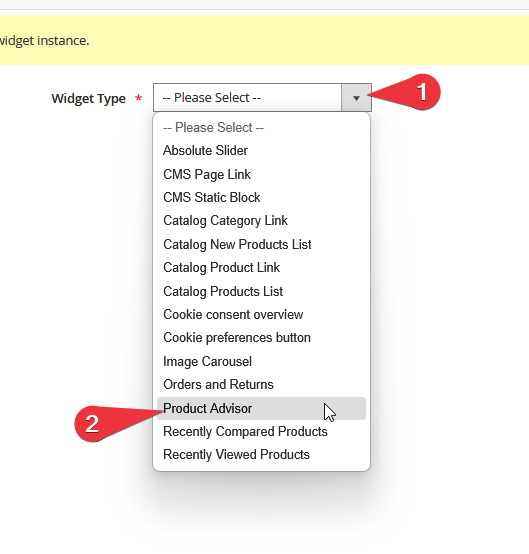
You should no see a new dropdown called Category. Select the parent department you want to use for the first filter.
NOTE: The advisor can only use a single department when used as a widget.
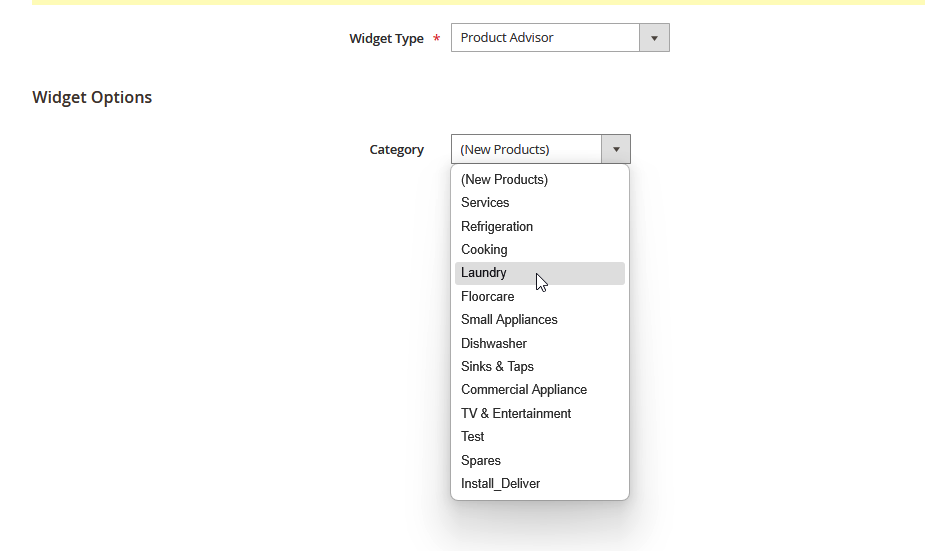
Once you have selected your department, now press  and save your block/page.