Managing "Options" on Product Pages in NCompass
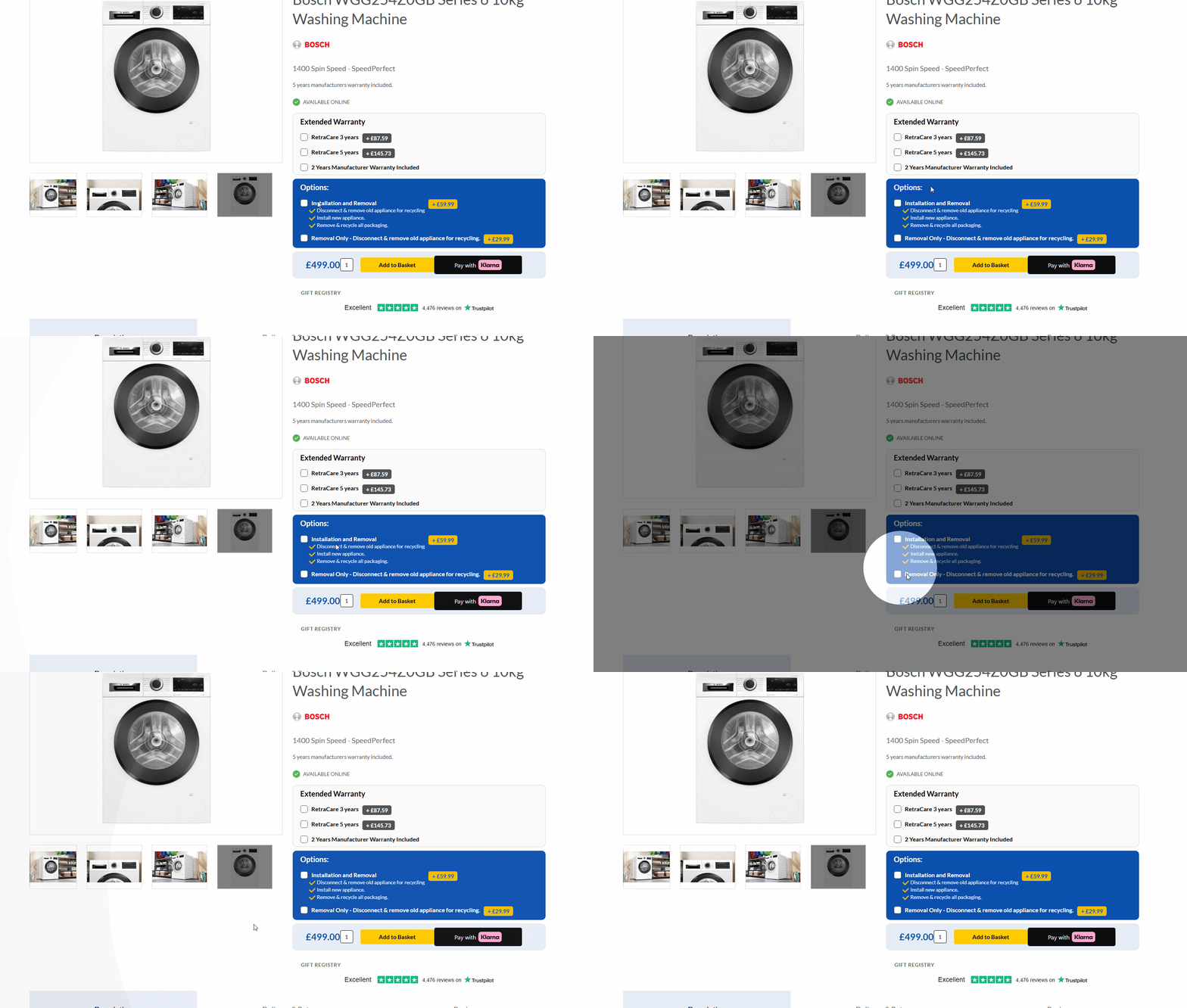
This section explains how to manage the Options that appear on your product pages from within NCompass, specifically for associating services with your categories.
1. Prerequisites: Setting Up Service Products
Before you can associate services with categories, ensure the following requirements are met:
-
Product Exists in NCompass
-
The service must be set up as a Non Controlled item in NCompass.
-
These are typically found under the "Service Products" department in your system.
-
-
Web Price Set
-
A web price must be entered in the Retail Pricing window within NCompass.
-
-
Product Title Configured
-
In Product Info, under the Web / Multi-channel Settings section, ensure the Product Title is set.
-
⚠ Important: If any of these requirements are not met, the service options will not appear correctly on your product pages.
2. Associating Services to Categories
Once the service products meet the requirements above, you can associate them with your categories.
How category associations work:
-
Associations operate on a hierarchical basis.
-
If you assign a service at a department level, it will cascade down to all products in subcategories.
- These must be set as "Web: Checkout Options" in Part 2.
Examples:
-
Assigning a "Remove/Recycle" charge to the Laundry category will automatically apply it to all subcategories such as Washing Machines, Washer Dryers, and Tumble Dryers.
-
For services that differ between product types (e.g., installation fees for Freestanding vs. Integrated appliances), set them at the lowest relevant category level to ensure they only apply to the correct products.
3. Demonstrations
-
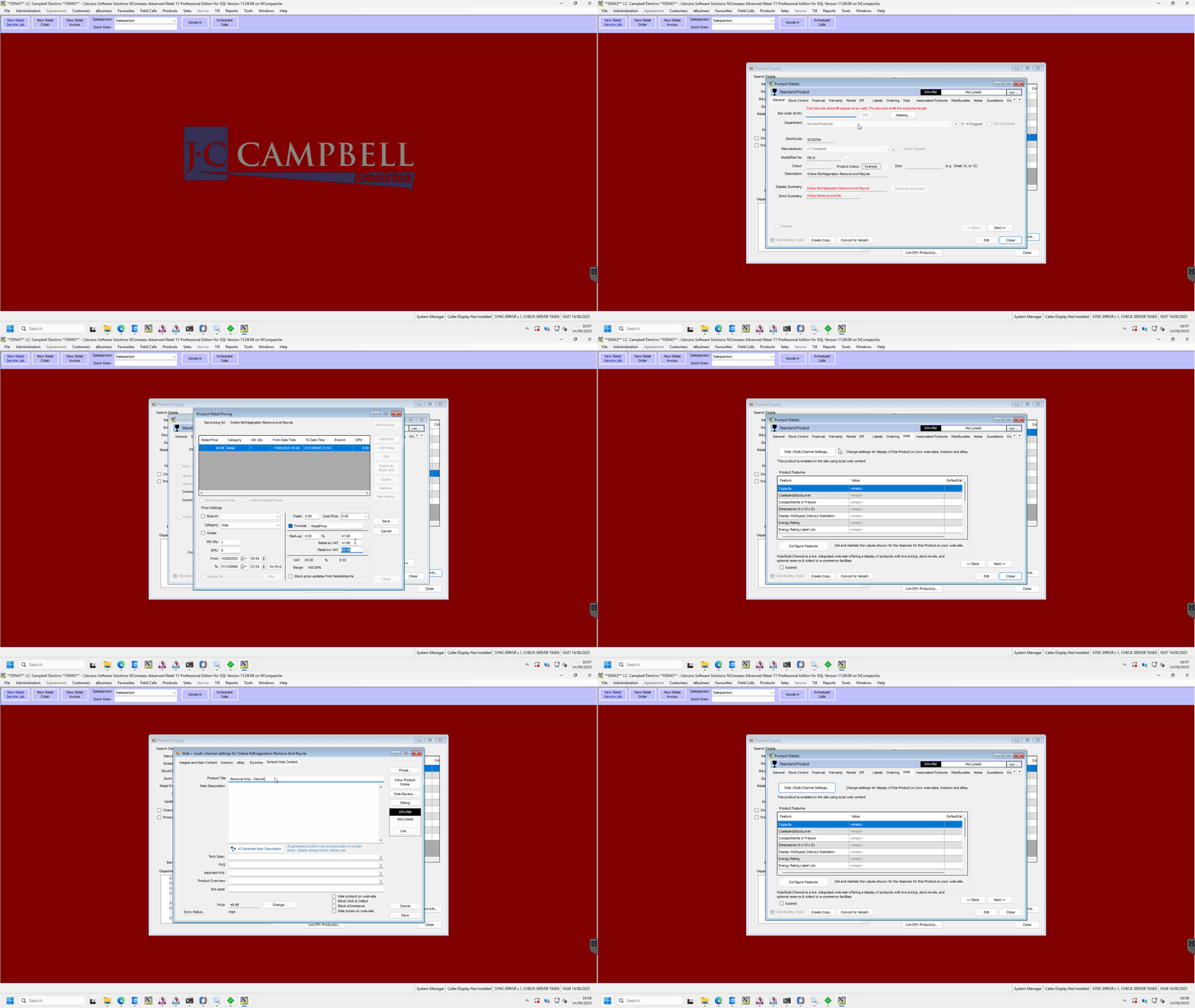
Part 1: Setting up a Service Product in NCompass.
- This covers locating an existing service item
- checking the financial information on the product (Existing web pricing)
- locating the web information and setting the "Product Title" accordingly
-
Part 2: Associating that service product (charge) to the correct category or subcategory.
- This Shows you how to associate the services to your departments
- ensuring you you've applied all checks in Part 1 for your service, add the associated charge as a "Web: Checkout Option".
