Overtime
Everything here is under HR > Overtime. Overtime follows the same manager-then-HR approval pattern as holidays, with one extra step: after working the overtime, the staff member records the time actually taken, and HR signs off against the actuals.
Remember the security default: the Manager and HR overtime approval queues are denied by default and must be granted in Security Roles (see Configuration & Staff Setup).
My overtime requests
HR > Overtime > My Overtime View
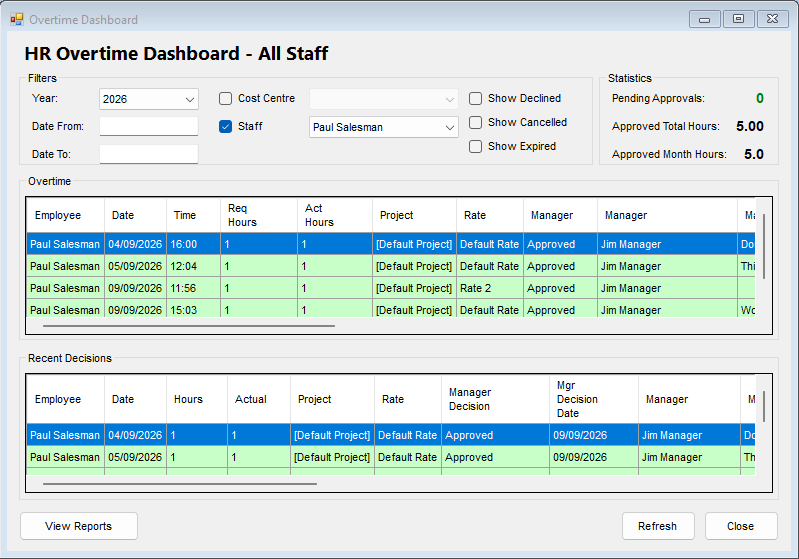
Filters: year, date range, cost centre, Staff, and whether declined, cancelled and expired requests are shown. The Staff filter lists the people the signed-in user is entitled to see - a manager gets the staff who report to them, while a user with HR status gets all staff.
New overtime request
HR > Overtime > Submit New Overtime Request (or New Request on My Overtime View)
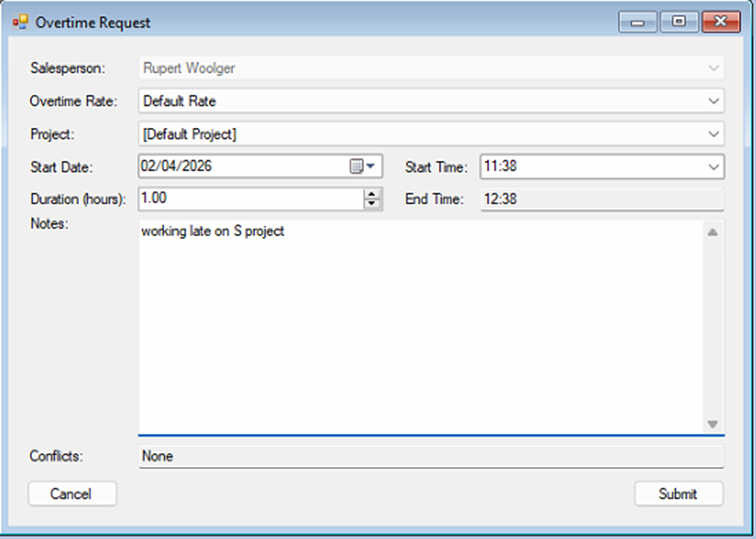
- The staff member's name is pre-selected.
- Select the Overtime Rate - if your organisation has more than one rate, pick the right one.
- Select the Project if you use NCompass project tracking; otherwise leave it on the default project.
- Enter the start date and time, and the expected duration in hours - the end time is calculated automatically.
- Add any notes and click Submit.
Any clash with the person's existing overtime is shown as a warning before submitting. The request then goes to the staff member's manager(s) for approval.
Editing and cancelling
- Edit Request - highlight the request, click Edit, change the details and save. A request can only be edited while the manager has not yet made a decision.
- Cancel Request - highlight the request, click Cancel and confirm. Pending and approved requests can be cancelled.
Recording actual time
Once the request is approved, the staff member records what was actually worked: highlight the request on My Overtime View and click Record Actual Time.
Enter the actual start time and end time (or duration). Overtime can run past midnight into the next day, up to 24 hours in total. If the actual time exceeds what was requested, the screen warns before saving.
- If the actuals are within the approved request, it moves to HR for final sign-off, and HR is emailed.
- If the actuals exceed the approved request, it goes back to the manager, who must re-approve before HR can sign off. The manager is emailed, and the request is highlighted in the manager's queue as needing re-approval.
When the actual time exceeds the request
A manager's approval only covers the hours that were asked for, so a request whose recorded actual time is longer than the approved estimate is sent back to the manager rather than straight on to HR.
- The request reappears in the Manager Overtime Approval Queue, flagged as needing re-approval and showing the actual hours alongside the original estimate, so the manager can see at a glance why it has come back. The row is highlighted in the queue.
- Opening the request shows a warning giving the actual hours against the estimated hours.
- The manager is emailed to say a request is waiting for re-approval, quoting the estimated and actual hours.
- The request is held out of the HR Overtime Approval Queue until the manager re-approves it, so HR never signs off hours the manager has not seen.
- Its overall status reads Pending Manager Reapproval - Actual Exceeded Estimate, and the hours are left out of the person's approved overtime totals until the re-approval is done.
While a request is waiting for re-approval the staff member can still go back into Record Actual Time and change the figures - they are asked to confirm they want to update the time already recorded. Correcting the actuals back to within the approved estimate clears the re-approval and sends the request on to HR in the normal way.
Re-approving passes the request to HR for final sign-off as usual. Declining at this stage ends the request and HR sign-off no longer applies, so a manager who will not accept the extra hours should decline with a note explaining why rather than leave the request sitting in the queue. Requests that already had their actual time recorded before the re-approval step was introduced are not pulled back for re-approval; they carry on through HR sign-off unchanged.
The re-approval step applies wherever overtime is approved - NCompass desktop, the NCompass Web UI and NCompass Anywhere all follow the same rule, and every check of "has a manager approved this?" takes the outstanding re-approval into account.
Approving overtime
Manager approval
HR > Overtime > Manager Overtime Approval Queue
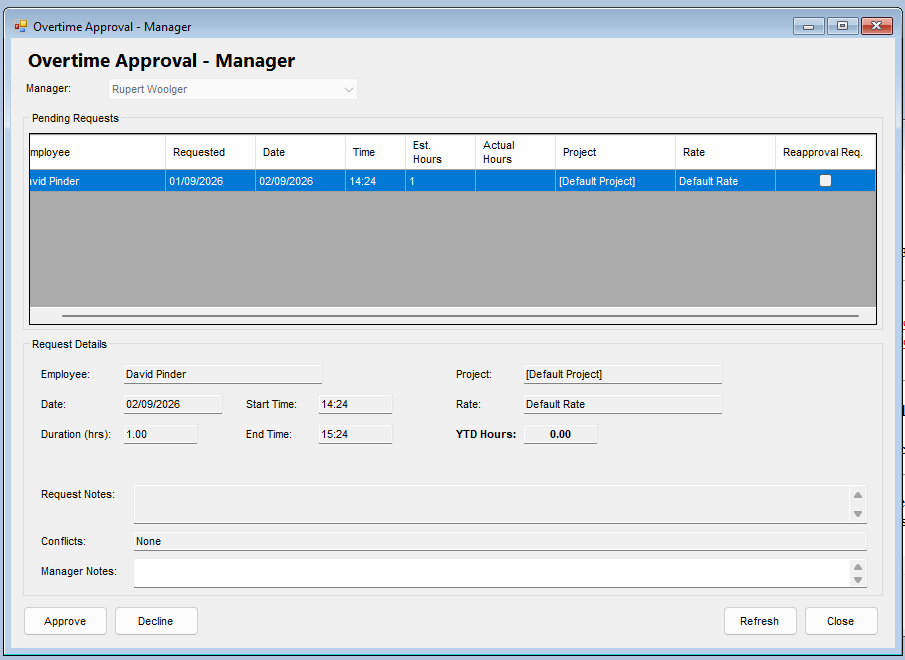
Pending requests from the staff who report to the selected manager, including any flagged for re-approval because the actual time exceeded the estimate. Selecting a request shows the project, rate, timings, the person's total approved overtime for the year, any clashes, and the request notes.
- Highlight the request.
- Click Approve or Decline. Declining requires a note and ends the request.
HR approval
HR > Overtime > HR Overtime Approval Queue
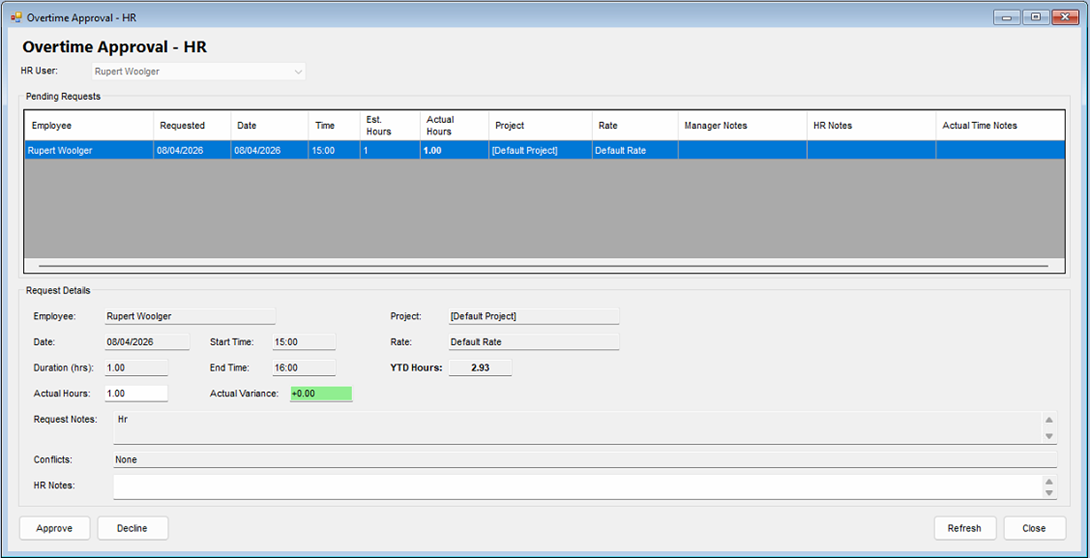
The final stage. The HR queue only lists requests whose actual time has been recorded - HR approves what was actually worked, and the screen shows the actual hours against the request with the variance highlighted. Approving a request with a variance asks for confirmation. Approve or decline as above.
Overtime dashboard
HR > Overtime > Overtime Dashboard/Overview
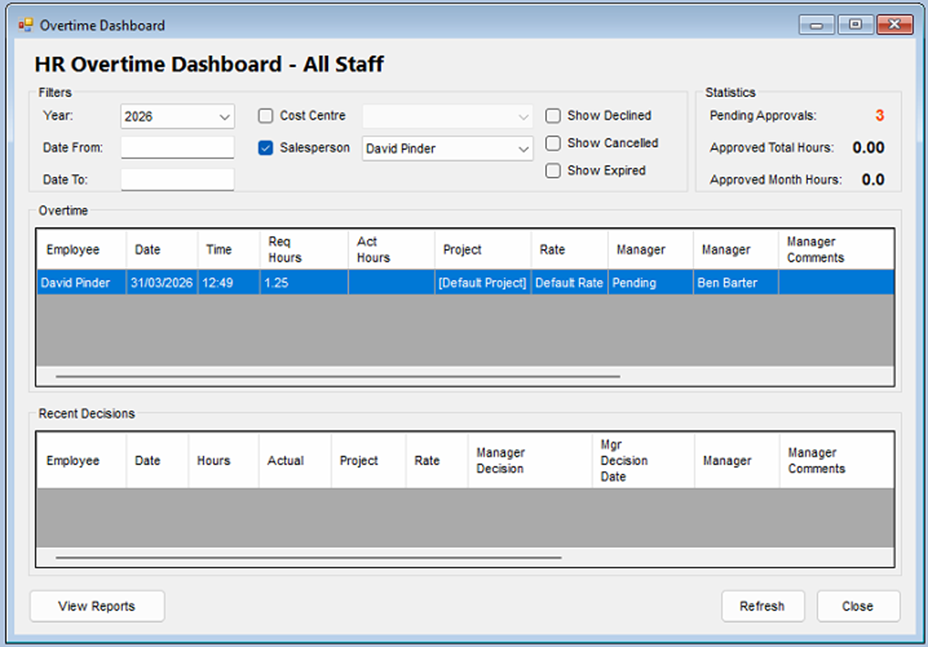
An overview of overtime booked and recent decisions, shaped by role exactly like the holiday dashboard (personal / manager / HR views). Headline figures show pending approvals and the approved hours for the year and month. Filters: year, date range, cost centre, staff, and whether declined, cancelled and expired requests are shown.
The dashboard's View Reports button is not yet available - use the Overtime report below.
Approving from the web - NCompass Anywhere and the Web UI
Both overtime approval queues are available away from the desktop, so managers and HR can clear their queues from a phone, tablet or browser. In NCompass Anywhere they sit on the HR menu (supplied as the Anywhere: HR menu), which offers Manager overtime approval queue and HR overtime approval queue. The same two screens are reached from the HR area of the NCompass Web UI. Holiday screens are desktop-only for now.
Access is controlled by exactly the same security functions as the desktop queues, so a user only sees a menu entry if their security role grants the matching overtime approval function - and remember both are denied by default. Nothing else needs configuring: a manager who can approve overtime on the desktop can approve it in Anywhere.
Screenshots of the Anywhere screens are still to be added - please capture them when reviewing this page.
The approval queue
Each queue lists the requests currently waiting for the signed-in user, as a table of employee, project, date requested, overtime date and start time, estimated hours and overtime rate. The manager queue lists requests from the staff who report to that manager and adds a re-approval column; any request flagged for re-approval because the actual time exceeded the estimate is highlighted in amber across the whole row. The HR queue only lists requests that already have their actual time recorded, and adds columns for the actual hours, the variance against the estimate, and the manager's notes.
Approving or declining
Tapping a row opens the request. The detail panel shows the employee, project, date and start time, estimated duration, overtime rate, the person's overtime hours for the year to date, the request notes and any clashes with other overtime. When a manager is looking at a re-approval, the panel opens with a warning giving the actual and estimated hours. In the HR queue an extra Actual Time panel shows the manager's notes, the actual hours, the variance against the estimate, and any notes the staff member left when recording their time.
Add a note in the Manager Notes or HR Notes box, then choose Approve or Decline. A note is required when declining and the screen will not let a decline through without one; notes are optional when approving. The decision is recorded against the request exactly as a desktop decision would be, the usual notification email is sent, and the queue refreshes so the actioned request drops off the list.
Reporting
Reports > Additional Reports, then HR in the reports tree.
The Overtime report shows overtime by salesperson and rate, as a summary of total actual hours and as a detail listing of each request's requested and actual timings, approval status and notes. Filter by overtime date range, HR approval date range, salesperson, cost centre, and manager/HR approval status (approved requests are shown by default). The Timesheet report sits in the same group but covers engineer time posting rather than HR overtime.
There are no holiday or leave reports yet - see Not yet available on the Overview page.