Configuration & Staff Setup
Licensing
The module is enabled by the HR Module Installed setting (System Configuration, Licensing Data group). Until it is set, the HR menu is hidden entirely.
System settings
The HR Features group in System Configuration contains:
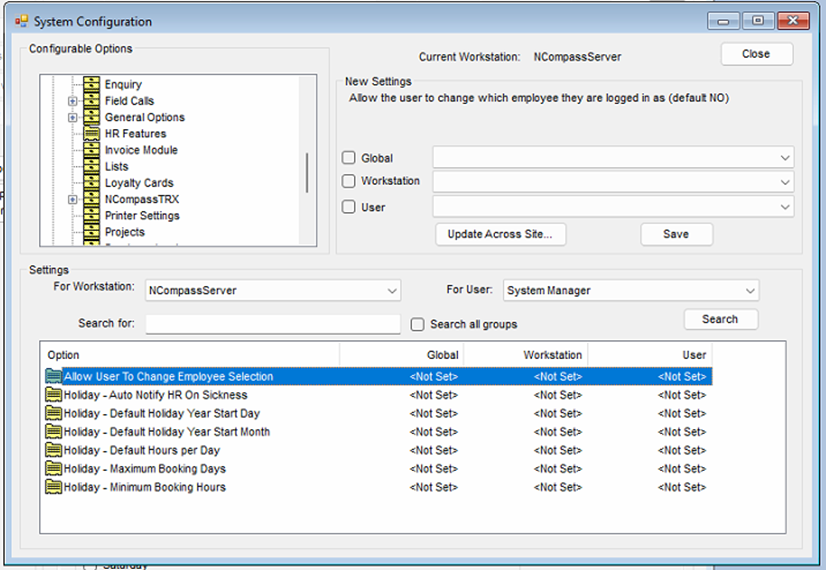
Allow User To Change Employee Selection- default No. With the default, the employee/manager/HR-user selection on nearly every HR screen is locked to the workstation's default salesperson, so users cannot look at other employees' requests. Leave it at No and give each member of staff their own login tied to their salesperson record.Holiday - Minimum Booking Hours- default 1. Currently has no effect - requests are not validated against it.Holiday - Maximum Booking Days- default 28. Currently has no effect - requests are not validated against it.Holiday - Default Hours per Day- default 8.5. Used when a day is booked in hours. Currently has no effect - the hours-per-day actually used comes from the person's entitlement entry.Holiday - Default Holiday Year Start DayandHoliday - Default Holiday Year Start Month- defaults 1 and January. Currently have no effect - the holiday year always runs 1 January to 31 December.Holiday - Auto Notify HR On Sickness- default Yes. Currently has no effect - no sickness notification is sent.
Security
The HR security functions are under HR Absence System in Security Roles. Defaults: the day-to-day holiday screens are available to ordinary users, holiday approval queues to tier-2 users, and the administration screens (entitlements, absence types, blackout dates, conflict rules, time in lieu) to administrators.
The overtime Manager and HR approval queues are denied by default - grant them explicitly in Security Roles for the people who approve overtime, including administrators.
Staff setup
Each member of staff is set up on their salesperson record under Administration > Salespersons Engineers > Edit, on the HR tab:
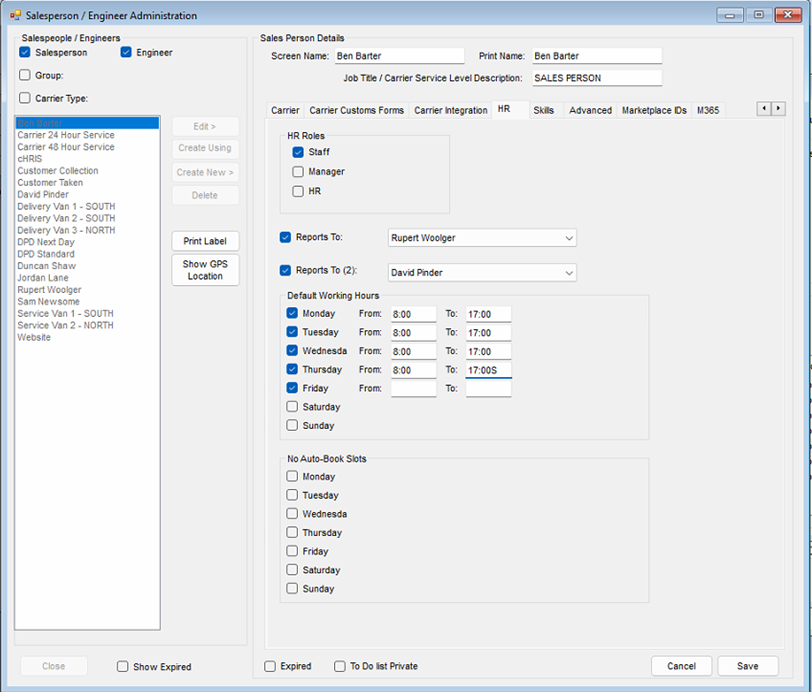
- HR Roles - tick Staff for everyone in the HR system (anyone without it is invisible to the module), Manager for people who approve their staff's requests, and HR for the HR team. At least one person must have the HR role. A person can hold all three.
- Reports To and Reports To (2) - the person's manager and an optional second manager. Either can approve the person's requests. Any salesperson can be picked (they do not need the Manager role first), and someone can even report to themselves - in which case they can approve their own requests, so check these selections carefully.
- Default Working Hours - the person's normal hours on each weekday. Also used by the Projects module's task planner.
- No Auto-Book Slots - windows the Projects task planner must keep clear; not used by holiday or overtime processing.
- Include on clock in dashboard - whether the person appears on the Clock In/Out dashboard (separate Clock In/Out module).
Cost centres
Blackout dates, conflict rules and the team views are scoped by cost centre, so every employee must be in the right one:
- On the salesperson record, open the Contacts / Settings tab.
- Click Edit if not already editing.
- Select the correct cost centre from the dropdown and click Save.
Cost centres themselves are maintained under Administration > Accounting > Cost Centres.
Where holidays show up elsewhere
- Scheduled Calls diary - approved and pending leave appears as staff-holiday banners (toggle "Show Staff Holidays" on the diary).
- Projects task planner - approved leave, the working-hours pattern and No Auto-Book slots all shape when tasks can be planned for a person (see the Projects book).