Holidays
Everything here is under HR > Holidays. What each person can see follows their role: staff see themselves, managers also see the staff who report to them, and HR sees everyone.
My holidays
HR > Holidays > My Holidays/Entitlement View
The staff member's own view: an entitlement summary (annual entitlement, used, pending, remaining - colour-coded when it runs low - carried forward and time off in lieu), a grid of upcoming leave and pending requests, and a request history showing who approved what and when.
From here staff can start a New Request or select one of their own requests and Cancel it (pending or approved requests only, with a confirmation). Requests declined by the manager or HR stay visible with the decision notes.
Requesting time off
HR > Holidays > Submit New Request (or New Request on My Holidays)
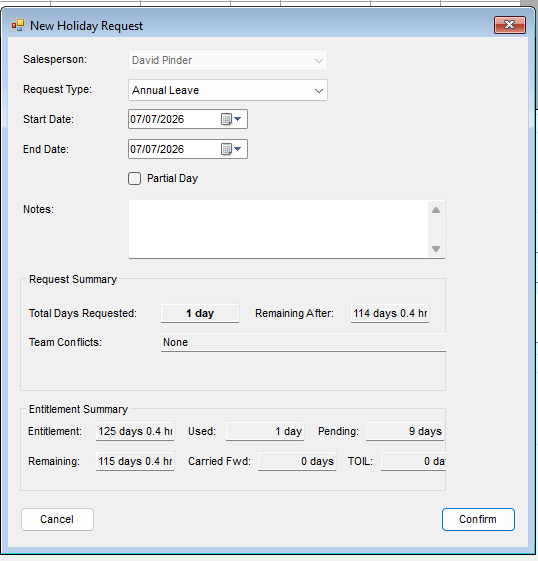
- Select the request type - staff can only pick types marked
Available to Staff, normally just Annual Leave. - Select the first and last day of the leave.
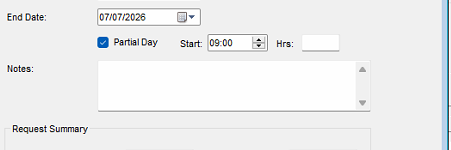
- For part of a single day, tick Partial Day and enter the start time and number of hours (available only when the start and end date are the same day).
- Check the request summary and click Confirm.
The summary shows the total days being requested - counted over working days, skipping weekends and bank holidays - along with the entitlement remaining after the request, any team members already off over the same dates (click the conflicts line for the full list), and a warning if the dates fall in a blackout period.
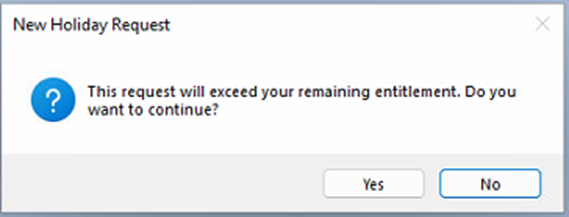
Warnings do not stop the request: it can still be submitted, with a confirmation that it may not be approved. The same applies when the request exceeds the remaining entitlement. The one hard stop is an overlap with the staff member's own existing request - that must be cancelled first.
Approving leave
The normal flow is staff member submits > manager approves > HR approves. Sickness and other absence types a manager records directly may need fewer stages - see the absence types table on the HR Rules & Entitlements page. HR can approve a request directly if a manager is unavailable.
Manager approval
HR > Holidays > Manager Approval Queue
The queue lists pending requests from all staff who report to the selected manager (either of a person's two Reports To managers can action their requests). Selecting a request shows its details and notes, the staff member's entitlement summary including what would remain after approval, and a team calendar for the same period showing who else is off.
- Highlight the request.
- Click Approve or Decline. Declining requires a note, which the staff member sees; a declined request does not go on to HR.
HR approval
HR > Holidays > HR Approval Queue
The same screen for the HR team, listing pending requests for all staff - including requests the manager has not actioned yet, so expect to see items here that are still waiting for their manager stage. Approve or decline exactly as above.
Recording an absence for someone
Managers and HR can record any absence type on a staff member's behalf - sickness being the everyday case - using the Record Absence button at the bottom of either approval queue.

- Click Record Absence.
- Select the staff member and the absence type.
- Set the start and end dates and add any notes.
- Click Save.
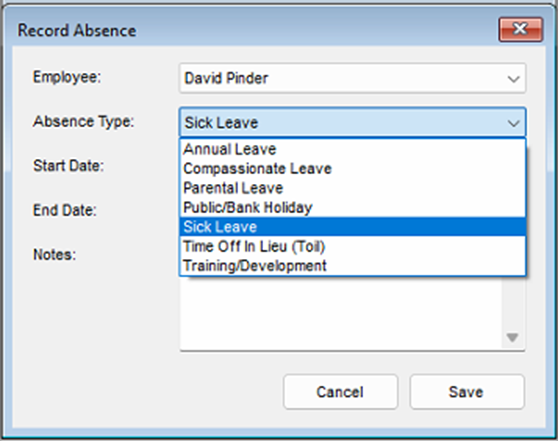
What happens next depends on the type: sickness needs no approval and takes effect immediately, while types that require approval join the queues in the usual way.
Holiday dashboard
HR > Holidays > HR Dashboard/Overview
An overview of upcoming leave, pending requests and recent decisions, shaped by role: staff get a personal view ("You Off Today / This Week"), managers see their team, HR sees everyone. Headline counts show pending approvals and who is off today and this week.
Filters: year, date range, and - for managers and HR - cost centre and salesperson; declined, cancelled and expired requests can be shown or hidden. An Entitlement panel shows the selected employee's summary, and View Calendar jumps to the team calendar.
Team calendar
HR > Holidays > Team Calendar View
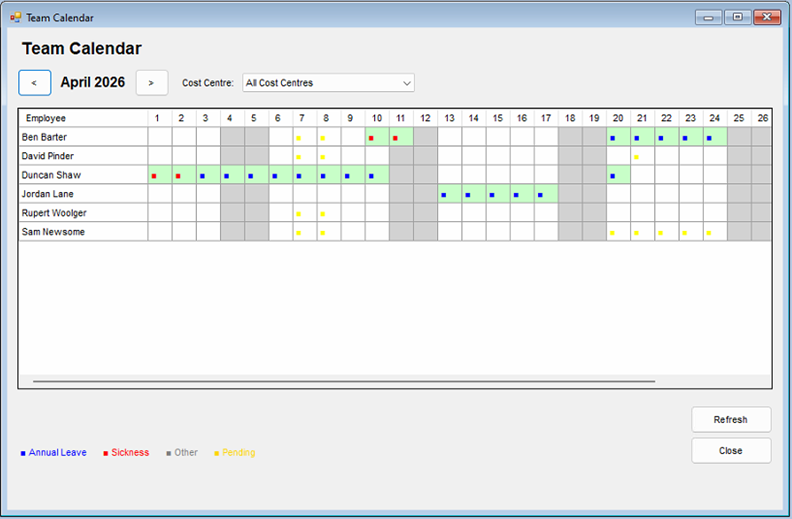
A month grid - one row per person, one column per day - showing annual leave, sickness, other absences and pending requests, with weekends shaded. Use the arrows to move between months; hover a cell for the type and status. Entries are colour-coded as per the on-screen legend: blue annual leave, red sickness, grey other absence types, yellow pending approval. An absence type that has been given its own display colour uses that instead.
Time off in lieu
HR > Holidays > Manage Time Off In Lieu (HR role only)
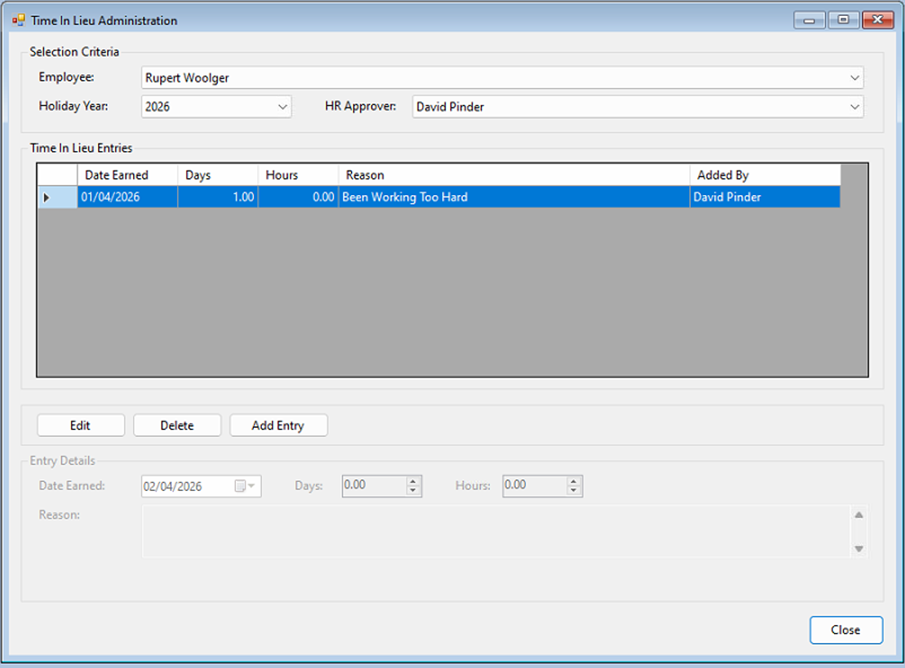
TOIL is extra leave allowance granted by HR. Select the employee and holiday year to see their existing entries, then:
- Add Entry - enter the days and hours earned and a reason; the date defaults to today. Saved entries add to the person's total entitlement for that year (they appear on the entitlements screen as Time Off In Lieu rows).
- Edit - highlight an entry, change the date, days, hours or reason, and save.
- Delete - highlight an entry and confirm the deletion.
Emails
- When a request is submitted, the staff member's manager(s) are emailed.
- When the manager or HR makes a decision, the staff member is emailed.
- Nothing is emailed when a request is cancelled, and recording sickness does not currently notify HR (see Not yet available on the Overview page).