Securing Emails After a Security Breach
In today's world, there are unfortunately bad actors which attempt to infiltrate various systems. AI is making this easier then ever, so its important to remain vigilant, however, some of the attack vectors are so convincing that they can fool anyone.
This article will help you re-secure your account if you do become a victim.
Whilst our focus here is on Microsoft 365 accounts, the principals can be applied to most email providers.
Secure Your Account
|
Login to your Microsoft Account using your email and password |
|
|
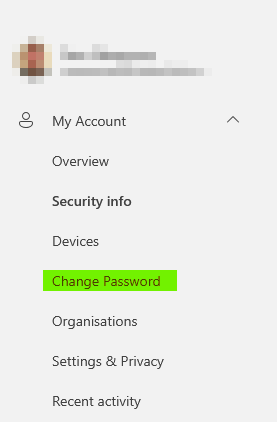
Select to |
|
|
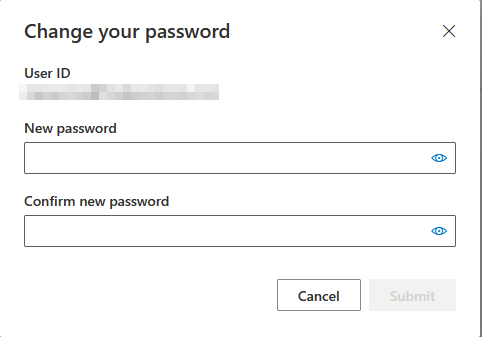
Enter a new password, and confirm it.
A long password is more secure than a complex password. Consider using a passphrase. |
|
|
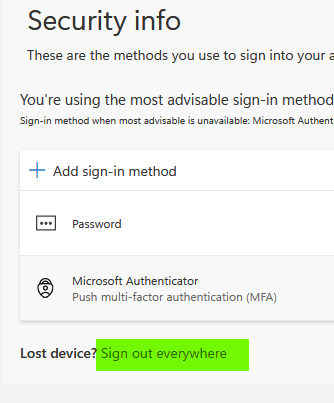
On the
This could take up to an hour to be effective. |
|
|
On the |
|
Check for Email Rules
Often these malicious actors will add in rules to your email inbox to try to hide their activity and to ensure they get the spray to your contacts.
Login to Outlook and navigate to Settings > Email > Rules.
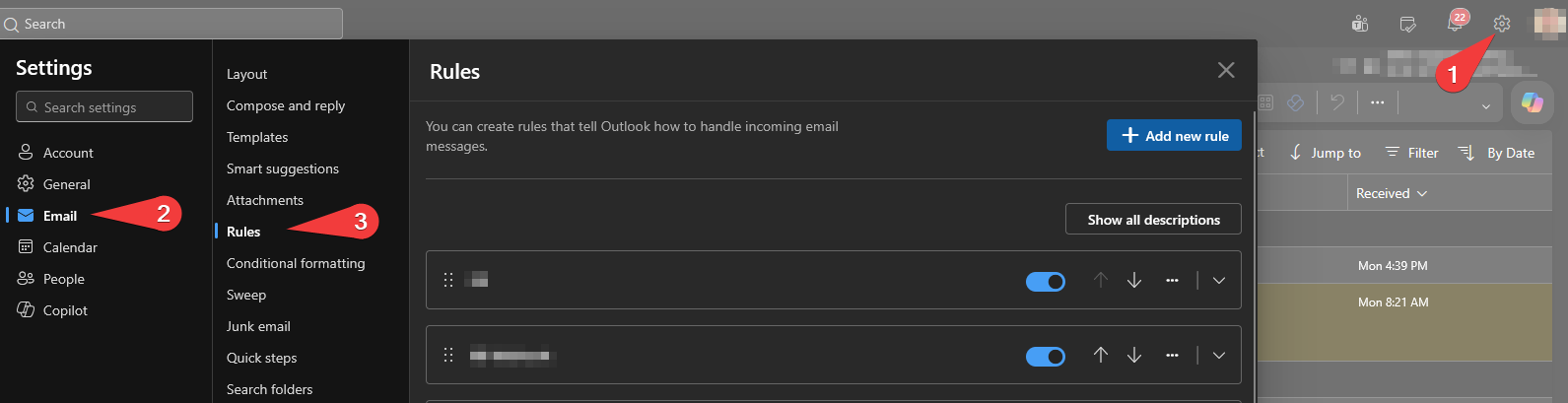
In this window you may seem some rules that look out of place, any rules here should be ones you yourself have added so anything that doesn't look right, delete them. For example, a compromised account may have rules that look similar to the below:
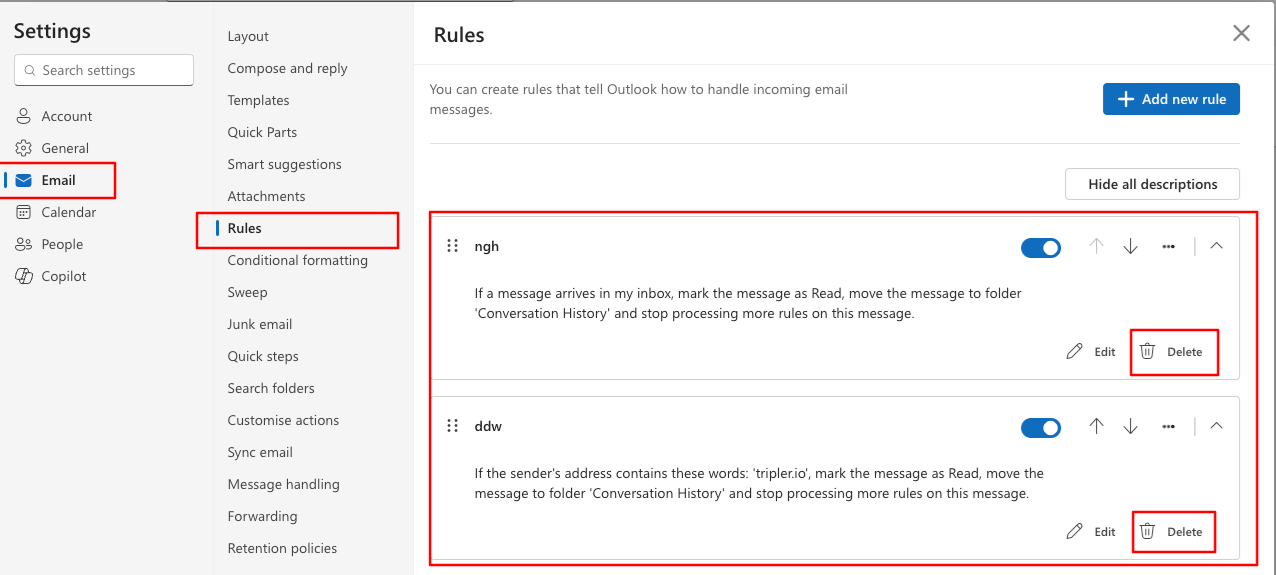
Use the delete button to restore normal operations.
Its important to be aware that these rules are not restricted to the example above. It is better to remove any rules you are not sure of as these can be re-added later.
Contacting Affected Recipients
In your Outlook app, review the Deleted Items folder - you may find a copy of the phishing email that was sent. You'll then want to:
- Reply again to the email
- Remove the malicious links
- Inform the recipients they link was not from yourself and to not click anything.
- Direct them to this page if they require assistance if they have been phished.
Further Support
Contact your email provider if you require further support. Do not delay - its important to move quickly to limit damage potential.