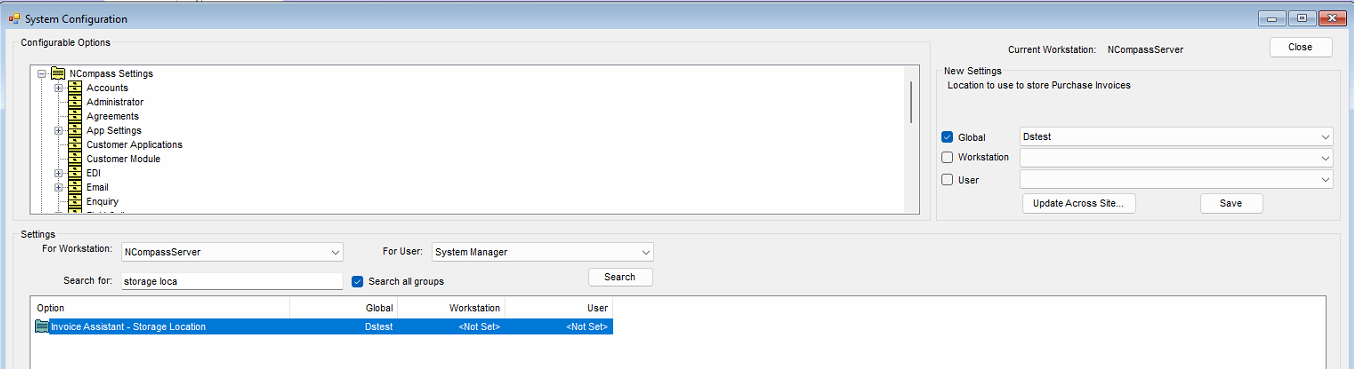
Creating a Storage Location (Azure)
Creating A Storage Account
You must be a member of the NCompass-Invoice-Storage-Blob-Admins Entra group to be able to follow this process
Access Storage Locations in the Azure portal by using the following link:
https://portal.azure.com/#browse/Microsoft.Storage%2FStorageAccounts
Click to Create a new one
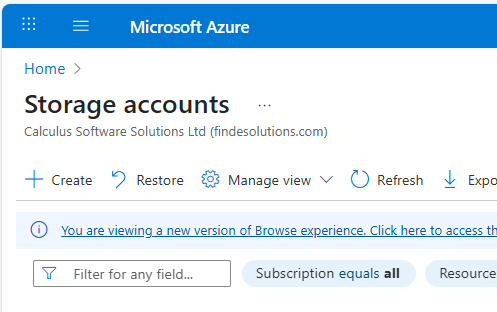
Use settings:
| Setting | Value |
| Subscription | NCompass |
| Resource group | ncompassstorage |
| Storage account name | 3401009999inv Replace the numbers with the numeric part of their serial number |
| Region | UK South |
| Primary service | Azure blob storage |
| Performance | Standard |
| Redundancy | GRS |
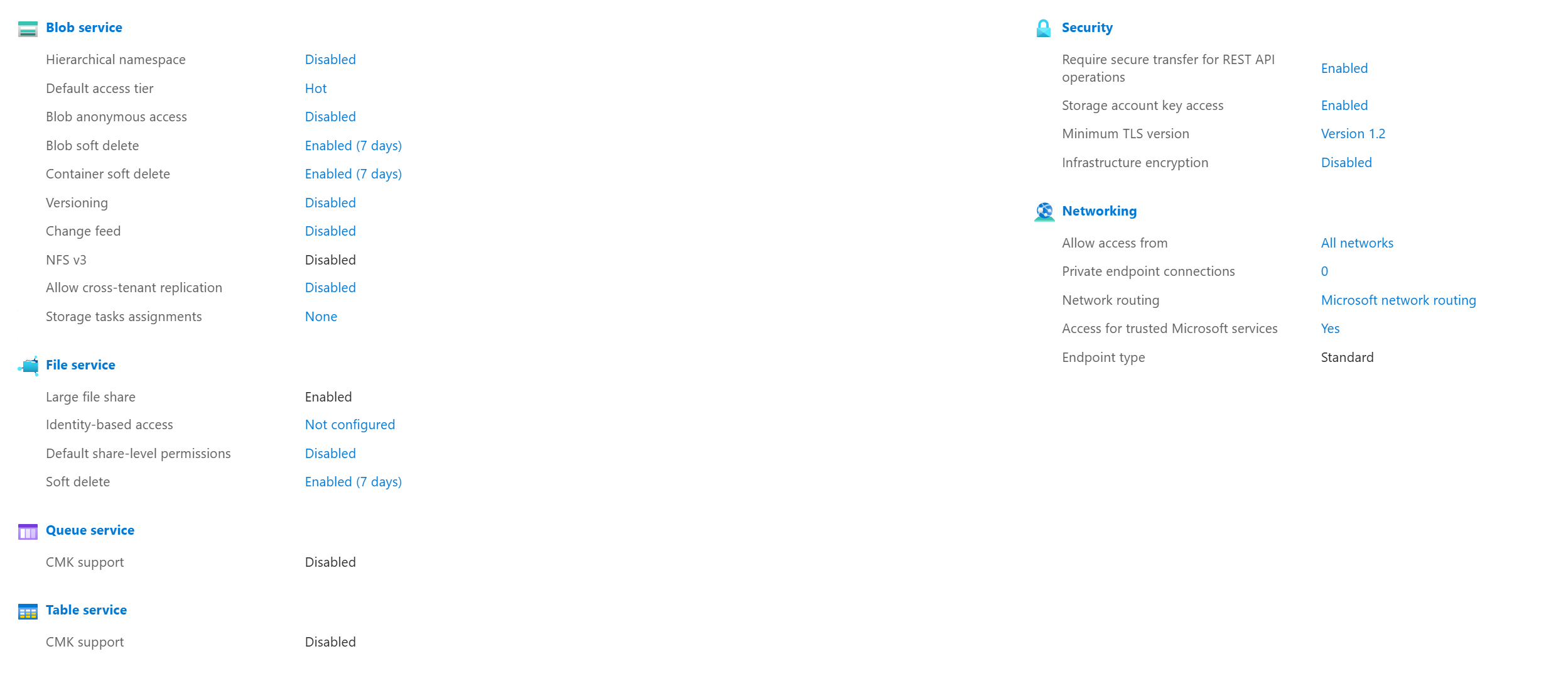
On the following pages, at time of writing the defaults are correct, but verify they match these before completing:
Creating a Container
Once you have created your storage location, you will then need to add a container to store the invoices.
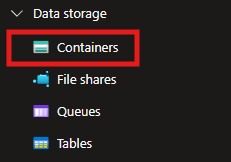
Click on Add Container to create a new container
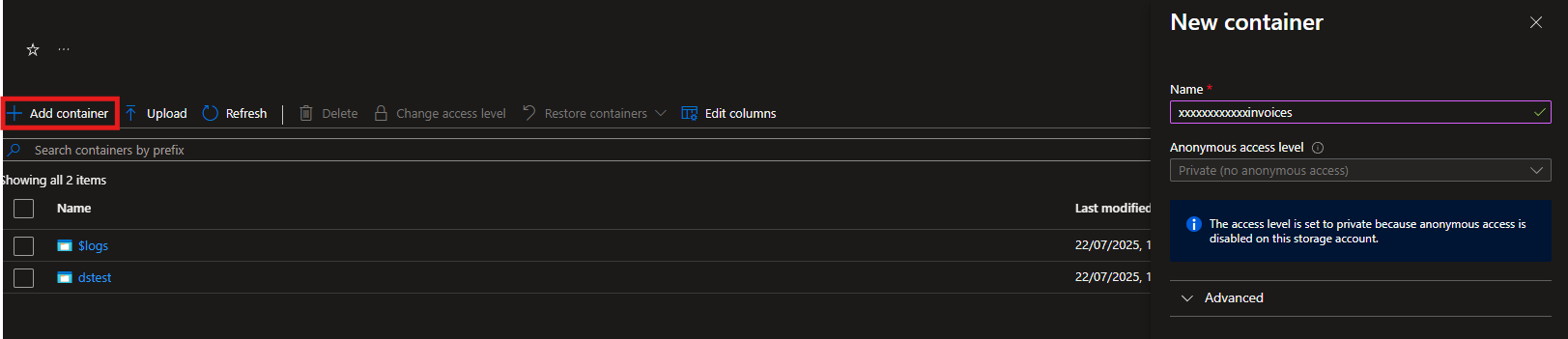
This new container should be named xxxxxxxxxxxxinvoices with the customers serial number replacing the x's.
Leave the rest of the settings as the default.
Getting the details from Azure for population in NCompass.
Give the below details to the Support Engineer configuring the customer's system.
| NCompass Field | Azure Location | Example |
| Description | N/A (value doesn't need to match Azure) | |
| Account Name | Security + Networking -> Access Keys -> Storage Account Name |
|
| Container Name | Data Storage -> Containers -> Name of the Container Created |
|
| Container Endpoint | Settings -> Endpoints -> Blob service -> Blob service |
https://ncompassstoragebeta.blob.core.windows.net/ |
| Account Key 1 | Security + Networking -> Access Keys -> Key 1 | LxN8uQp1zKaM7fT+YrjGdVbHcwXqEo9sRm== |
| Account Key 2 | Security + Networking -> Access Keys -> Key 2 | |
| Connection String | Security + Networking -> Access Keys -> Connection String | DefaultEndpointsProtocol=https;AccountName=ncompassstoragebeta;AccountKey=LxN8uQp1zKaM7fT+YrjGdVbHcwXqEo9sRm==;EndpointSuffix=core.windows.net |
| Connection String 2 (If Present) | Security + Networking -> Access Keys -> Connection String 2 |


The following config needs to be set with the storage location once created and set up inside of NCompass.