Load Vans
Start by pressing the Load Vans option in the menu.
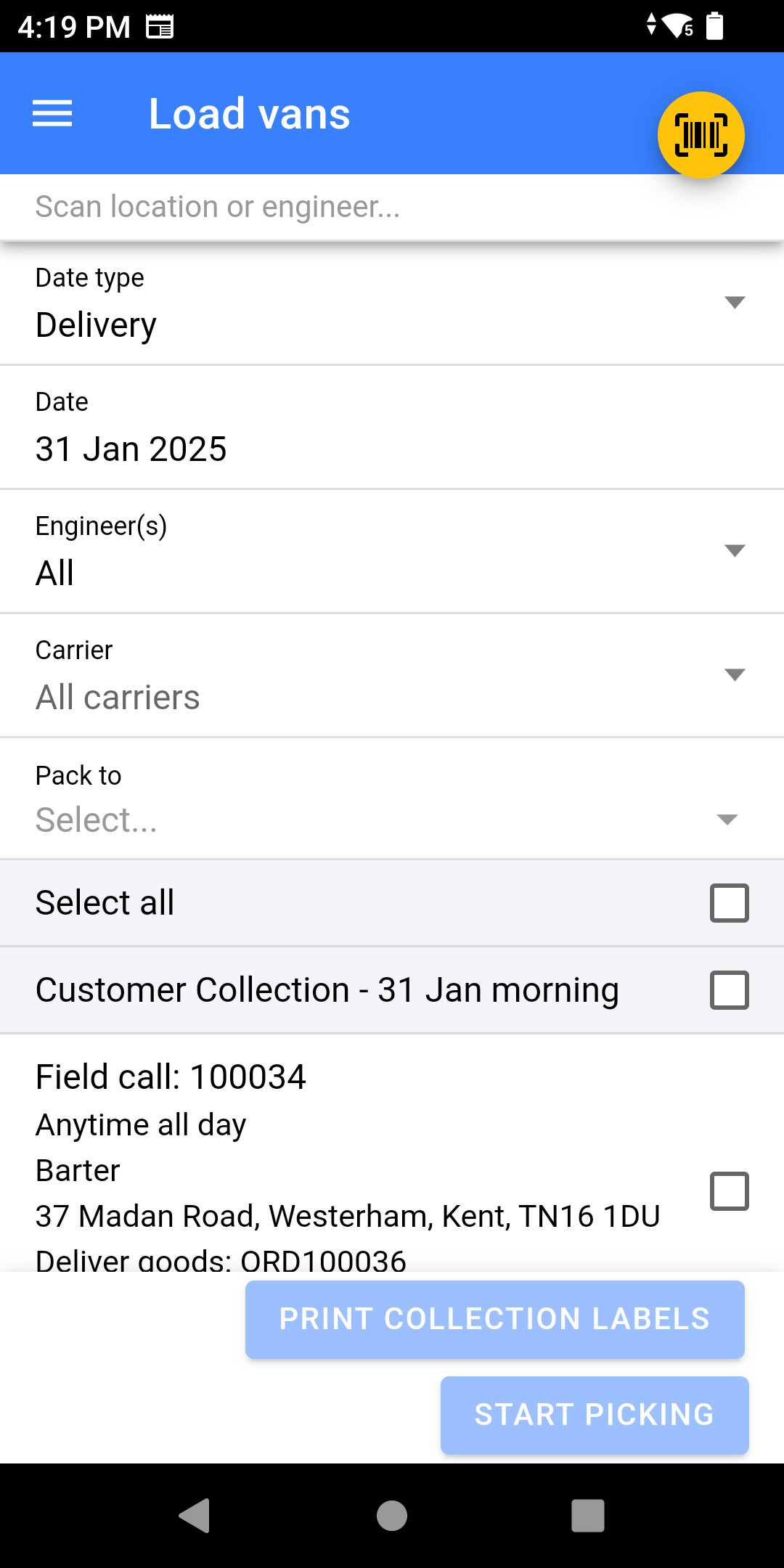
- Select a Date Type:
- Delivery - Date of Delivery
- Dispatch - Used for Carriers, this is the date of collection rather than the date of the field call.
-
Select the
dateDate you are packing field calls for. -
Select the
engineerEngineer you are packingfor.for. - Select Specific Carriers: This allows you to pick for a group of engineers, intention for this is for picking for carrier who you have multiple service levels with.
-
Scan the
locationLocation you are packing to.
You can do a multi-stage pick, whereby you pick to a holding location and then on to another location afterwards, much like a multi-stage goods-in where the goods are held before being stored in their final location.
- If you wish to pick for all calls; Click Select All, or choose Morning/Afternoon instead.
- Click Start Picking
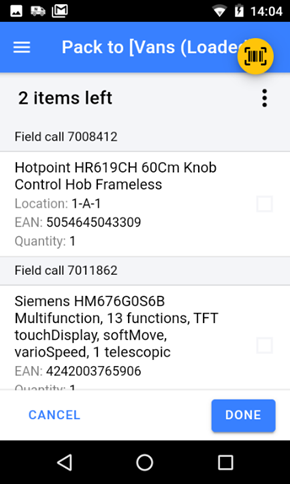
- Locate each item on the list and scan the stock number label
- Once the item is picked, it will have a tick against the item (or the item may disappear of the list)
If your configuration allows you to, you can scan a different stock number to the one displayed and NCompass will stock swap the stock number for the one you scanned.
- Once you have finished picking click DONE
Settings
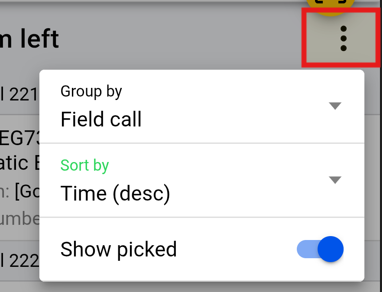
Clicking on the 3 dots gives you the option to:
- Group by:
- Stock Location - Sorts them into order by location instead of by time.
- Field Call (Default) - Sorts by time of call
- Branch - Shows all branches not just your physical location
- Sort by:
- Time DESC (Default) - logical order for loading van, first on is last off.
- Time ASC - flips the loading order
- Show Picked - Shows the item picked if enabled but with a Green Tick, otherwise they will be hidden.