New Page
Human Resources Module
Holiday & Overtime Planning and Approval
Procedure Guide for NCompass
NCompass Versions 11.15 (and Above)
This guide covers your core system please keep it to hand for reference.
Rev. 1.0
The latest Version of this guide is available in the Calculus Knowledge Base
Need further help?
Call Support on 0845 125 9193
You can also email support@findesolutions.com
Your Calculus Software Solutions support cover:
|
Monday – Friday 9am-5pm |
For the duration of your contract. |
|
Outside the above hours, including weekends |
£75 plus VAT per incident |
For help using your system, please call 0845 125 9193
For out of hours Support 0845 833 9196
For sales enquiries such as till rolls or system upgrades, please call 0845 125 9192
For VeriFone queries, please call their Helpline on 08444 828222.
Setting up HR Rules and entitlements
Setting Staff Holiday Entitlements
HR Dashboard – Holiday Overview
View your holidays and requests
Recording Absence not requested by Staff.
Managers overtime approval Queue
This New Module from 11.15 onwards add the ability to NCompass to track your employees Holiday and overtime.
Your employees can request holidays and overtime directly through NCompass, look at pending requests and approvals, and see their holiday entitlement and bookings.
Managers and HR staff can approve or reject request, requests go to managers first before final approval by HR Staff
NCompass HR is a separate module and requires licensing in addition to your main system.
Annual Leave:
Staff can submit requests.
Follows full approval workflow (Manager + HR).
Added to calendar immediately with prefix:
REQUESTED - PENDING APPROVAL.
When fully approved, prefix removed and suffix added:
CONFIRMED.
Other Absence Types:
Controlled by managers (staff cannot request).
No multi-step approval workflow.
Calendar entry added once manager records absence.
Sickness:
Recorded by any manager.
HR notified automatically.
HR can later update the record to confirm receipt of a sick note.
Time in Lieu:
Added by HR only (with date and notes).
Each staff member has:
Annual leave allowance in days.
Defined hours per day (to support hourly bookings).
Staff can request leave in days or hours.
HR controls and can modify allowance:
Changes apply to the selected year and future years.
Past years remain unchanged for historical accuracy.
Rules for booking:
Shortest leave duration allowed (e.g., minimum 1 hour).
Longest leave duration allowed (e.g., maximum 2 weeks).
Configurable eligibility rules for annual leave.
Conflict detection for overlapping leave or non-compliant requests.
Blackout dates:
Can be global, apply to a specific cost centre, or apply to an individual person.
Conflict Rules:
Rule Type 1: At least X of these people must NOT be absent at the same time.
Rule Type 2: No more than X of these people can be absent at the same time.
People can be defined as:
A multi-selection list of specific staff members.
A cost centre (department).
Each staff member is assigned to exactly one cost centre.
Can only request annual leave.
View:
Annual leave booked and remaining allowance.
Upcoming leave.
List of sickness and other absences for the year.
Receive warnings for conflicts before submitting annual leave.
See declined requests with reason/comments.
Managers can:
Approve/decline annual leave requests (with comments).
Record other absence types.
View:
Leave and absence details for staff in their cost centre.
Their own staff-level details.
List of sickness and other absences for staff in their department.
Declined requests for reference.
HR can:
Act as staff and manager.
Override annual leave approvals if managers are unavailable.
Add Time in Lieu entries.
Configure absence types, rules, blackout dates, and conflict rules.
Modify annual leave allowance (affects current and future years only).
Update sickness records to confirm receipt of sick notes.
Approve/decline annual leave requests (with comments).
See declined requests for reference.
Email alerts:
To manager(s) when annual leave is requested.
To staff when annual leave is approved, declined, or amended.
To HR when sickness is recorded.
Include summary of upcoming leave and remaining allowance in staff notifications.
Annual leave balances.
Absence trends (e.g., sickness frequency).
Upcoming leave schedules.
Conflict rule compliance.
Declined requests with reasons.
Immediate calendar entry for annual leave requests with status prefix.
Automatic update when approval status changes.
Removal of calendar entry if request is declined or cancelled.
Other absence types added to calendar upon manager entry.
Overtime
Overtime:
Staff can submit requests.
Requests include overtime rate
Overtime request can tag Projects
Follows full approval workflow (Manager + HR).
Can request overtime.
Update Overtime with actual time worked
View:
Overtime booked and approval status
Receive warnings for conflicts before submitting overtime.
See declined requests with reason/comments.
Managers can:
Approve/decline overtime requests (with comments).
View overtime requests of managed staff
HR can:
Act as staff and manager.
Override overtime approvals if managers are unavailable.
Run overtime reports.
It’s recommended that your system be locked down, so that each member of staff has their own user login and that that login is tied to the salesperson.
The following options can be set under system configuration.
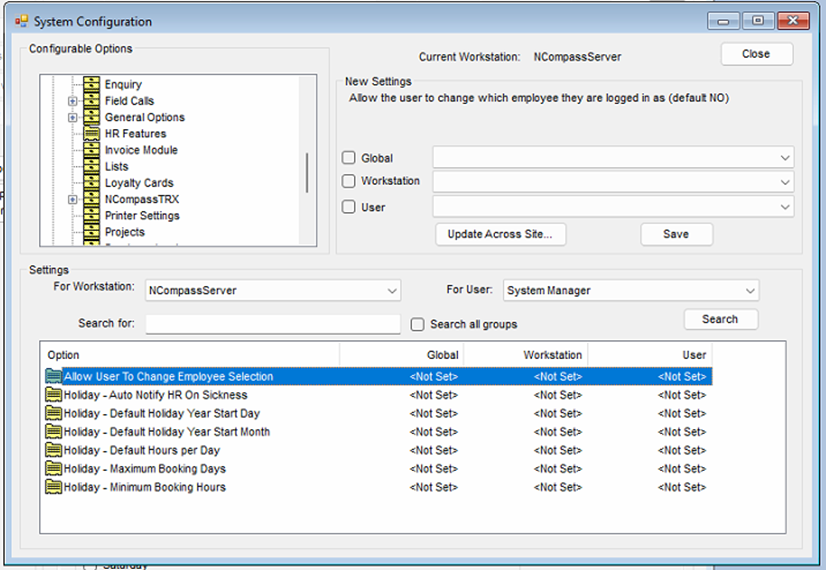
§ Allow Users to Change Employee Selections – this is defaulted to ‘No’, this prevents users from looking at other employees’ requests, its recommended that you lock you salesperson to the user login.
§ Holiday – Auto Notify HR on Sickness – this will email all staff marked in a HR roll automatically to make them aware of the sickness leave.
§ Holiday – Holiday Year Start Date – this sets the start date of your 12-month holiday period, it defaults to 1st.
§ Holiday – Holiday Year Start Month - this sets the start Month of your 12-month holiday period, it defaults to January.
§ Holiday – Default hours per day – this is set to a default of 8.5 hours
§ Holiday – Maximum booking days – this is the maximum a employee can book as a single block, defaults to 28 days
§ Holiday – Minimum booking Hours – the minimum time of request
For each member of staff, you will need to set up the following.
§ HR role
§ Who they report to directly (manager / Line manager)
§ Their backup manager
§ Default working hours.
Administration > Salespersons Engineers > Edit
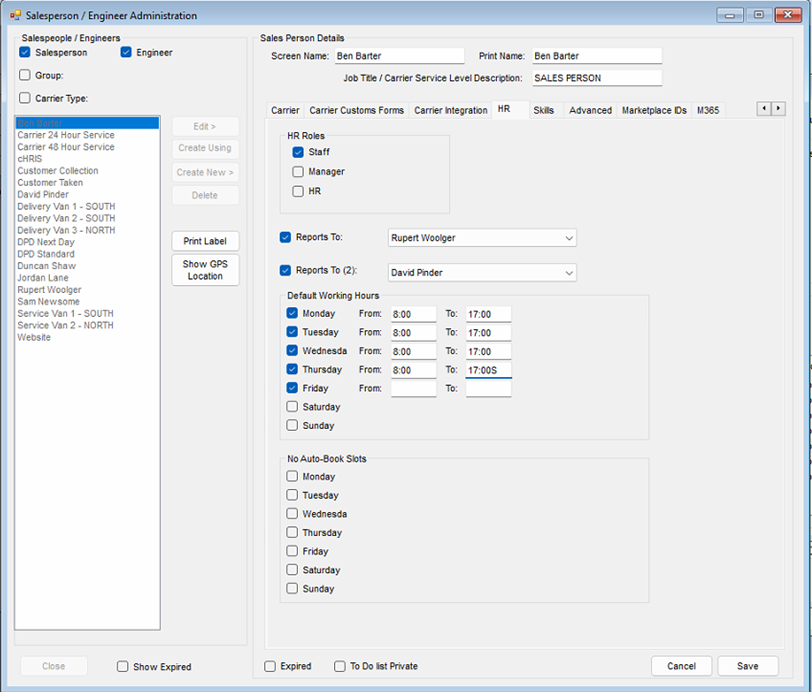
· Set the HR roles.
§ All employees must be marked as Staff to be include in the HR system.
§ Managers that need to approve staff requests should be marked as managers.
§ At least one member of staff must have an HR role.
Rules are applied by cost centre, so you will need to ensure that each employee is in the correct cost centre.
· Click on the ‘Contacts / Settings tag’
· Click ‘Edit’ (if not already in editing mode)
· Select the correct cost centre from the dropdown list
· Click ‘Save’
You can Manage cost centres from
Administration > Accounting > Cost Centres
Setting up HR Rules and entitlements
You should now setup the following:
§ Absence types – List of reason for absence
§ Blackout Dates – dates that holidays are blocked
§ Conflict Rules – allowing you to limit the number of staff off in a cost centre
§ Holiday Entitlement – set the default entitlement for each staff member
Administration > HR Manage Absence Types
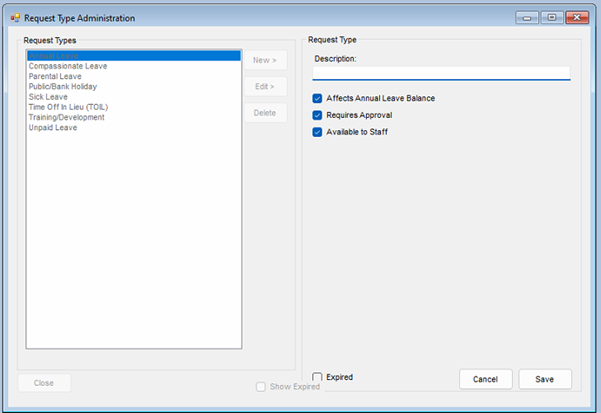
There is a of standard Absence types you can edit or add to
For each absence type check the relevant option
§ Affects Annual Leave
§ Requires Approval
§ Available to Staff – this needs to be checked for staff to be able to request this type of leave
Administration > HR > Manage Blackout Dates
Blackouts lets you set date ranges when no holiday should be booked, any member of staff that is in the cost centre to which the blackout applies will be warned at the point of booking annual leave that the dates are not available.
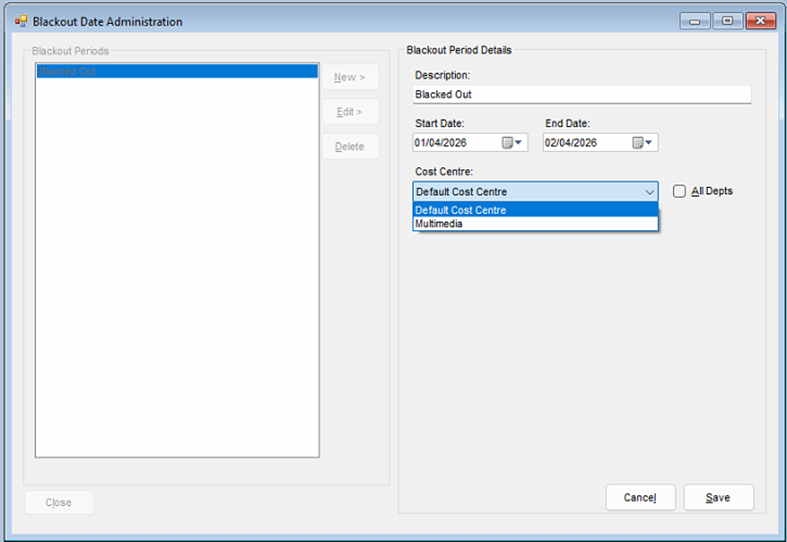
§ Click ‘New’ or select an existing blackout and click ‘Edit’.
§ Enter a description for this Blackout.
§ Set the start and end date.
§ By default the blackout will be for all departments (cost centres), if this entry only applies to a specific cost centre, uncheck the ‘All Depts’ checkbox, you will then be able to select a specific cost centre
§ Click ‘Save’
Setting Conflict rules
Administration > HR > Manage Conflict Rules
Conflict rules allow you to set the maximum number of staff that can be absent at any one time for that a cost centre
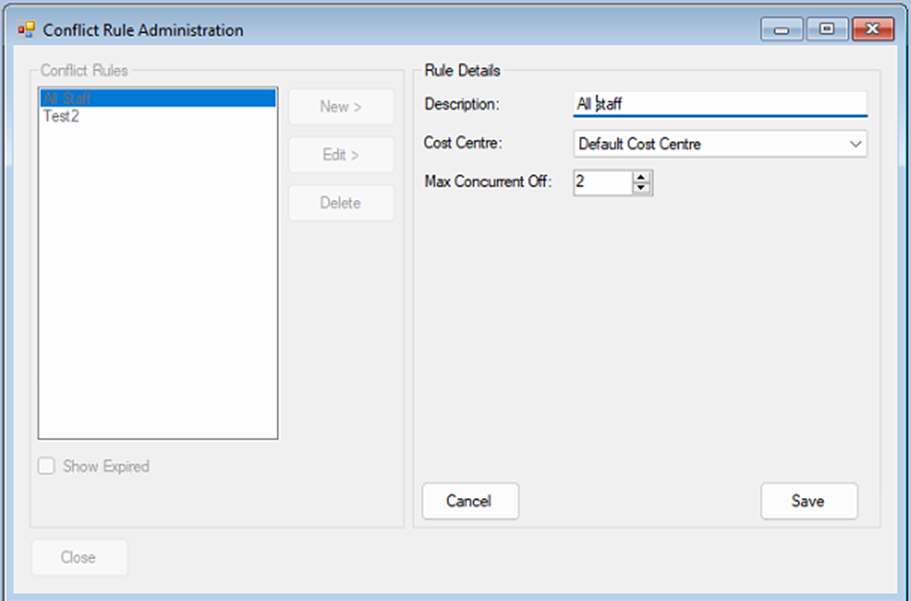
§ Click ‘New’ or select an existing conflict entry and click ‘Edit’.
§ Enter a description for this conflict.
§ Set the cost centre from the drop-down list.
§ Set the total number of staff for this cost centre conflict rule.
§ Click ‘Save’
Setting Staff Holiday Entitlements
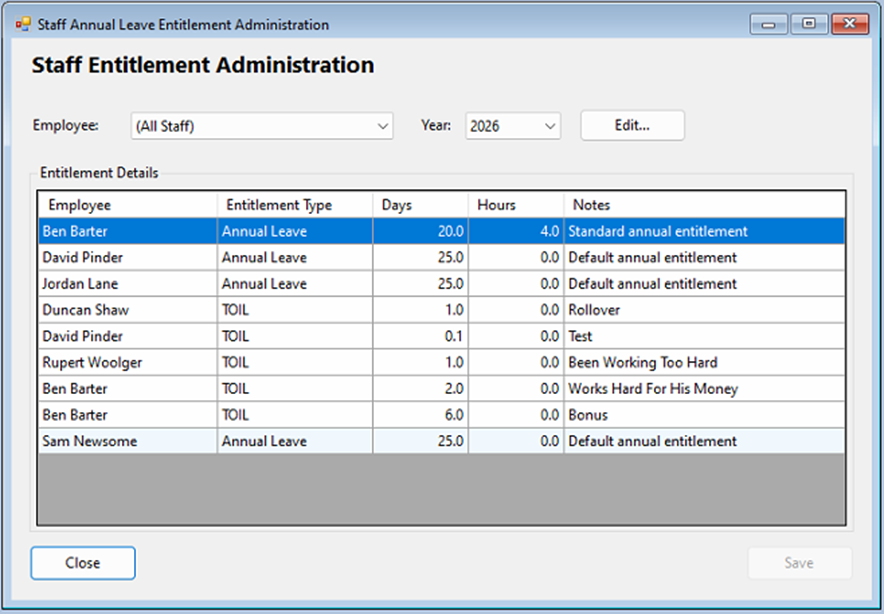
Administration > HR > Manage Entitlements
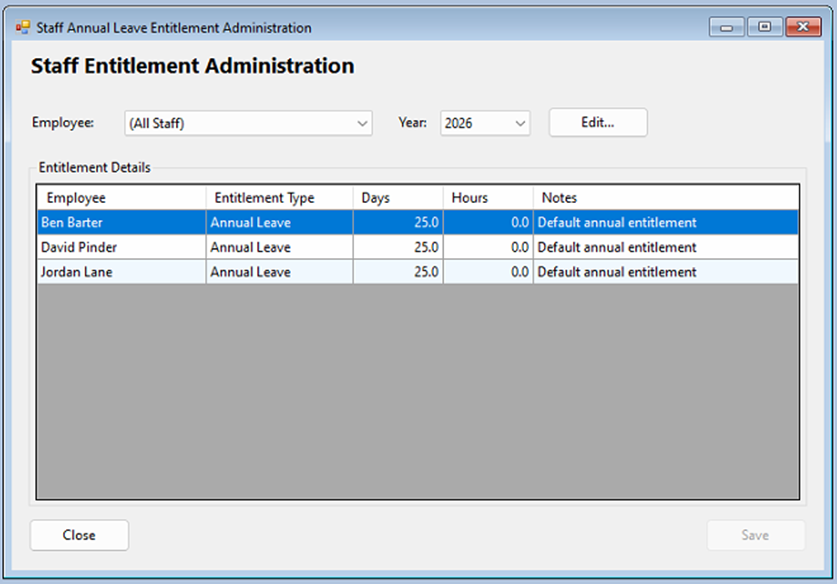
Your employees will initially have the default entitlement, to change.
§ Click ‘Edit’
§ Click into any of the Cells for any Employee and make your adjustments.
§ Click ‘Save’
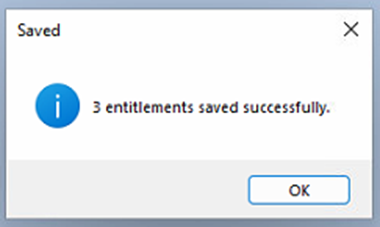
All entries in the grid will be updated.
The entitlement screen will also show any additional time added in addition to the staff member’s annual leave.
Holidays
HR Dashboard – Holiday Overview
HR > Holidays > Dashboard/Overview
This screen allows staff to see all upcoming leave, pending requests and recent decisions.
Note The view presented here will change depend in your job Role.
Ø Staff – will only see their overview.
Ø Managers – will see entries for all staff that they manage.
Ø HR – will see all entries.
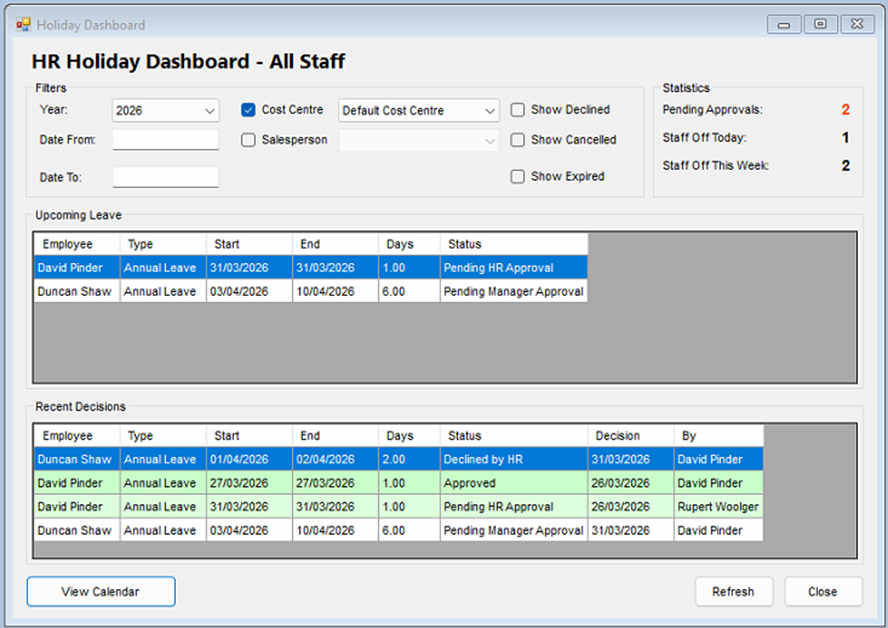
The dashboard can be filtered by
§ Year
§ Date from
§ Date to
§ Salesperson
§ Cost Centre
You can hide or show.
§ Declined Requests
§ Cancelled Requests
§ Expired Requests
You will only be able to see the HR Dashboard if you are tagged as a member of the HR
View your holidays and requests
HR > Holidays My Holiday Entitlement /View
This will show you all your holiday Requests and approvals, along with your free and used entitlement.
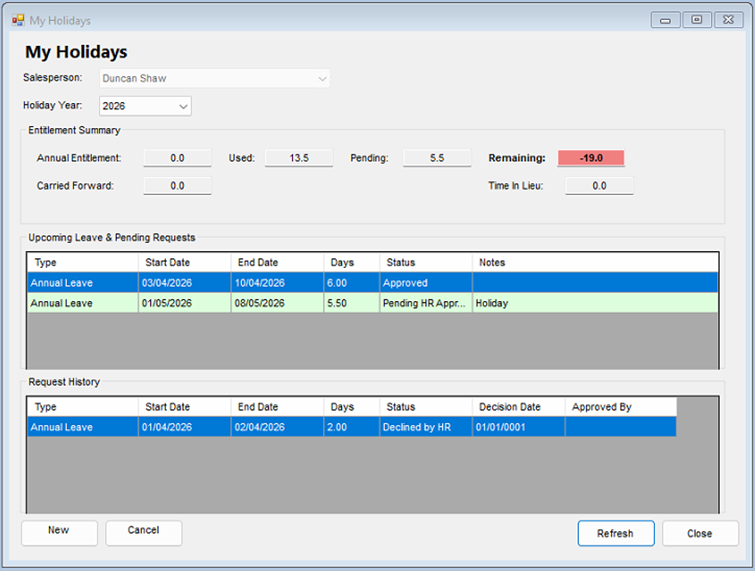
Note: your requests may need approval by both your line manager and HR before its fully approved

Requesting Time Off
HR > Holidays > Submit new Request
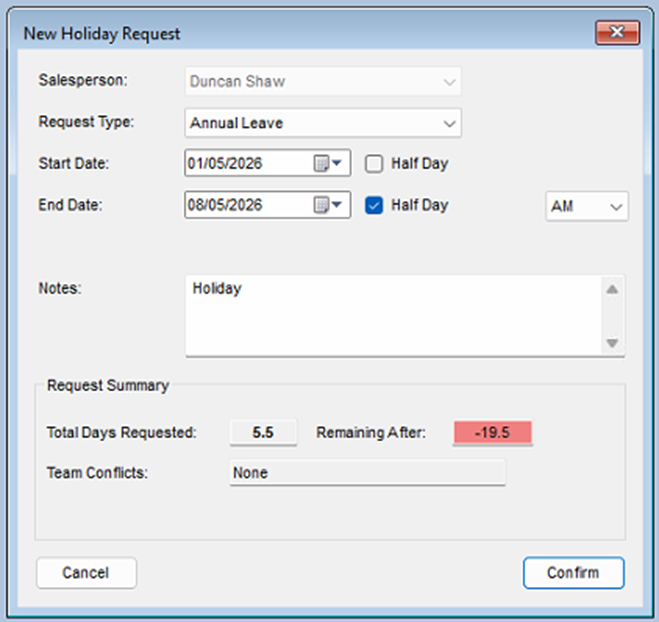
· Select the request type from the drop-down list (annual leave)
· Select the start date of your leave request.
· Select the last day of your leave request.
Note: you can select half days by clicking the half day check box, select AM or PM for the Half Day
It will calculate the number of days requested based on your working days, as well as your entitlement, if your request clashes with other team members or a blackout day, this will be shown
· Click Confirm
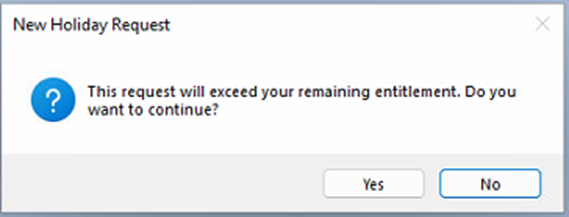
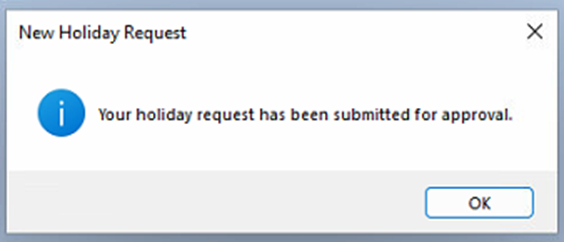
if your request does not clash, the request will be sent for approval. If it does clash the request can still be submitted, although it may not be approved, you will be asked if you want to continue
Approving Leave Requests
The normal process for approval is…
Staff Member Submits Request >> Manger Approves >> HR approves.
However, HR staff can directly Approve requests if required.
Manager Approval
HR >Holidays > Managers Approval Queue
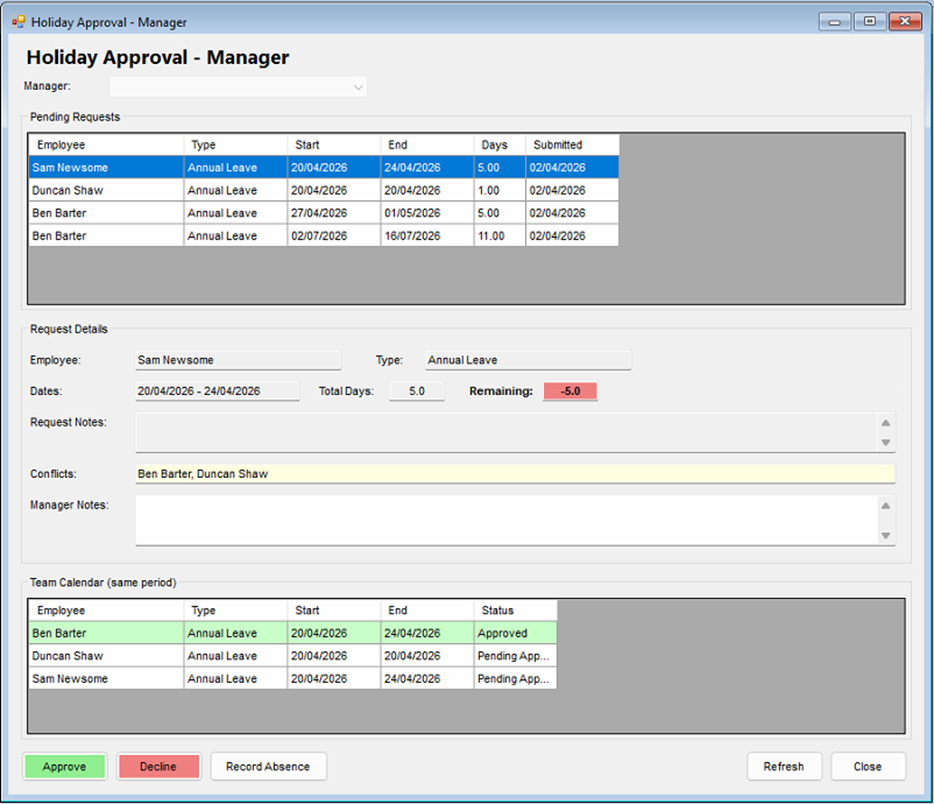
You will see the pending requests for all the staff you manage.
· Select one of the requests from this list.
The request details will be shown along with any notes and the remaining entitlement days.
Request Approval
· Highlight the request you want to approve or decline.
the request details will update to show the leave type, requested dates, total days and the days the staff member has left after this approval.
· Click Approve or Decline
HR Approval
HR >Holidays > HR Approval Queue
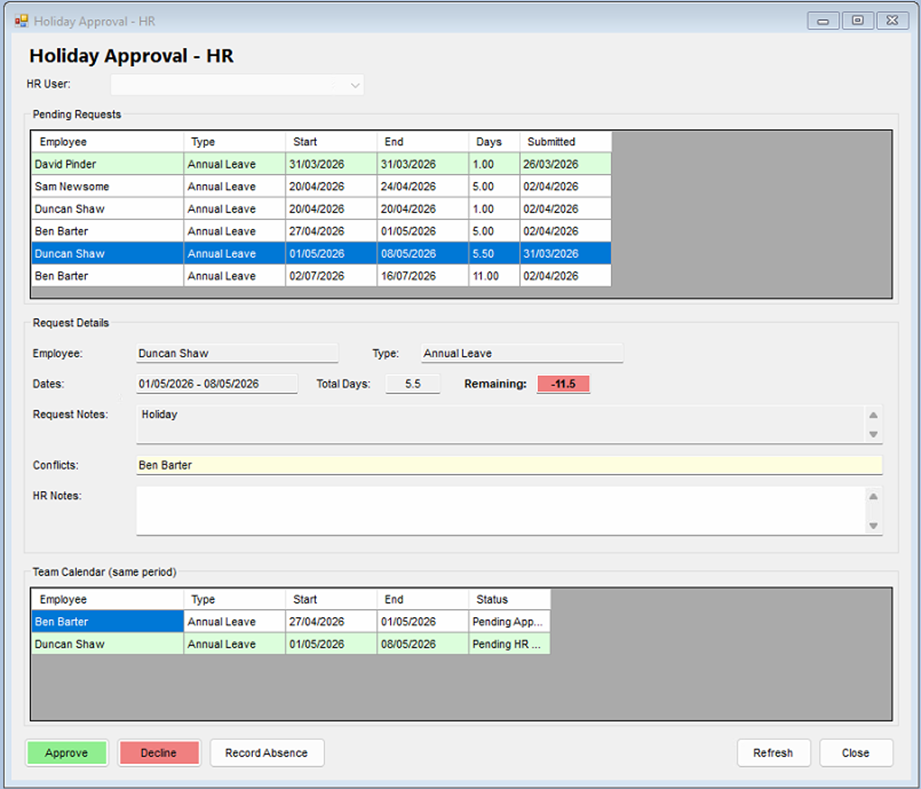
You will see the pending requests for all the staff.
· Select one of the requests from this list.
The request details will be shown along with any notes and the remaining entitlement days.
Request Approval
· Highlight the request you want to approve or decline.
the request details will update to show the leave type, requested dates, total days and the days the staff member has left after this approval.
· Click Approve or Decline
Team Calander View
The team calendar view will allow you to see all annual leave, pending requests, Sick leave and any other absences in a monthly calendar grid.
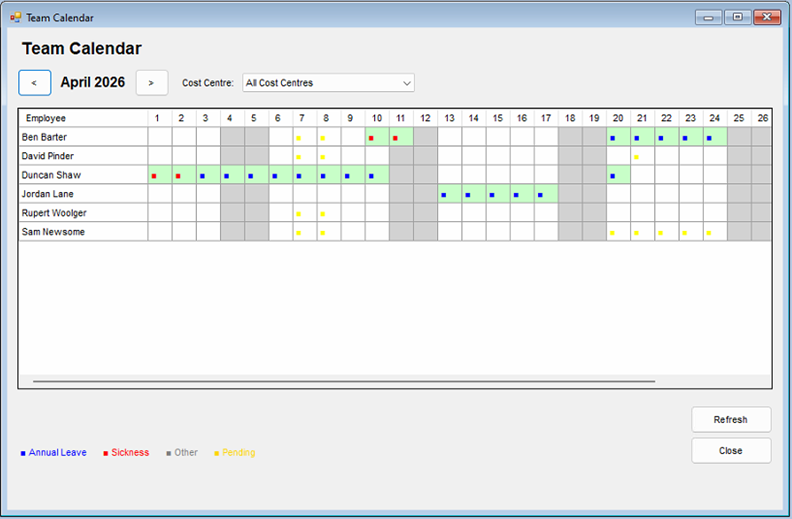
The left and right buttons will advance or retard the monthly view.
You can apply a cost centre filter from the drop down list.
The entries re colour coded as per the legend on screen.
· Blue – Annual Leave
· Red – Sickness
· Grey – Other leave Types
· Orange – Pending approvals.
Manage time off in Lieu.
Time Off in Lieu can only be managed by HR staff.
HR > Holidays > Manage Time Off in Lieu
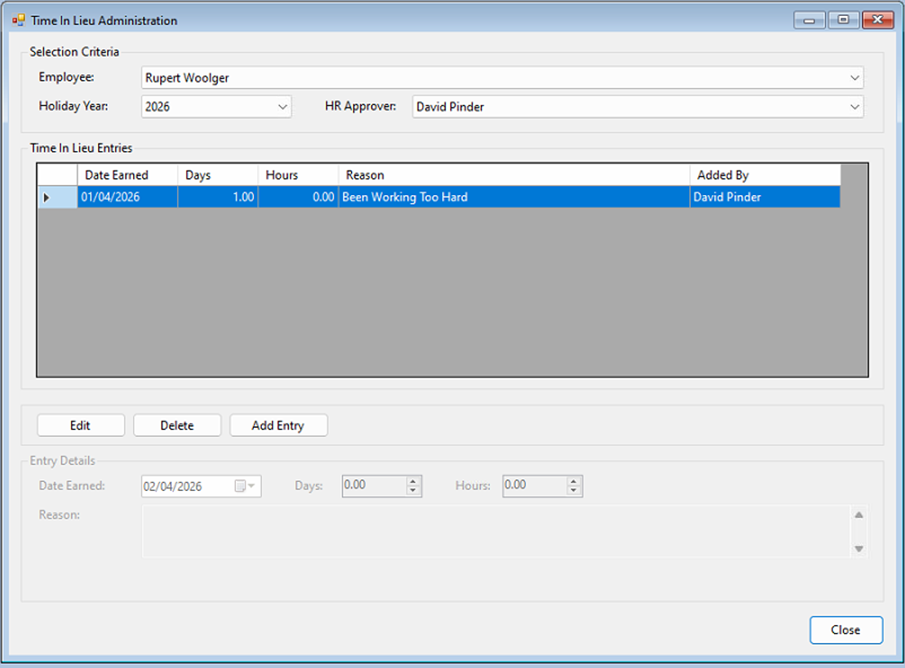
Selecting the staff member from the drop-down list of employees will show all additional time off allowances that have already been added.
You can
Edit and existing entry.
· Highlight the entry and click ‘Edit’.
· Update the required information, date entered, days and hours.
· Click ‘Save’
Delete an Entry
· Highlight the entry and click ‘Delete’.
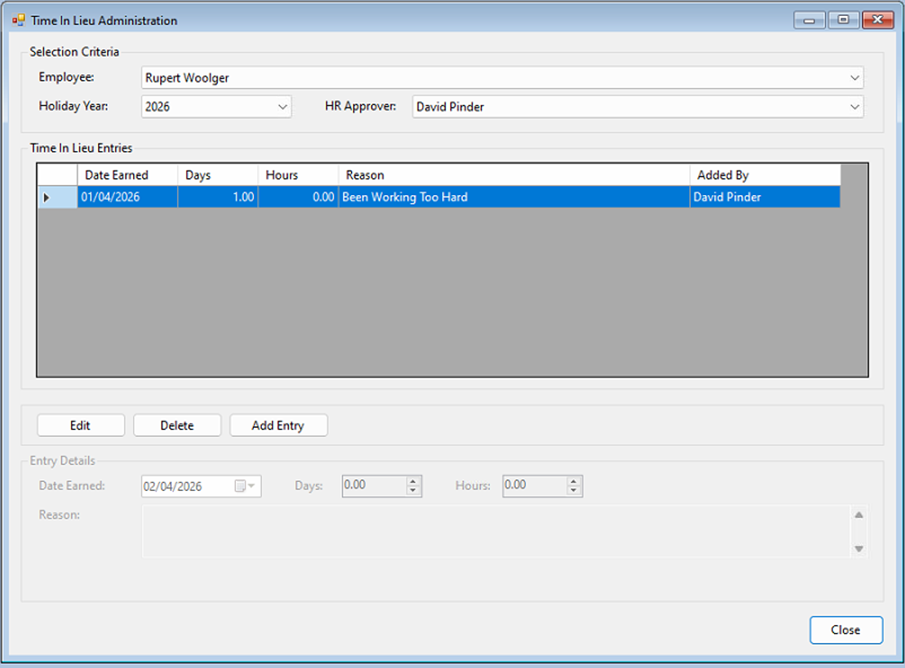
You will be asked to confirm this deletion
Add a New Entry
- Click ‘Add Entry’
- Enter the number of days, and hours, the entry date will automatically set to the current date.
- Click ‘Save’
Recording Absence not requested by Staff.
Both Manager and HR staff can record any type of absence, even if it has not been requested by a staff member
HR > Holidays > Managers Approval Queue
HR > Holidays HR Approval Queue
At the bottom of both theses screens you will see a ‘Record Absence’ Buton

Click ‘Record Absence’
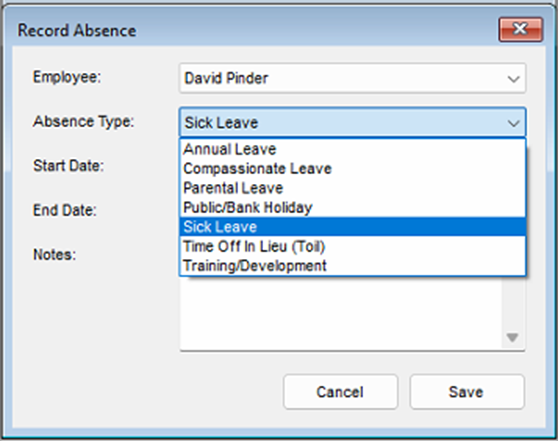
· Select the Staff Member
· Select the reason from the Absence type dropdown list.
· Select the start date and end date.
· Add any notes.
· Click Save
The Absence still need to be approved by Mangers and HR
Overtime
My Overtime Requests
HR > Overtime > My Overtime View
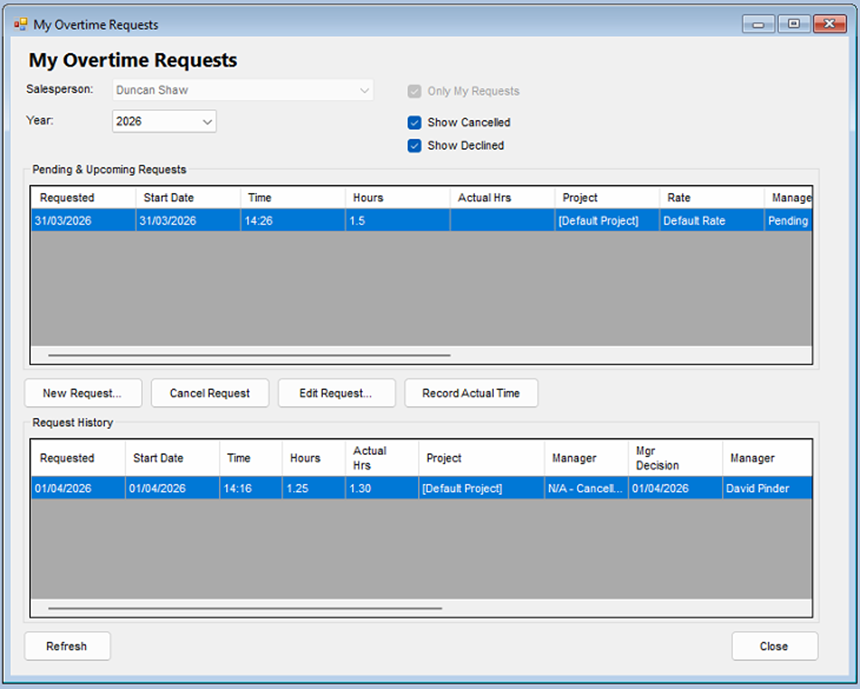
This will show you all your overtime requests and your request history.
New Overtime Request
Click the ‘New Request’ button.
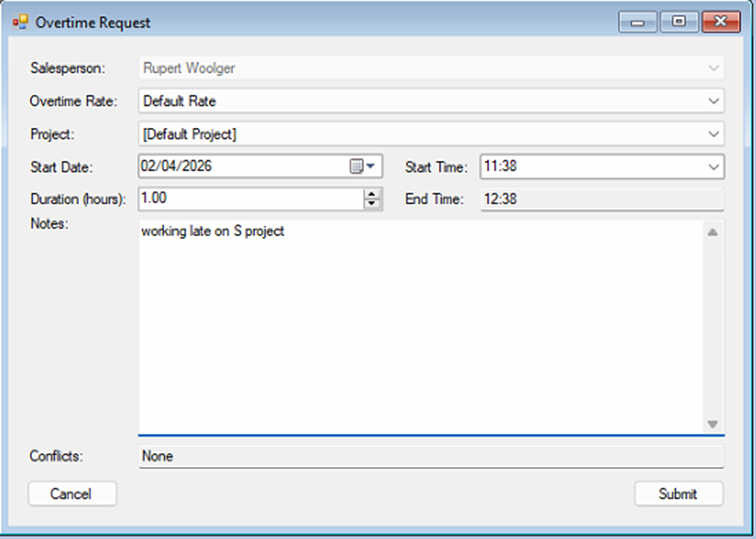
Your Name will be pre-selected.
Update the request with the following information.
§ Overtime rate – if your organisation has more than one rate, please select it from the dropdown list.
§ Project – if you use NCompass Project Tracking, select the project, if not leave it set to default
§ Enter the start date and time.
§ Enter the duration of the overtime- the end time will be calculated automatically.
§ Add any notes.
· Click ‘Submit’
Your request will be submitted for approval by your manager or the HR Team
Cancel Request
· Highlight the request you want to cancel.
· Click the ‘Cancel Request' button.
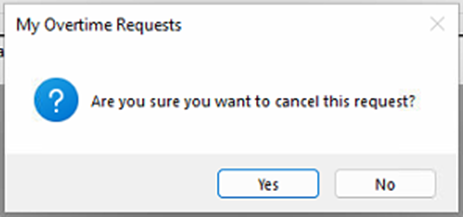
- Confirm the cancellation.
Edit Request
· Highlight the request you want to Edit.
· Click the ‘Edit Request' button.
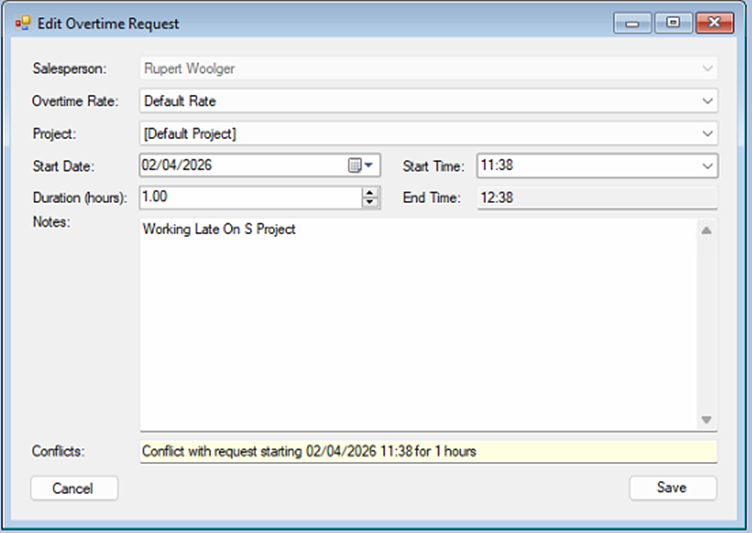
· Update the request details.
· Click ‘Save’
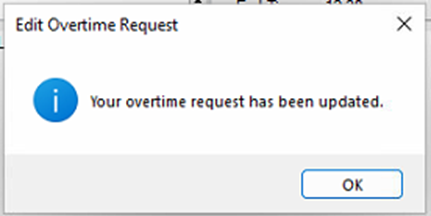
Record Actual Time
Once your request has been approved, you can update the request with the actual overtime worked.
Click ‘Record Actual Time’
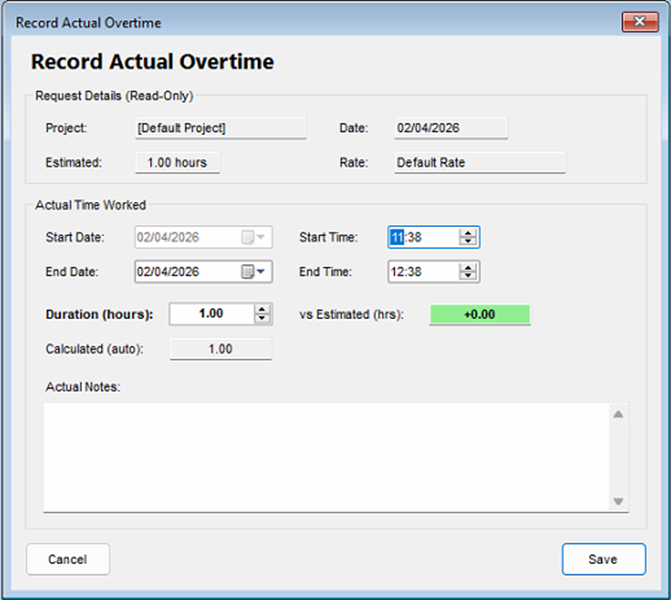
Update your timings.
· Click ‘Save’
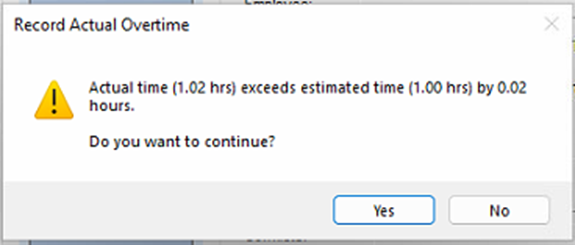
If your timings exceed your initial request, you will be warned, please check your timings or proceed.
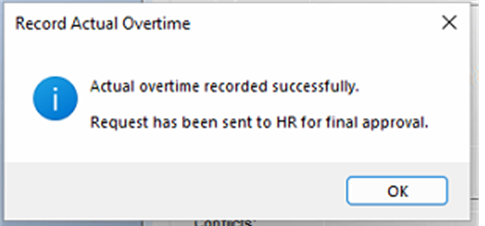
Overtime Dashboard / overview
HR > Overtime > Overtime Dashboard/Overview
Note The view presented here will change depend in your job Roll.
Ø Staff – will only see their overview.
Ø Managers – will see entries for all staff that they manage.
Ø HR – will see all entries.
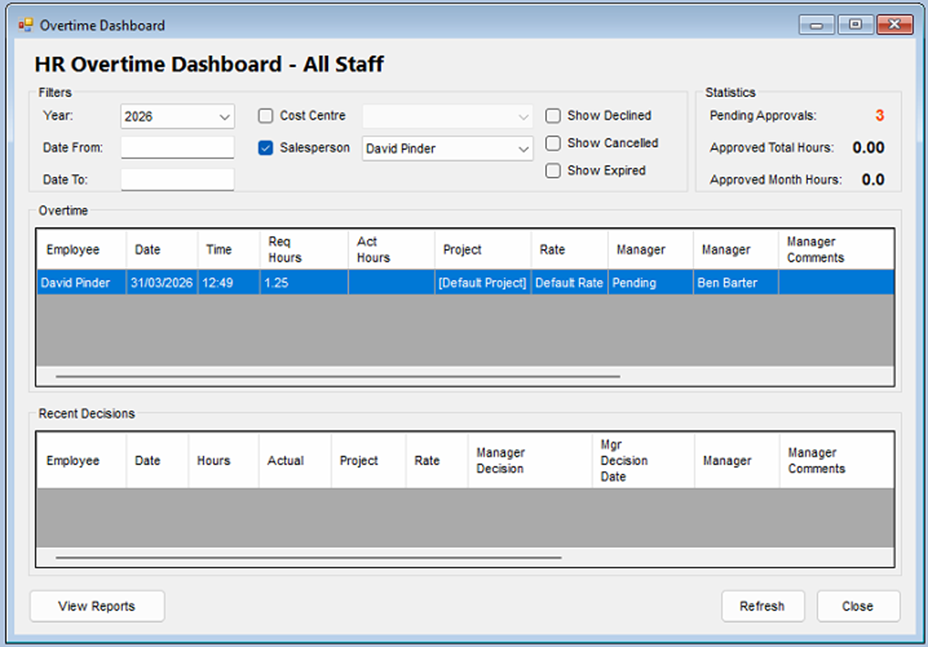
This Will give you an overview of your overtime booked, and any recent decisions.
The information can be filtered by
§ Date Range
§ Cost Centre
§ Salesperson
And declined, cancelled and expired can be shown or hidden.
Managers overtime approval Queue
HR >Holidays > Managers Approval Queue
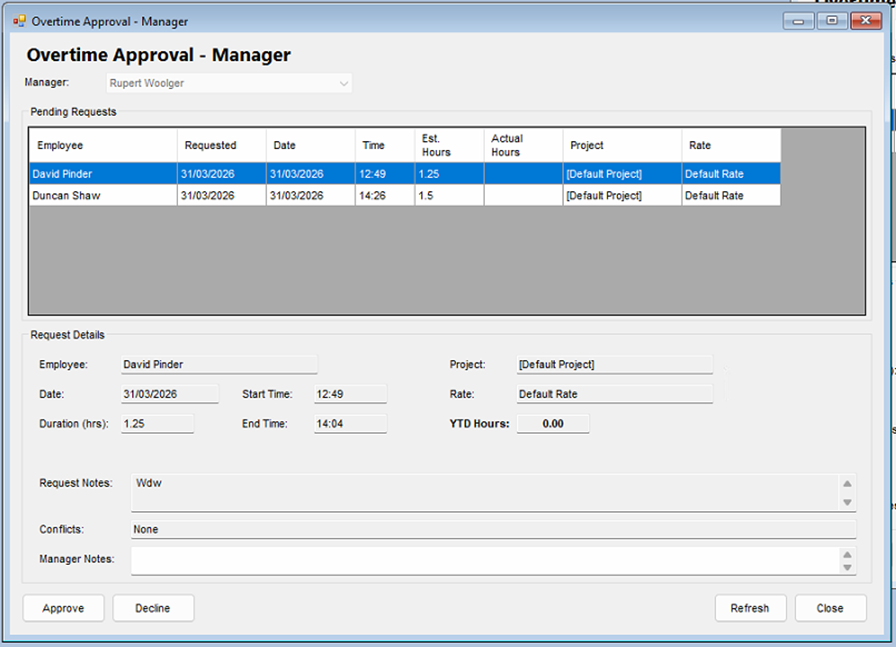
You will see the pending requests for all the staff you manage.
Select one of the requests from this list.
The request details will be shown along with any notes and the remaining entitlement days.
Request Approval
· Highlight the request you want to approve or decline.
the request details will update to show the leave type, requested dates, total days and the days the staff member has left after this approval.
· Click Approve or Decline
HR Approval
HR >Overtime > HR Approval Queue
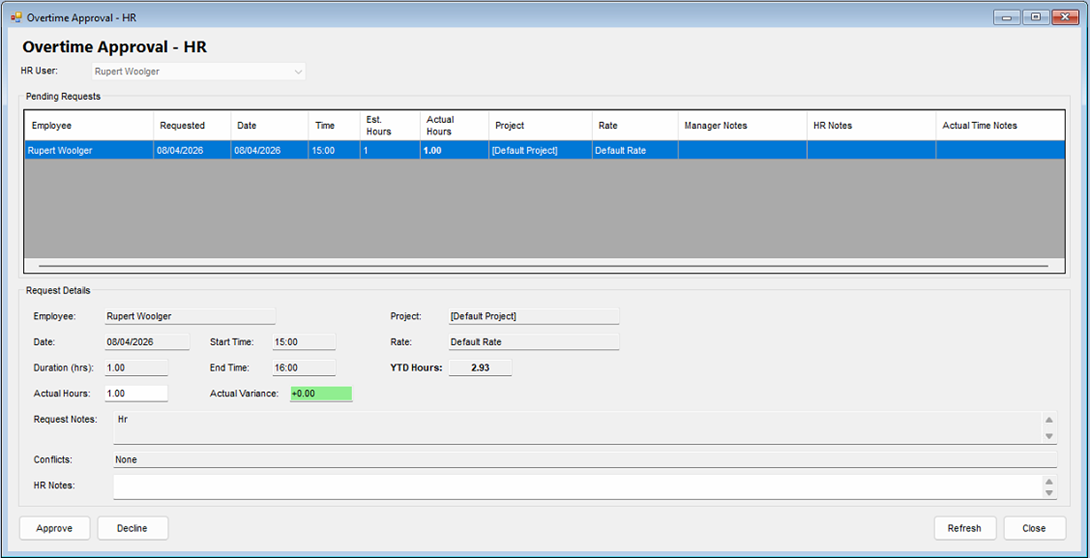
You will see the pending requests for all the staff.
- Select one of the requests from this list.
The request details will be shown along with any notes and the remaining entitlement days.
Request Approval
· Highlight the request you want to approve or decline.
the request details will update to show the Project, rate, start time, end time, actual hours and the Variance from the original request
· Click Approve or Decline
Select one of the requests from this list.
Reporting
You will find all reports for the HR Module in Under.
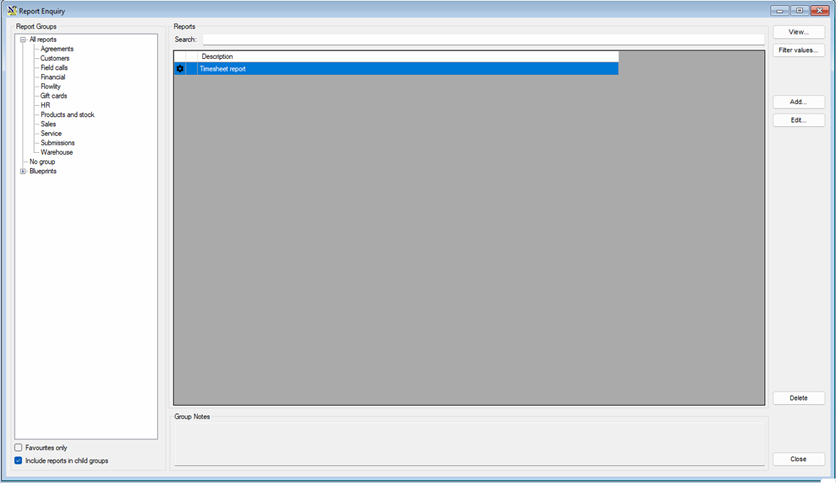
Reports > Additional Reports
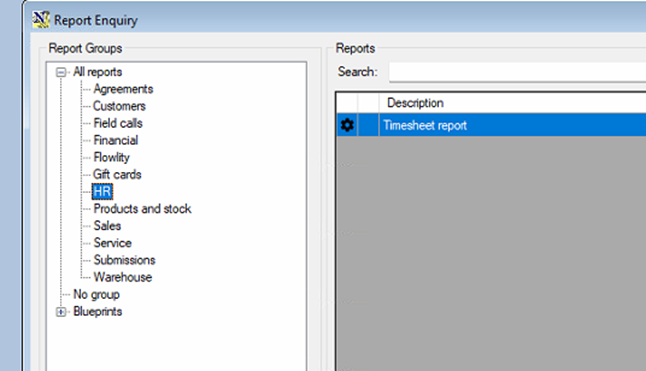
Click on HR on the reports tree.