Selling Domestic and General Warranties
Domestic and General Warranty Sales
Procedure Guide for NCompass
NCompass Versions 11.14.0 (and Above)
This guide covers your core system please keep it to hand for reference.
Rev. 1.0
Authors DP
Need further help?
Call Support on 0845 125 9193
You can also email support@findesolutions.com
Your Calculus Software Solutions support cover:
|
Monday – Friday 9am-5pm |
For the duration of your contract. |
|
Outside the above hours, including weekends |
£75 plus VAT per incident |
For help using your system, please call 0845 125 9193
For out of hours Support 0845 833 9196
For sales enquiries such as till rolls or system upgrades, please call 0845 125 9192
For VeriFone queries, please call their Helpline on 08444 828222.
Selling warranties with the products
Selling a warranty for a previously sold product
Overview
NCompass Advanced Retail now supports direct integration for Domestic and General warranties, for both sale and submission.
Schemas include
· In store term warranty
· In store monthly warranty
· Online term warranty
If you want to be able to sell online monthly warranty, this will require extensions and development to your website, currently we do not offer the facility to sell monthly warranties via your website
In Store Warranty Sales
NCompass can ‘Prompt’ the salesperson to add the warranty to the sale each time an item is added to the sales order or invoice.
If you want to sell a warranty for a product that’s already sold, this is also supported
Selling warranties with the products
· Start the sale process in the normal way usually this is via a sales order
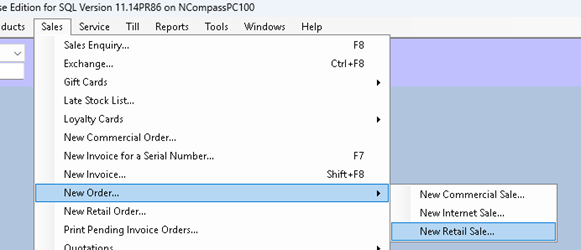
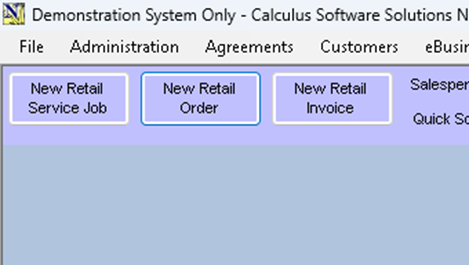
· Sign into the sales order window in the normal way
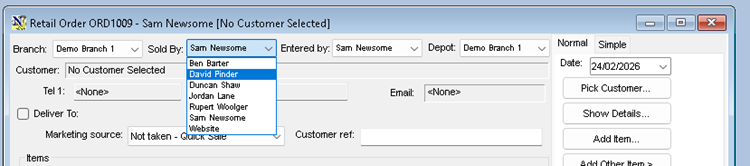
· Then Select Pick Customer
Search for your customer
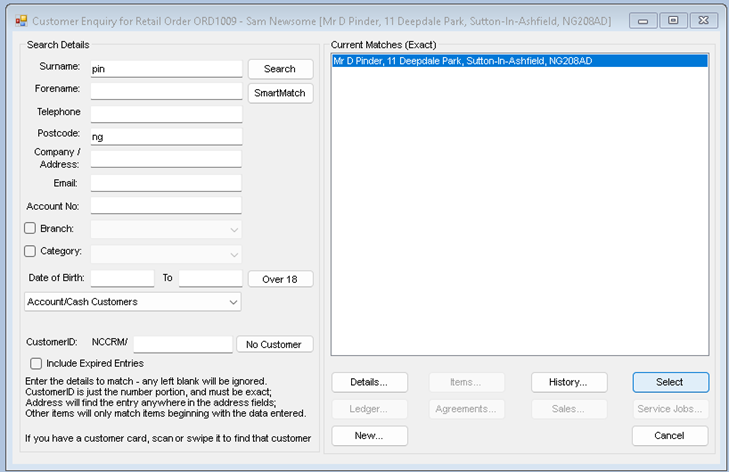
· If your customer is already in NCompass, Highlight and click Select
If your customer is not found
Click ‘New’
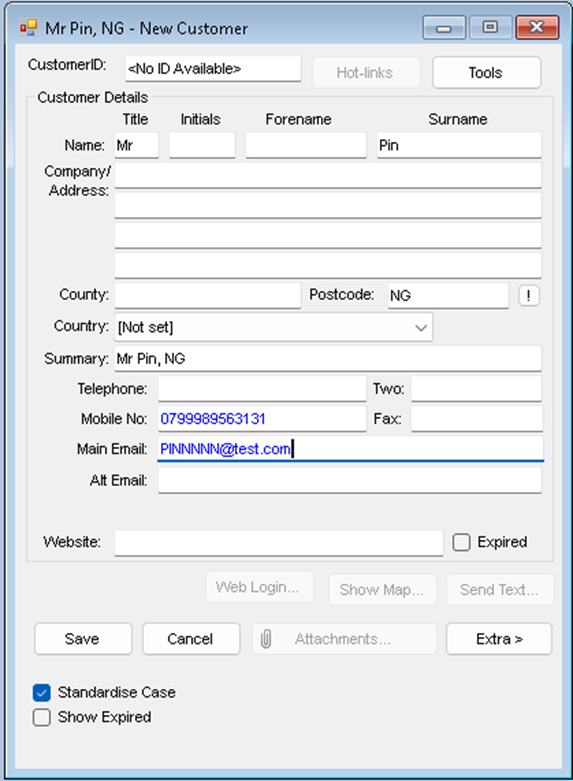
Fill in the customer details and then click Save
Note: its important you get full customer details, full title, initial, Surname, correct address, postcode email and telephone numbers
· Click ‘Save’
Now Add your product to the sales
Click ‘Add Item’
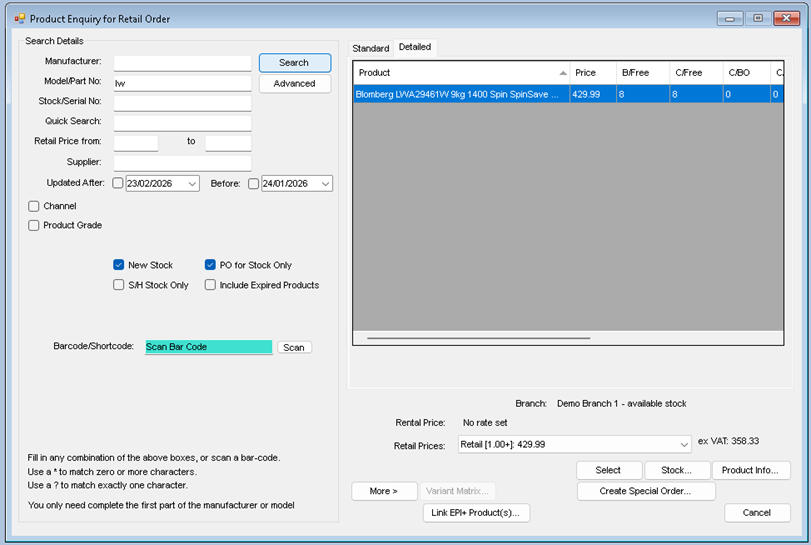
Search for your item the click’ Select ‘
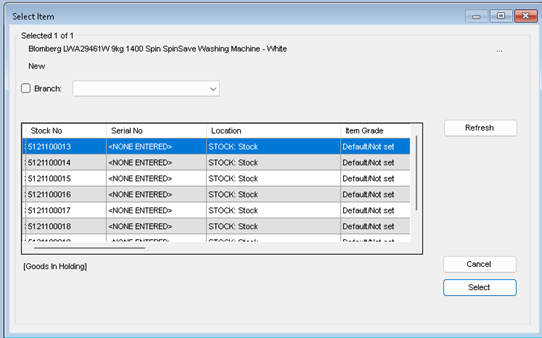
Depending on your system settings, you may or may not be required to pick a stock number, if required pick the first available stock number
· Highlight and Click ‘Select’
Your will then be presented with the price confirmation screen
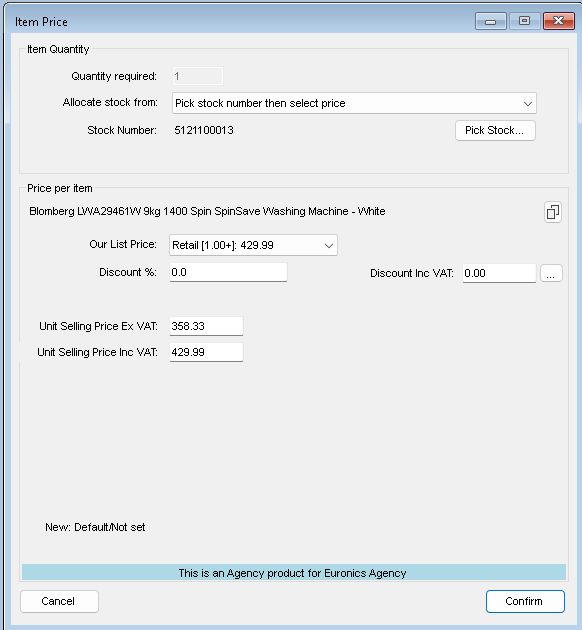
If you’re changing the price, you must do it before proceeding, as the next step will check the warranty category and retail price
· Click ‘Confirm’
If your system is set to not to prompt for warranties, you will be returned to your sales order, however it’s our recommendation that ‘Prompt for Warranty’ is turned on for all product categories, and the next window that opens is a list of available warranty purchase options
The Warranty window will do a live call to Domestic and Generals system to check the warranty rates and update if required, this should only take a few seconds and then you will be presented with the list
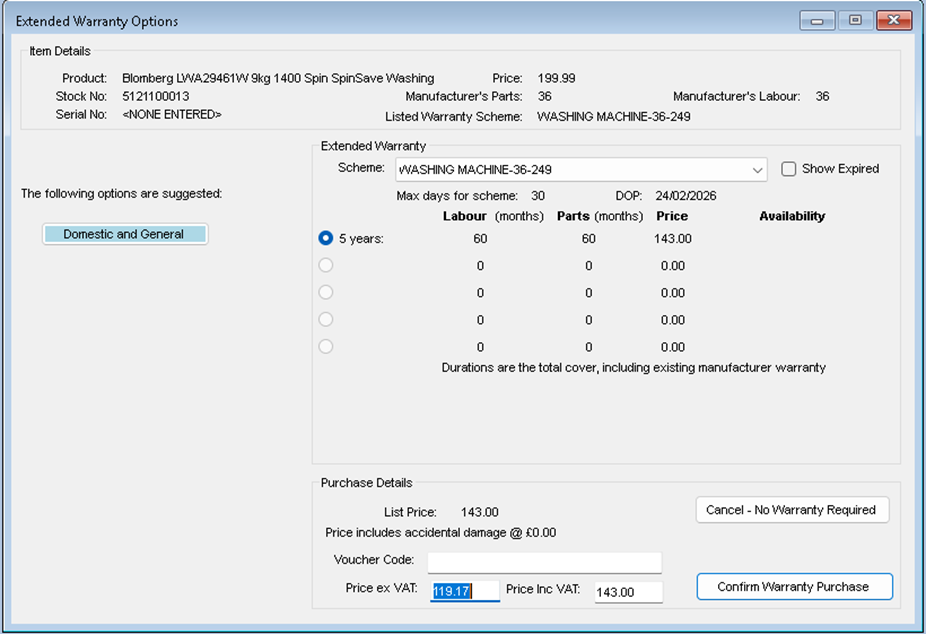
There may be more than one warranty purchase option available
This will show both term warranty.
36-month, 60-month, and the term includes the manufacturers original warranty
And monthly warranties, where the term will be set to 1 month and the price shown is the monthly price
Select the desired warranty option and the price will update, not you should not try and change the warranty price, if you do the warranty submission may be rejected
· Click ‘Confirm Warranty Purchase’ to continue with the sale and include the selected warranty
Or
· Click ‘Cancel – No Warranty required’
Note: if for any reason there is no access to Domestic and General’s systems the rate will not be able to be confirmed, and you will not be able to sell the warranty
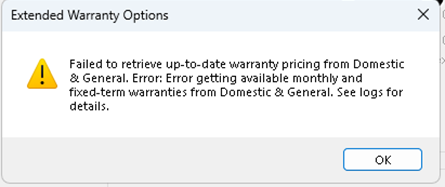
If this happens, check your internet access and the service status with Domestic and General
You can always return to the sales order later to add the warranty to the sales order.
Complete the IPID requirements
IDIP = Insurance Product Information Document
The PDF is stored the normal reports folder, and can be printed emailed or viewed directly from NCompass
This document can be different based on the warranty type, Monthly / Term
, It’s a requirement that the customer gets a copy of the IPID and has a chance to read through the basic terms before accepting the warranty sale, Domestic and General may also require confirmation of any questions or statements before the warranty can be purchased, so the following window will open
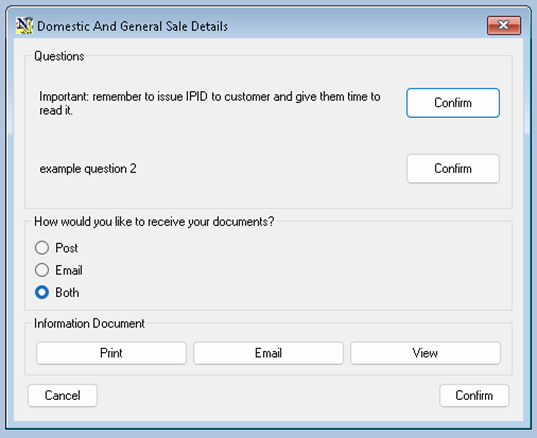
· Confirm Any Questions
· Select the warranty Document delivery method (this defaults to both)
If there are any questions or statements that require confirmation, they must be read out to the customer and then confirmed, normally for Domestic and General the only question will be to confirm that the customer has received read the IPID
Print Will send the correct IPID PDF to the default A4 Printer
Email will open up the NCompass Email client with the customers email address and a email template with the correctly worded text, and the PDF attached
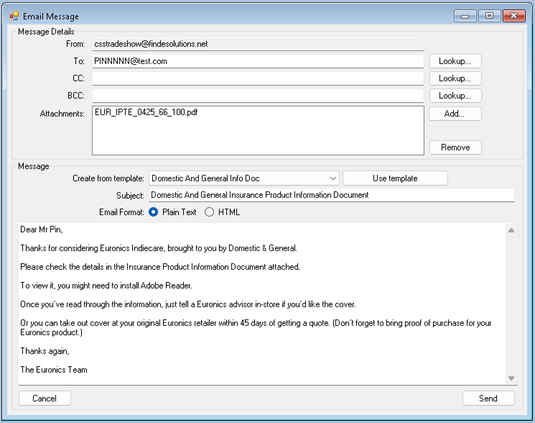
Click ‘Send’
View will open the PDF in a mini-Browser
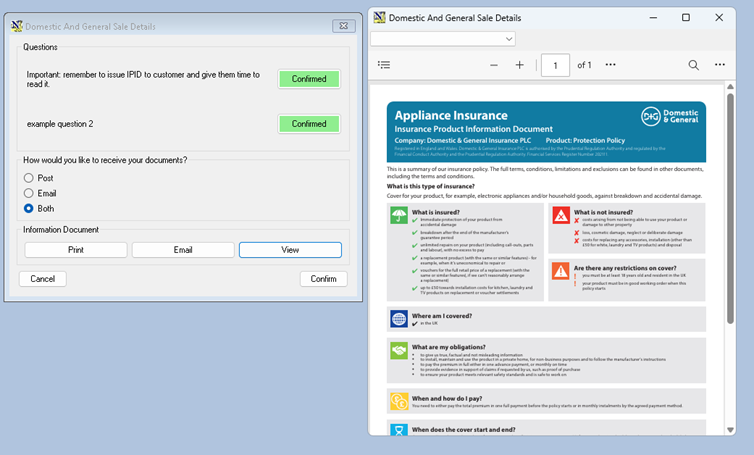
Once the customer has received / viewed the IPID you can Continue
Click ‘Confirm’
If a monthly warranty has been selected, you will be prompted to collect the customers Direct Debit details
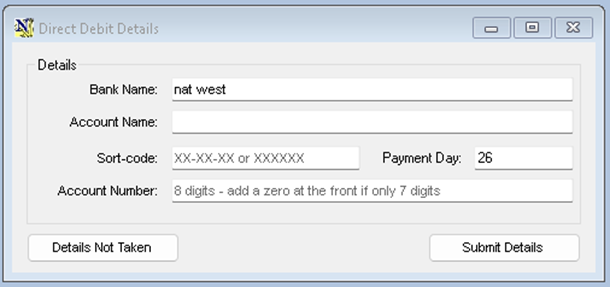
Enter the customer bank details
The payment day defaults to the current day, the customer can have the direct debit taken on any day form the 1st to the 28th
You cannot submit monthly warranties without bank details, if click ‘details not taken’, you will be prompted again when confirming the sale
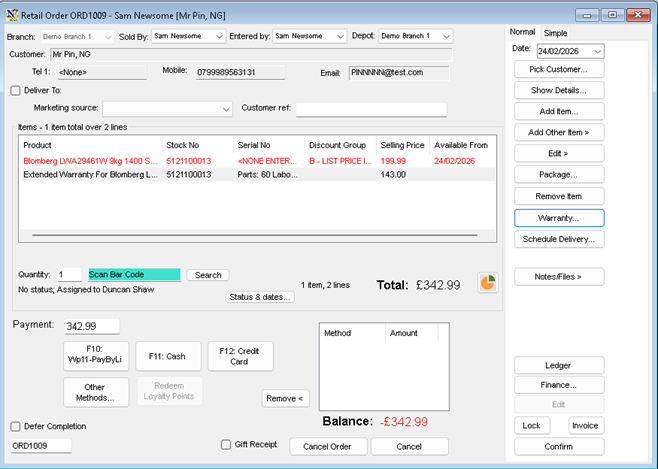
Back at the soles order screen, you can now continue to add more products, if additional products also have a tagged warranty, the same process will be available for each product line
When the sale is complete
· Click ‘Confirm’
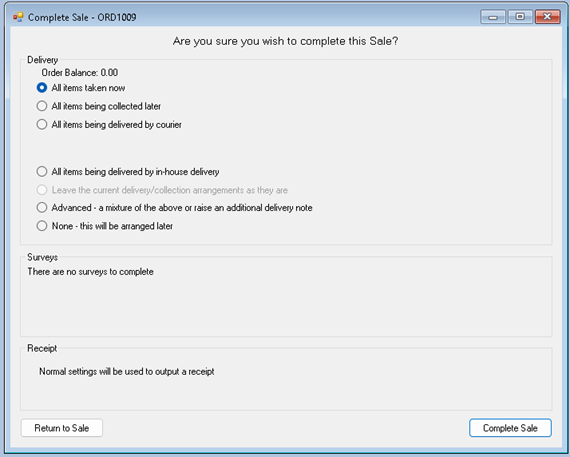
Select the item delivery / Shipping / Collection options required
· Click ‘Complete Sale’
If you have not taken the bank details and there is a monthly warranty present on the sale you get one final chance to eneter them, monthly warranties can not be submitted without bank details
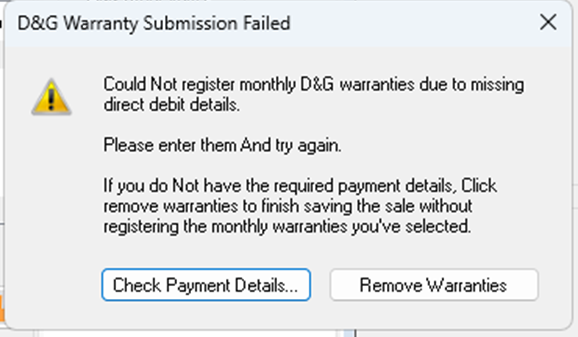
The Warranty Submission will now take place, there will be a short pause while NCompass connects to Domestic and Generals systems and submits the warranty, Once complete you will get a confirmation
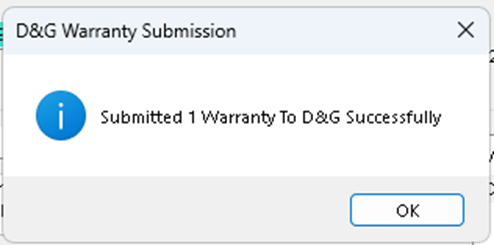
If the Warranty Fails to submit you will be given a reason
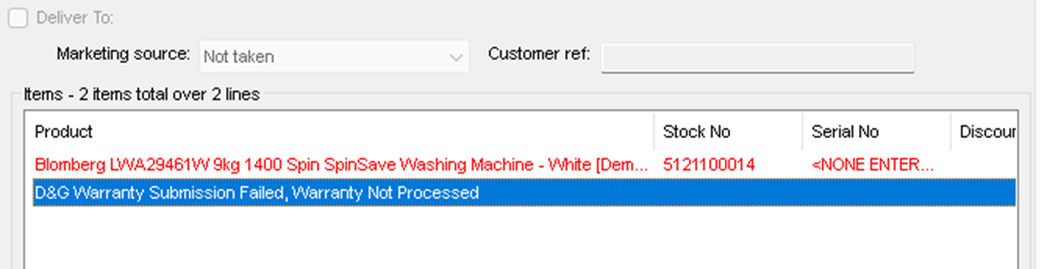
The Warranty is automatically removed for the sales order and is replaced with a sundry line indicating the submission has been cancelled
Selling a warranty for a previously sold product
· Start a new sales order
· Add the customer on to the sales order
· Click the Warranty button and select the option ‘For another item’
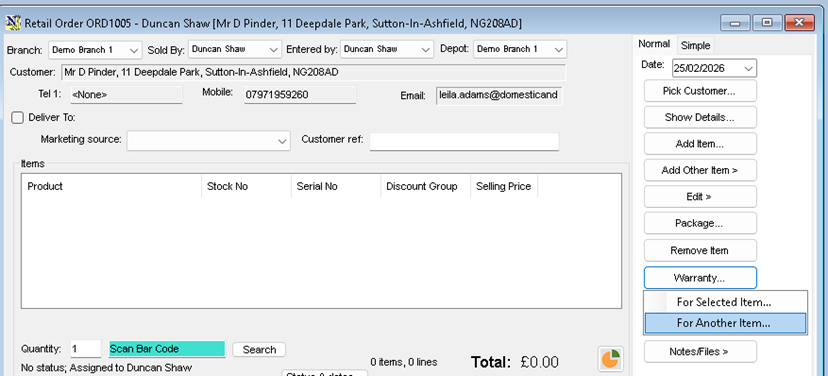
This will bring up a list of the customers previous purchases
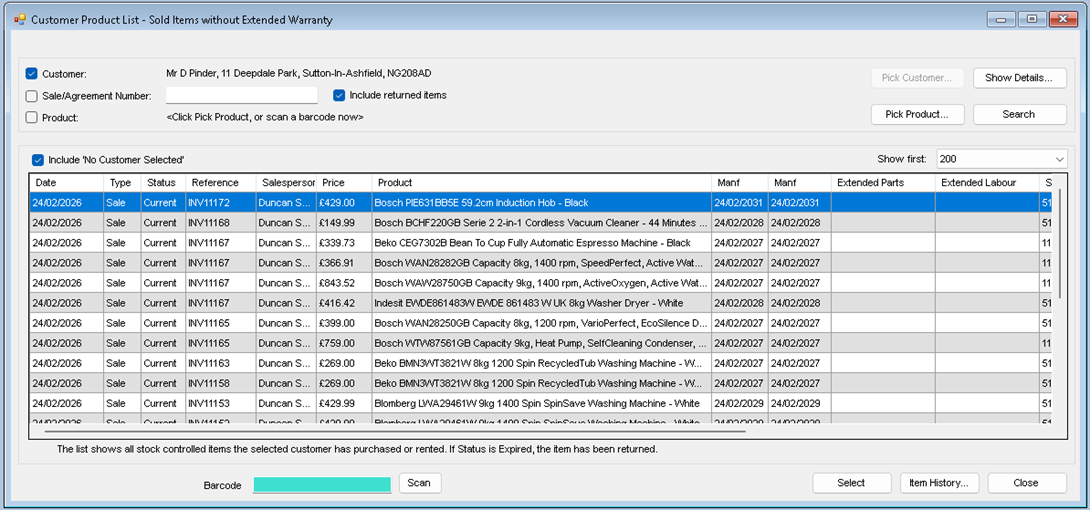
· Highlight the item and Click Select
· Proceed with the warranty purchase as above
Promoted Warranties
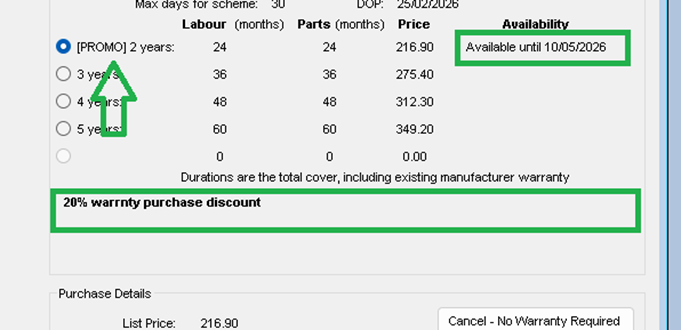
There is provision in the rates table / API call for promoted warranties, if a promoted warranty is available it will be shown in the warranty selection screen, the warranty name will be prefixed with [Promo]
The availability field will show when the promotion is valid until and under the selection table the promotional test will be shown