Interpolated %TAGs
The functionality provides access to product and price information for use either as feature information or as feature elements that can be used in tickets designed through the NCompass Ticket Designer.
Tag Definition Structure
Tag definitions used for interpolated data are structured as a series of parameters:
Each tag definition is wrapped in the usual “%” symbol. This symbol must be included at the start and end of the definition.
When used to define data which is populated as a ticket feature the definition may be refixed by a feature label. This feature label is automatically included by NCompass when ticket details are created. The text of a feature is typically populated from the feature values added to a product or by default values set in the department definition itself and applied based on the department structure associated with the feature.
Each parameter is delimited by a colon “:” symbol.
Parameters/Order
The following table details the parameters used by the interpolation tag:
|
Sequence |
Parameter |
Possible Values |
|
1 |
Function |
Control word “ProductData” meaning the data will be sourced from Product data. |
|
2 |
Source ID |
Can be either a short code with a SC prefix or the control word “CURRENT” |
|
3 |
Interpolation Object |
This is the name/delimited object path for the data to be returned. This element is case sensitive and must match the exact structure of the object being interpolated. |
|
4 |
Optional |
Control word “DP” which deletes prefix text such as the Feature Label. |
|
5 |
Optional |
Format to be applied to the result such as value formatting of a numeric value. Here any format which follows the Microsoft format syntax can be used. |
IMPORTANT: The order of parameters is important. Please follow the information and examples provided here to ensure that your definitions are interpreted correctly.
IMPORTANT: Interpolation of data is case sensitive. You must ensure that the names provided for objects that yield data are correctly cased. An incorrect case will result in the desired object not being identified and therefore no valid data will be returned.
You should always test that the definition is working correctly by working up an example of its use in the environment you are adding the definition.
Adding an Interpolated TAG
Values for features can be configured to apply for tickets either at the department level (with a default value of the definition itself) or as a feature value held on the product definition itself.
When a label defined is created the value of each feature is populated per the product or category-based definition.
When modified, feature entries can be entered or cleared and re-populated from the product or category-based definition.
Example Definitions
The following example definitions show the use of the %Tag Interpolation for both the current listed item (the Make of the main product) and an associated listed item (An Installation Cost).
Example #1 Current Product Data
The following example returns the Make of a listed item based on the current product listed item ID.
In this example the second parameter “CURRENT” specifies that the LICode associated with the label being rendered should be used as the source product from which the data is taken.
Make: %Productdata:CURRENT:{Details.Make}%
Example #2 Related Product Data (Formatted and with removal of Feature Label)
The following example returns the retail price (including VAT) of a listed item based on its short code.
The result is then returned with the Feature Label removed and formatted as a comma delimited value with a £ currency prefix.
Installation Basic: %Productdata:SC10405:{ChannelRetailPrice.PriceIncVAT}:DP:£ ###,###,###.00%

Above we see two features defined to populate during the rendering of the label with the interpolation applied per the %Tag.
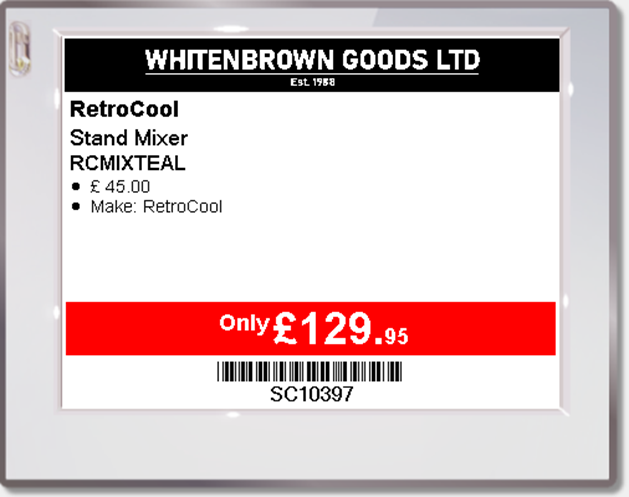
Here we see the resulting populated values.
As per the examples, the £45.00 represents the Installation price as obtained from the referenced short code and has had the Label removed along with the price formatted as specified.
The second feature entry retains its Label and is populated with the Make of the product.