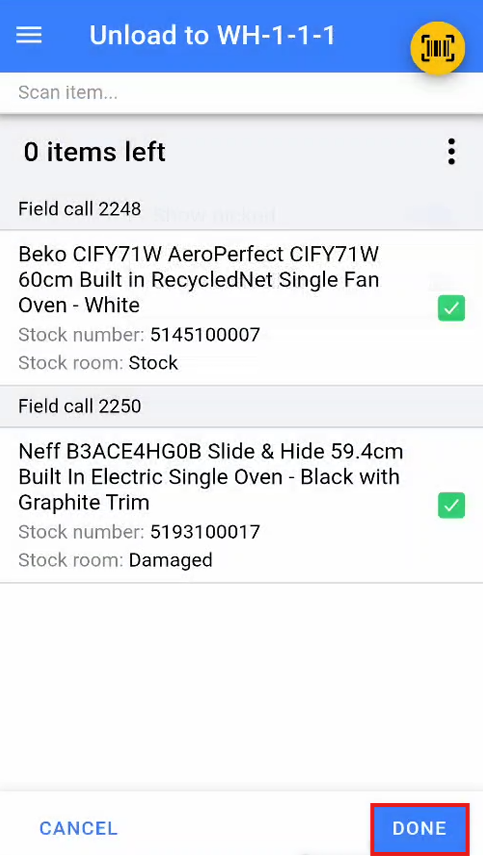
Unload Vans
The Unload Vans feature is used for scanning items that were failed deliveries or collections that the delivery team has picked up during the day. These items are scanned back into the business to mark them as received.
The Manual Store feature is used to store specific stock numbers into a stock location.
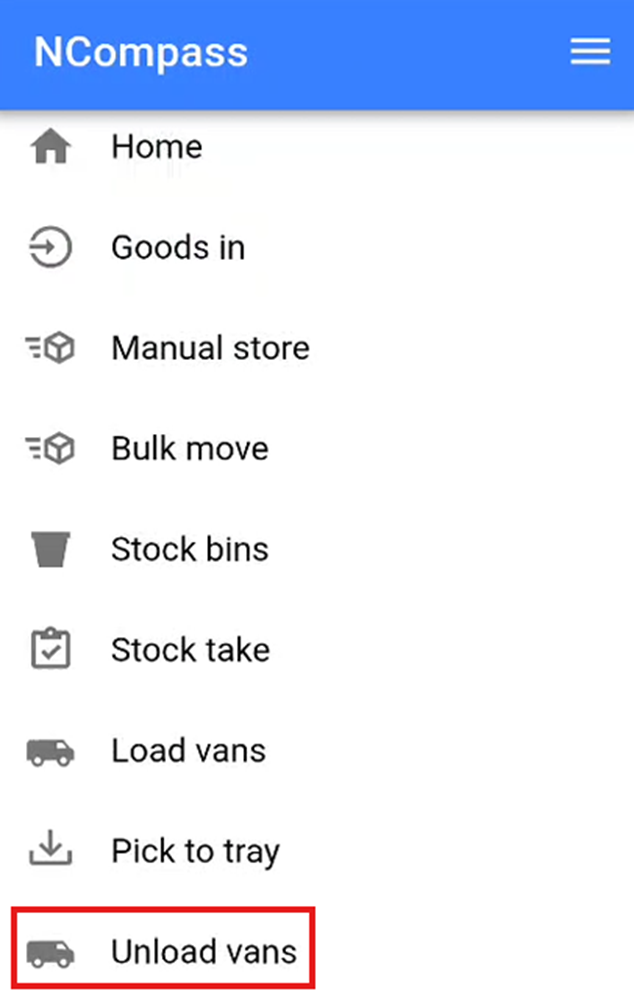
This will open the Unload Vans screen.
Selecting Engineer and Location
Select the Engineer for whom you are unloading the van.
Set a location for the items by either:
Scanning a location barcode, or
Manually selecting a location.
Once the engineer and unload location have been selected, click Submit to start unloading the van.
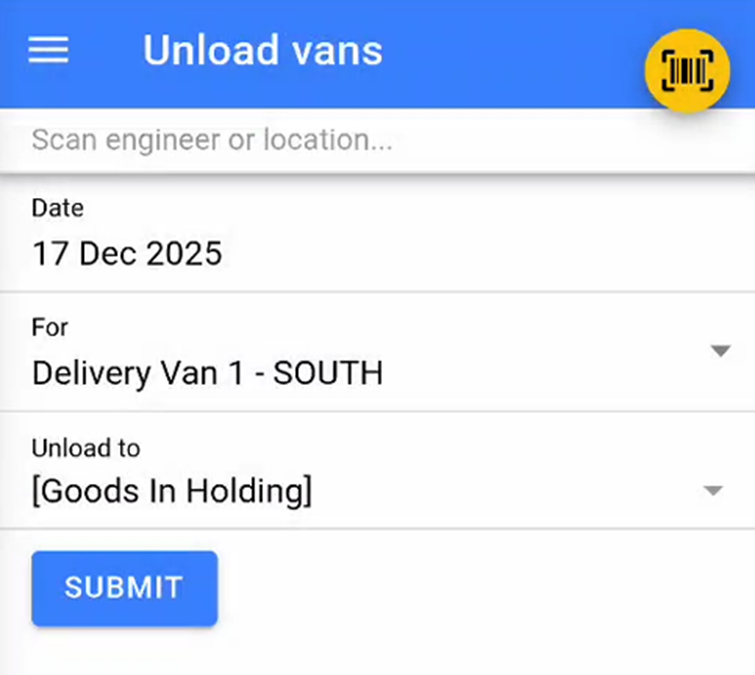
Once you have selected the engineer and the unload location click 'Submit' to start unloading the Vans.
Scanning Items
A list of items on the van that need to be scanned off will appear.
Scan each stock number to check it off the list.
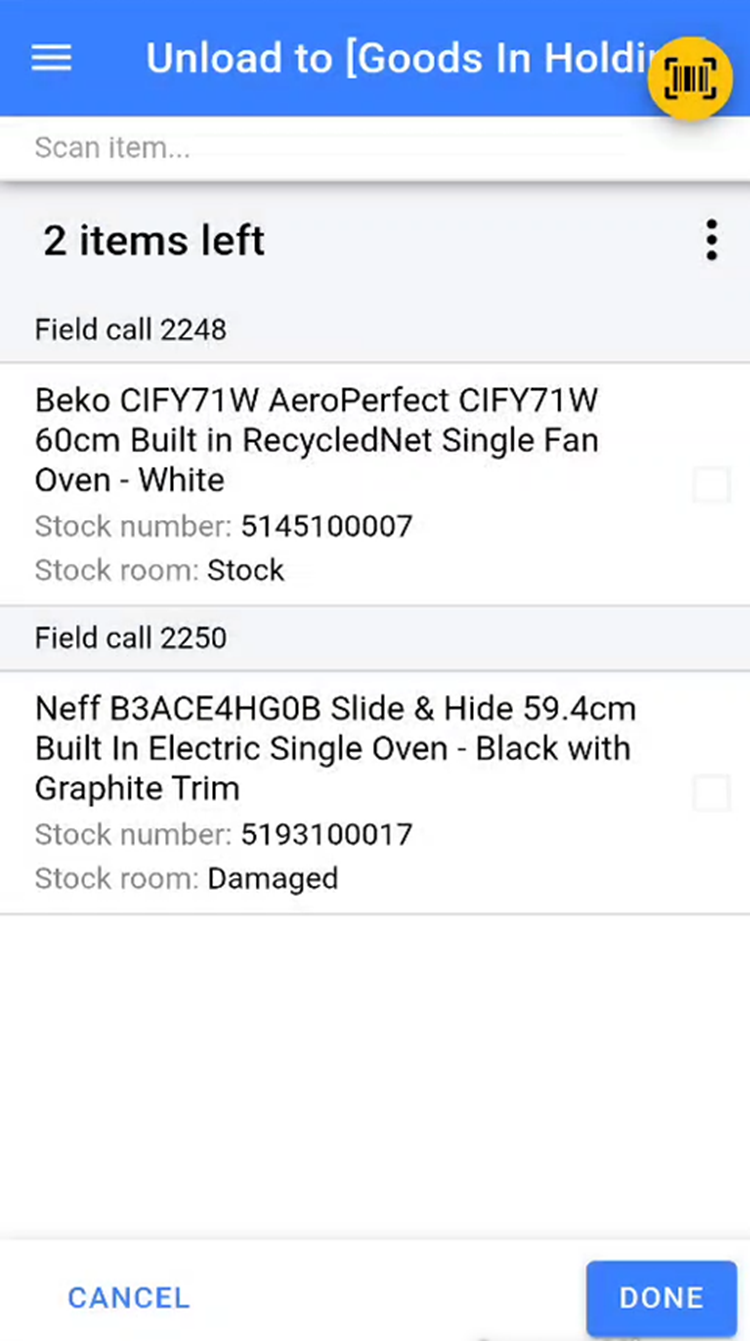
**Note:** The list includes items that were failed deliveries by the selected engineer or any collections marked as completed.
If an item has had its stock number removed and cannot be scanned, swipe left on the item to access two additional options: for that item so you can put the stock sticker back onto the item.
Printer Icon – Prints another stock label for the item.
Check Icon – Manually marks the item as scanned.
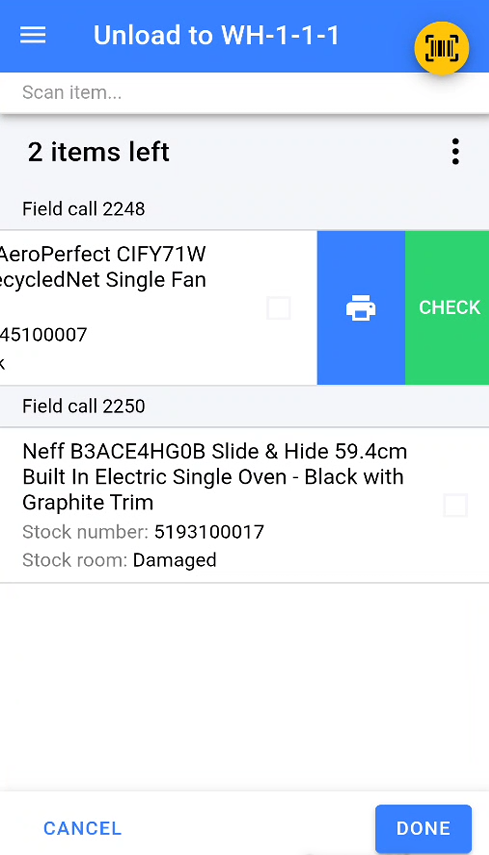
Once all items have been scanned or marked as scanned, click Done to complete the unload van process.