Stock Take
Stock Take By Location
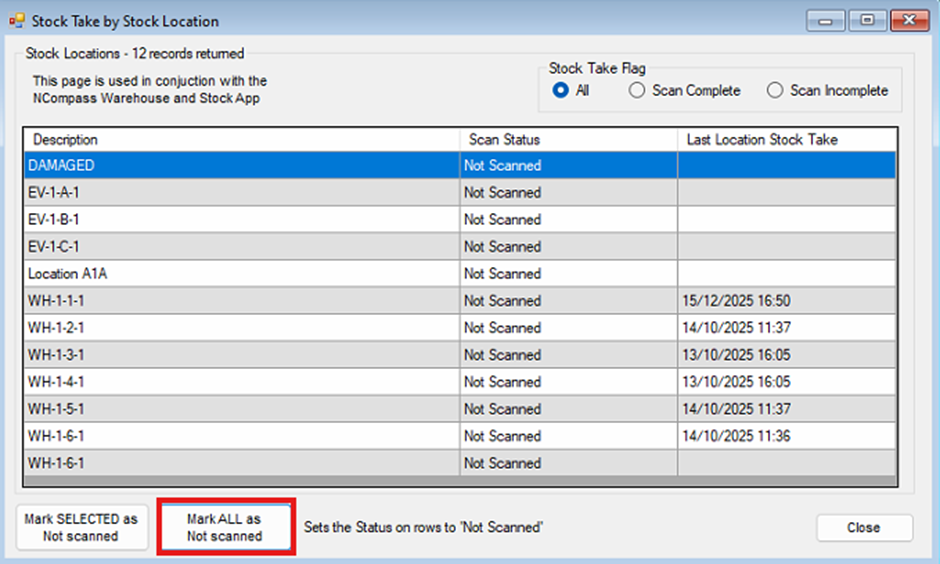
Inside of the Desktopdesktop Versionversion of NCompass, navigate to Products > Stock Count > Stock Take Byby Location.Location.
This will bring up a list of all stock locations that you currently have set up in your systemsystem, andalong with the last time they were stock checked.
Click the 'Mark ALL as Not Scanned'Scanned button to set the scan status of all the locations to Not Scanned.Scanned. This will help you track which stock locations still need to be scanned as you undertake your stock take.
Stock Take Detailed Mode
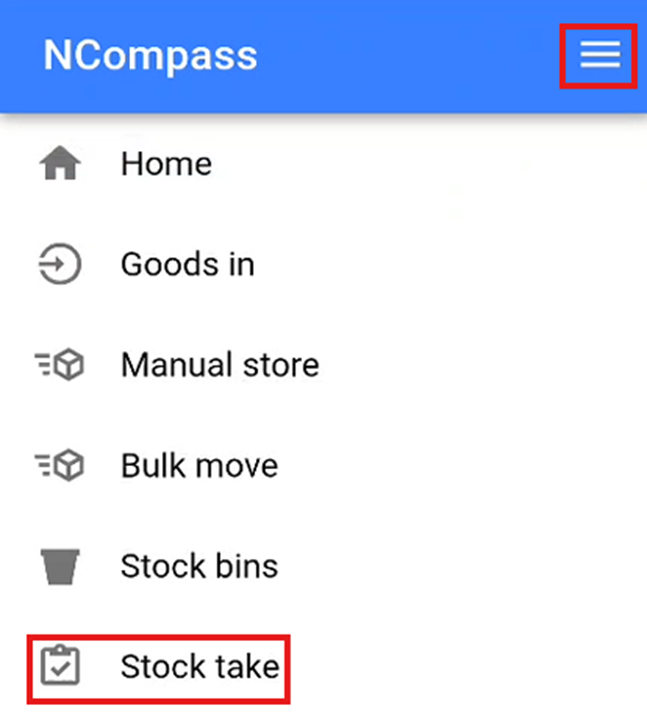
On the Warehousewarehouse Scannerscanner, click the burger menu in the top right of the screen to open the menu. NowThen click the 'Stock Take'Take option to start undertaking your stock take.
You will now need to scan athe stock location that you wish to undertake a stock take on. This will populate all the stock numbers that are currently stored in this location and that you would expect to find.
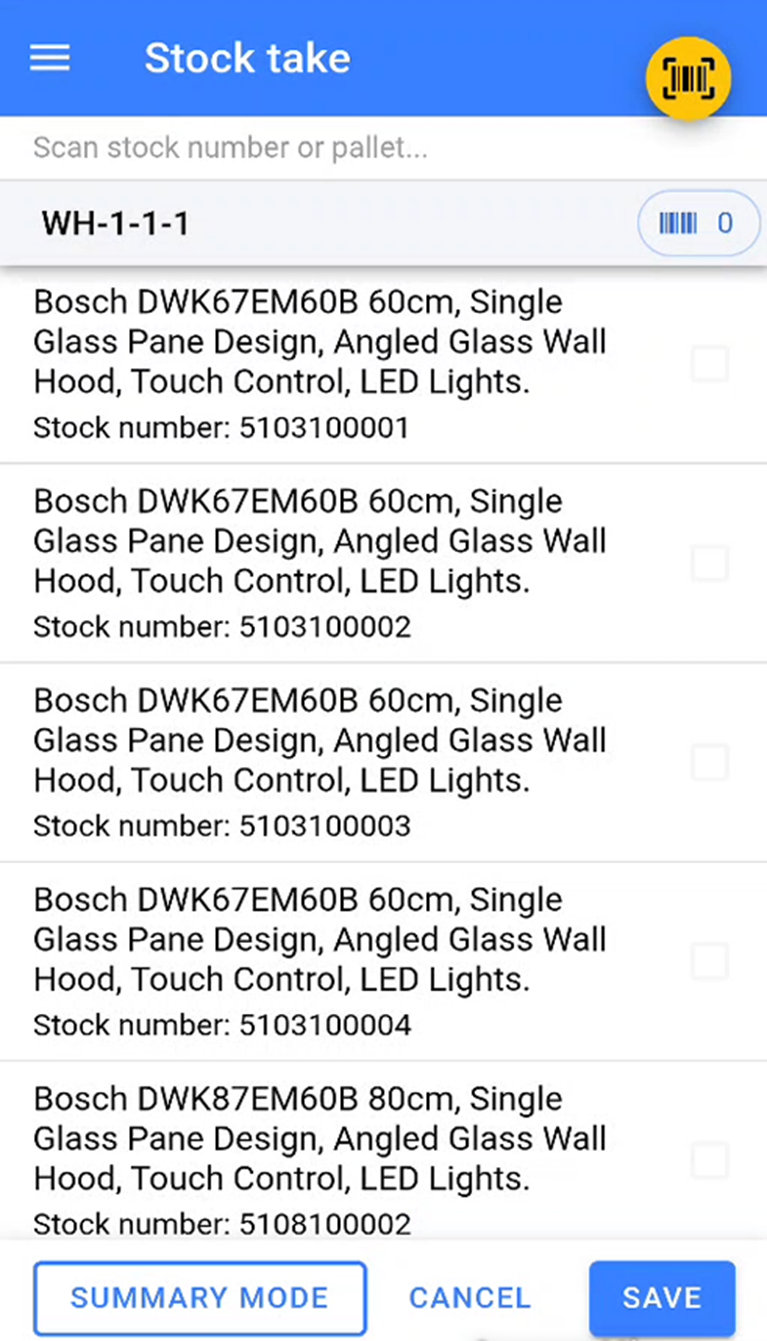
You will now need to start scanning the stock numbers that are physically sitting inside of that location in the warehouse.
Once you have started a stock taketake, you will need tomust ensure that you have scannedscan all the items in that location. If you complete a stock take halfway through scanning, you will need to restart the stock take and scan all the items inside the physical location again.
As you scan the stock numbersnumbers, the warehouse app will tick off the stock numbers as they are scanned. You will be able to see how many stock numbers have been scanned in this location by the number next to the small barcode icon.
Any items that show asremain unticked are items that the system expects to be in this location but are not physically there.
Once you have scanned all the stock numbers that are physically in that location have been scanned you will need toscanned, click saveSave to complete the stock take.
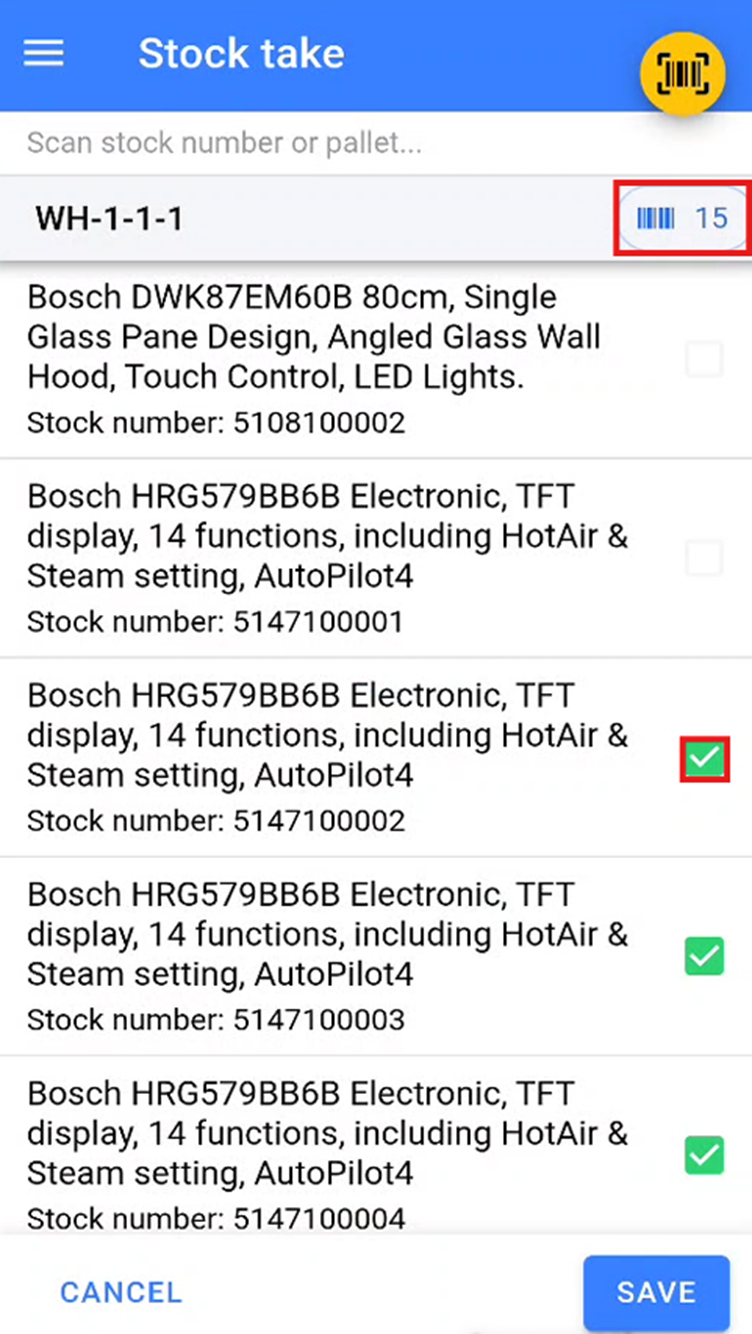
Any items that were expected in that stock location but wherewere not scanned during the stock take will be moved to a temporary 'Missed During Stock Take'Take location to dealbe dealt with at a later point.
Any items that are stored in another location but are scanned during the stock take are automatically moved to the location where the stock take is being conducted on.conducted.
Stock Errors
During your stock taketake, you potentially may getencounter a stock error. This isoccurs wherewhen a stock number that has been scanned is marked as not physically in stock in the warehouse. This is most likely due to be that the wrong stock number has beenbeing marked as delivered to a customer.
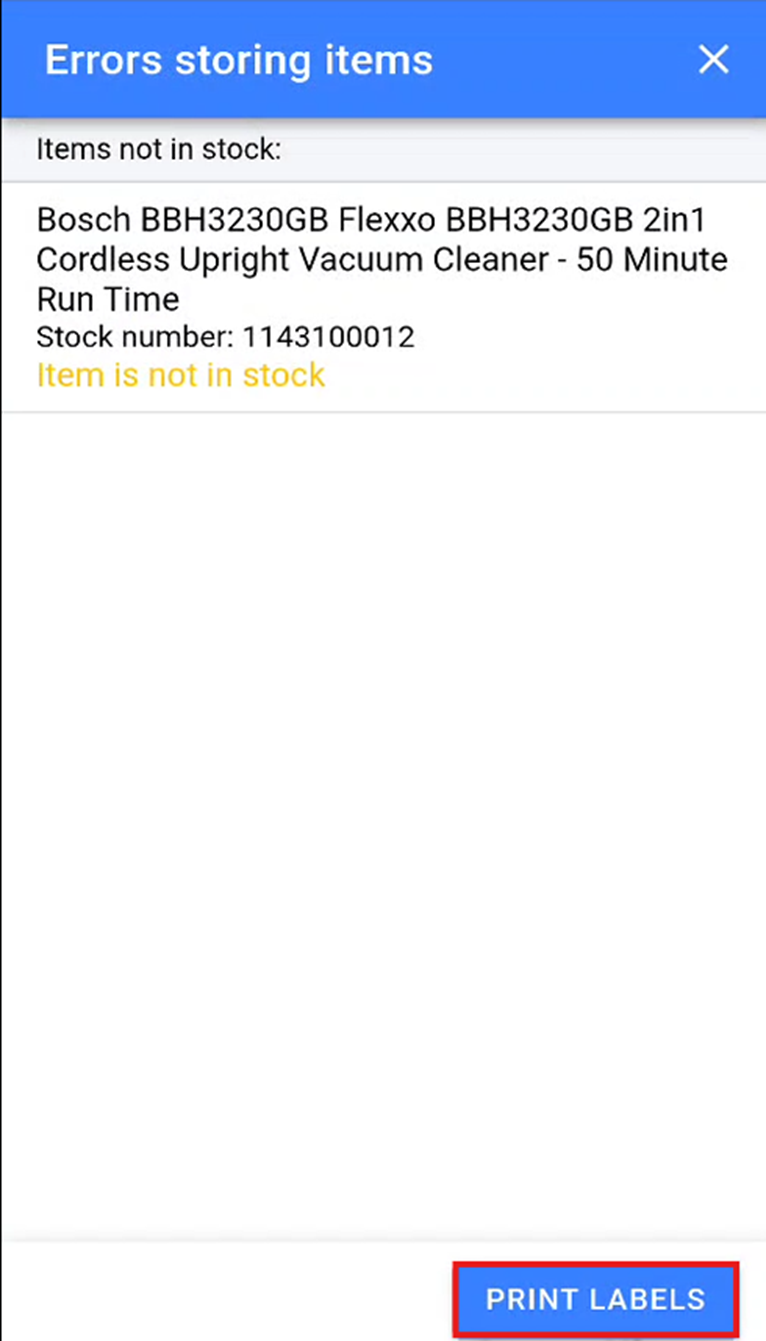
We suggest that you 2print oftwo stock error labels for each stock error labels and physically pullremove the item with the stock error out offrom the bay. You will then need to stick one of the stock error labels directly over the existing stock number to markindicate that the stock number for this product needs to be amended.
Summary Stock Take Mode
If you store multiple units of the same itemsitem insidewithin of thea stock locationlocation, you can undertake a stock take byusing summary mode. To enter the summary modemode, click the 'Summary Mode'Mode button onat the bottom left of the screen after selecting a location to undertake your stock take on.
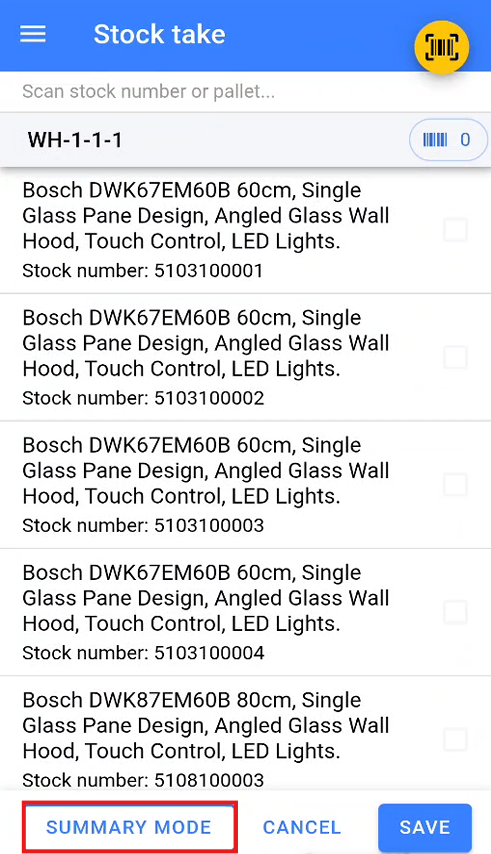
This will then show youdisplay a blank list ready for you to populate. During the summary stock taketake, you will need to scan the EAN of the product you wish to count. Once you have scanned the EAN youhas willbeen need toscanned, enter the quantity of the item that has been counted in the physical location.
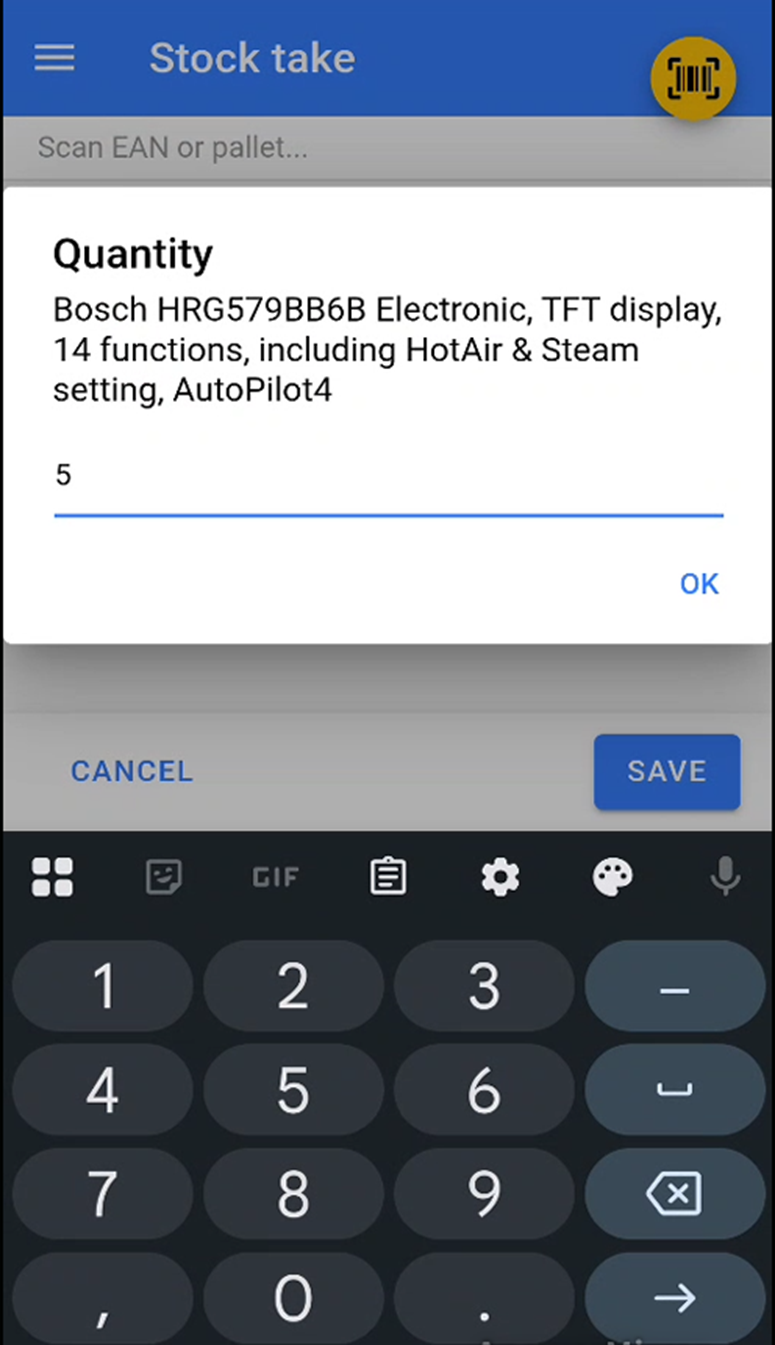
Once you have scanned and entered the quantity for all the items inside ofwithin the locationlocation, click the save buttonSave to complete the stock take.
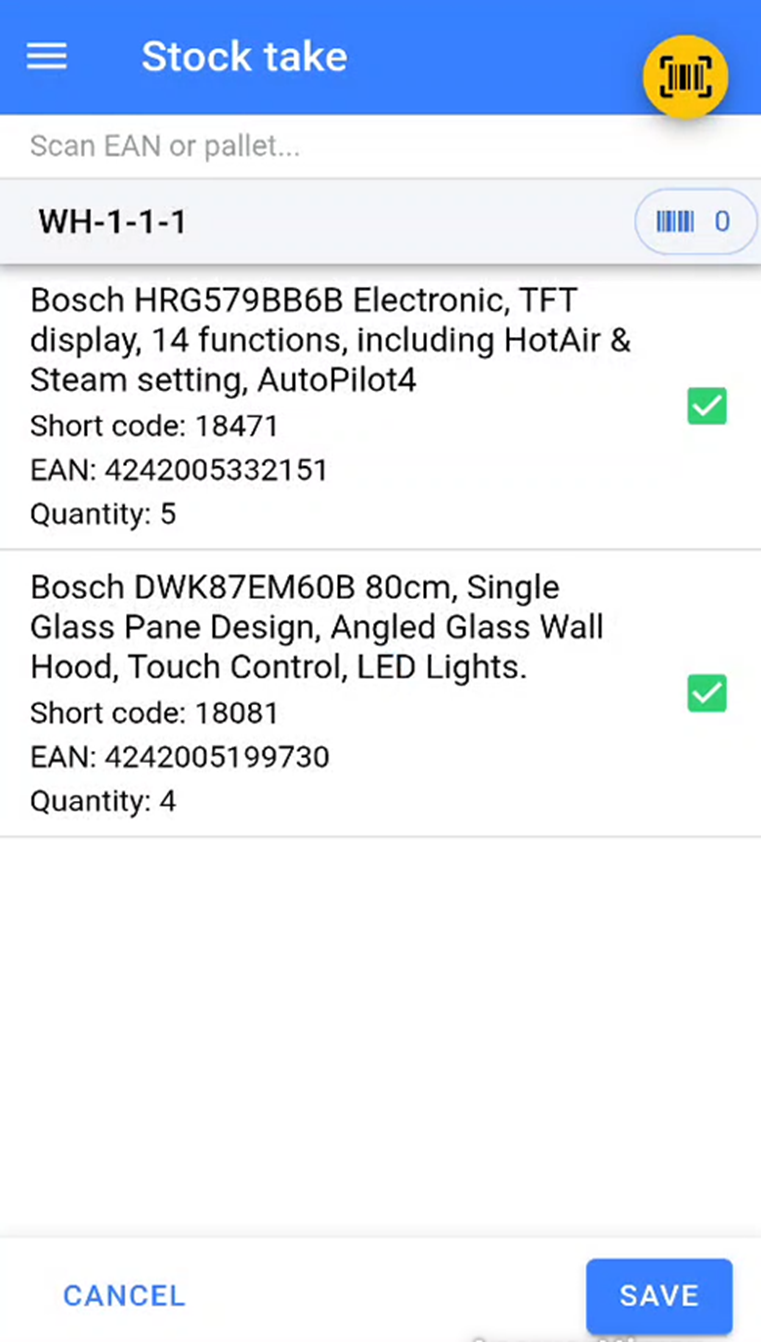
If the quantityitems and itemsquantities entered match what is already stored in thisthat locationlocation, the stock take will be completed.
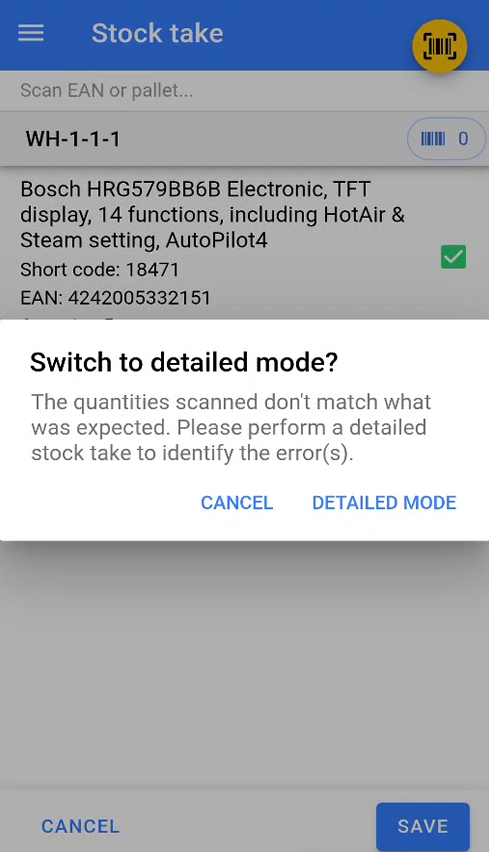
If the items and quantities differ from what is already stored in that location, the warehouse scanner will warn you and prompt you to undertake a detailed stock take to identify where the discrepancies lie.