Stock Count
You can use WAS to populate a Stock Count created in NCompass, this is especially useful for Count Only items.
There is a separate guide which covers using and setting up Stock Counts in NCompass.
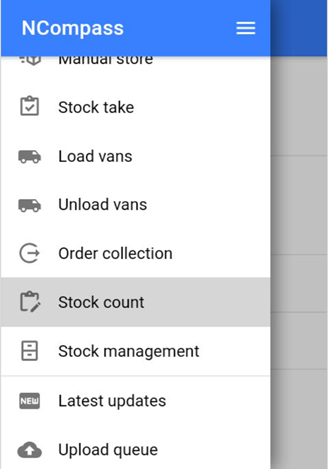
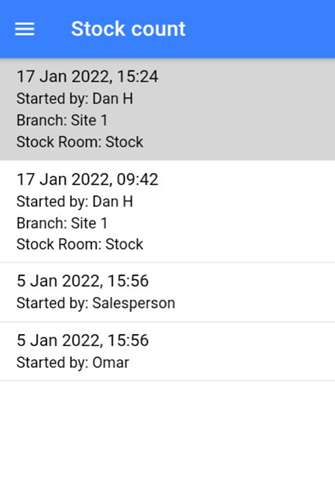
- Click on the stock count with the correct Date/Branch/Stock room you are counting.
If there is no branch/stock room you can select where you are scanning on the next window.
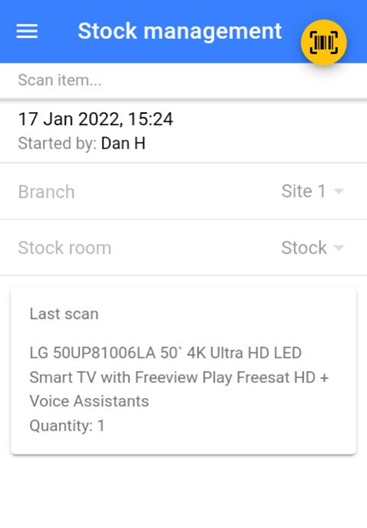
- Once you are on the stock management screen, if not already preselected:
- Set Branch you are in
- Set Stock you are scanning
- Now start scanning the EANs
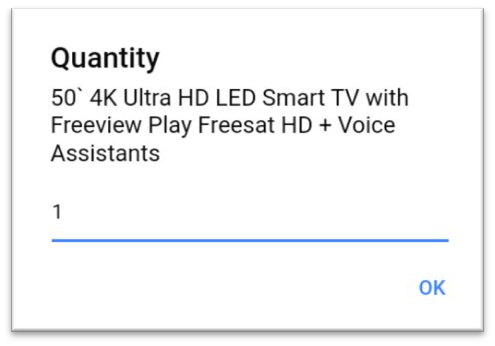
- Start scanning the EANs and entering the QTY of items
Once you have finished scanning, just click the back button. If you miss anything or are scanning over multiple days just come back into the stock count and continue to scan.
You can amend your last scan if you made a mistake! You can also check the Retail Price at the same time to ensure it's correctly set.