Order Collection
Picking a Customer Collection
A customer collection is used for wherewhen a customer is collecting thecollects items directly from the warehouse. The customersCustomers will be provided with a collection slipslip, thatwhich they willmust bring with them and hand over.over at collection.
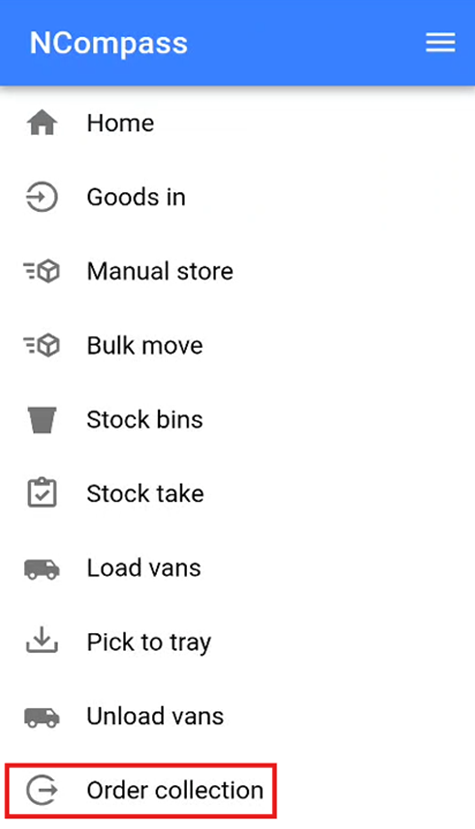
If you clickClick the burger menu in the top right of the screen andscreen, then select the 'Order Collection' sectionCollection from the menu.
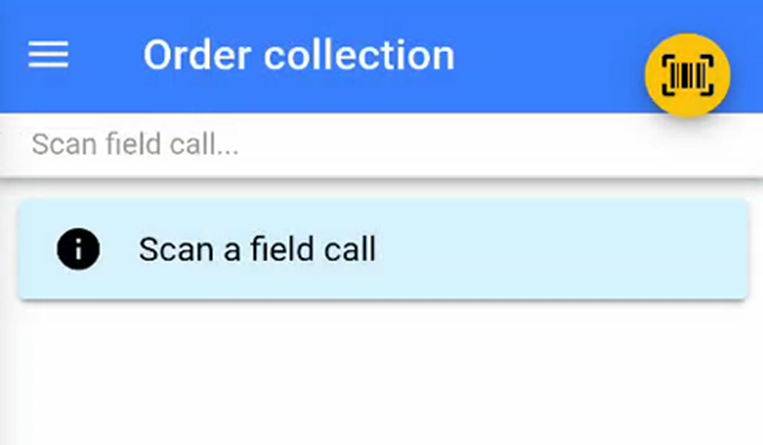
This will then open the customer collection screenscreen, ready for you to start the customer collection, and will prompt you to scan a field call.
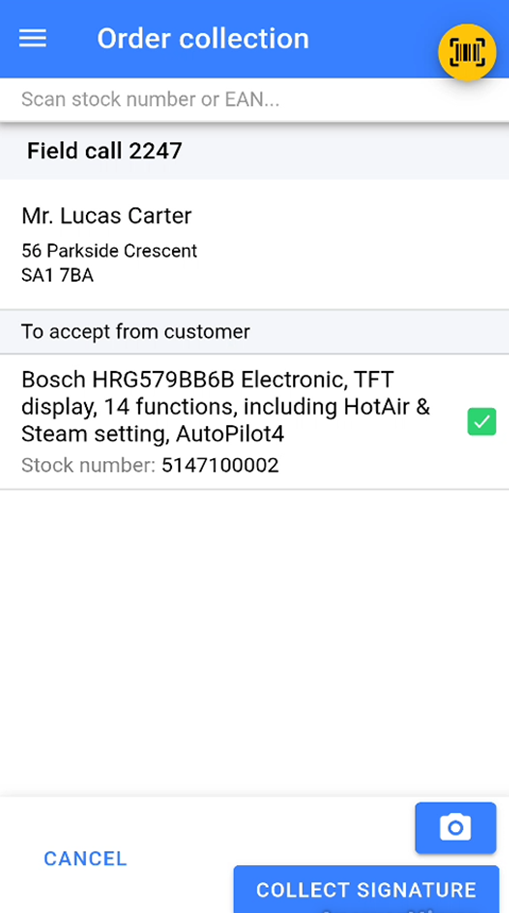
You will need to scanScan the barcode onat the bottom of the customer collection slip to select the customer collection that you will be undertaking. Once the customer collection slip has been scannedscanned, the warehouse app will show youdisplay a list of the items due on that collection.
You will need to findLocate the item that is due out onfor the customer collection and scan the stock number that is being givenissued to the customer. The normal stock swapping rules apply if youyour system is configureconfigured for stock swapping.
Adding photos to a customer collection
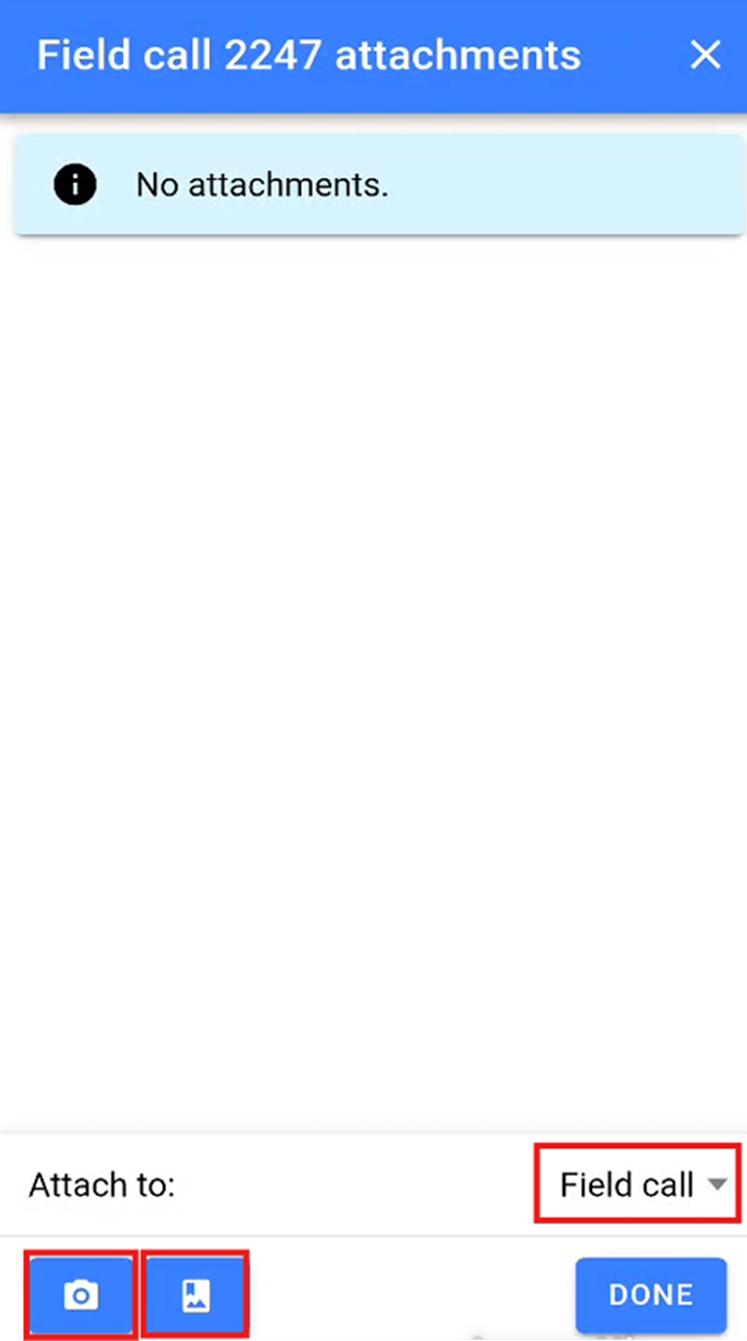
You are able tocan add photos to a customer collection by simply pressing the camera icon in the bottom right of the screen.
This will take you to the attachments sectionsection, where you can either take a photo directly as an attachment by pressing the camera icon in the bottom left of the attachment screen.
You can also attach photos that have already been saved to your devicesdevice’s camera roll by clicking the image icon in the bottom left of the screen.
You arecan alsochoose able to select if you wishwhether to attach the photos to either the field call or the sale by selecting the relevant option from the dropdown onin the bottom right of the screen.
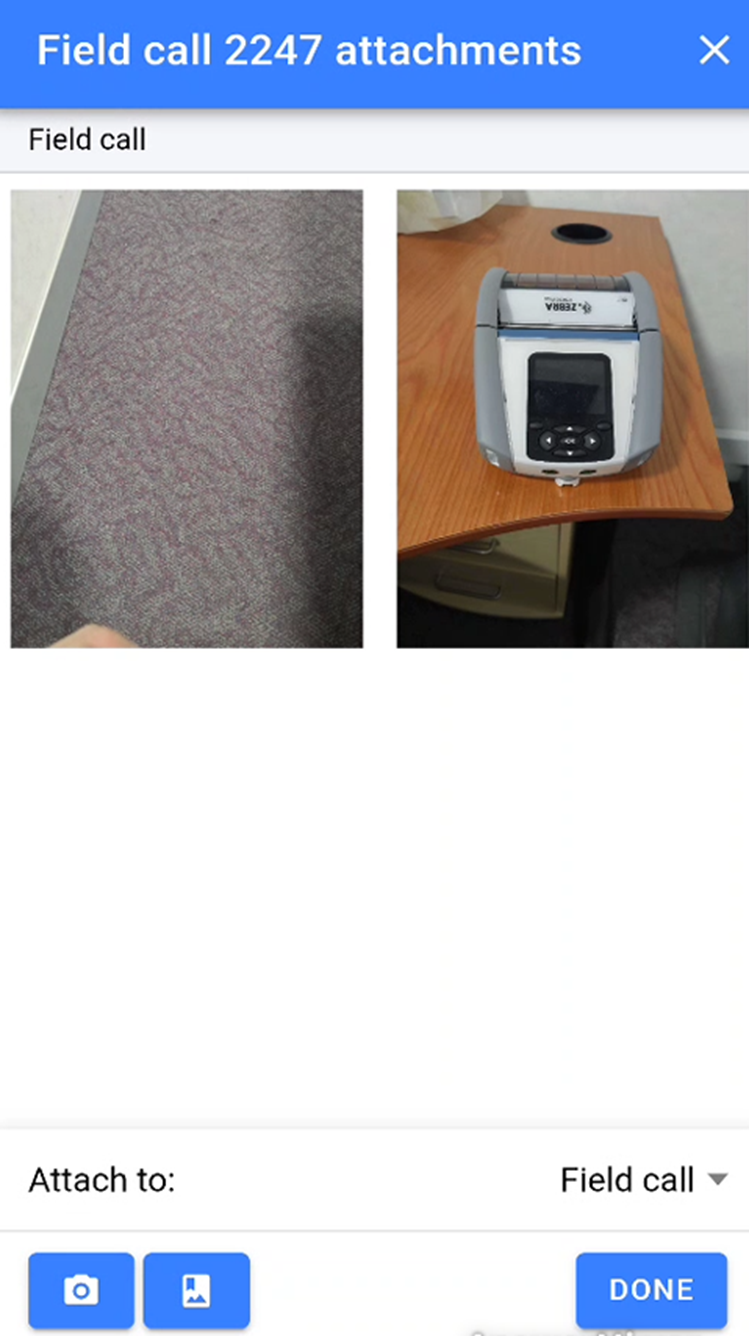
Once you have added the relevant photos intoin the attachments sectionsection, you will be able to see anyall photos that have been added. SimplyClick click doneDone to finish adding photos.
Completing a Customer Collection
Once all the items have been picked and any required photos that need taken have been attachedattached, you will need to collect a signature from the customer to confirm that they are happy with the collection.
Click the 'Collect Signature'Signature button onin the bottom right of the collection screen.
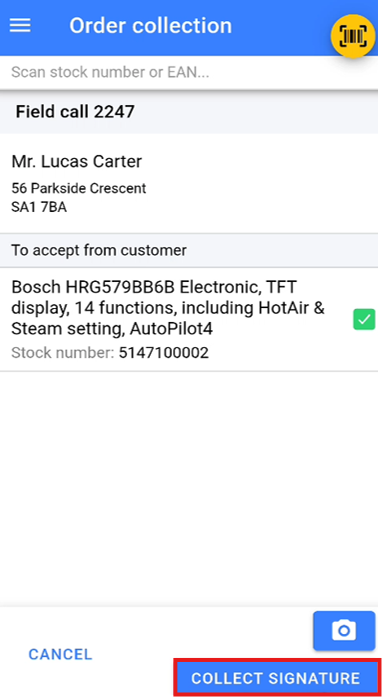
This will bringopen up yourthe proof of delivery screen, where you can enter the name of the person collecting the itemitems and add andany notes if needed. required.
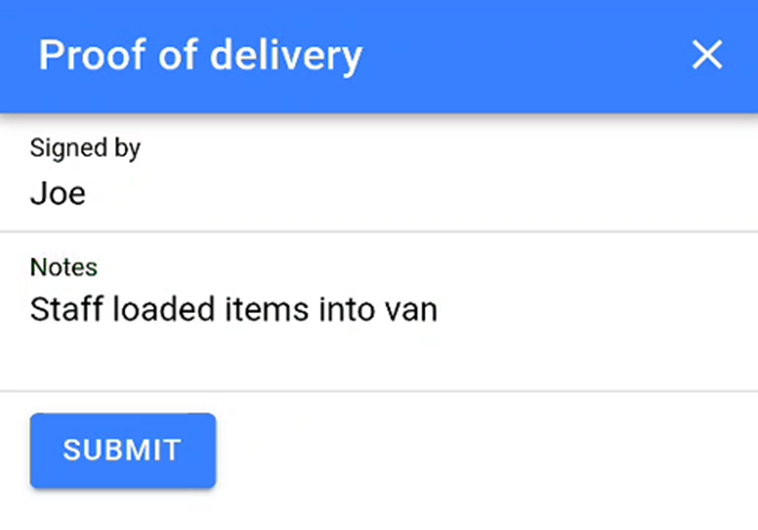
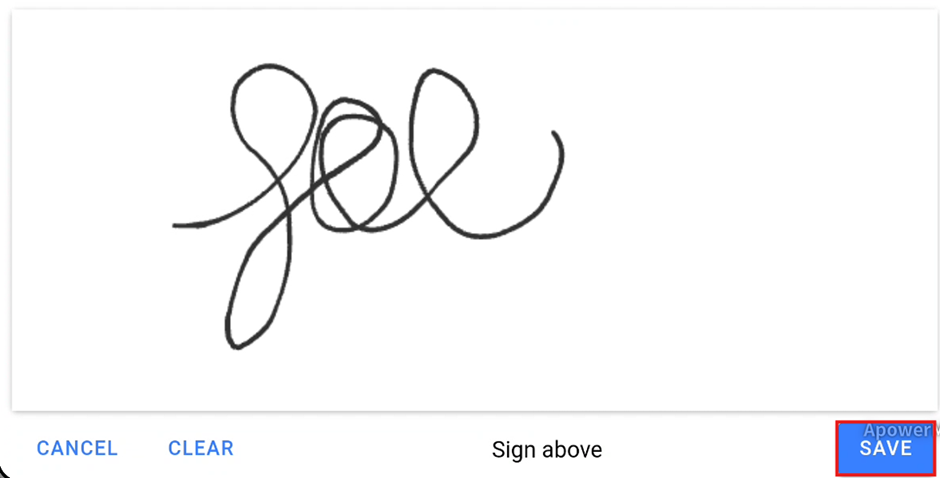
The warehouse application will then flipswitch to a landscape layout and bring updisplay a signature padpad. on the device which you will need to getAsk the customer to sign.sign on the device. Once the customer has signed the electronic pad,signed, click saveSave to competecomplete the collection.