Goods In
There have been some changes to streamline the goods in process. There is a new option for a Two Step Goods In which allows users to preemptively tell NCompass what items are going to be received into stock via the Purchase Orders.
This allows the Delivery Note, and the expected arrival date/date range to be pre-populated which means we can safely skip the Manifest step which can save a lot of time booking in stock. It pairs well with the wireless label printers too to massively reduce the risk of sticking the wrong label on a box. This would be our recommended solution but will require consultation with our Implementation department before using for the first time.
Settings
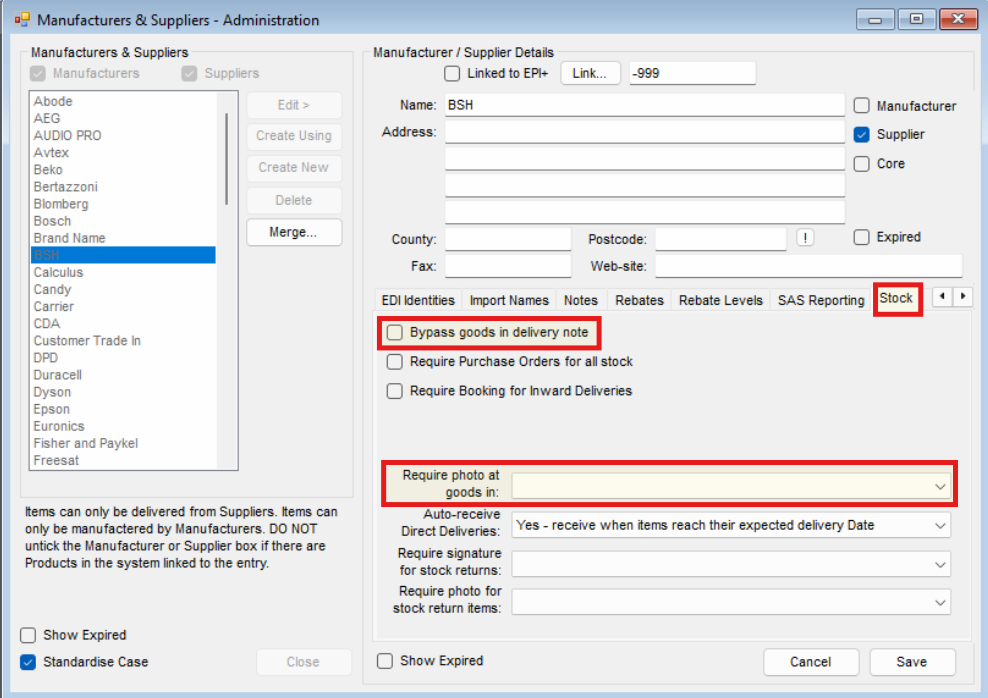
There are two settings to change the behavior in the app at Goods In which need to be done on a Supplier level:
- Bypass goods in delivery note - this refers to the Two Step Goods In, only select this IF you have had consultancy with Calculus as misuse will result in Goods In being blocked for the Suppliers with it set.
- Require photo at Goods In:
-
- Yes - Forces the user
- No - Skips the step
- Remind - Prompts the step
Goods In
<image>
- Select a Supplier
- Leave the Date as today
- Enter or Scan the Delivery Note Number
- Click Create Delivery
If the Supplier is enabled for Two Step Goods In (mentioned in the Settings Section) you will not be required to input a date or Delivery Note Number.
If you are using Two Step Goods In as you scan the items EAN's the labels will print and stock booked in immediately at Step two bypassing the remainder of this guide.