Getting Started
Introduction
The Warehouse and Stock Application (WAS) is a powerful tool designed to assist warehouse operatives with stock management.
Companies of all sizes can benefit from using the app, whether you operate a manned or unmanned warehouse, or store stock within a retail shop. WAS makes stock management easy and efficient.
The current version of the app supports the following stock management processes:
- Goods In – capturing images, item condition, and serial numbers.
- Supplier Collection – tracking supplier returns and marking them as collected.
- Manual Store – storing items in barcoded locations.
- Bulk Move – moving multiple items between locations.
- Stock Take
- Load Vans – picking stock for in-house vans and external carriers.
- Picking Jobs
- Unload Vans – tracking unloading of collections and failed deliveries.
- Order Collection – completing customer collections with image and signature capture.
- Stock Count
- Stock Management – assign images, store serial numbers, change retail prices (configuration controlled), and reprint labels.
- Useful Tools
Stock Swapping
Stock swapping is a feature that can be enabled on a per-user basis and is turned off by default.
When picking stock for vans, this feature allows the operator to pick the most accessible stock number, provided the model number matches.
If stock swapping is disabled, the operator must pick the exact stock number allocated to the sale.
Pallet Management
The pallet feature allows multiple items to be stored under a single pallet number.
Each item within the pallet still retains its own unique stock number, but individual labels are only printed if the pallet is split.
This feature is turned off by default and should only be used when items are stored on pallets or within outer cartons.
Automatic Transfers Within Branch
New Feature
This feature must be enabled in NCompass configuration.
When enabled, stock will automatically transfer between stock rooms and branches. For example:
- If an item is stored in a location locked to Stock
- And is then scanned into a location locked to Display
- The item will automatically move to the Display stock room
Warehouse Mapping
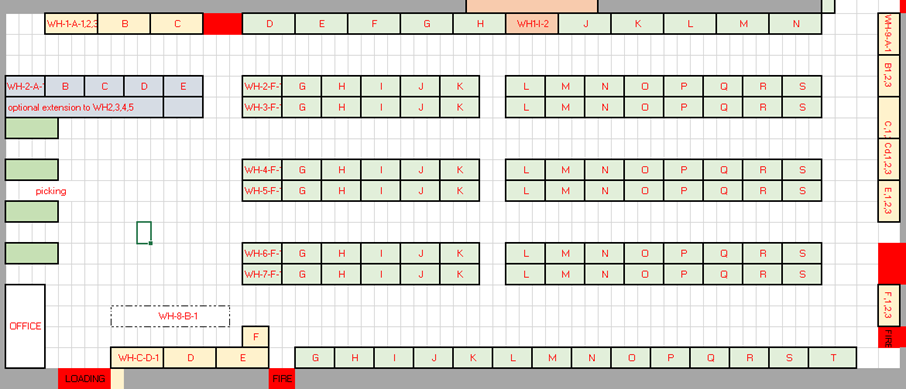
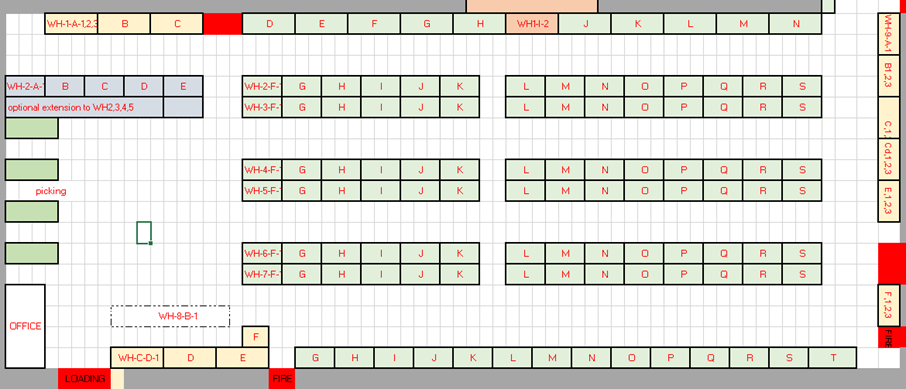
As part of the initial setup, an Implementation Engineer will typically visit your warehouse to advise on the best way to map your warehouse into stock locations.
They will:
-
Create stock locations within NCompass
-
Provide a document containing barcodes to print and place around the warehouse
-
Advise on barcode design depending on storage type (e.g. floor labels vs racking labels)
Stock Location Management
You can create your own stock locations; however, it is strongly recommended that you consult the Implementation or Support Team before making changes.
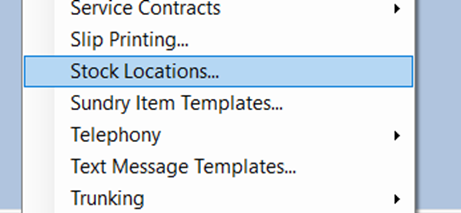
Administration > Stock Locations
Creating a Stock Location
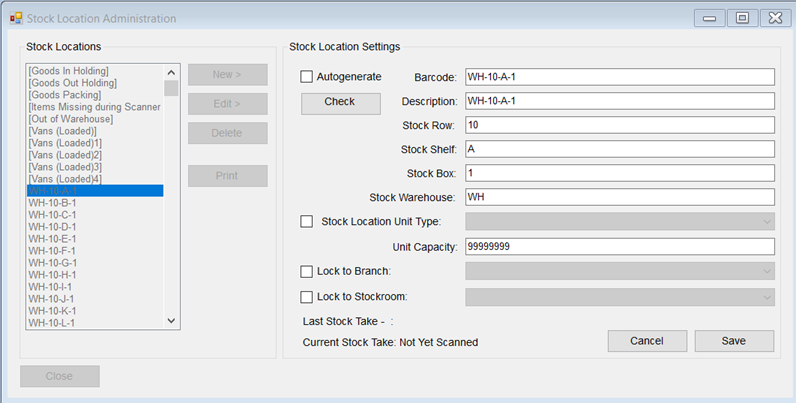
- Tick Autogenerate to automatically build a barcode.
- Enter a Description for the barcode.
- Enter a Stock Row.
- Enter a Stock Shelf.
- Enter a Stock Box.
- Enter a Warehouse Prefix.
- Enter a Unit Capacity (if required).
- Lock the location to a Stock Room if applicable.
- This is required for Automatic Transfers within branch.
- Click Check to confirm the barcode is unique.
- Click Save.
Starting the App
- Press the power button on the top of the handset to turn on the screen.
- Swipe up on the lock icon to unlock the device.
No PIN or pattern is required by default, although this can be configured in device settings.
Ensure the device has Wi-Fi or 4G connectivity, otherwise the app will not function.
The app icon is blue and displays a warehouse symbol.

Logging In
You must log in at least once per day for security reasons. It is recommended to log out at the end of each day.
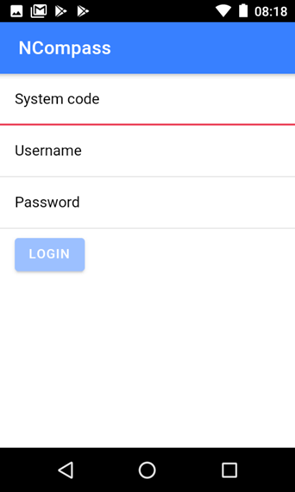
In the latest release of NCompass, staff selection and PIN entry can be enforced. This ensures:
- All actions are logged against the signed-in user
- Improved auditing and accountability
Please contact the Support Team if you are interested in enabling this feature.
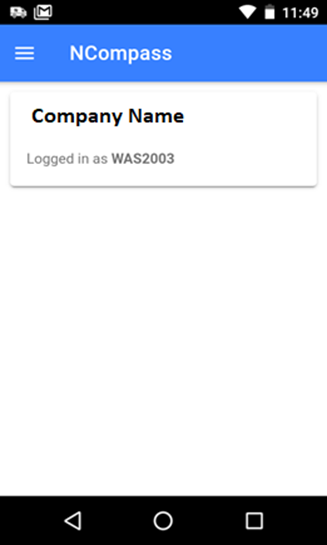
Tip: You can return to the home screen at any time. If another user needs to log in, simply scan their QR code to fast-switch users — no logout required.
Navigation
Access the full application menu by selecting the menu icon.

Tip: You can open the menu at any time while using the app to quickly switch processes.
Log Out
To Log Out when you are finished with the App:
- Click on the Menu Icon
- Scroll all the way to the bottom of the menu
- Click Log Out