NCompass Administration
NCompass Security Administration
NCompass Security Roles
User Management
NCompass allows you to set security permissions on a user level using levels Tier 1 to Tier 4, which align with the four levels on a menu such as the products menu, plus Administration and Reporting. This Menu is located Under Administration > Security > User Management
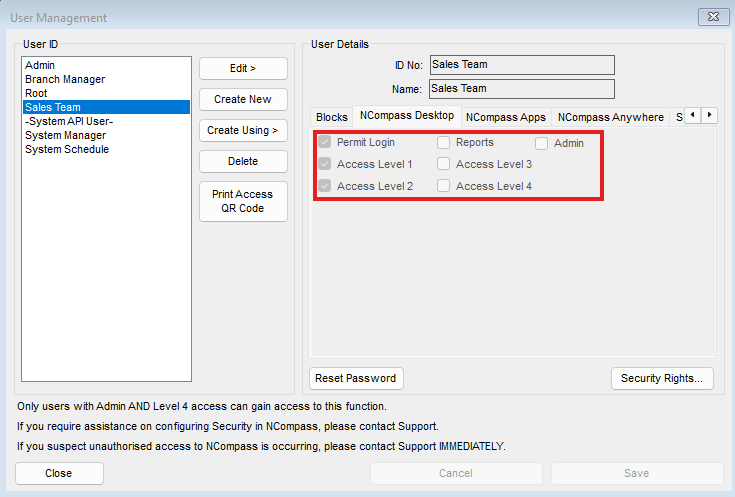
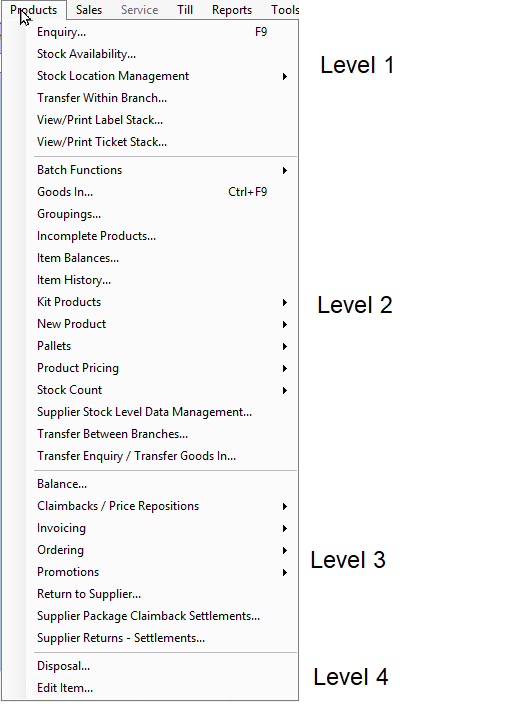
The 4 Access tiers correlate to the menus you will have access to on NCompas
Example of how NCompass defines what menu has what access tier:
You can use Security roles in conjunction with Access tiers to more accurately define what a user should & should not be allowed to access.
NCompass Setup
You can now individually control options in Administration > Security > Security Roles
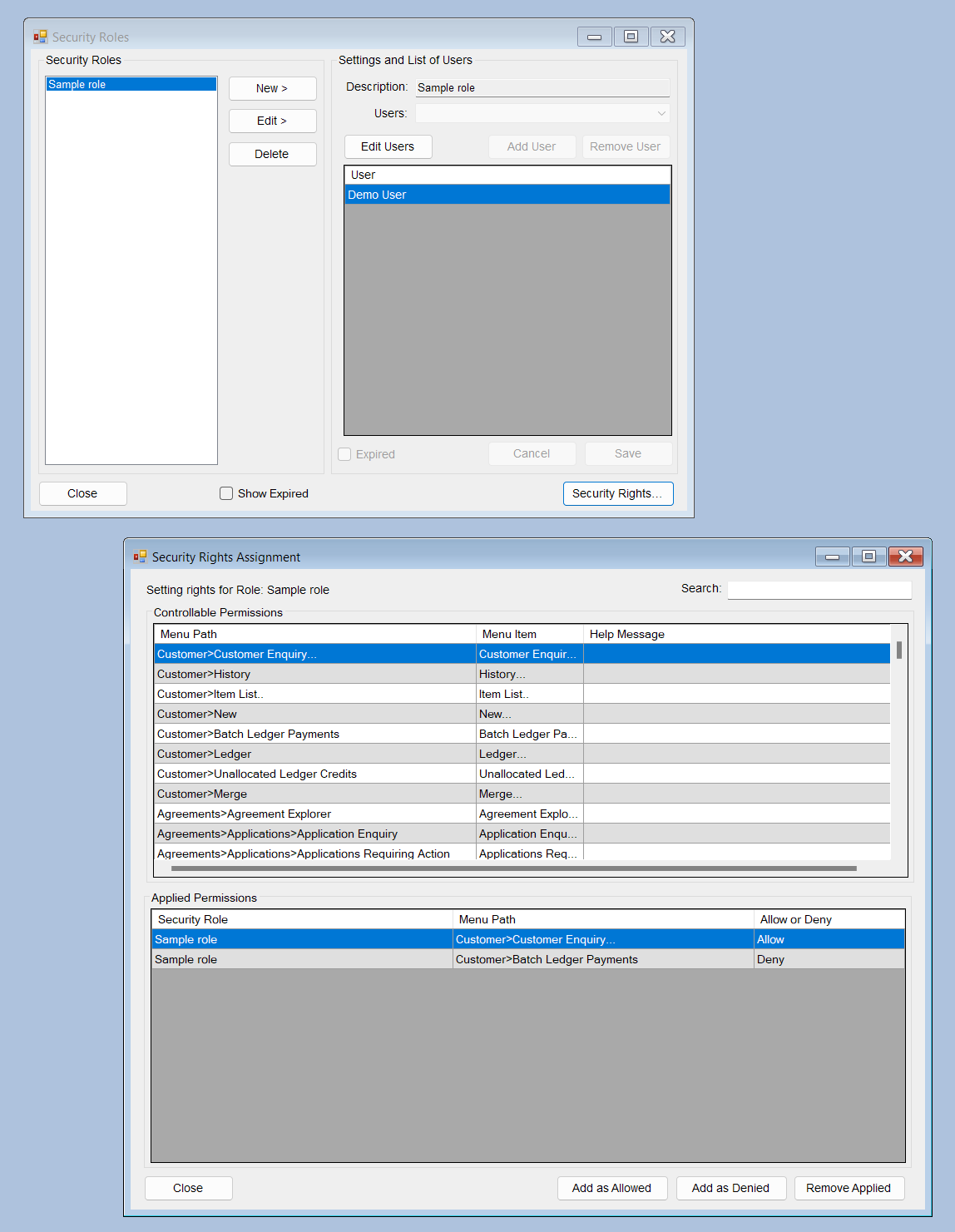
- Setup a security role for each type of role in your business, such as Sales staff, Ordering, etc
- Assign the relevant users to each role
- Add security rights to the role
If a user is enabled for a Tier of access, they will be able to access all features at that level, except where you add an entry to their Security role as a Deny
If a user is not enabled for a Tier of access, you can individually add features from that role to be allowed for them.
If a user is in more than one role, any Deny entry will override an Allow entry.
Example Setup
For example, you may decide to allow your shop-floor staff to carry out sales, and also to receive stock.
You could achieve this by giving them Tier 1 access - allowing them access to the top section on each menu - and then also put them in a Salesperson role which also adds Goods In as an allowed option.
You could also do the inverse by setting Tier 4 access for a user but granting a security role restricting certain menus.
Authentication Token Management
Audience: Support and Implementation. Screenshots are still to be added to this page - please capture them when reviewing.
Overview
Apps and web platforms that work against NCompass - Stock and Sales, NCompass Anywhere, the NCompass web screens and customer web account areas - do not send a username and password with every request. They sign in once and are given an authentication token, which they then present on each call until it expires.
Those tokens are recorded in NCompass, and can be listed and expired from Administration > Security > Authentication Token Management.
How tokens are treated
The token an app holds is only a reference. Everything that matters - which user it belongs to, which workstation and customer it was issued for, what the user is allowed to do and when the token stops working - is read from NCompass each time the token is used.
Two things follow from that, and both are worth knowing when you are supporting a site:
- Permission changes take effect immediately. Access tiers and security roles are re-read on every call, so blocking or granting a feature applies to a signed-in app straight away. The user does not have to sign out and back in.
- A token cannot be altered by whoever holds it. Changing the token has no effect, because none of the detail in the caller's copy is trusted - it cannot be used to extend its own life, to give itself permissions the user does not have, or to reach another database.
The default salesperson, default engineer and web domain that the app works under are also re-read each time, so changing those settings for a user applies without a new sign-in.
The token management window
Open Administration > Security > Authentication Token Management. By default this option sits at the Administration access tier, and like any other menu option it can be allowed or denied through a security role.
Filter by user and/or workstation and press Search. Only tokens that are still live are listed - anything already expired is not shown.
| Column | What it tells you |
|---|---|
| Issued | When the app signed in and was given the token |
| Expired | When the token stops working |
| User | The NCompass user the token signs in as |
| Workstation | The workstation the token was issued against, where one applies |
| Customer | Set where the token belongs to a customer web account login |
| SAS login | Set where the token belongs to a member login |
| App | Which application asked for the token |
| Device ID | The device reference the app supplied - useful for identifying a particular handset or PC |
| Client IP | The address the sign-in came from |
| User agent | The browser or app identification supplied with the sign-in |
Expiring a token
Select one or more rows and use Expire. The token stops working immediately and the row drops out of the list on the next search. Anything using that token has to sign in again before it can reach NCompass.
Typical reasons to expire a token:
- A phone, tablet or laptop has been lost or stolen.
- A member of staff has left and you want their signed-in devices cut off now rather than when the token runs out.
- A device is behaving unexpectedly and you want it to sign in cleanly.
- A customer web account or member login needs its access stopped.
Expiring a token does not disable the user. If the user should not be able to sign in again at all, block or expire the user in Administration > Security > User Management as well - otherwise the app can simply sign in and be given a new token.
Housekeeping
Tokens that have expired are removed automatically a day after they expire, so the list does not need tidying by hand. That also means a token you expired yesterday will no longer be visible anywhere - if you need a record of who was signed in and from where, note it before expiring the token.
Troubleshooting
- A user is suddenly asked to sign in again - their token has expired or been expired here. Check the list for a live token for that user.
- A permission change did not take effect - permissions are re-read on every call, so check the change was saved against the right user or role rather than assuming the app is holding an old copy.
- An app cannot reach NCompass at all - confirm it can sign in first; a sign-in failure and an expired token look similar to the user but are different problems.
CIH/Euronics Data Feed Update July 2026
Overview
The CIH feeds provided to your system for both products and the marketplace run using an address that your NCompass system connects to.
Unfortunately, CIH have had an issue with the services that provides the connection to this service but have now got a solution in place that will allow your data feeds to resume working. This requires a small tweak in your NCompass system.
How To
In your NCompass system, go to Administration > Product Feeds.
|
|
Repeat the same steps for the Euronics Evolution Item Download feed. |
|
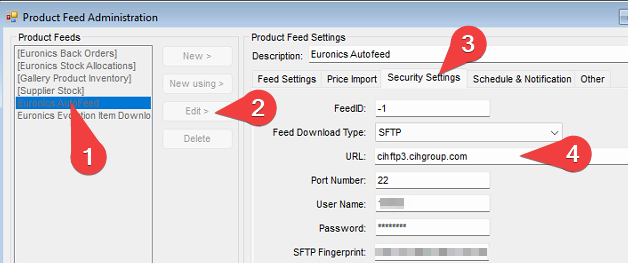
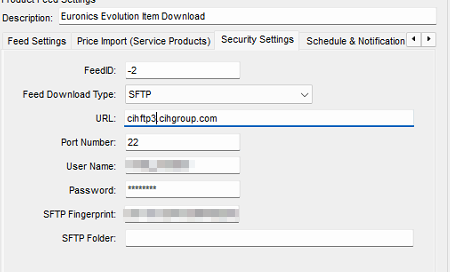
Do not change any other settings in this tab.
Additional Information
None currently
Frequently Asked Questions
I cannot access the administration menu to alter the feeds!
Your NCompass user must have administration rights or security rights to access the menu required.