Creating a New Marketplace
When setting up a new Marketplace you only need to configure a few settings within NCompass to activate a new Marketplace. This will vary sightly between different marketplace integrations. this guide will follow the general steps for the B&Q integration.
Create a new Web-Site
We will need to create a brand new web-site within NCompass where we will assign the integration type and select the Marketplace Channel.
Step 1 - Making a new Web-Site
On NCompass, go under Administration > Multi-Channel > Web Sites
Create a new website by pressing "New". Give it a descriptive name and select a corresponding price category to list product pricing under.
Set the Channel Type to "Marketplace"
Select the integration type (in this case B&Q)
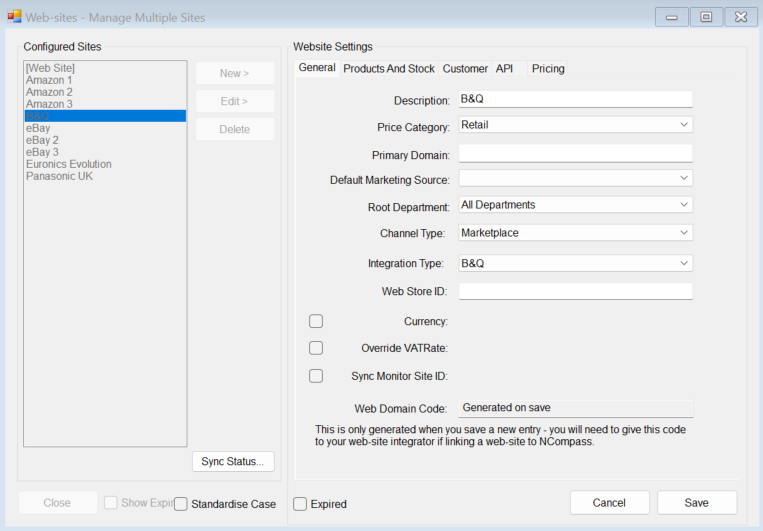
Press save and you can move on to the next step.
Other settings are optional, this guide is covering the bare minimum setup to link a marketplace
Step 2 - CreateSet theMarketplace marketplaceSettings
Go Back to Administration > Multi-Channel > Marketplace Settings
PressSelect Newthe new Marketplace Web-Site name you've just created and press Edit > (It will appear if you chose marketplace channel type on Web-sites administration)
EnterYou acan relevantupdate the description &here Selectand B&Q asensure the Integrationintegration (Ormatches yourthe chosenone marketplace)set within web-sites
Make sure the marketplace is enabled
The following settings are needed for API calls to be sent to B&Q:
- API Endpoint
- Shop ID
- API Auth Key
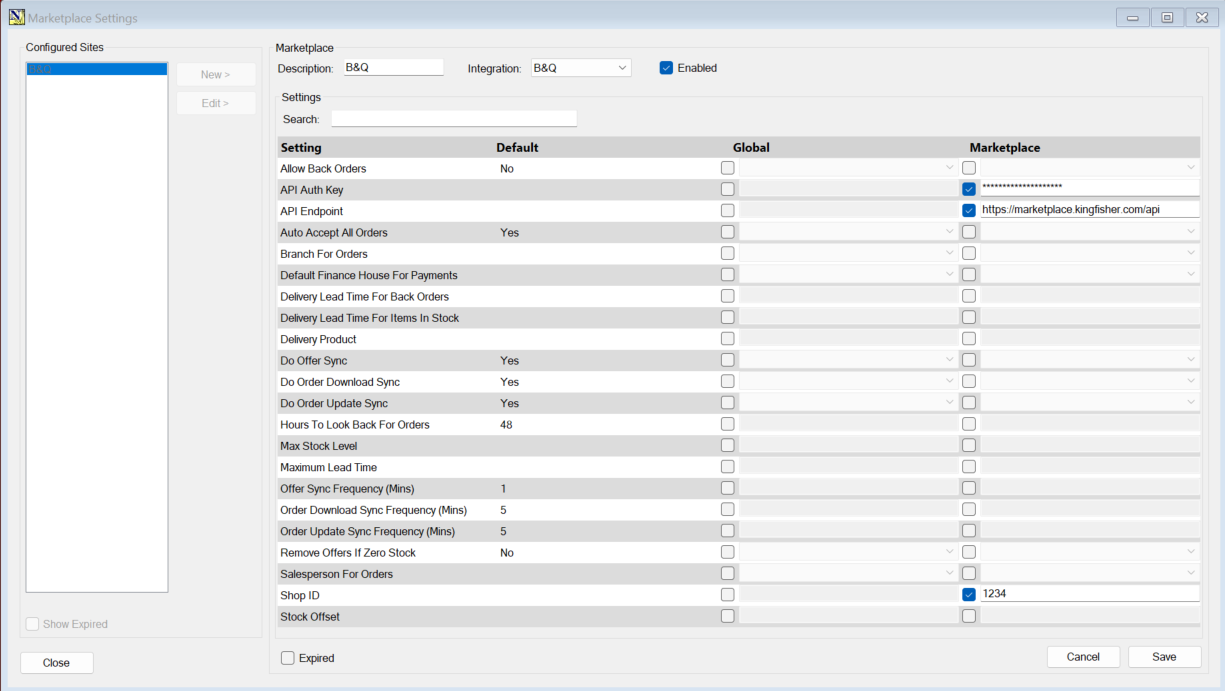
All you need are the 3 settings above for the minimum B&Q setup
The vast majority of marketplace configs will be present within this Tab instead of Tools > Config
Final Considerations:
- Create an unmatched product, ensure there is an unmatched web product linked to an actual unmatched item otherwise downloaded orders without a product link will return a BLANK sundry line