Calculus Software Solutions Online Help Desk
An account must be created for you by a member of the Calculus Software Solutions Admin Team before you can log in and access the online Help Desk. However, you may still read through this guide as a reference to understand what to expect when using the Help Desk.
If you would like to request an account or are unsure of your account details, please click the following link to generate a pre-filled email to admin@findesolutions.com
At this time only 1 email address can be used to access your help desk per company.
Step 1: Setting Your Password
Once the admin team has processed your account, you will receive an email.
-
Open the email and click the link provided.
-
Follow the instructions to set up your password.
-
After setting your password, log in to your account using the credentials you created.

Step 2: Account Information & Help Desk
My Account Page
After logging in, you will land on the Account Overview page.
This page provides basic information about your credit account
This section has limited functionality but offers basic visibility of your account status.
Help Desk
The Help Desk is located in the left-hand navigation menu.
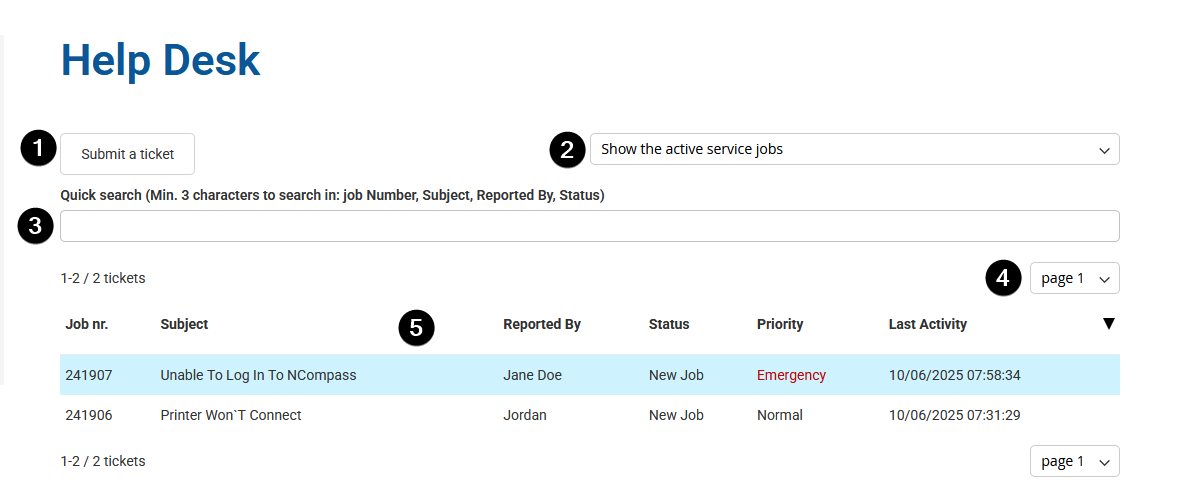
When accessed, the Help Desk will display your active service jobs, sorted by last updated date or priority.
Key Features:
-
Submit a Ticket
Click this button to open a slide-out window. You’ll need to provide:-
Your name
-
The fault related to the job
-
A brief description of the fault
-
-
Job Filter Dropdown
Allows you to toggle between:-
Active Service Jobs (default view)
-
Completed Service Jobs (recently closed)
-
-
Quick Search
Use this field to enter a service job number.Tip: Ensure the correct filter (Active or Completed) is selected before searching.
-
Page Selector
If you have many service jobs listed, they will be divided across multiple pages.
You can navigate between pages manually or use Quick Search to locate specific jobs faster. -
Job List Window
Displays your current tickets based on:-
Your selected filter (Active/Completed)
-
Recent activity or job priority
-
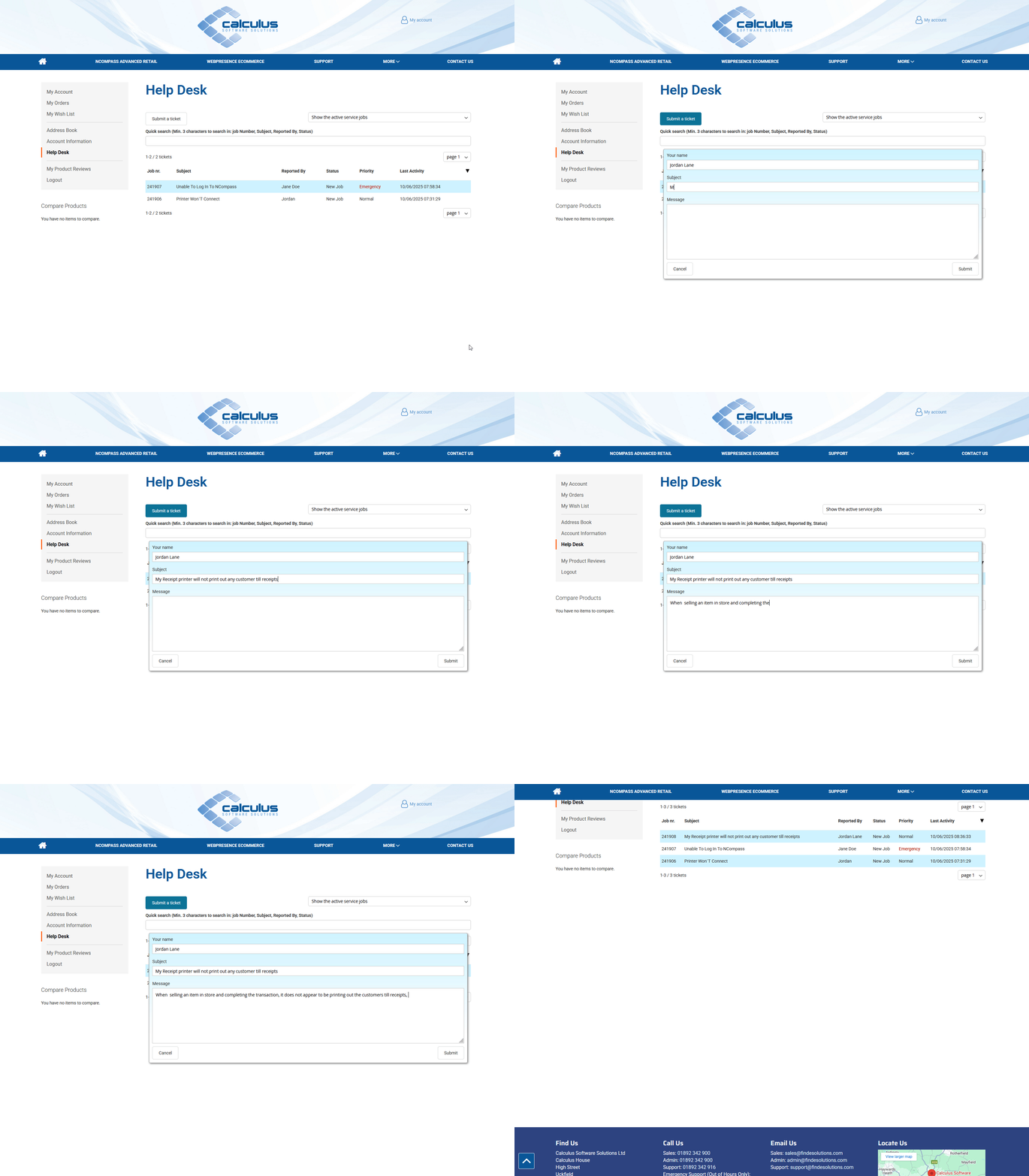
Raising a New Service Job
To raise a new service jobjob:
The new job will then appear in your
job.Active Service Jobs list, sorted by most recent update, this list will automatically refresh upon submission