Entering an Agreement into the Review System
Scheduling a Review from the Agreement Explorer Window

This will open the Review entry window.
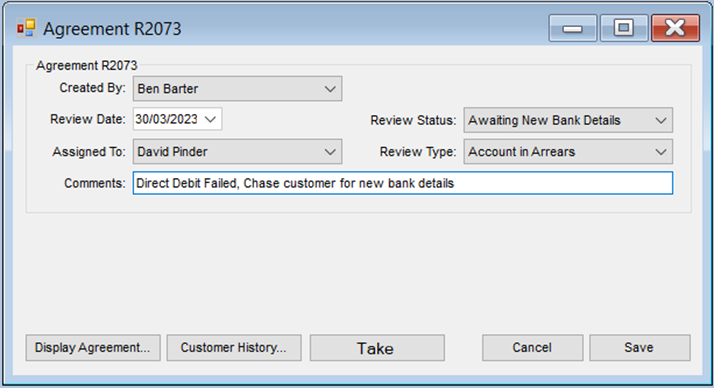
Enter the Required Details
- Created by – Who is scheduling the review.
- Review date – When this needs to be reviewed.
- Assigned to – The person responsible for the review process.
- Review status – From your pre-configured list (e.g., open, awaiting contact, etc.).
- Review type – The reason for the review from your pre-configured list.
- Comments – Any comments you need to add to the review.
There are convenient buttons on this screen to take you directly to:
- Display Agreement
- Customer History
- Take Payment
- Click ‘Save’.
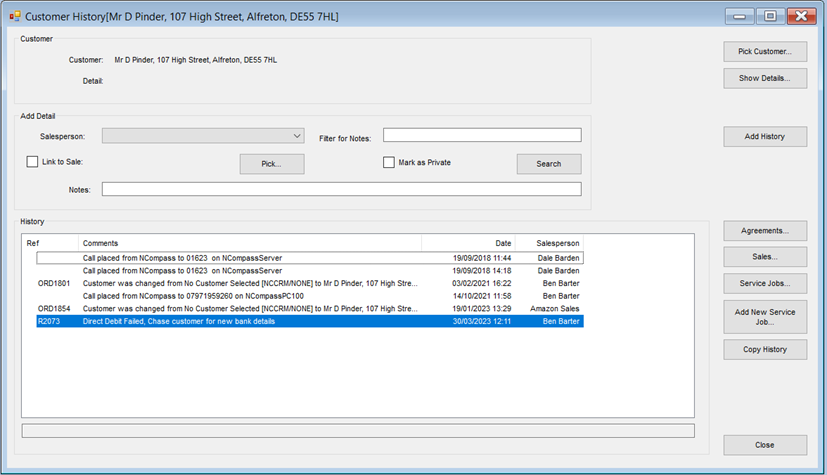
Note: Review comments are stored directly in customer history, along with the account number.