Magento Email Change Request
This guide explains where staff should check and update email addresses in Magento Admin when a customer requests an email-address change for their website.
Purpose
Customer email changes can affect several different parts of a Magento site. Some email addresses control outgoing transactional emails, some receive form submissions, and some are only visible content shown in the footer or store-location pages.
Use this guide as a checklist so the requested email is updated in the right places and existing unrelated email addresses are not changed by mistake.
Before You Start
- Confirm the old email address and the new email address in writing from the customer.
- Ask whether the change is for visible website content, outgoing email senders, form recipients, or all of these.
- Check the correct store view or website scope before saving configuration changes.
- If the site has multiple store locations, check each relevant location block or page separately.
- Take a screenshot or note the original value before changing live configuration.
Quick Checklist
- Stores > Configuration > Sales > Sales Emails.
- Stores > Configuration > General > Store Email Addresses.
- Stores > Configuration > General > Contacts, if the Contact Us form recipient needs changing.
- Calculus custom form modules, such as Multi Buy, Product Enquiry, In Stock Alert, and Product Quote Request.
- Content > Blocks filtered by footer, if the email appears in the website footer.
- Content > Blocks searched by email, if the email appears on store-location content.
- Content > Pages searched by the old email address, if no matching CMS block is found.
- Frontend QA and cache flush after saving.
Core Magento Email Locations
Start with the standard Magento configuration. These settings control most of the normal email behaviour on the site.
Sales Emails
Magento Admin path: Stores > Configuration > Sales > Sales Emails.
Check this area when the customer asks about order confirmation, invoice, shipment, credit memo, or sales update emails.
Open the correct scope from the top-left scope selector before editing.
Check each expanded section under Sales Emails, including Order, Invoice, Shipment, Credit Memo, and their comment/update sections.
Look for Sender, Send Order Email Copy To, Copy Method, Enabled, and Template fields.
If the field uses an Email Sender identity, update the actual email address under Store Email Addresses rather than only changing Sales Emails.
Save Config when complete.
Store Email Addresses
Magento Admin path: Stores > Configuration > General > Store Email Addresses.
This is the main place to update sender identities used by Magento and by many custom modules.
Check General Contact, Sales Representative, Customer Support, Custom Email 1, and Custom Email 2.
Update both Sender Name and Sender Email where the customer has asked for a full identity change.
Make sure the scope is correct. Some sites use different sender emails per website or store view.
Save Config after changing the values.
Contact Form Recipient
Magento Admin path: Stores > Configuration > General > Contacts.
Check Email Options > Send Emails To if the standard Magento Contact Us form recipient needs changing.
Check Email Sender if the customer wants the outgoing sender identity changed.
Save Config when complete.
Calculus Custom Modules
Some sites have custom enquiry forms that send emails to specific recipient fields. If the customer uses any of these frontend forms, check their configuration as well as the core Magento settings.
The common pattern is that each module has a To Email field and an Email Sender field. To Email controls where the form submission goes. Email Sender usually points to one of the Store Email Addresses identities.
Common Module Checks
Calculus > Multi Buy > Multi Buy Module Configuration: check To Email and Email Sender.
Calculus > Product Enquiry > Product Enquiry Module Configuration: check To Email and Email Sender.
Calculus > In Stock Alert > In Stock Alert Module Configuration: check To Email and Email Sender.
Calculus > Product Quote Request > Product Quote Module Configuration: check To Email and Email Sender.
Custom Module Notes
Only change a module if the site uses that form or the customer specifically mentions that enquiry type.
If a To Email field contains multiple email addresses, keep the existing comma-separated format and only replace the address requested.
If Email Sender is set to Sales Representative, Customer Support, or another identity, update that identity under Store Email Addresses if needed.
Footer Email Content
Magento Admin path: Content > Blocks.
Use this when the email address appears in the footer of the website, such as a store address block with telephone and email details.
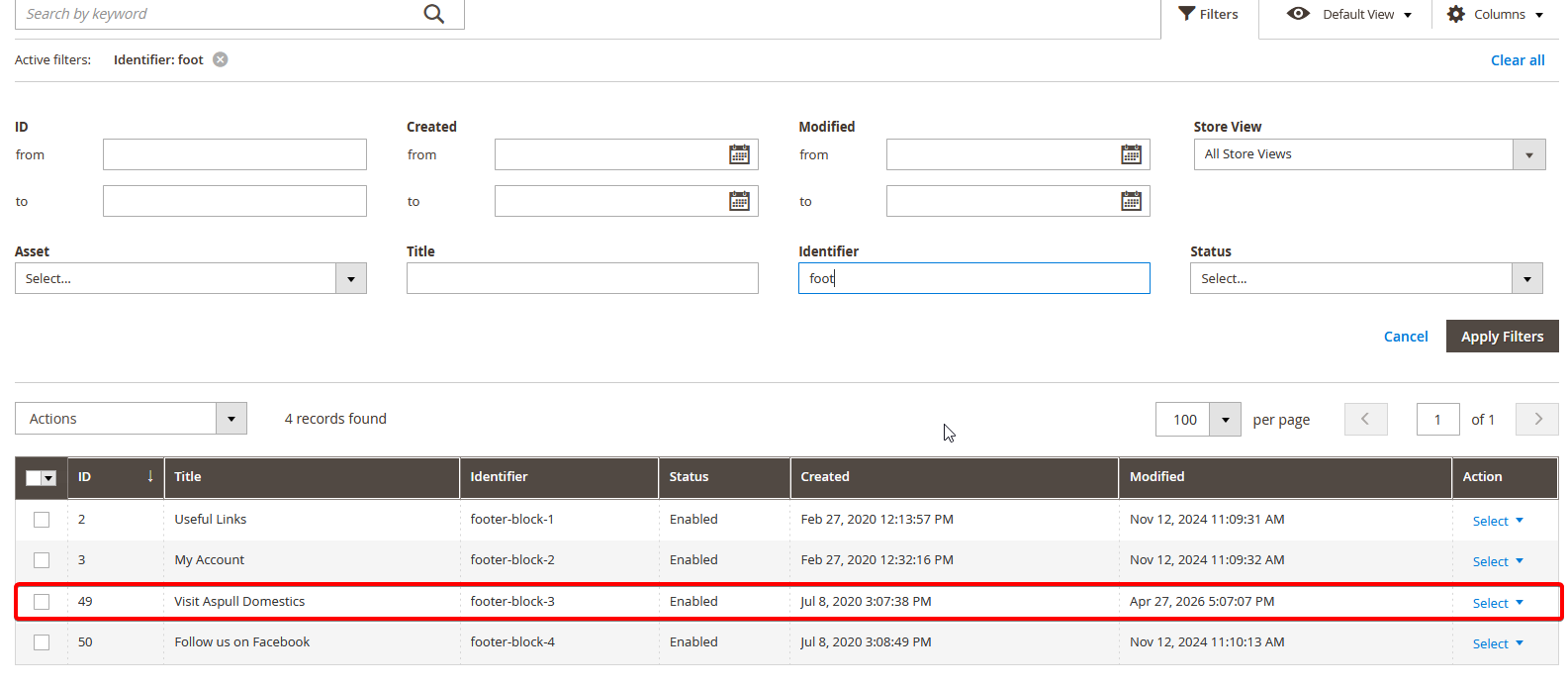
1. Open Content > Blocks.
2. Use Filters and search Identifier for footer.
3. Compare the block Title with the footer section on the frontend. For example, a visible footer title such as Visit Aspull Domestics may correspond with a block like footer-block-3.
4. Open the matching block.
5. Search the block content for the old email address.
6. Update both the visible email text and any mailto: link if present.
7. Save the block.
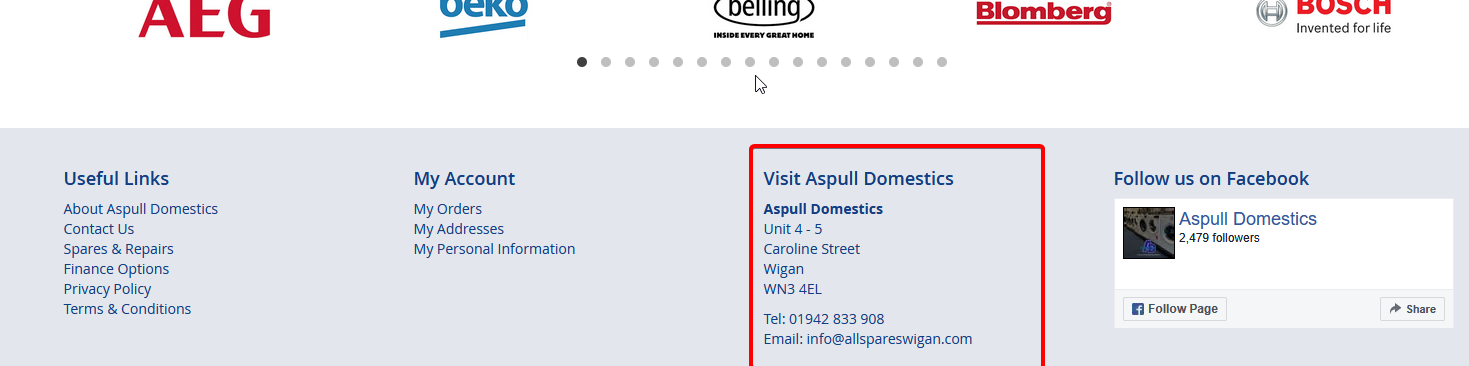
CMS Blocks grid filtered by Identifier footer and matched by block Title.
Store Location Email Blocks
Magento Admin path: Content > Blocks.
Store pages and location sections are often built from CMS blocks. If the customer has multiple store locations, each location may have its own email block.
1. Open Content > Blocks.
2. Search by keyword email.
3. Open every relevant location block, such as Location Store 1 Email.
4. Check whether there are multiple location blocks for the customer.
5. Update the visible email address and any mailto: link in each block that should change.
6. Do not change other branch emails unless the customer requested those as well.
7. Save each changed block.
Screenshot placeholder: CMS Blocks keyword search for email showing location email blocks.
CMS Pages
If the email cannot be found in a CMS block, also check CMS pages.
Go to Content > Pages.
Search for the old email address or the store/location name.
Open matching pages and check PageBuilder, HTML, and inserted CMS block references.
Update visible text and mailto: links where required.
Saving And Cache
After configuration changes, select Save Config.
After CMS block or page changes, select Save.
Flush Magento cache if the frontend does not update straight away.
If the site uses LiteMage or another full-page cache, clear that cache as well.
Recommended QA Before Closing The Request
Check the frontend footer on desktop and mobile.
Check every store-location page that was changed.
Click visible email links and confirm the mailto: address is correct.
Submit a safe test on affected enquiry forms if the recipient email was changed and the customer expects form routing to change.
Check a Magento transactional email only where the customer requested sender changes for sales emails. (An old sales order can be located placed by a company address and you can trigger this by opening the order, and clicking "Send Email" at the top this might take up to 15 minutes to arrive in the receipients email inbox)
Confirm the old email address is no longer present in the changed CMS blocks or configuration areas.
Troubleshooting
If the frontend still shows the old email, flush Magento cache and any full-page cache, then check the correct store view was edited.
If an email sender still shows the old address, check Store Email Addresses for the identity selected in Sales Emails or the custom module.
If form submissions still go to the old address, check the module To Email field rather than only the sender identity.
If there are several store locations, search Content > Blocks for email and review every location-specific block for "email".
Useful Admin Paths
Stores > Configuration > Sales > Sales Emails.
Stores > Configuration > General > Store Email Addresses.
Stores > Configuration > General > Contacts.
Calculus > Multi Buy.
Calculus > Product Enquiry.
Calculus > In Stock Alert.
Calculus > Product Quote Request.
Content > Blocks.
Content > Pages. (if the email is presently on any cms pages THIS IS WORTH CHECKING)