# Enhancing the Date Picker with AM/PM Delivery Slots
This enhancement adds **AM/PM delivery slots** to the Date Picker module.
Note: The Date Picker module is a chargeable feature and requires **NCompass Engineer Area Management** AND **WebPresence Delivery Datepicker Modules** to function.
If you do not currently offer delivery dates on your website but wish to start doing so, please contact the admin team by clicking the provided button [link](mailto:admin@findesolutions.com?subject=Datepicker/Engineer%20Area%20Management%20Interest&body=Hi,%0D%0A%0D%0AI%20wish%20to%20register%20my%20interest%20in%20NCompass%20Engineer%20Area%20Management,%20and%20Delivery%20dated%20availability%20services%20on%20my%20website.%0D%0A%0D%0AKindest%20Regards,%0D%0A%5BCOMPANY%20NAME%5D).
#### Before You Begin
- If you do not have the Date Picker set up, please follow the setup documentation before continuing.
Reach out to to obtain the most up-to-date setup guide.
- If you already have the Date Picker installed and are familiar with configuring shipping options in NCompass, you can proceed with the steps below.
#### Step 1: Navigate to Shipping Options
1. Open **NCompass**.
2. Go to **Field Calls > Shipping Options**.
You should already see existing services such as **AM** and **PM** delivery options (if previously set up).
---
#### Step 2: Create Additional AM/PM Services (if needed)
If you’d like to add new AM/PM delivery services:
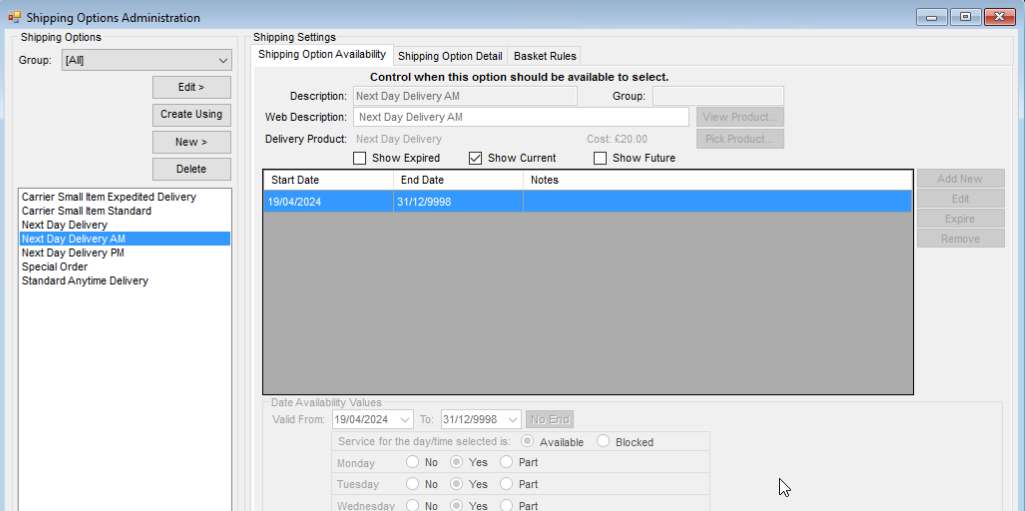
1. Duplicate an existing service, such as **Next Day Delivery** or **Anytime**.
2. Rename the duplicated service to represent the new time slot (e.g., *Next Day AM* or *Next Day PM*).
3. Associate a new **delivery product** with each new shipping option you create.
[](https://kb.findesolutions.com/uploads/images/gallery/2025-09/uZEQQtshogwACDv7-image.png)
---
#### Step 3: Configure “Schedule As”
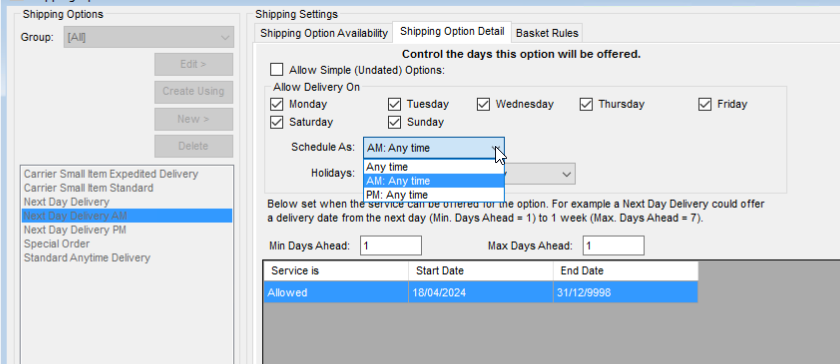
Within the **Shipping Option Detail** tab:
1. Locate the **Schedule As** field.
2. Select the appropriate option:
- **AM Anytime**
- **PM Anytime**
This ensures the slot is categorised correctly.
[](https://kb.findesolutions.com/uploads/images/gallery/2025-09/04EAtIJlHPN1JgGQ-image.png)
---
#### Step 4: Result on the Website
Once configured:
- The **new AM/PM delivery options** will appear alongside existing shipping methods at checkout.
- **Availability logic**:
- **AM/PM slots** are only offered if engineers are available for those slots in NCompass.
- The **Anytime option** always appears, as long as there are delivery points available for that day.