NCompass B2B (accounts integration)
- Helpdesk Introduction
- Helpdesk Promotional Information Block
- Accessing the Helpdesk from NCompass Desktop
Helpdesk Introduction
Helpdesk Promotional Information Block
The Helpdesk supports an optional promotional/information block which is displayed at the top of the Helpdesk when content has been configured.
This block can be used for promotional banners, service announcements, important customer information, or other content that should be visible when a customer accesses the Helpdesk.
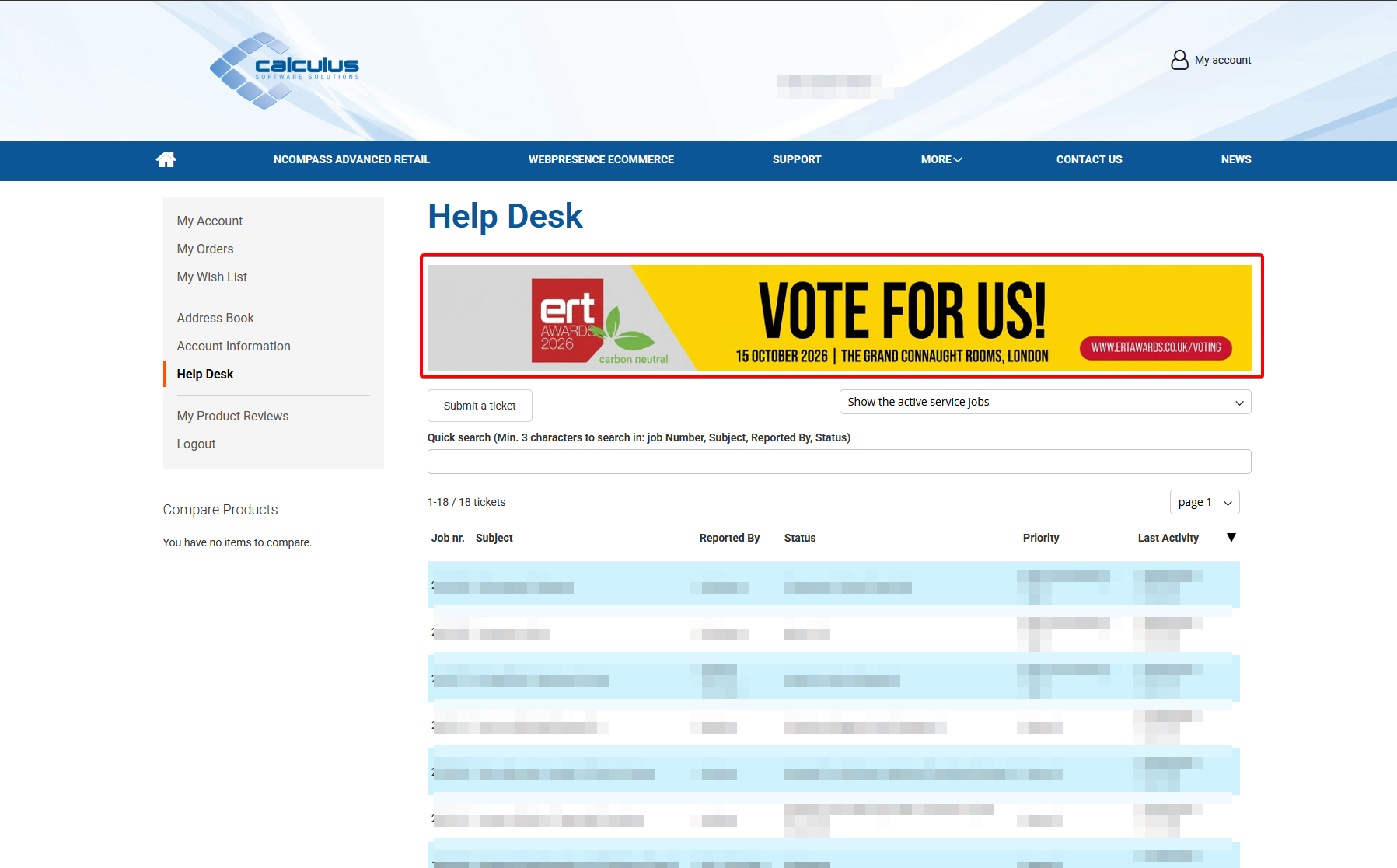
Recommended Banner Dimensions
By default, the Helpdesk information block is configured with:
-
Maximum width: 1060px
-
Maximum height: 140px
Both dimensions are configurable through the website design and can be changed if required. However, it is recommended that the default dimensions are retained where possible.
Important: Content larger than the configured dimensions may be restricted or cropped by the Helpdesk's maximum width and height settings.
Locating the Helpdesk Banner Block
To manage the Helpdesk promotional block within Magento:
-
Log in to the Magento Administration Panel.
-
Navigate to Content > Blocks.
-
Search or filter the block list for the following identifier:
helpdesk-banner -
Locate the relevant block.
-
From the Select menu, choose Edit.
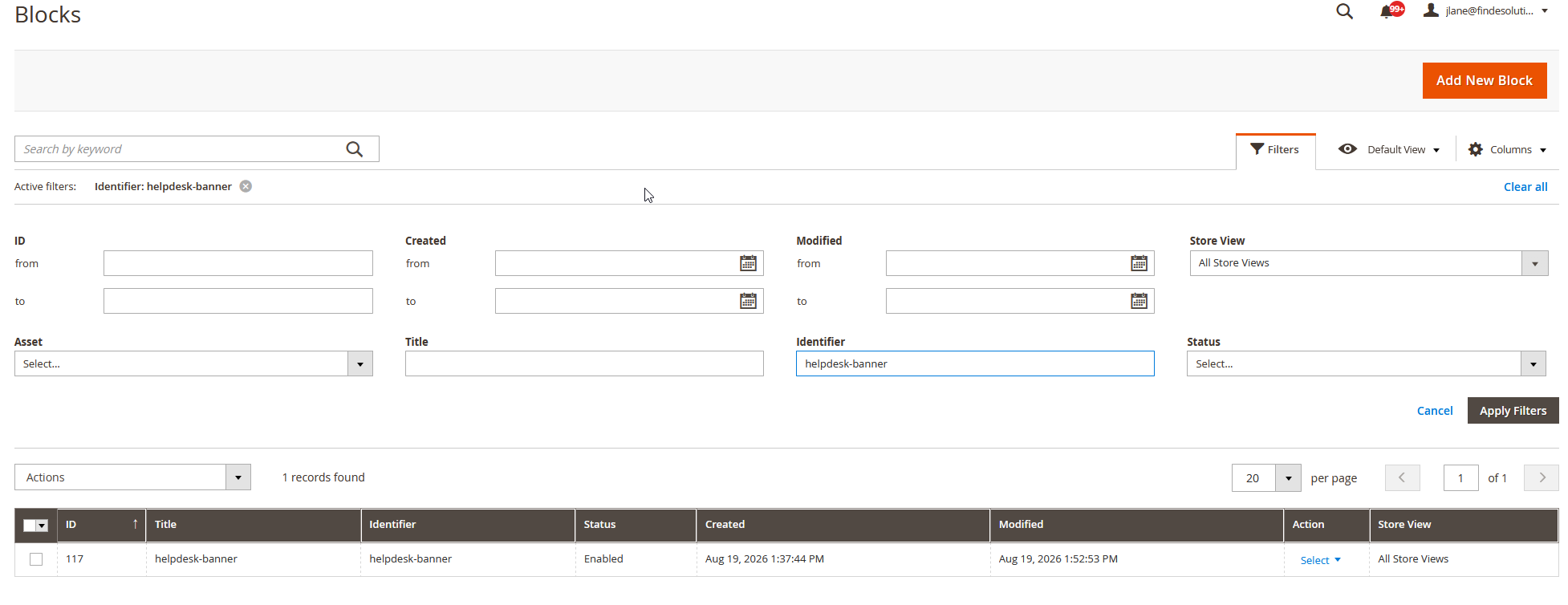
Any content configured within this block will be displayed in the promotional information area at the top of the Helpdesk.
Creating the Block
If the helpdesk-banner block does not already exist:
| Field | Value |
|---|---|
| Block Title | helpdesk-banner |
| Identifier | helpdesk-banner |
-
Add the required promotional or informational content.
-
Ensure the block is enabled.
-
Click Save.
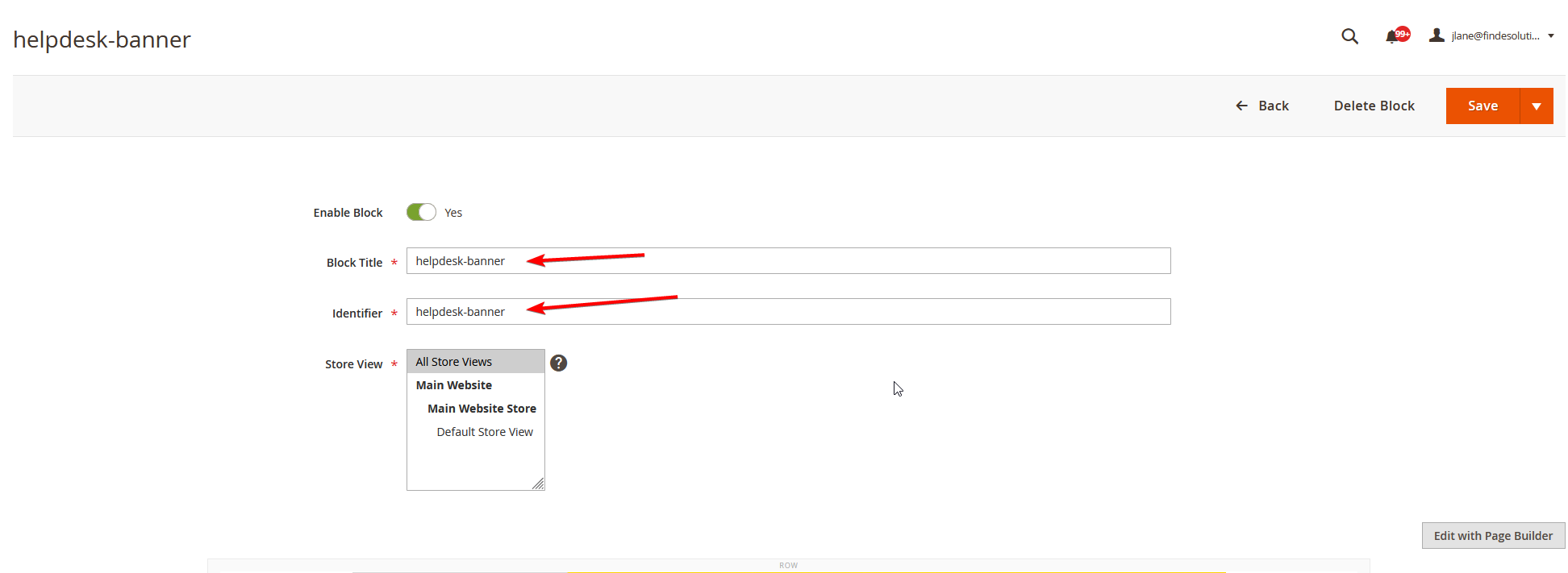
Once saved, content within this block will be available for display at the top of the Helpdesk.
Updating the Banner Content
The block can contain standard Magento CMS content, including text and imagery.
This helps maintain image proportions and avoids banners appearing distorted or compressed.
Applying Changes to the Frontend
After creating or modifying the helpdesk-banner block, flush the Magento cache to ensure the updated content is displayed on the storefront.
System > Cache Management
Then select:
Flush Magento Cache
Once the cache has been flushed, return to the Helpdesk on the frontend and confirm that the promotional information block is displaying correctly.
Removing the Promotional Block
If promotional information is no longer required, remove the content from the helpdesk-banner block or disable the block.
An empty block will prevent promotional content from occupying unnecessary space at the top of the Helpdesk.
Accessing the Helpdesk from NCompass Desktop
Screenshots for this page still need to be captured and added when it is reviewed.
The Helpdesk is the online portal where a customer can see the support tickets they have open with us, add to them, and raise new ones without having to telephone the Support team. NCompass Desktop can open the Helpdesk directly and sign the user in on the way, so nobody has to remember a second login or leave NCompass to check a ticket.
Where it lives in NCompass
Both entry points are on the Help > Support menu, and both open the Helpdesk inside an NCompass browser window rather than in the user's normal web browser:
- Help > Support > Online Helpdesk — opens the main Helpdesk page, showing the customer's existing tickets.
- Help > Support > New Support Ticket — opens the Helpdesk on the page for logging a new ticket. This replaced the older Log New Service Job option, which raised the request a different way.
Settings
The Helpdesk settings are in Tools > Configuration > EDI > Calculus > Support Helpdesk.
| Setting | What it does |
|---|---|
| Helpdesk - Main URL | The address of the Helpdesk itself. This is the page Online Helpdesk opens, and the address the main email tag embeds. |
| Helpdesk - Log New Ticket URL | The address New Support Ticket opens. |
| Helpdesk - Job Deeplink URL | The address pattern used to link straight to one ticket. See the note below on the placeholders it accepts. |
| Helpdesk - Username | The customer's Helpdesk account name, used for the automatic sign-in. |
| Helpdesk - Password | The password for that account. Held as a password setting, so it is not readable once entered. |
The addresses are normally already populated with our standard values, so on most systems the only thing that needs setting is the username and password for the customer's own Helpdesk account.
How signing in works
When a user picks either menu option, NCompass signs in to the Helpdesk in the background using the stored username and password, and then opens the requested page with that session already established. The user does not see a login page and is not asked to type anything.
If the username and password have not been filled in yet, a short prompt appears asking for them. What is entered there is saved into the settings above, so the sign-in is automatic from then on. The prompt offers the option to save them globally, which means everyone in the business then reaches the Helpdesk through the same account — this is usually what a customer wants.
The prompt is only offered to users who have access to Tools > Configuration. After an update it is therefore worth someone with high-level NCompass access being the first to open Help > Support > Online Helpdesk, so the details are captured for everybody else.
Helpdesk links in emails
| Tag | What it produces |
|---|---|
| %SJHELPDESK.MAIN% | A link reading Online Helpdesk, pointing at the Helpdesk Main URL. |
| %SJHELPDESK.JOBCODE:xxx% | A link reading Support Ticket followed by the job number, pointing straight at that job using the deeplink address. |
The second tag is typed into the template exactly as shown, including the :xxx ending — that is part of the tag, not something to replace with a job number. Both tags produce a ready-made hyperlink, so they belong in an HTML email template; in a plain text email the reader will see the underlying markup instead of a link. Both only fill in when the email is being produced from a service job.
Deeplink address placeholders
The Helpdesk - Job Deeplink URL setting is a pattern rather than a fixed address, and NCompass substitutes two things into it before using it:
- {main_url} is replaced with whatever is in Helpdesk - Main URL, so the deeplink pattern does not have to repeat the site address.
- {%JOBNUMBER%} is replaced with the job reference. The curly brackets are part of the placeholder and are required; the setting's own on-screen description shows it without them. If a deeplink comes through pointing at the Helpdesk home page rather than the ticket, check the brackets first.
When it does not work
- If the Helpdesk opens but shows its own login page, the stored username or password is wrong, or the account has been changed or disabled at the Helpdesk end. Re-entering them through Tools > Configuration is enough; there is nothing else to clear down.
- If nothing opens at all, check the relevant URL setting is populated.
- Helpdesk access is not tied to any other module — a customer does not need to be set up for NCompass Anywhere, or hold any particular licence, to use it.