# Sales (Legacy)

Guides and resources for doing sales in your NCompass system.

# Stock Selection Option After Creating a Sale

## Overview

As of NCompass 11.04, a new stock selection experienced was added to improve sales efficiency, allowing stock allocation to be selected at the same time as the pricing.

<p class="callout info">You can use the old method, by enabling the *Use Advanced Stock Selection by Default*. Contact [the support team](https://kb.findesolutions.com/link/1#bkmrk-department-phone-%23-e) if you need help setting this up.</p>

## How To

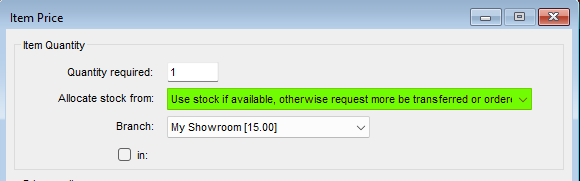
The options you can select on the item selection screen when adding items are:

- Take from stock now
- Use stock if available, otherwise request more be transferred or ordered
- Request stock be ordered
- Request stock be ordered for direct delivery
- Pick stock number then select price

These options can be controlled if they appear in the dropdown, using the below configurations:

- Item Price Stock Selection: Allow Pick Stock Number
- Item Price Stock Selection: Allow Use stock if available
- Item Price Stock Selection: Allow Request stock be ordered
- Item Price Stock Selection: Allow Request stock be ordered for direct delivery
- Item Price Stock Selection - Allow Requesting if Selecting Stock
- Item Price Stock Selection: Allow Pick Stock Number Before Price

They all default to yes, setting to `No` will block a user selecting that option.

The dropdown will default to the first item in the list, or you can have it default to `Use stock if available, otherwise request more be transferred or ordered` by setting the configuration `Request Stock by Default from Branch` to your desired branch.

[![image.png](https://kb.findesolutions.com/uploads/images/gallery/2025-12/scaled-1680-/Lvl8X3UKSk2wdeS0-image.png)](https://kb.findesolutions.com/uploads/images/gallery/2025-12/Lvl8X3UKSk2wdeS0-image.png)
## Additional Information

If you require assistance setting up the configurations, please [contact support](https://kb.findesolutions.com/link/1#bkmrk-department-phone-%23-e).

## Frequently Asked Questions

None currently.

# Count Only Transfers - Auto Transfer When Direct Selecting Stock From Other Branch At Same Site

## Overview

As of NCompass 11.09, when a count only item is sold on the customer website the stock will be taken from the configured branch &amp; stockroom for web orders.

<p class="callout info">Prior to this version it would take stock from the **sale branch**.</p>

## How To

<div id="bkmrk-when-a-count-only-it">When a count only item is added to a sale, if the following conditions are met, then an auto transfer will be raised to send the stock to the sale branch, and the stock will be allocated to the sale:</div><div id="bkmrk-"></div><div id="bkmrk-stock-branch-and-sal">- Stock branch and sale branch have a site set, and the sites are the same;
- Config `Allow stock selection for any branch at the same site` is enabled;
- Workstation site of the workstation adding the item matches the branch site.

</div>## Additional Information

<div id="bkmrk-if-an-auto-transfer-">If an auto transfer for that from/to location has already been raised today, then further items will be added to the existing transfer rather than creating a new one.</div><div id="bkmrk--1"></div>## Frequently Asked Questions

<details id="bkmrk-how-do-i-know-if-i%27m"><summary>How do I know if I'm configured correctly?</summary>

Contact the [support team](https://kb.findesolutions.com/books/calculus-knowledgebase/page/calculus-knowledge-base) who will be able to verify your workstation site setup. You'll need to advise which sites you would like count only stock to be allocated from.

</details>

# Invoice and Order Output - Emailing Only Where a Specific Address Is Held

## Overview

NCompass can be told what to do with a quote, order or invoice at the moment the sale is saved – print it to A4, print it on the receipt printer, email it, or hold it as a pending print. Sites that need more than one of those use the custom output style, where the required outputs are listed one after another and each one is produced in turn.

Many account customers hold two email addresses: a general address for the day-to-day contact, and a separate accounts or billing address recorded in **Email Invoices to** or **Email Orders to** on the customer record. Until now, an output list that emailed a document would fall back to the customer's general address whenever no billing address had been entered, so paperwork could reach the wrong person. Three new output options make emailing conditional on that specific address actually being held.

## The new output options

- **EmailSpecificOnly** – email the document to the customer's specific invoice or order address. If the customer has no such address, nothing at all is produced for that line of the output list.
- **EmailSpecificOnlyPrint** – the same, except that where no specific address is held the document is printed to A4 instead.
- **EmailSpecificOnlyTrx** – the same, except that where no specific address is held the document is printed on the receipt (thermal) printer instead.

Where a specific address is held, the document is emailed to *that* address rather than to the customer's general one, and behaves in every other respect exactly like the existing Email option – same document title, same duplicate and gift copy handling, same email template.

The keywords are not case sensitive, and they can be used on any line of an output list, so a site can email the accounts copy only where a billing address is held while still printing the customer copy every time.

## Which customer field is used

- Invoices use **Email Invoices to** on the customer record.
- Orders use **Email Orders to**.
- Quotes have no equivalent field, so a quote always takes the fallback – nothing, A4 or receipt printer, depending on which of the three options was used.

Only that one field is looked at. The customer's general email address, and the system-wide address used when a customer has no email address at all, are both ignored by these options; that is the whole point of them. The **Email Invoices Automatically** and **Email Orders Automatically** ticks on the customer record are separate settings and are not part of this decision.

If a line of the output list names an explicit email address of its own, that address still receives the document as before – the customer's specific address is only what decides whether the line runs at all.

Where the fallback is "produce nothing", the operator is not prompted either, even if the line was set up to ask first. NCompass does not ask about a document it is not going to produce.

## Where it applies

The new options apply wherever the custom output list is used: when a sale is saved on screen, and when invoices are produced automatically in the background.

## Setting it up

These are system-wide settings and are normally configured by Support. In **Tools &gt; Configuration**:

1. Set **New Invoice Output**, **New Order Output** or **New Quote Output** to the custom output style, so that the custom list is used for that sale type.
2. In the matching **New Invoice Output - Custom Output**, **New Order Output - Custom Output** or **New Quote Output - Custom Output** setting, use one of the three keywords above in place of *Email* on any line that should only go out when a specific address is held.

Nothing changes for sites that do not use the new keywords. Existing output lists behave exactly as before, and the existing *Email*, *EmailPrint* and *EmailTrx* options are unchanged. No customer records need to be edited and no data is converted.

## If a customer stops receiving documents

If a customer reports that invoices or order confirmations have stopped arriving after one of these options is switched on, check the **Email Invoices to** or **Email Orders to** field on their customer record. With these options an empty field is a deliberate instruction not to email, so the fix is normally to enter the correct billing address rather than to change the output setting.

## How an output list entry is written

The three keywords above are not used on their own. Each entry in an output list also names the document it produces, and that name goes in curly brackets at the end of the entry. Leaving it out is the most common mistake when one of these settings is typed by hand.

A single entry looks like this:

```
EmailSpecificOnly {Customer Copy}
```

Entries are separated by semicolons, and NCompass carries them out in the order they are listed:

```
Print {Customer Copy};EmailSpecificOnly {Accounts Copy};Pending {Accounts Copy}
```

Reading that from left to right: print a Customer Copy on A4; email an Accounts Copy, but only where a specific invoice or order address is held; and hold an Accounts Copy as a pending print.

### The parts of an entry

<table id="bkmrk-partrequired%3Fwhat-it"><thead><tr><td>**Part**</td><td>**Required?**</td><td>**What it does**</td></tr></thead><tbody><tr><td>`Prompt`</td><td>Optional, first</td><td>Ask the operator before producing this one, rather than producing it automatically. For example `Prompt TRX {Customer Copy}`.</td></tr><tr><td>The output keyword</td><td>**Required**</td><td>One of **Print**, **TRX** (receipt printer), **Email**, **EmailPrint**, **EmailTrx**, **Pending**, or one of the three **EmailSpecificOnly** options described above.</td></tr><tr><td>An email address</td><td>Optional</td><td>Send this one to a fixed address instead of the customer, for example `Email sales@example.com {Accounts Copy}`.</td></tr><tr><td>`{Document name}`</td><td>**Required**</td><td>The name of the document to produce, in curly brackets — for example `{Customer Copy}` or `{Accounts Copy}`. This is the part most often forgotten.</td></tr></tbody></table>

### Two words that can go inside the brackets

Either or both of these may be put in front of the document name, in this order:

- `{DUPLICATE: Customer Copy}` — mark the document as a duplicate.
- `{GIFT: Customer Copy}` — produce it as a gift copy, with prices suppressed.
- `{DUPLICATE: GIFT: Customer Copy}` — both together.

### A full example

```
Print {Customer Copy};Email {DUPLICATE: Customer Copy};Email sales@example.com {DUPLICATE: GIFT: Customer Copy};Prompt TRX {Customer Copy};Pending {Accounts Copy}
```

<p class="callout warning">**If the document name in curly brackets is missing, that entry is skipped.** The rest of the list still runs, and the skipped entry is recorded in the NCompass log naming the entry and the setting it came from, so it can be found and corrected. Check the log if a document that used to be produced has stopped appearing after a setting was edited.</p>

The keywords themselves are not case sensitive, so `emailspecificonly` works as well as `EmailSpecificOnly`. The document name inside the brackets is used exactly as typed, since it appears on the document.