Processing Supplier Invoice Files
The Invoice Assistant allows you to upload supplier invoice PDFs into NCompass and process them into purchase invoices. This can simplify invoice entry and retain the original invoice document for future reference.
Adding Invoice Files
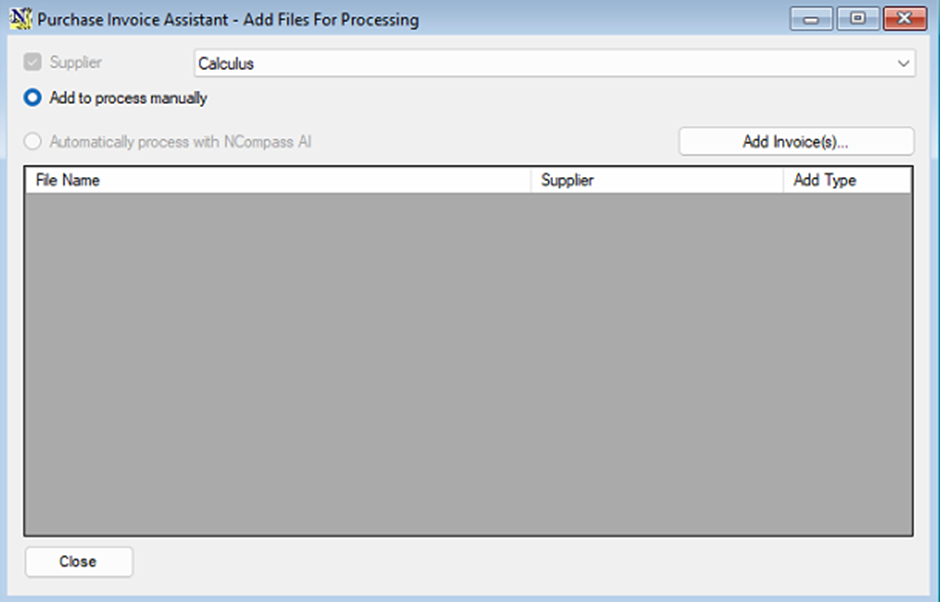
To upload invoices ready for processing:
Processing Uploaded Invoices
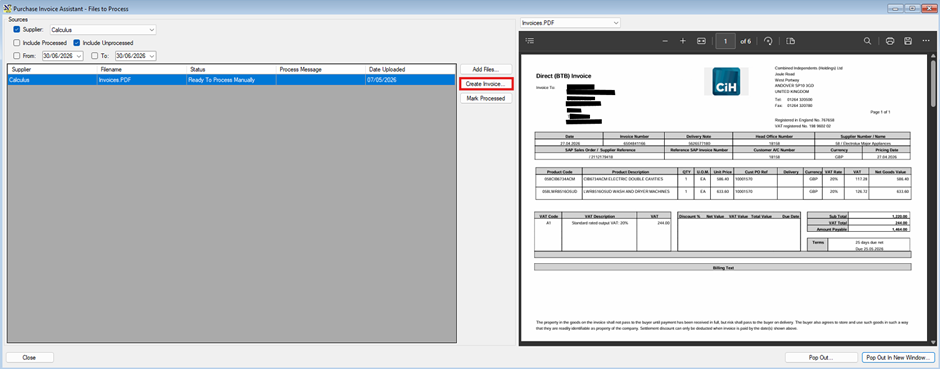
To process the uploaded invoice files:
Viewing the Invoice While Processing
Opening the invoice in a separate window can make data entry much easier, particularly when using two monitors.
Recommended setup:
- Monitor 1: Purchase Invoice entry screen
- Monitor 2: Supplier Purchase Invoice popped out in new window.
This allows you to reference the supplier's invoice while entering the details into NCompass.
Exporting Invoice Attachments
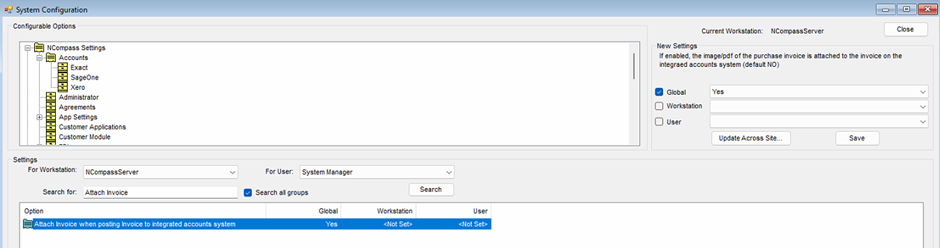
If you export purchase invoices to your accounts package using the NCompass API integration, the original supplier invoice PDF can also be exported and attached to the purchase invoice.
This is supported when exporting to:
- Xero
- Sage
This allows users within the accounts package to view the original supplier invoice directly from the purchase invoice record. The following config needs to be set.