Manual Store
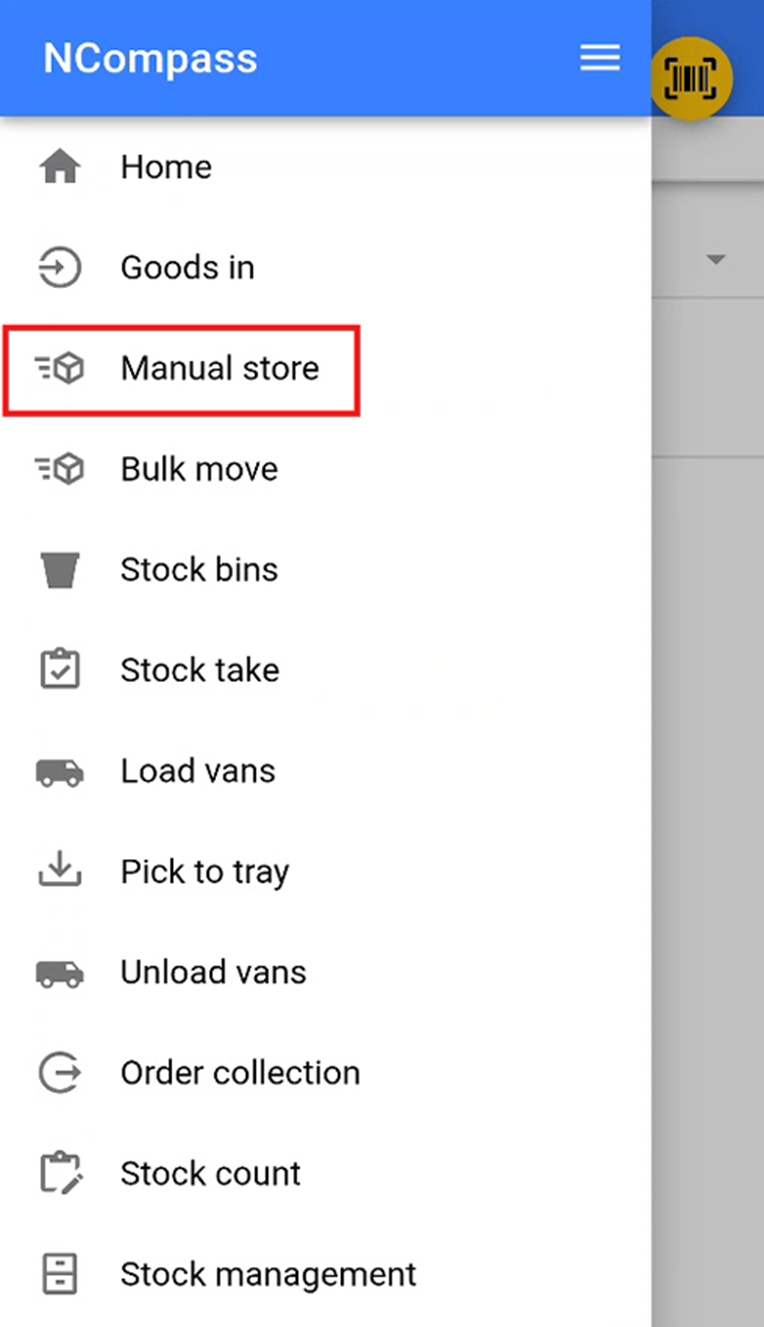
Accessing Manual Store
The Manual Store feature is used to store specific stock numbers into a stock location.
Selecting a Stock Location
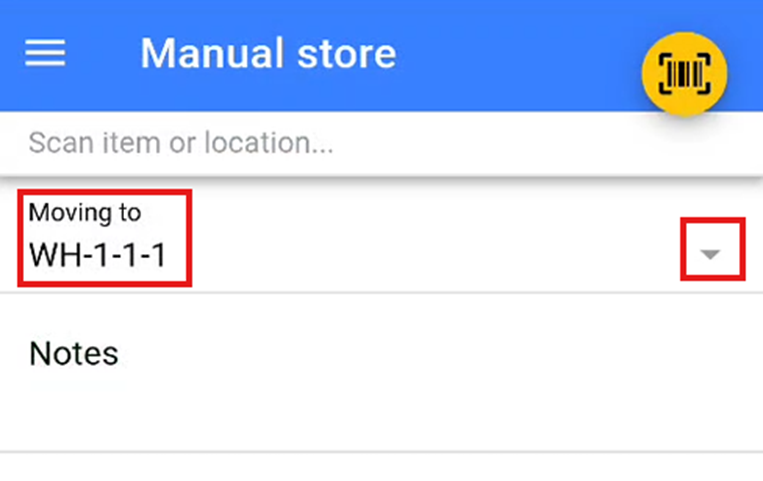
Select the stock location where you wish to store the stock. You can do this by either:
- Scanning the stock location QR code or barcode provided, or
- Selecting a stock location from the dropdown list by pressing the small ▽ icon.
Storing Items
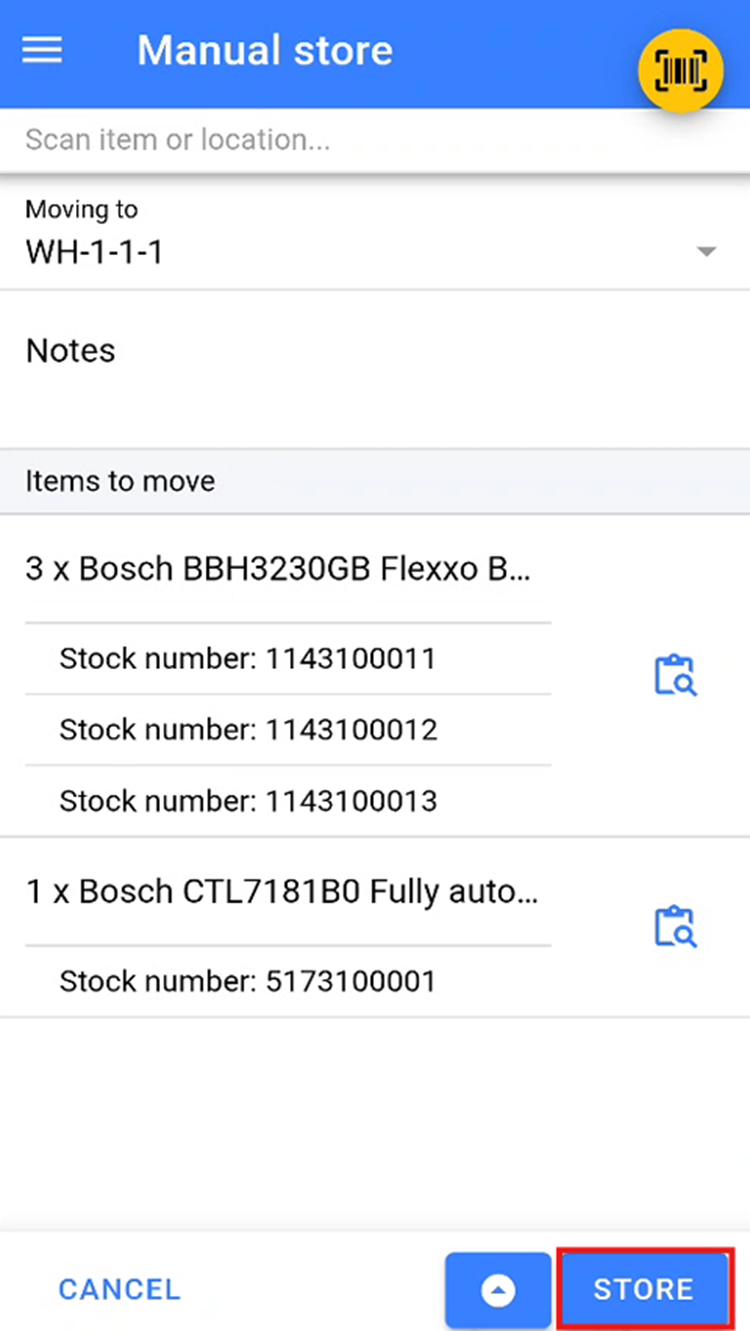
Scan or add all items that you wish to store in the selected stock location.
Once all items have been added, click the Store button to move the items into this location.
Bin Move (from 11.19)
Bin move moves stock from one bin into another. It works for count-only products and for individual stock numbers. Open it from the burger menu; it is shown only to users allowed the Bin move security function.
- Scan the bin to move out from, or pick it from the list. The screen lists everything in that bin. For each product it shows the quantity held there and up to two suggested bins that already hold the product, shown as bin - quantity here (used / capacity used).
- Choose what to move. Tick rows, or scan a product barcode or stock number to tick its row, and change the quantity if you are not moving it all. Select all ticks every row at its full quantity. Move becomes available once something is ticked.
- Scan the bin to move into, or pick it from the list. The header shows how full that bin is. Items that already have stock in it move to the top in bold. Items that cannot go into it (a different unit type) are greyed out.
- Press Move. If the move would put the bin over capacity, you are asked once whether to Move anyway. Any lines that cannot be moved are listed together in one message, and the rest are moved.
- Back returns to the first bin's list, so you can move the remaining items somewhere else.
Screenshots of the Bin move screens are still to be added - please capture them when reviewing.