NCompass Price Engine
Calculus Repricing Engine
The NCompass Price Engine is a powerful tool designed to dynamically update your retail prices within NCompass, based on rules that you define. To make the most of the NCompass Price Engine, we recommend running it alongside the Moonbow integration so you can incorporate competitor pricing into your repricing rule sets.
Selecting Price Categories to be updated with Automatic Pricing
By default, no price categories are updated using automatic pricing rules. To select which price categories you want automatic prices to be generated for, navigate to:
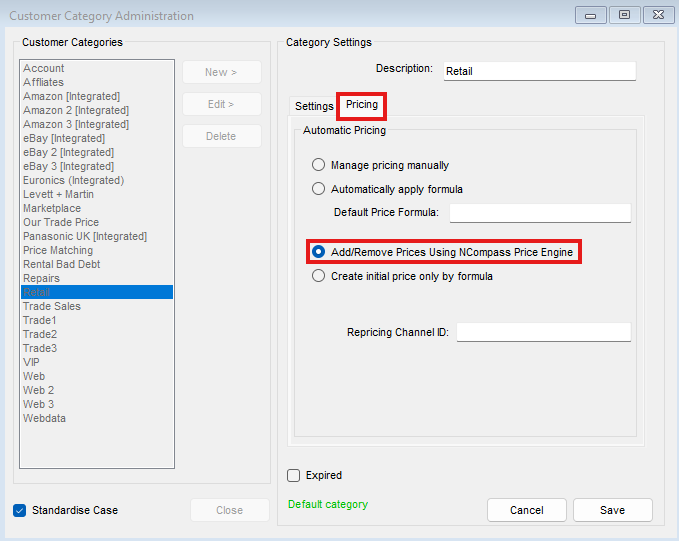
Administration > Customer Categories
Select the price category you wish to enable for price engine pricing, then navigate to the Pricing tab.
Enable the option Add/Remove Prices Using NCompass Price Engine.
Creating a New Rule
To create a new automatic pricing rule, navigate to:
Products > Product Pricing > Automatic Pricing Rules
This will open the pricing rule enquiry window, displaying all existing automatic pricing rules and allowing you to create new ones.
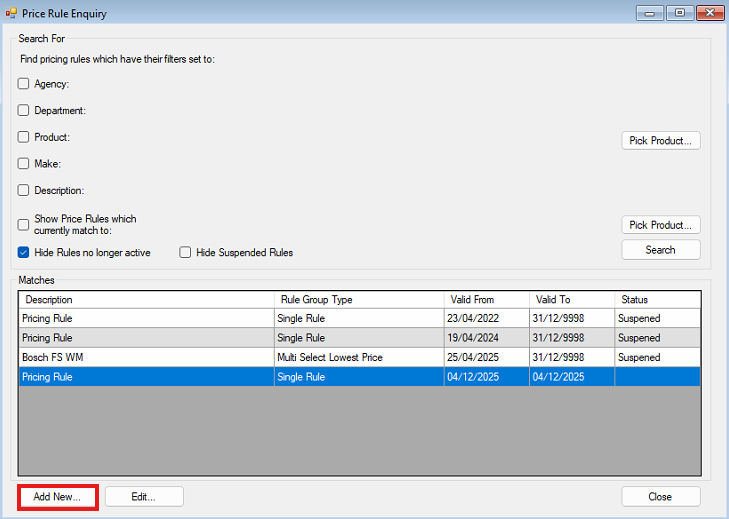
Click the Add New button to begin creating a new rule.
When creating a new automatic repricing rule, there are several areas that need to be configured.
Rule Grouping
The first section is the Group section, where you must set a Description. This is an internal description and should be named clearly to give a quick overview of what the rule does.
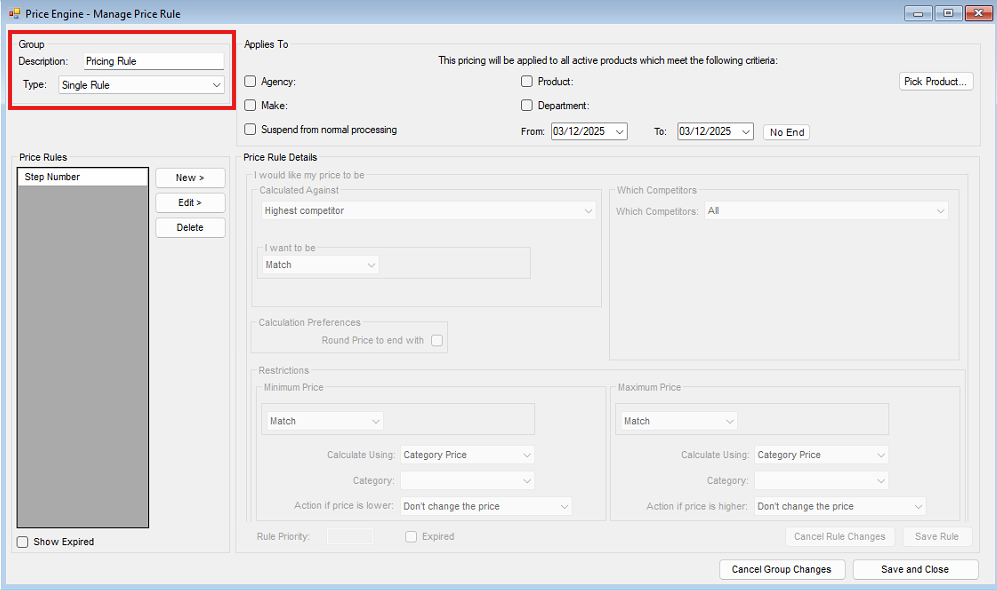
The second part of the Group section is selecting the rule type. There are four available options:
|
Single Rules |
· One rule is set up that will either change the price or not depending on if the rule is met. |
|
Multi Select Lowest Price |
· Multiple rules are set up, the price will change to the lowest price calculated, the order of the rules does not matter. |
| Multi Select Highest Price | Multiple rules are set up, the price will change to the highest price calculated, the order of the rules do not matter. |
| Multi Stop at First Price Match |
· Multiple rules are set up, the system will run through the price rules in the order or rule priority and then change the price depending on the first rule where all conditions are met. |
Rules Applies To
After naming your ruleset and selecting a rule type, configure the Applies To section to define which products the repricing rules will target. These options can be used individually or in combination.
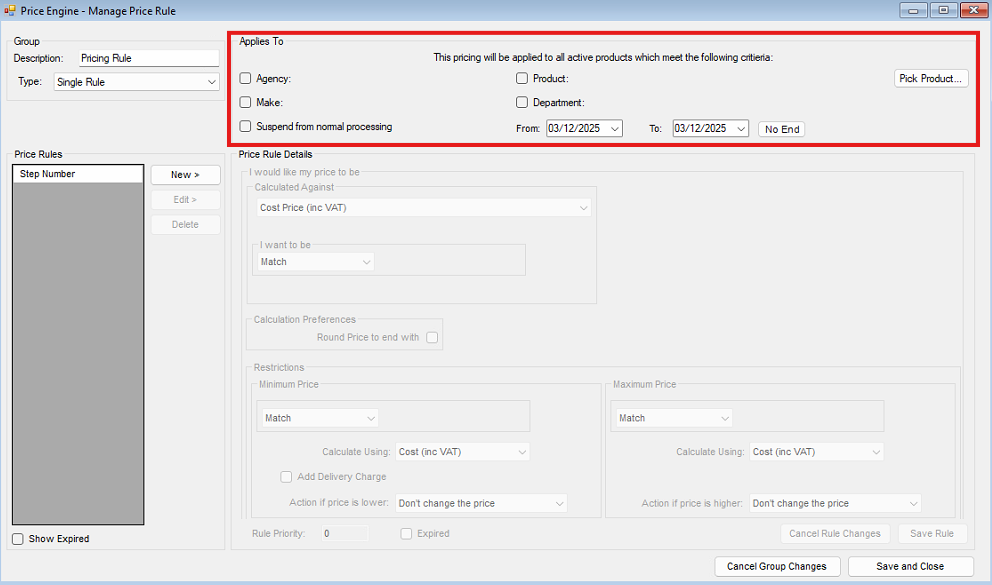
| Agency | Target specific agency products. |
| Make | Target products from a specific manufacturer. |
| Product | Target a specific product. |
| Department | Target all products within a department, including child departments. |
| Suspend from Normal Processing | Temporarily disable the rule without deleting it. |
| From and To Date | Define the date range during which the rule is active. |
Once these parameters are set, move on to configuring the Pricing Rule Details.
Price Rule Details
The Pricing rule details is where you will outline how your repricing price will be generated. There are many different parameters to target the start point for generating your repricing price.
Targeting a Competitor Price
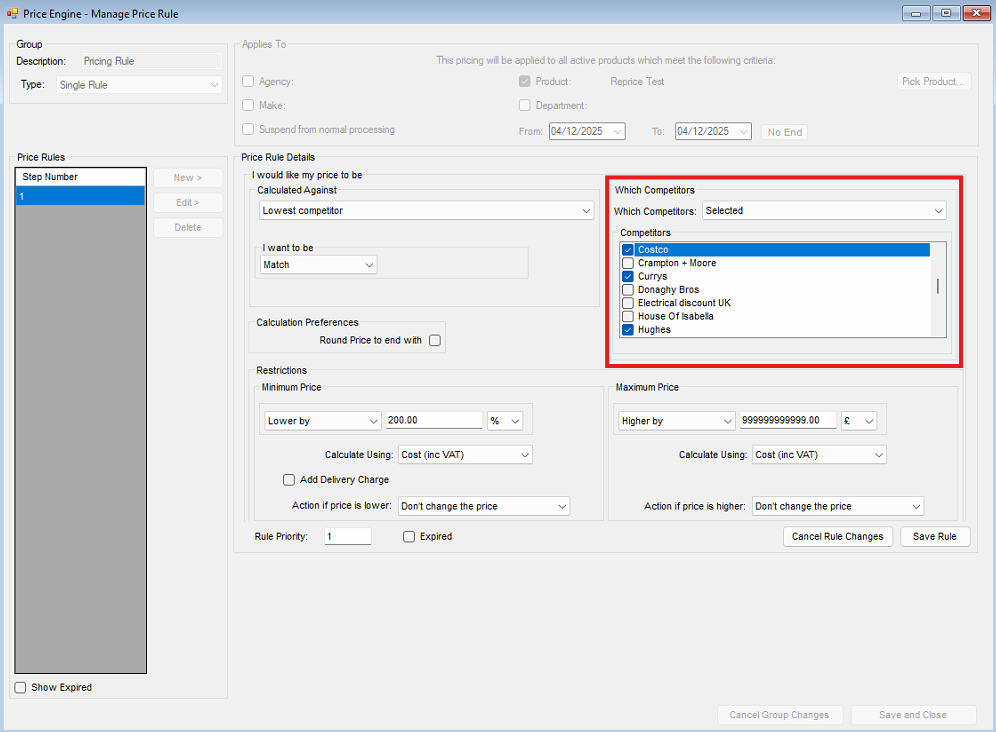
If competitor pricing is available in your system, you can base repricing rules on competitor prices. The available options are:
| Highest Competitor | Targets the highest competitor price. |
| Lowest Competitor | Targets the lowest competitor price. |
| Average Competitor | Targets the average competitor price. |
After selecting a competitor price type, you can choose to target all competitors or specific competitors.
Targeting an Active Cost Price
You can also base repricing on your current cost price:
| Cost Price (inc VAT) | Uses the lowest active cost price including VAT. |
| Cost Price After Margin Support (inc VAT) | Uses the lowest active cost price including VAT, with any active margin support claims removed. |
Targeting a Customer Category Price
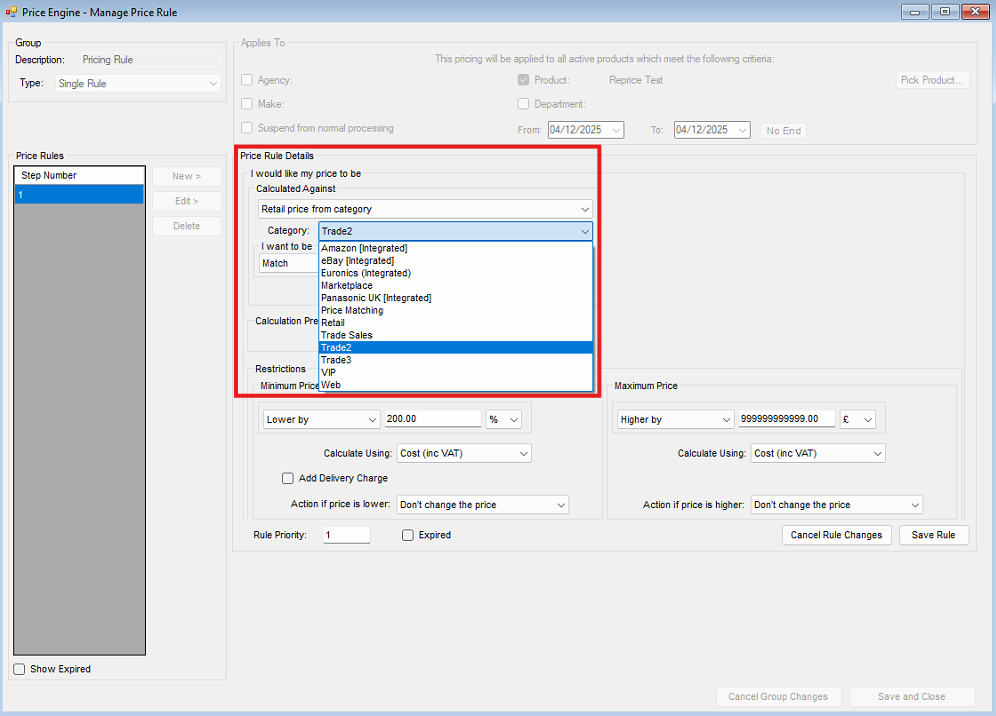
You can use an existing customer category price as a reference. Select Retail Price from Category, then choose the customer category price you want to target.
Repricing off a Custom Formula (advanced)
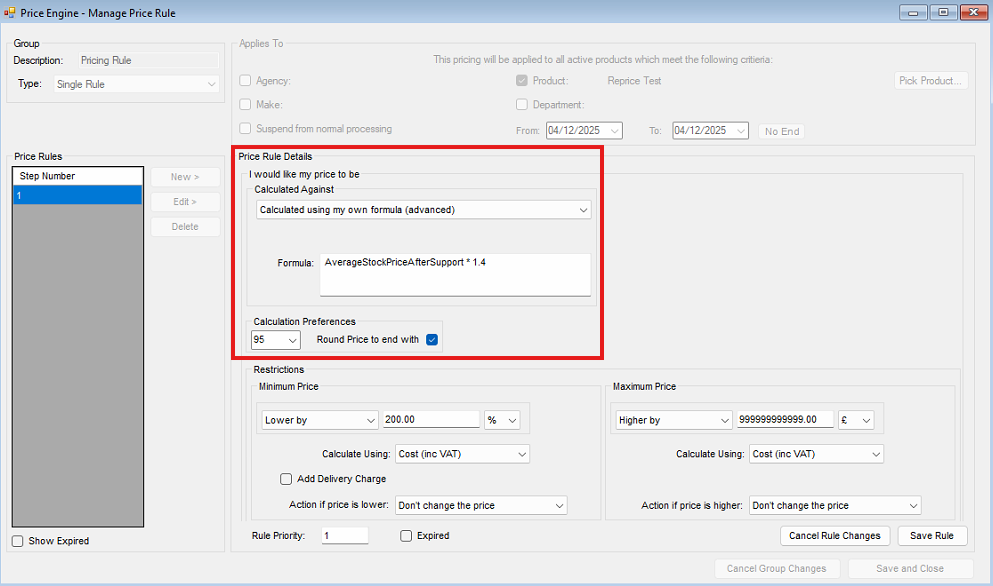
You can create custom formulas to calculate repricing values. The following tags are supported:
| CategoryName[x] | Replaces [x] with the category name to return the active category price. |
| CompetitorMin | Lowest competitor price. |
| CompetitorMax | Highest competitor price. |
| CompetitorAv | Average competitor price. |
| CostPriceInc | Lowest active cost price including VAT. |
| CostPriceAfterSupport | Lowest active cost price including VAT after margin support. |
| VATDecimal | Returns the VAT decimal. (For 20 % this will return 2000 so the use your VAT rate as part of the calculation you will need to use the formula "1 + (VatRateDecimal/10000)" |
| AvCost | Average of all active cost prices excluding VAT. |
| RetailPrice | Lowest active retail price. |
| AverageStockPriceBeforeSupport | Average stock price including VAT. |
| AverageStockPriceAfterSupport | Average stock price including VAT after margin support. |
You will need to use these tags with with the standard computer mathematical functions to create a formula.
Targeting an Average Stock Price
You can also use average stock pricing as the basis for repricing:
| Calculate against average stock price before SOA | Uses the average stock price including VAT. |
| Calculate against average stock price after SOA | Uses the average stock price including VAT, after margin support adjustments. |
Calculating your repricing Price
Once the starting price has been selected, define how the new retail price should be generated:
| Match | Sets the repriced value equal to the target price. |
| Higher By | Sets the price higher than the target by a fixed amount or percentage. |
| Lower By | Sets the price lower than the target by a fixed amount or percentage. |
You can also apply rounding rules to ensure prices end with specific pence values.
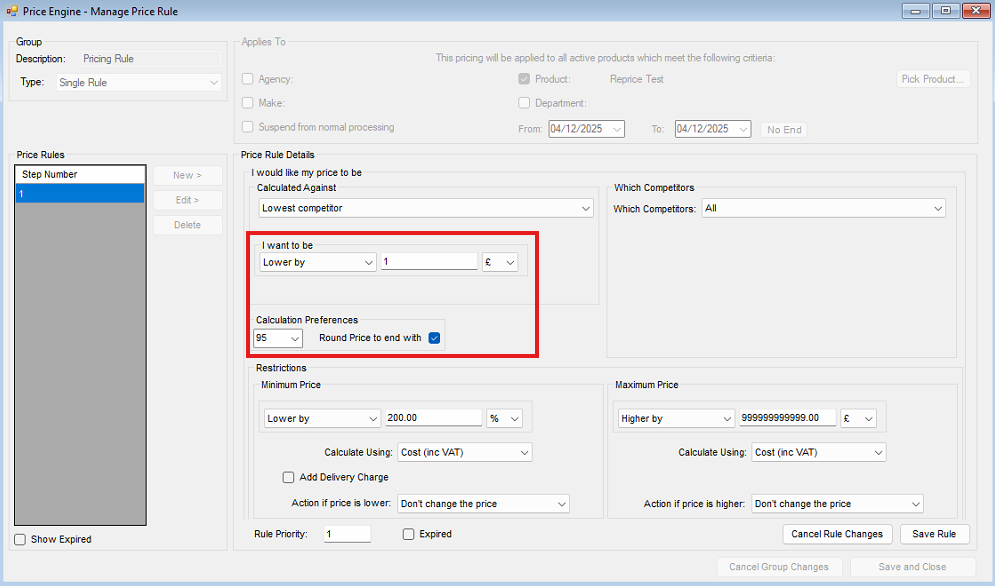
Note: We suggest setting a rounding price to the price calculations to be able to easily identify if a price has been generated using a repricing rule.
Adding Restrictions to Pricing Rules
Price restrictions ensure repriced values remain within acceptable minimum and maximum boundaries. Both minimum and maximum restrictions must be configured for the rule to be active.
Calculated Using
Choose how the price restriction should be calculated:
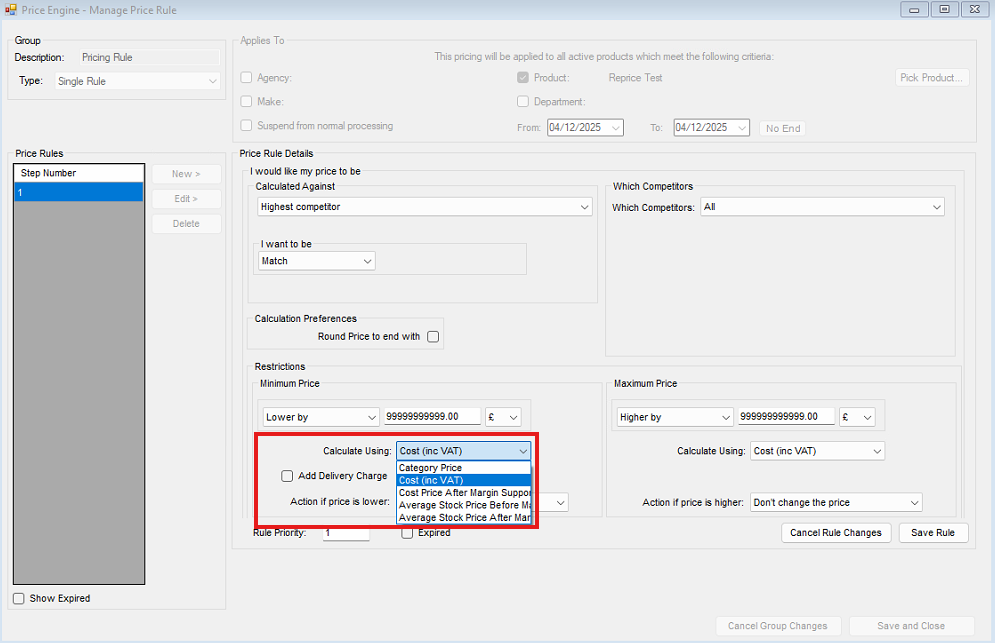
| Category Price | Uses a selected customer category price. |
| Cost Price (inc VAT) | Uses the lowest active cost price including VAT. |
| Cost Price After Margin Support | Uses the lowest active cost price including VAT, after margin support deductions. |
| Average Stock Price Before Margin Support | Uses the average stock price including VAT. |
| Average Stock Price After Margin Support | Uses the average stock price including VAT, after margin support deductions. |
Adding Delivery Charges
Delivery charges can be included in price restrictions using one of the following methods:
| Fixed | Manually enter a fixed delivery charge. |
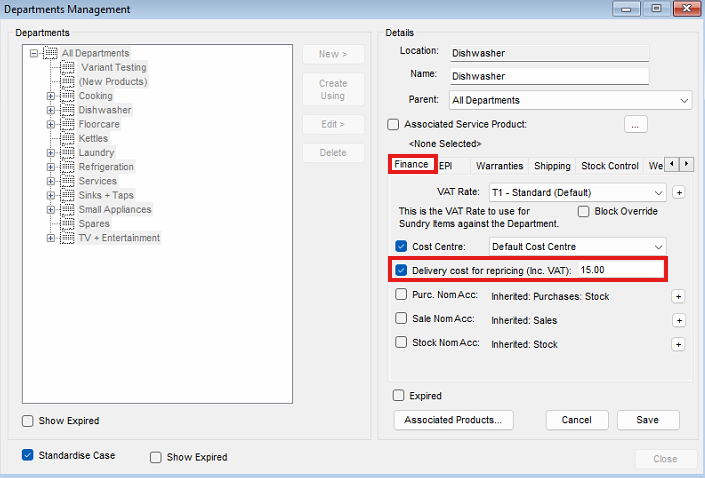
| From Department |
Automatically apply a delivery charge based on the product’s department.
To configure department delivery charges, navigate to: Administration > Department Management
Select the relevant department, open the Finance tab, and set the Delivery cost for repricing (inc. VAT) value.
Note: Child departments without a specific value will inherit the value from their parent department. |
Calculating the price restrictions
Once the restriction start point and delivery charges have been set, define how the restriction price is calculated:
| Match | Sets the restriction equal to the target price. |
| Higher By | Sets the restriction higher than the target by a fixed amount or percentage. |
| Lower By | Sets the restriction lower than the target by a fixed amount or percentage. |
Rule Actions
If the price falls within the minimum and maximum restrictions, the repriced value is applied.
If the price falls outside these restrictions, the action defined in Action if price is higher / lower is applied.
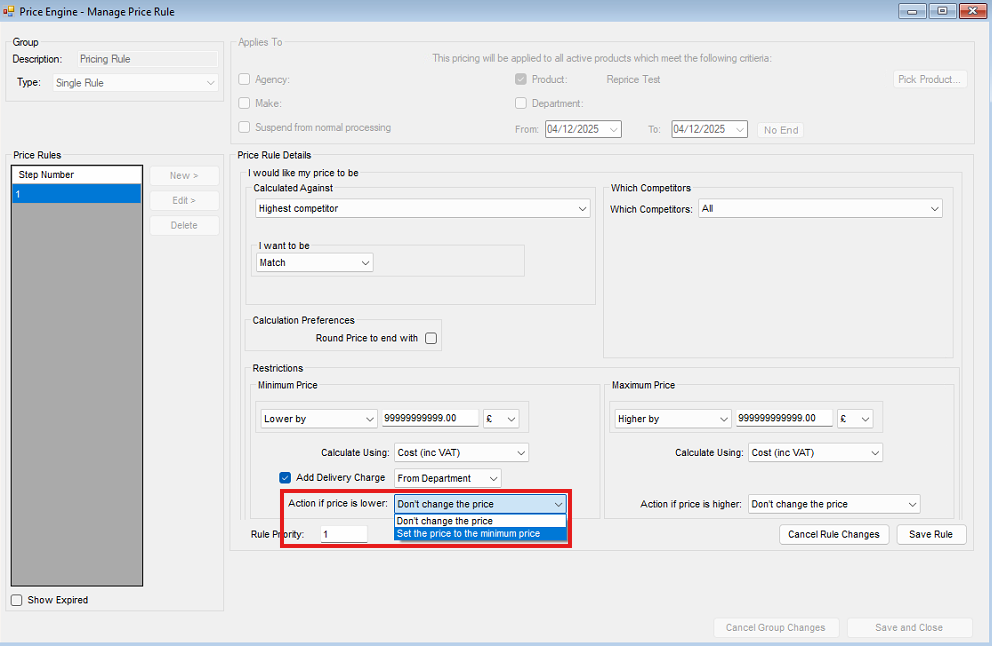
| Don't Change Price | The rule fails and the price is not updated. |
| Set the price to the minimum price | The rule fails, and the price is set to the minimum or maximum value depending on which limit was exceeded. |