# Getting API Credentials Tesco Mirakl

##### The Tesco marketplace integration needs 3 pieces of information for you to enter into NCompass:

- API Key
- API Endpoint
- Store ID

<span style="text-decoration: underline;">This guide will cover how to get this information so you can enter it into the corresponding configs on NCompass</span>

---

### Tesco API Credentials


[Tesco - Sign in](https://tescouk-prod.mirakl.net/login)

**Once signed in we can get all the information we need**

---

### 1 - API Endpoint

The API endpoint is the standard Tesco API Endpoint as listed in the documentation. **<span style="text-decoration: underline;">take note of this URL</span>**

<span data-teams="true">[https://tescouk-prod.mirakl.net/api](https://tescouk-prod.mirakl.net/api "https://tescouk-prod.mirakl.net/api")</span>

---

### 2 - Store ID

The Store ID is gathered from the Tesco Store dashboard, this is required for any API calls to Tesco.

After signing in, you will be redirected to the following screen.

[![image.png](https://kb.findesolutions.com/uploads/images/gallery/2025-10/scaled-1680-/MgcIYh28ydHPGdSJ-image.png)](https://kb.findesolutions.com/uploads/images/gallery/2025-10/MgcIYh28ydHPGdSJ-image.png)

You will need to take note of the location in the screenshot above, <span style="text-decoration: underline;">**this is the store ID**</span>

<p class="callout info">**Store ID's differ between companies**</p>

---

### 3 - API Key

#### Main Dashboard

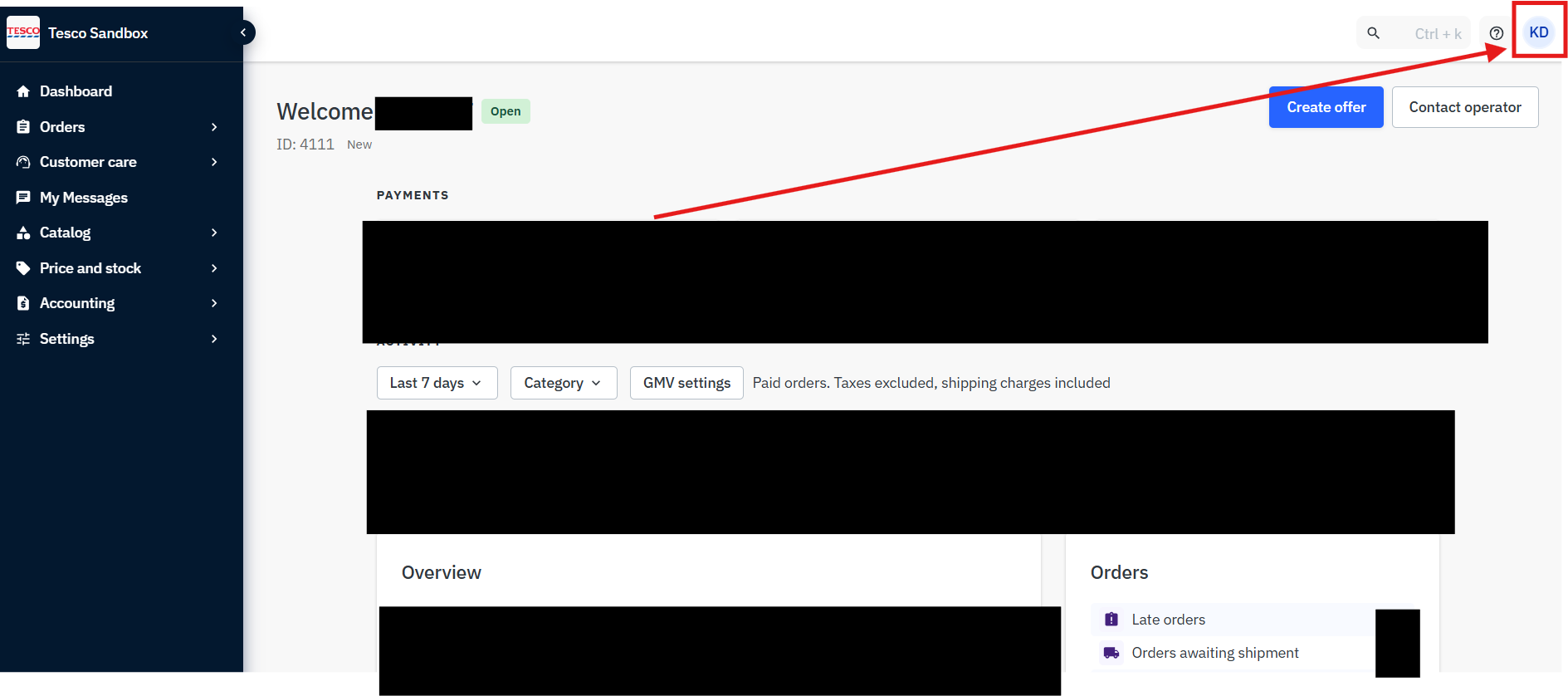
Stay on the Dashboard for Tesco. You will need to press on the profile icon in the top right, then press on "Personal settings"

[![image.png](https://kb.findesolutions.com/uploads/images/gallery/2025-10/scaled-1680-/AfIQoSPq3clAem9t-image.png)](https://kb.findesolutions.com/uploads/images/gallery/2025-10/AfIQoSPq3clAem9t-image.png)
#### Personal Settings Page

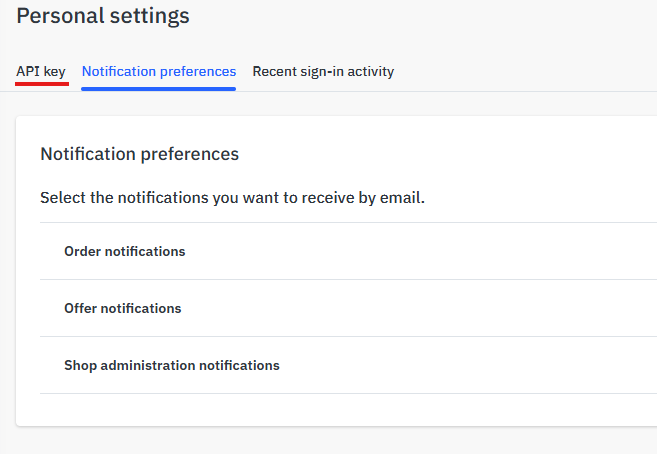
once on this page, press on API key

[![image.png](https://kb.findesolutions.com/uploads/images/gallery/2025-07/scaled-1680-/1ASf8vqbDUFE2GaC-image.png)](https://kb.findesolutions.com/uploads/images/gallery/2025-07/1ASf8vqbDUFE2GaC-image.png)
#### Generate API Key

After you reach the API Key page, simply press Actions and on Generate new key. This will create an API key for the marketplace.

[![image.png](https://kb.findesolutions.com/uploads/images/gallery/2025-10/scaled-1680-/BUOrIGdScQgZ7Tti-image.png)](https://kb.findesolutions.com/uploads/images/gallery/2025-10/BUOrIGdScQgZ7Tti-image.png)
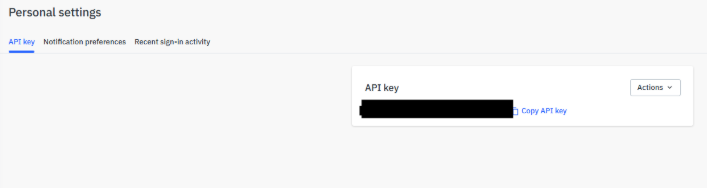
Copy the API Key to clipboard and store somewhere safely for the time being. **This** **has to be kept secure.**

---

##### <span style="text-decoration: underline;">You now have the API key and other details and can move on</span>