Product Enquiry > Search for a product > Right click product > Select Web/Online Details > Navigate to Marketplace Tab
[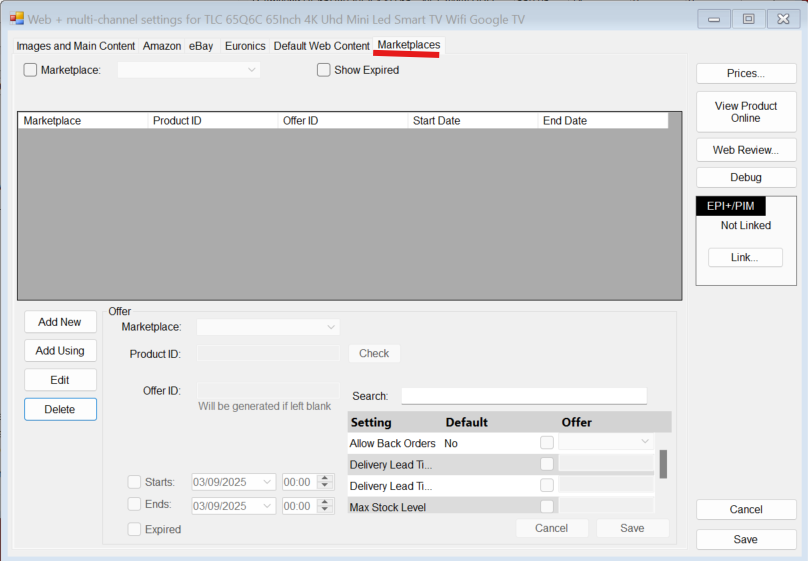](https://kb.findesolutions.com/uploads/images/gallery/2025-09/ysR3YOJMN3sFx7LW-image.png) After reaching this tab, to create an offer you just need to press "Add New" Select the marketplace of your choosing. If B&Q is selected it will auto populate the Product ID using EAN - You can press "Check" to see if this is a B&Q catalogue product (This checks with B&Q to see if its an available product in the existing catalogue) You can then enter a pre-existing offer ID to link an active B&Q offer or leave it blank and NCompass will create a new oneNCompass does not auto-link offers, they either need to be created or manually linked by entering offer ID
B&Q Marketplace links all products using EAN
You can then press Save to create the offer - [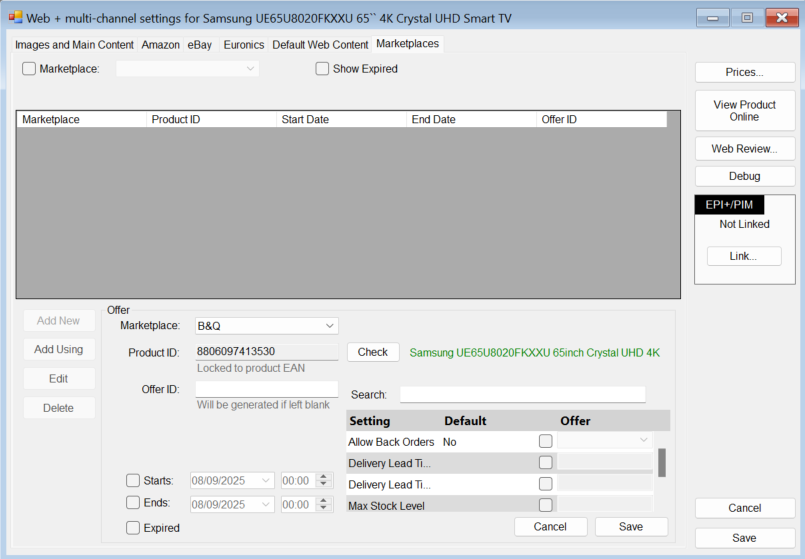](https://kb.findesolutions.com/uploads/images/gallery/2025-09/Y38yPSpAaNACsJhe-image.png) The offer settings in the bottom right are optional. ##### Notes: You can have multiple offers for the same product for the same marketplace. (2 or more B&Q offers)