Creating a new Marketplace Tesco
Marketplaces are essentially stores that different companies can provide. You are able to sell products on the Tesco website for example which is what this guide will cover.
When setting up a new Marketplace you only need to configure a few settings within NCompass to activate a new Marketplace. This will vary sightly between different marketplace integrations. this guide will follow the general steps for the Tesco integration.
Create a new Web-Site
We will need to create a brand new web-site within NCompass where we will assign the integration type and select the Marketplace Channel.
Step 1 - Making a new Web-Site
On NCompass, go under Administration > Multi-Channel > Web Sites
Create a new website by pressing "New". Give it a descriptive name and select a corresponding price category to list product pricing under.
Set the Channel Type to "Marketplace"
Select the integration type (in this case Tesco)
Marketing Source is optional and should be set to Tesco so they can report against this in their Sales reports if desired.
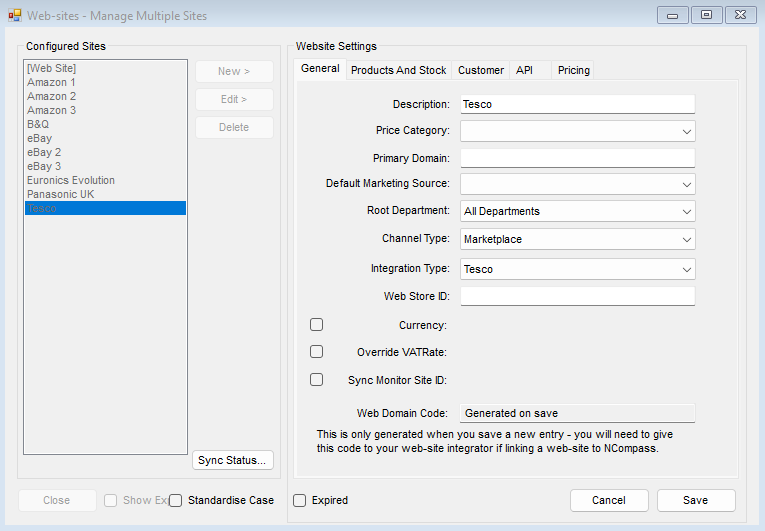
Press save and you can move on to the next step.
Other settings are optional, this guide is covering the bare minimum setup to link a marketplace
Step 2 - Set Marketplace Settings
Go Back to Administration > Multi-Channel > Marketplace Settings
Select the new Marketplace Web-Site name you've just created and press Edit > (It will appear if you chose marketplace channel type on Web-sites administration)
You can update the description here and ensure the integration matches the one set within web-sites
Make sure the marketplace is enabled
The following settings are needed for API calls to Tesco:
API Creds KB - Link to how to get API Credentials
- API Endpoint
- Shop ID
- API Auth Key
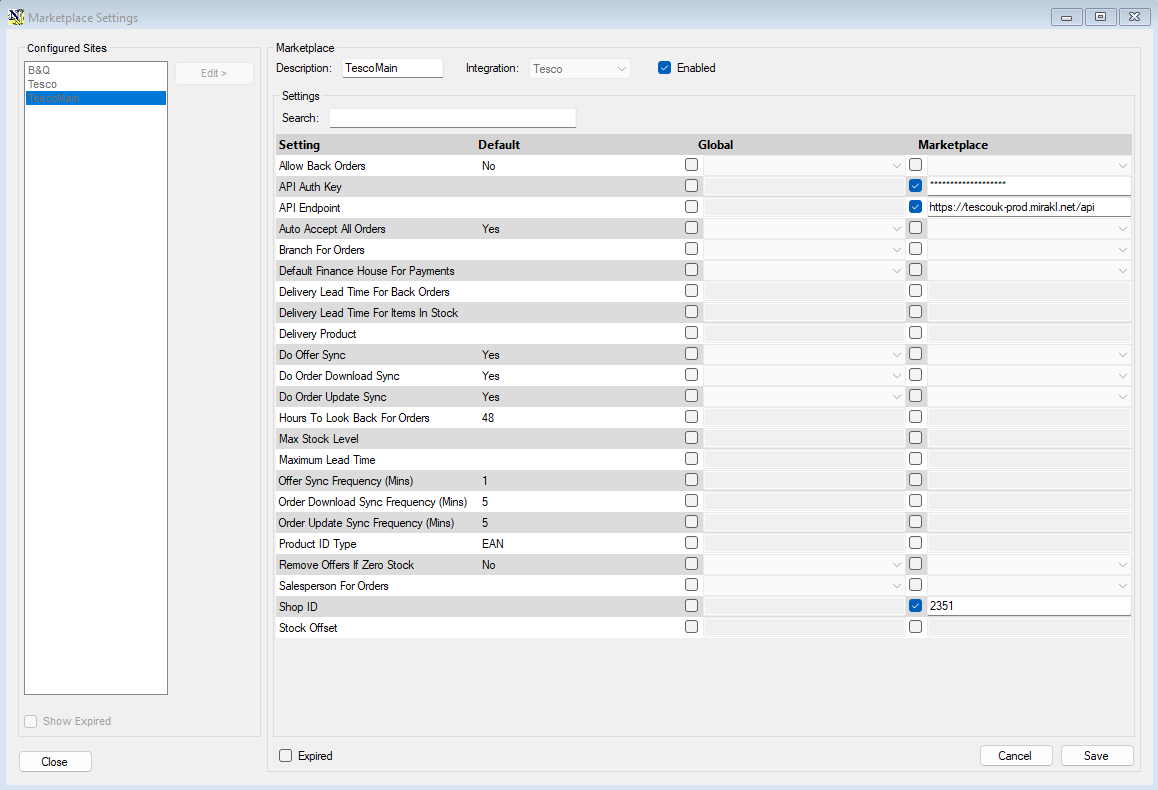
All you need are the 3 settings above for the minimum Tesco setup
The vast majority of marketplace configs will be present within this Tab instead of Tools > Config
Final Considerations:
- Create an unmatched product, ensure there is an unmatched web product linked to an actual unmatched item otherwise downloaded orders without a product link will return a BLANK sundry line