# B&Q Marketplace Intro and API Credentials
**With NCompass 11.10 onwards you are able to link the B&Q Marketplace to NCompass. This allows you to sync offers, download orders and provide order updates directly from NCompass.**
To get started the B&Q marketplace integration needs 3 pieces of information for you to enter into NCompass for it to link to the store:
- API Key
- API Endpoint
- Store ID
This part of the guide will cover how to get this information so you can enter it into the corresponding configs on NCompass
---
## B&Q API Credentials
[B&Q - Sign in](https://marketplace.kingfisher.com/login)
**Once signed in we can get all the information we need for NCompass**
### 1 - API Endpoint
The API endpoint is the standard B&Q API Endpoint as listed in the documentation. **take note of this URL**
[https://marketplace.kingfisher.com/api](https://marketplace.kingfisher.com/api "https://marketplace.kingfisher.com/api")
### 2 - Store ID
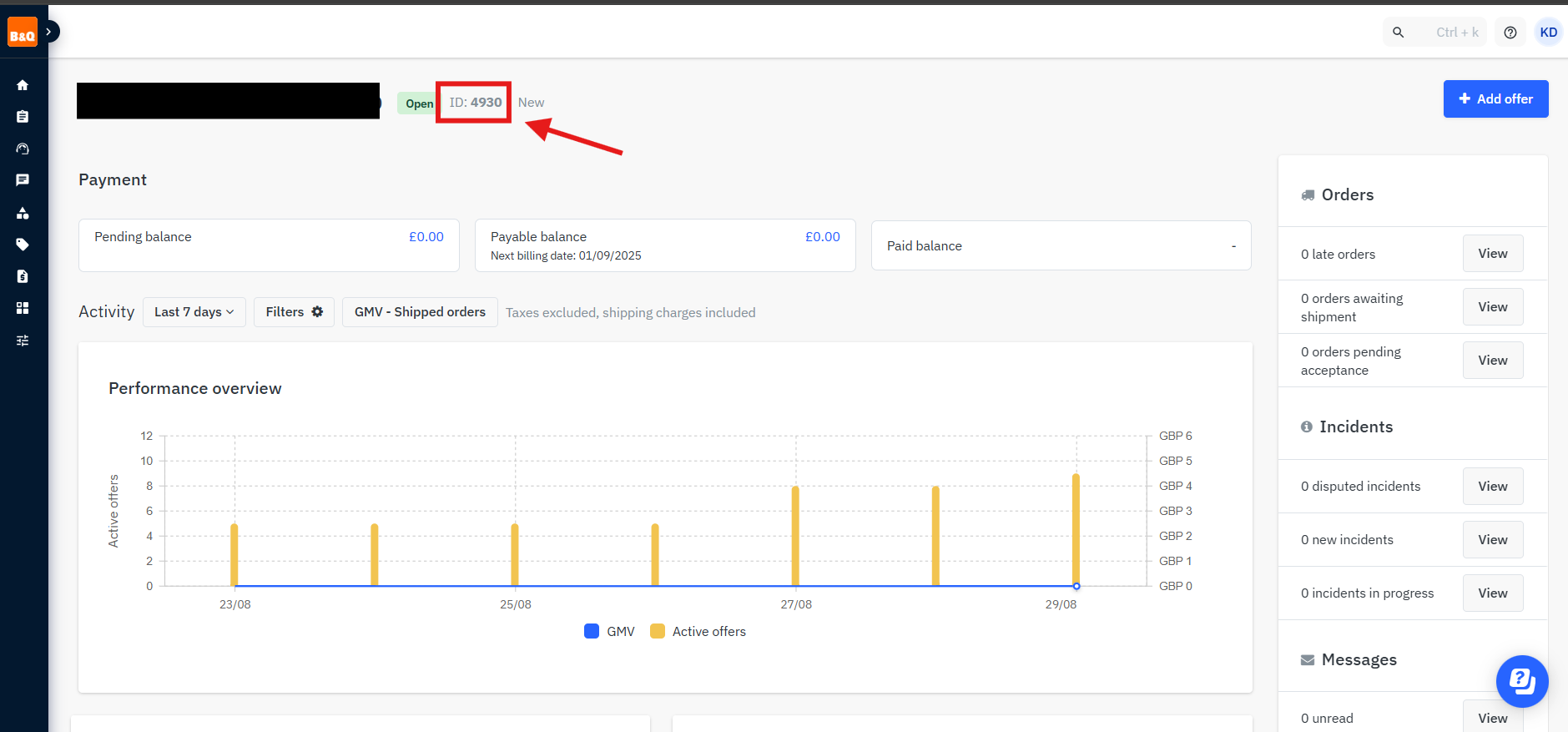
The Store ID is gathered from the B&Q Store dashboard, this is required for any API calls to B&Q.
After signing in, you will be redirected to the following screen.
[](https://kb.findesolutions.com/uploads/images/gallery/2025-08/BkMM5FqT8R9yaP88-image.png)
You will need to take note of the location in the screenshot above, **this is the store ID**
**The store ID in the screenshot above is only an example**
### 3 - API Key
#### Main Dashboard
Stay on the Dashboard for B&Q. You will need to press on the profile icon in the top right, then press on "Personal settings"
[](https://kb.findesolutions.com/uploads/images/gallery/2025-07/WgccO8hpwTzqzewX-image.png)
#### Personal Settings Page
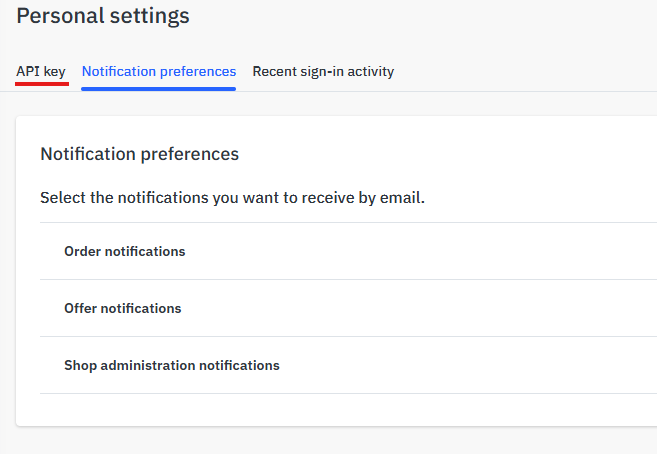
once on this page, press on API key
[](https://kb.findesolutions.com/uploads/images/gallery/2025-07/1ASf8vqbDUFE2GaC-image.png)
#### Generate API Key
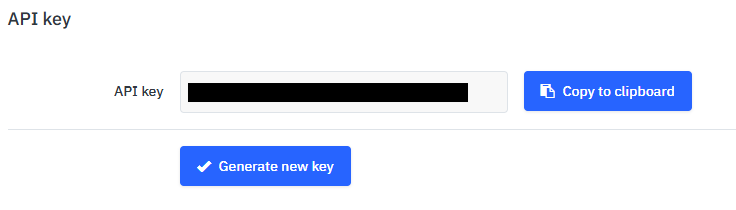
After you reach the API Key page, simply press on Generate new key. This will create an API key for the marketplace.
[](https://kb.findesolutions.com/uploads/images/gallery/2025-07/H1AjvfDAHXoeGUKs-image.png)
Copy the API Key to clipboard and store somewhere safely for the time being. **This** **has to be kept secure.**
**You now have the API key and other details and can move on**