Marketplace Integration
- B&Q Marketplace
- B&Q Marketplace Intro and API Credentials
- Creating a New Marketplace
- Marketplace Settings
- Creating Marketplace Offers
- Downloading Marketplace Offers
- Marketplace Order Updates
- Euronics Marketplaces Service Import
B&Q Marketplace
B&Q Marketplace integration setup and how to use guide
B&Q Marketplace Intro and API Credentials
With NCompass 11.10 onwards you are able to link the B&Q Marketplace to NCompass. This allows you to sync offers, download orders and provide order updates directly from NCompass.
To get started the B&Q marketplace integration needs 3 pieces of information for you to enter into NCompass for it to link to the store:
- API Key
- API Endpoint
- Store ID
This part of the guide will cover how to get this information so you can enter it into the corresponding configs on NCompass
B&Q API Credentials
Once signed in we can get all the information we need for NCompass
1 - API Endpoint
The API endpoint is the standard B&Q API Endpoint as listed in the documentation. take note of this URL
https://marketplace.kingfisher.com/api
2 - Store ID
The Store ID is gathered from the B&Q Store dashboard, this is required for any API calls to B&Q.
After signing in, you will be redirected to the following screen.
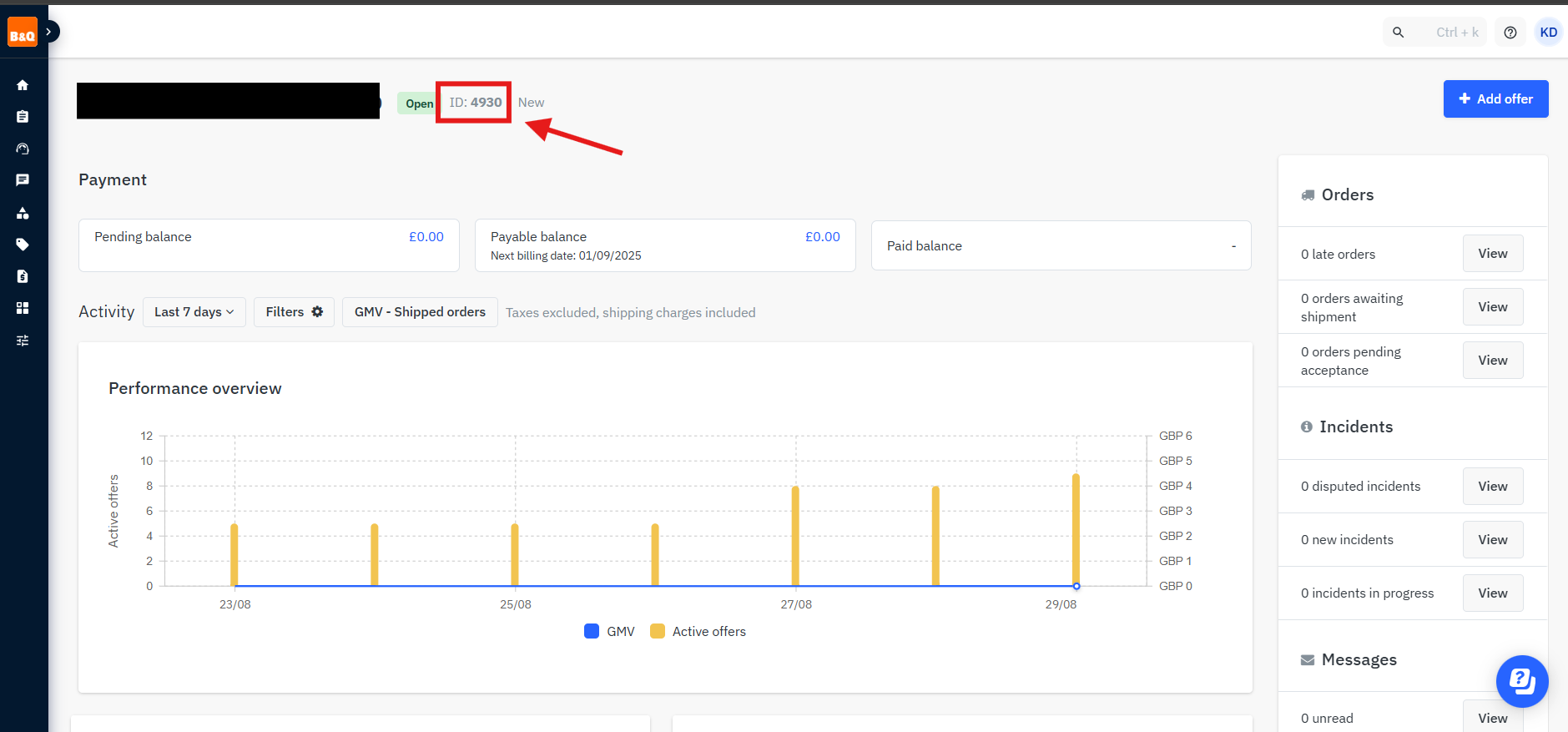
You will need to take note of the location in the screenshot above, this is the store ID
The store ID in the screenshot above is only an example
3 - API Key
Main Dashboard
Stay on the Dashboard for B&Q. You will need to press on the profile icon in the top right, then press on "Personal settings"
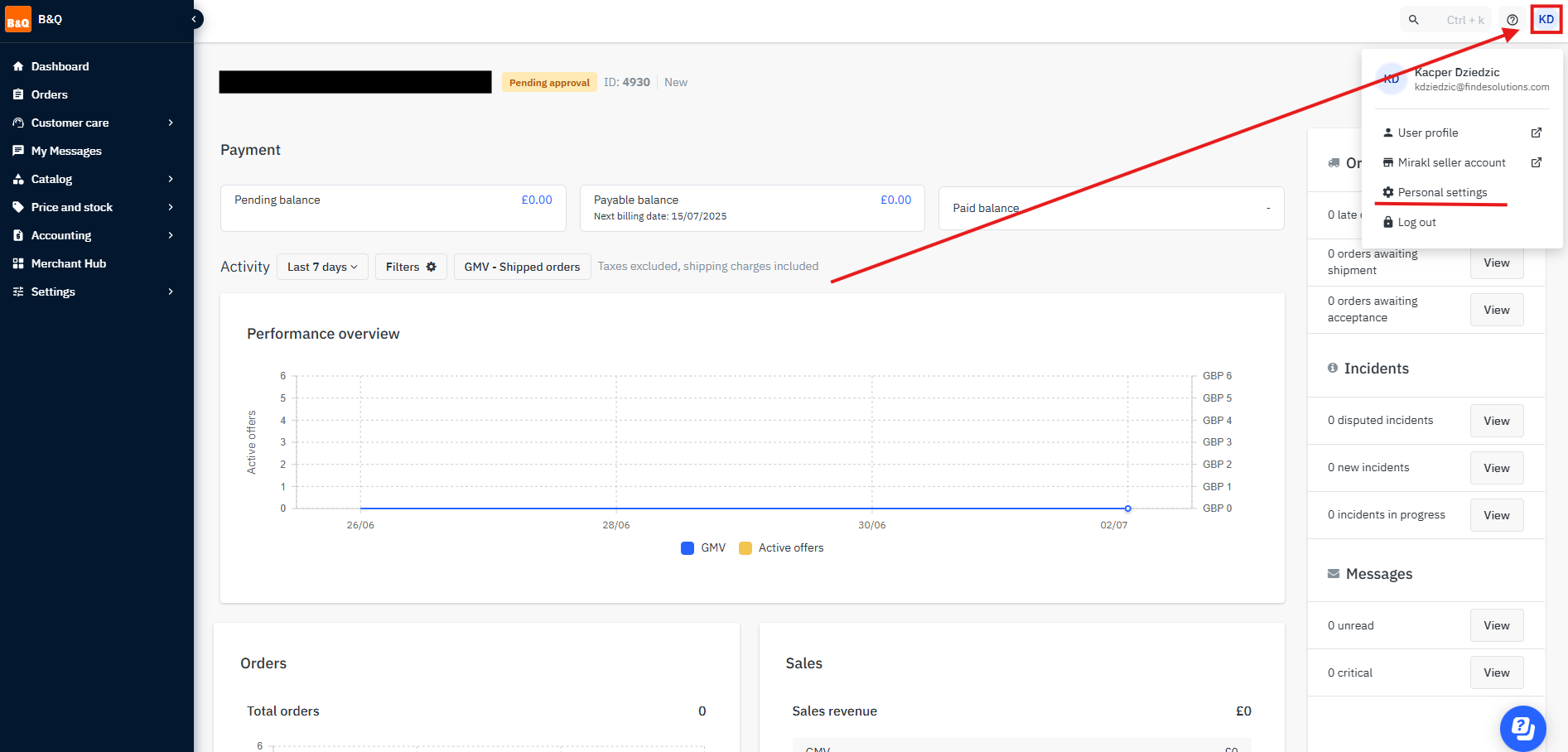
Personal Settings Page
once on this page, press on API key
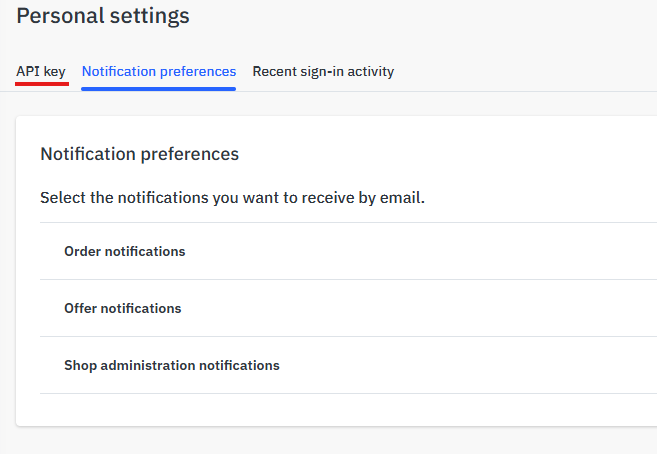
Generate API Key
After you reach the API Key page, simply press on Generate new key. This will create an API key for the marketplace.
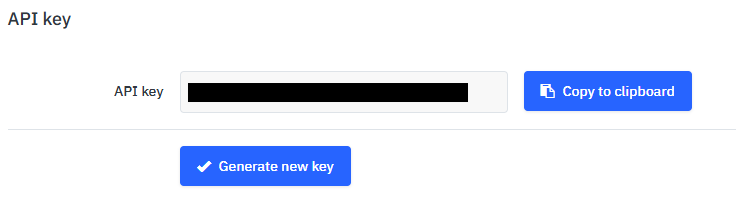
Copy the API Key to clipboard and store somewhere safely for the time being. This has to be kept secure.
You now have the API key and other details and can move on
Creating a New Marketplace
When setting up a new Marketplace you only need to configure a few settings within NCompass to activate a new Marketplace. This will vary sightly between different marketplace integrations. this guide will follow the general steps for the B&Q integration.
Create a new Web-Site
We will need to create a brand new web-site within NCompass where we will assign the integration type and select the Marketplace Channel.
Step 1 - Making a new Web-Site
On NCompass, go under Administration > Multi-Channel > Web Sites
Create a new website by pressing "New". Give it a descriptive name and select a corresponding price category to list product pricing under.
Set the Channel Type to "Marketplace"
Select the integration type (in this case B&Q)
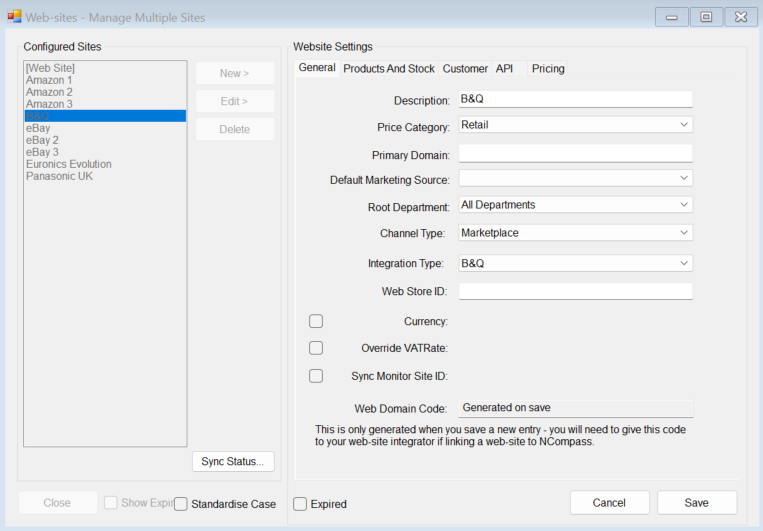
Press save and you can move on to the next step.
Other settings are optional, this guide is covering the bare minimum setup to link a marketplace
Step 2 - Set Marketplace Settings
Go Back to Administration > Multi-Channel > Marketplace Settings
Select the new Marketplace Web-Site name you've just created and press Edit > (It will appear if you chose marketplace channel type on Web-sites administration)
You can update the description here and ensure the integration matches the one set within web-sites
Make sure the marketplace is enabled
The following settings are needed for API calls to B&Q:
- API Endpoint
- Shop ID
- API Auth Key
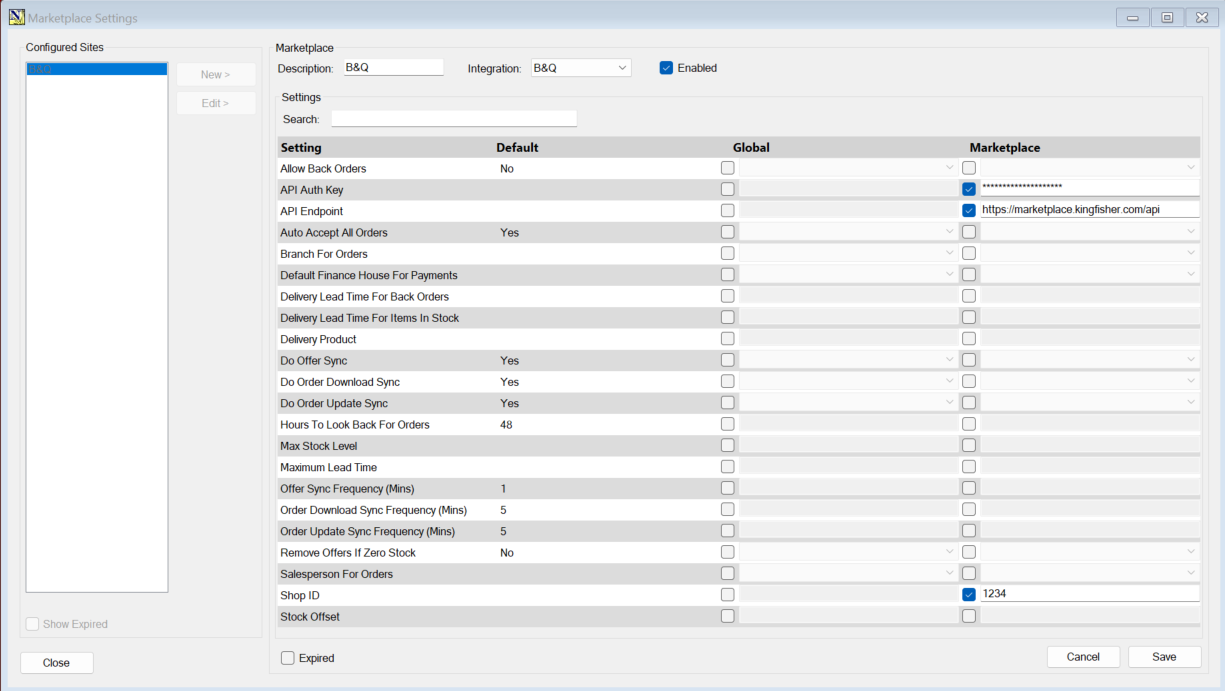
All you need are the 3 settings above for the minimum B&Q setup
The vast majority of marketplace configs will be present within this Tab instead of Tools > Config
Final Considerations:
- Create an unmatched product, ensure there is an unmatched web product linked to an actual unmatched item otherwise downloaded orders without a product link will return a BLANK sundry line
Marketplace Settings
The minimum setup to send offers should have been completed when the API credentials were entered under marketplace settings. You should have the ability to create and update offers.
This leaves the other marketplace settings which you would want to configure. I have listed the important configs to setup at the top of this guide. The Guide is referencing the section under Administration > Multi-Channel > Marketplace Settings.
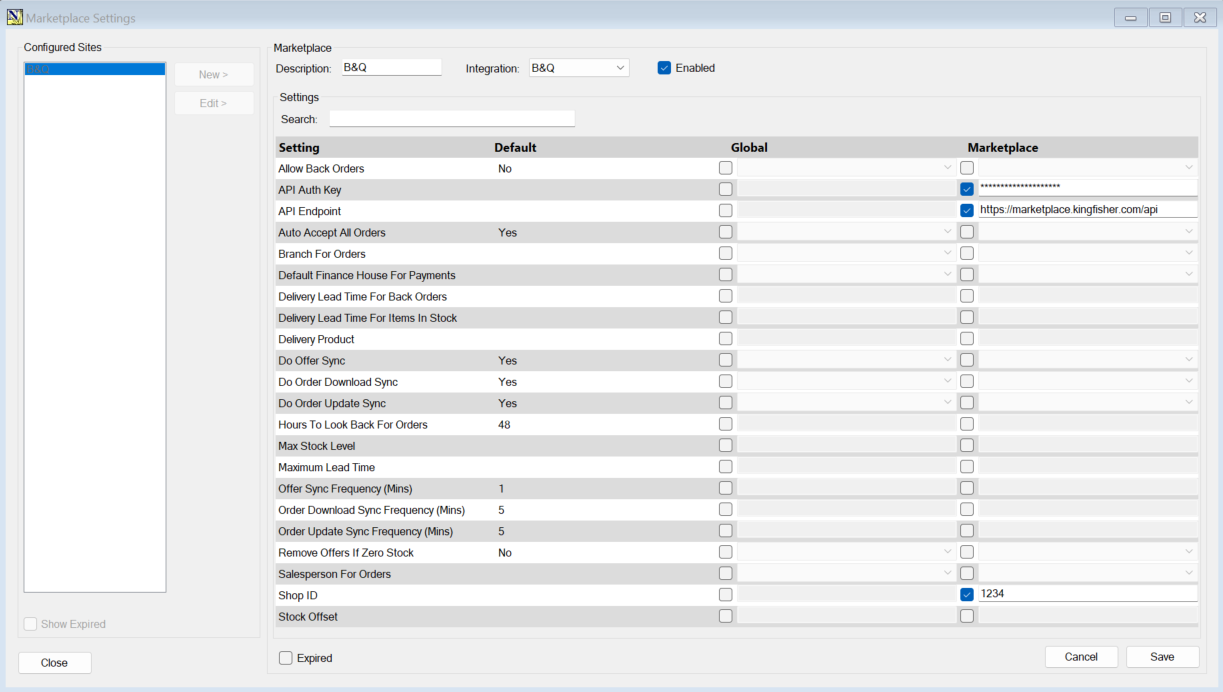
Important settings
| Marketplace Config | Summary |
Example Input (---Do not copy these 1 for 1---) |
| Allow Back Orders | The ability to list product without them being in stock. However, you need to have either Purchase Orders with expected due dates or Supplier Stock Availability for this to work. | Yes |
| Branch For Orders | Which branch to set Web orders against by default | Head Office |
| Default Finance House | Which finance house should be used for Web order payments from the Marketplace | B&Q Finance House |
| Salesperson For Orders | The Salesperson Web orders get set against | B&Q |
| Offer Sync Frequency (Mins) | How often ServerGUI checks for offer updates in minutes | 5 |
| Order Download Sync Frequency (Mins) | How often ServerGUI checks for new orders in minutes | 5 |
| Order Update Sync Frequency (Mins) | How often ServerGUI checks for order updates in minutes |
5 |
| Do Offer Sync | Should ServerGUI update offers |
Yes |
| Do Order Download Sync | Should ServerGUI download Orders |
Yes |
| Do Order Update Sync | Should ServerGUI send Order Status Updates to Marketplace |
Yes |
| Delivery Product | If the NCompass pulls down an alternate form of shipping/delivery under the Web order, this is the delivery product it will use by default. |
(Short code number) 219978 |
Other Settings
| Marketplace Config | Summary |
Example Input (---Do not copy these 1 for 1---) |
| Auto Accept All Orders |
A config dedicated to evolution, you need to "Accept" orders from their site before you receive payment.
Not working currently |
Yes |
| Delivery Lead Time For Back Orders | The lead time for delivery on items which are on Back Order | 5 |
| Delivery Lead Time For Items In Stock | The lead time for delivery on items in stock | 0 |
| Hours To Look Back For Orders | How far back to look for new Orders | 48 |
|
Max Stock Level |
What is the highest stock amount you will send to the marketplace. | --Leave Unset-- |
| Maximum Lead Time | If you have items on backorder, what is the maximum lead time you will offer for any product. It will not offer items above this set lead time | 10 |
| Remove Offers If Zero Stock | Whether ServerGUI should send offer delete requests when you have 0 stock in the system for an item. | No |
| Stock Offset | How much to offset stock by when sending offer updates | 0 |
This guide is made on 05/09/2025 the integration may be subject to change and there may be more settings after this date.
Creating Marketplace Offers
Creating marketplace offers is done under the Web/Online Details tab of a product, managed next to all other web sections.
Product Enquiry > Search for a product > Right click product > Select Web/Online Details > Navigate to Marketplace Tab
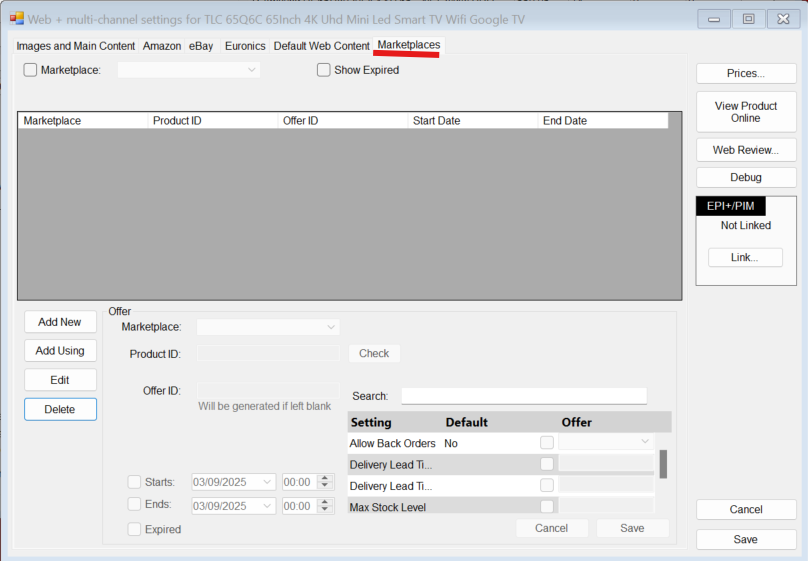
After reaching this tab, to create an offer you just need to press "Add New"
Select the marketplace of your choosing.
If B&Q is selected it will auto populate the Product ID using EAN - You can press "Check" to see if this is a B&Q catalogue product (This checks with B&Q to see if its an available product in the existing catalogue)
You can then enter a pre-existing offer ID to link an active B&Q offer or leave it blank and NCompass will create a new one
NCompass does not auto-link offers, they either need to be created or manually linked by entering offer ID
B&Q Marketplace links all products using EAN
You can then press Save to create the offer -
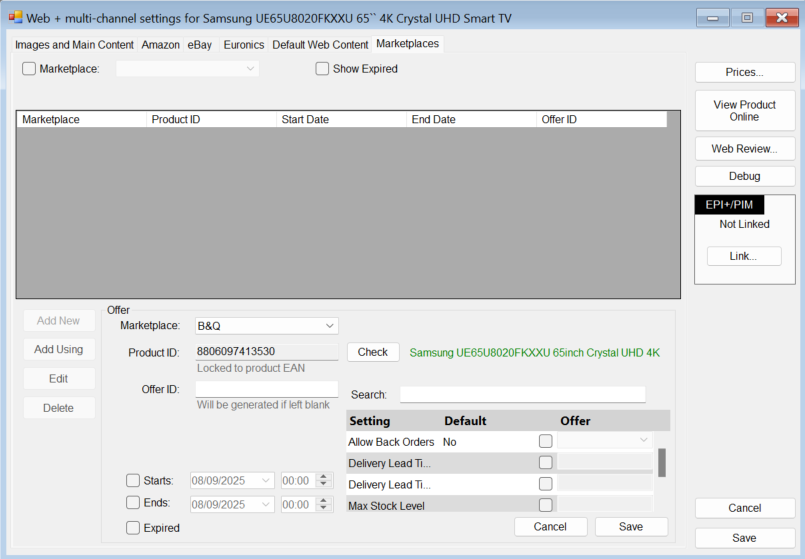
The offer settings in the bottom right are optional.
Notes:
You can have multiple offers for the same product for the same marketplace. (2 or more B&Q offers)
Downloading Marketplace Offers
Downloading Marketplace Orders is handled by the NCompass ServerGUI process, however some settings need to be configured for this to work.
The configs within the marketplace will work by default, importing brand new orders within 48 hours of them being placed. You can change this through marketplace settings.
Anything server related will have to be done by support
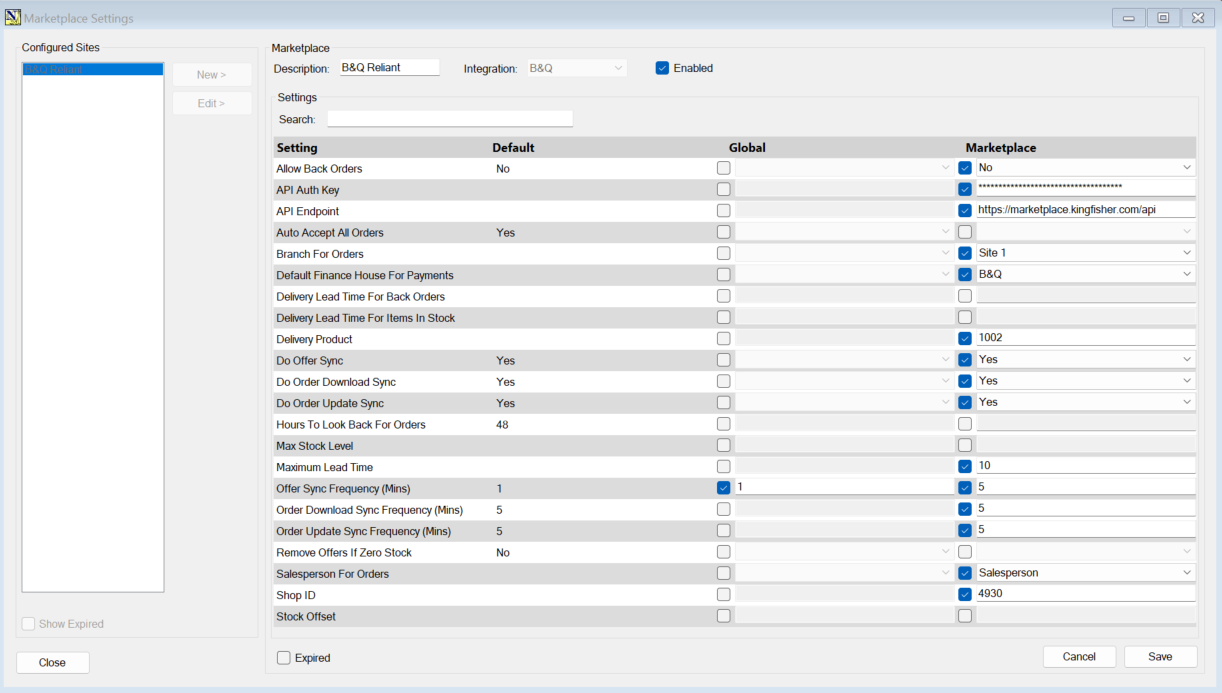
Relevant Configs:
Hours To Look Back For Orders - How far back ServerGUI will look back on B&Q for orders to import
Order Download Sync Frequency - How often ServerGUI checks for new orders in minutes
Default Finance House For Payments - Which finance house is chosen for NCompass Marketplace order payments
Delivery Product - Which NCompass product gets assigned to Web orders for marketplace delivery products
Salesperson For Orders - The Salesperson which gets selected against Web orders
Marketplace Order Updates
You can send order updates to the B&Q Marketplace through NCompass. NCompass will handle this automatically as long as the process is followed.
There is only one order status update for B&Q which can be sent. This is sending the order status update of "Shipped" after completing a field call linked to the imported sale.
After a B&Q order is imported into NCompass, the customer will be booking a field call for the order. Once this field call is marked as "Completed" NCompass will queue to send a "Shipped" status update to the associated WebOrder.
Steps: Open NCompass B&Q Web order > Book field call > Mark field call as completed > NCompass sends update
Relevant Settings:
Order Update Sync Frequency - how often to send order updates in minutes
--- This is all for the B&Q Integration ---
If you're not sure call into Support to ask for more information 01892 342 916
Euronics Marketplaces Service Import
A how-to video for importing your Euronics Marketplace services.
The template file for importing can be found here: Euronics Marketplace Full Service List.xlsx - click on File > Create a Copy > Download a Copy to save a copy to your PC.
Extra Support
If you'd like additional help or support, the Calculus Support team are standing by to assist. Simply book a session with an engineer on the service booking page, please note that additional charges may apply.