Tesco Marketplace
- Getting API Credentials Tesco Mirakl
- Creating a new Marketplace Tesco
- Tesco Marketplace Settings
- Creating Marketplace Offers Tesco
- Downloading Marketplace Orders Tesco
- Marketplace Order Updates Tesco
Getting API Credentials Tesco Mirakl
The Tesco marketplace integration needs 3 pieces of information for you to enter into NCompass:
- API Key
- API Endpoint
- Store ID
This guide will cover how to get this information so you can enter it into the corresponding configs on NCompass
Tesco API Credentials
Once signed in we can get all the information we need
1 - API Endpoint
The API endpoint is the standard Tesco API Endpoint as listed in the documentation. take note of this URL
https://tescouk-prod.mirakl.net/api
2 - Store ID
The Store ID is gathered from the Tesco Store dashboard, this is required for any API calls to Tesco.
After signing in, you will be redirected to the following screen.
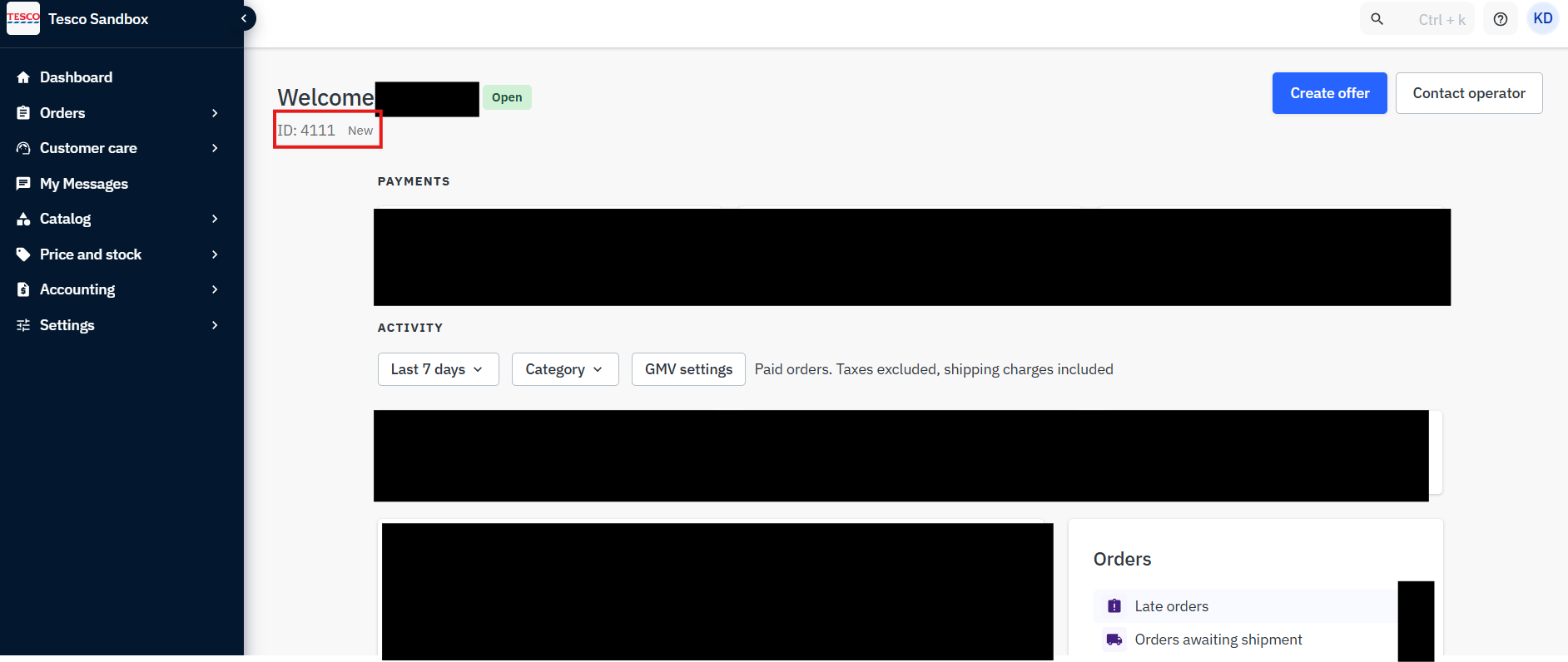
You will need to take note of the location in the screenshot above, this is the store ID
Store ID's differ between companies
3 - API Key
Main Dashboard
Stay on the Dashboard for Tesco. You will need to press on the profile icon in the top right, then press on "Personal settings"
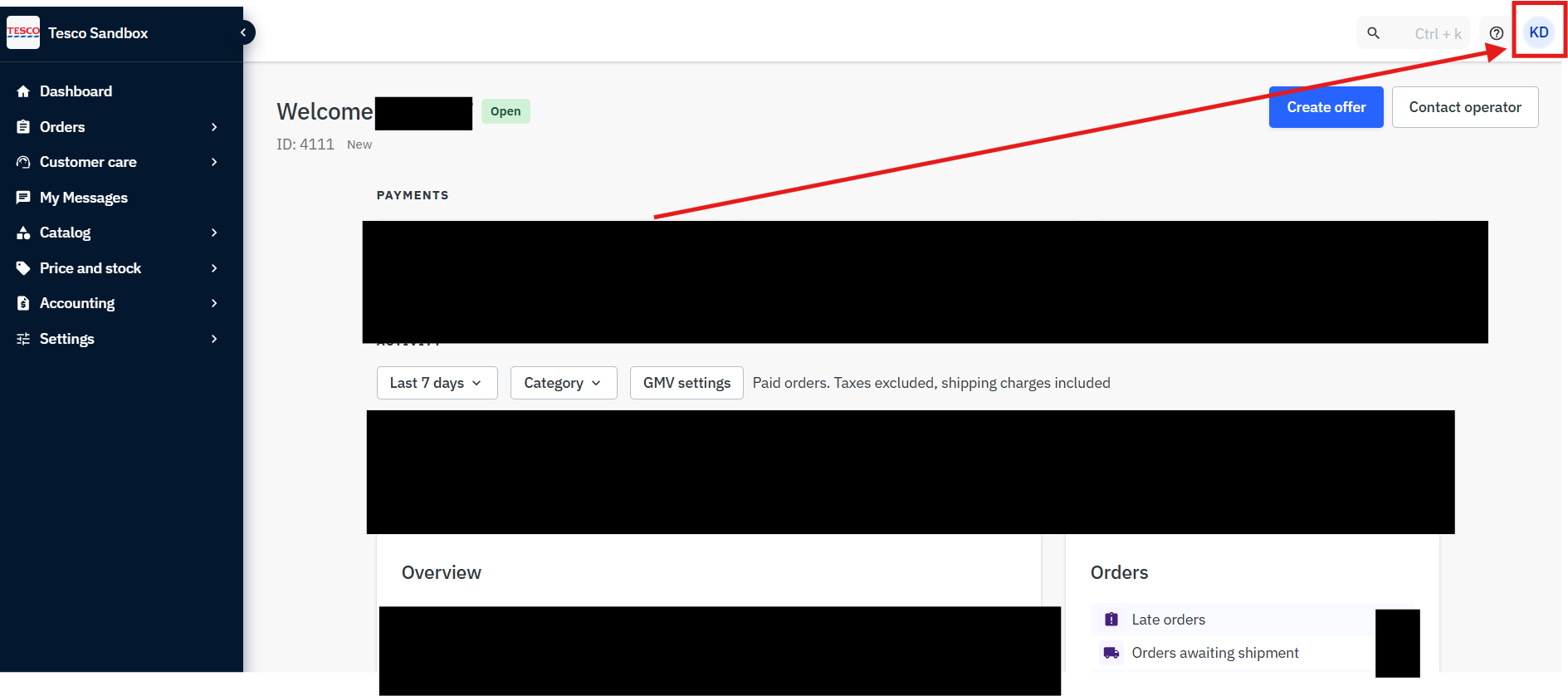
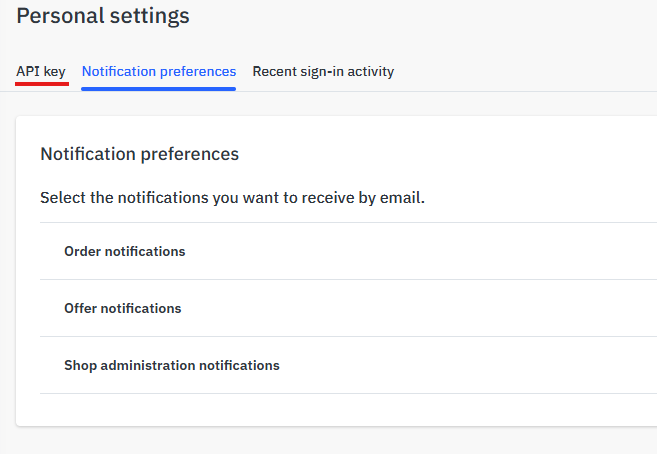
Personal Settings Page
once on this page, press on API key
Generate API Key
After you reach the API Key page, simply press Actions and on Generate new key. This will create an API key for the marketplace.
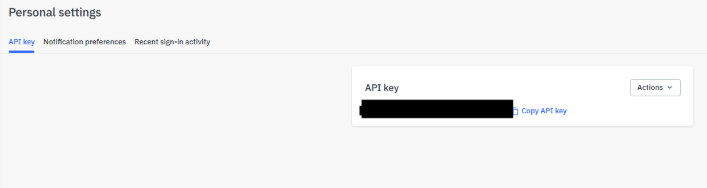
Copy the API Key to clipboard and store somewhere safely for the time being. This has to be kept secure.
You now have the API key and other details and can move on
Creating a new Marketplace Tesco
Marketplaces are essentially stores that different companies can provide. You are able to sell products on the Tesco website for example which is what this guide will cover.
When setting up a new Marketplace you only need to configure a few settings within NCompass to activate a new Marketplace. This will vary sightly between different marketplace integrations. this guide will follow the general steps for the Tesco integration.
Create a new Web-Site
We will need to create a brand new web-site within NCompass where we will assign the integration type and select the Marketplace Channel.
Step 1 - Making a new Web-Site
On NCompass, go under Administration > Multi-Channel > Web Sites
Create a new website by pressing "New". Give it a descriptive name and select a corresponding price category to list product pricing under.
Set the Channel Type to "Marketplace"
Select the integration type (in this case Tesco)
Marketing Source is optional and should be set to Tesco so they can report against this in their Sales reports if desired.
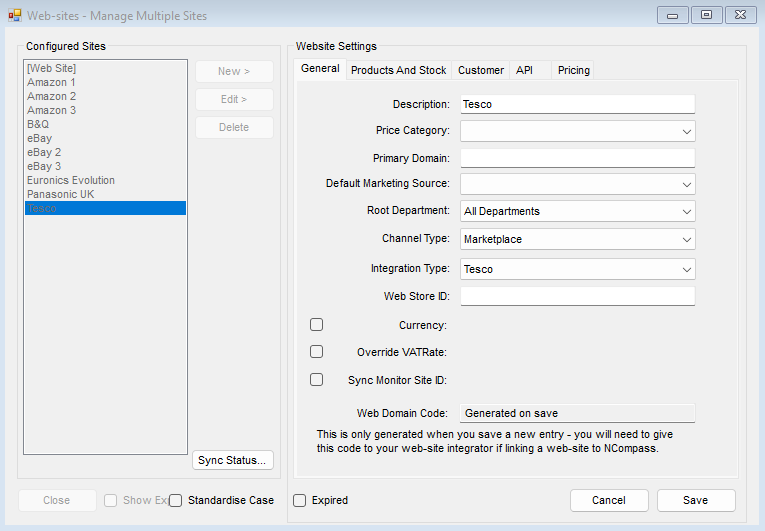
Press save and you can move on to the next step.
Other settings are optional, this guide is covering the bare minimum setup to link a marketplace
Step 2 - Set Marketplace Settings
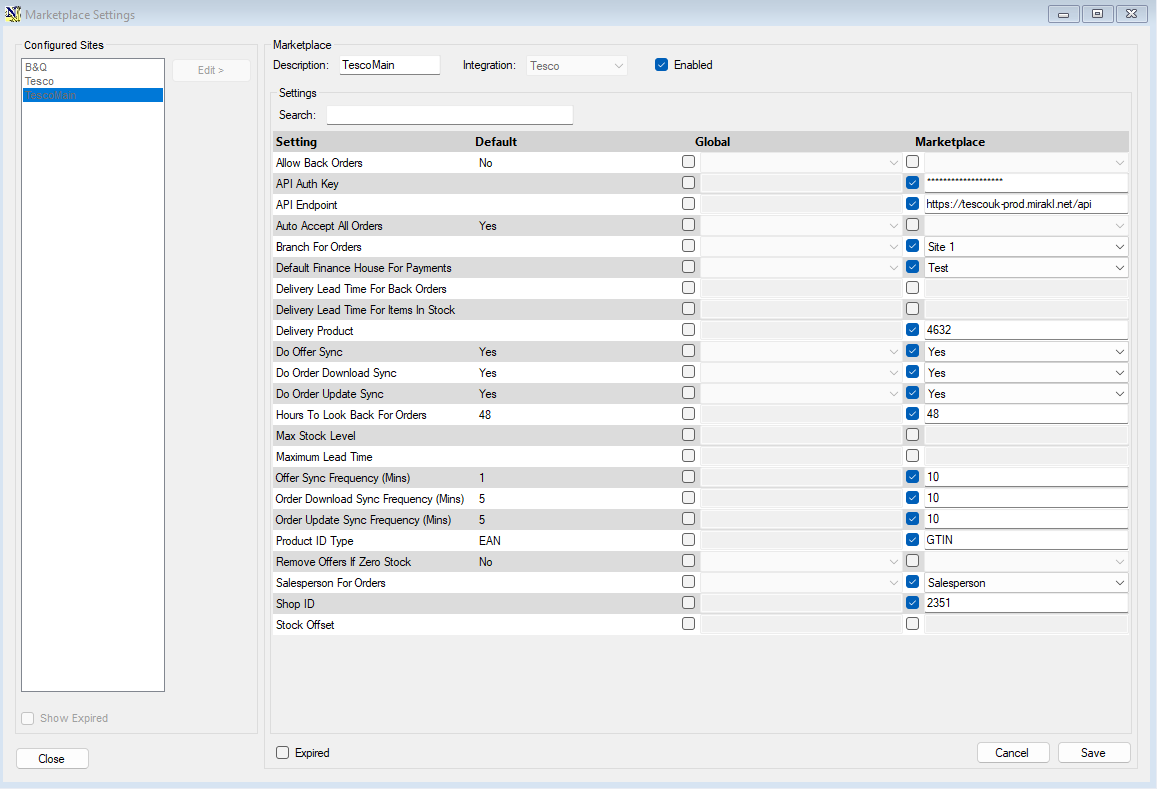
Go Back to Administration > Multi-Channel > Marketplace Settings
Select the new Marketplace Web-Site name you've just created and press Edit > (It will appear if you chose marketplace channel type on Web-sites administration)
You can update the description here and ensure the integration matches the one set within web-sites
Make sure the marketplace is enabled
The following settings are needed for API calls to Tesco:
API Creds KB - Link to how to get API Credentials
- API Endpoint
- Shop ID
- API Auth Key
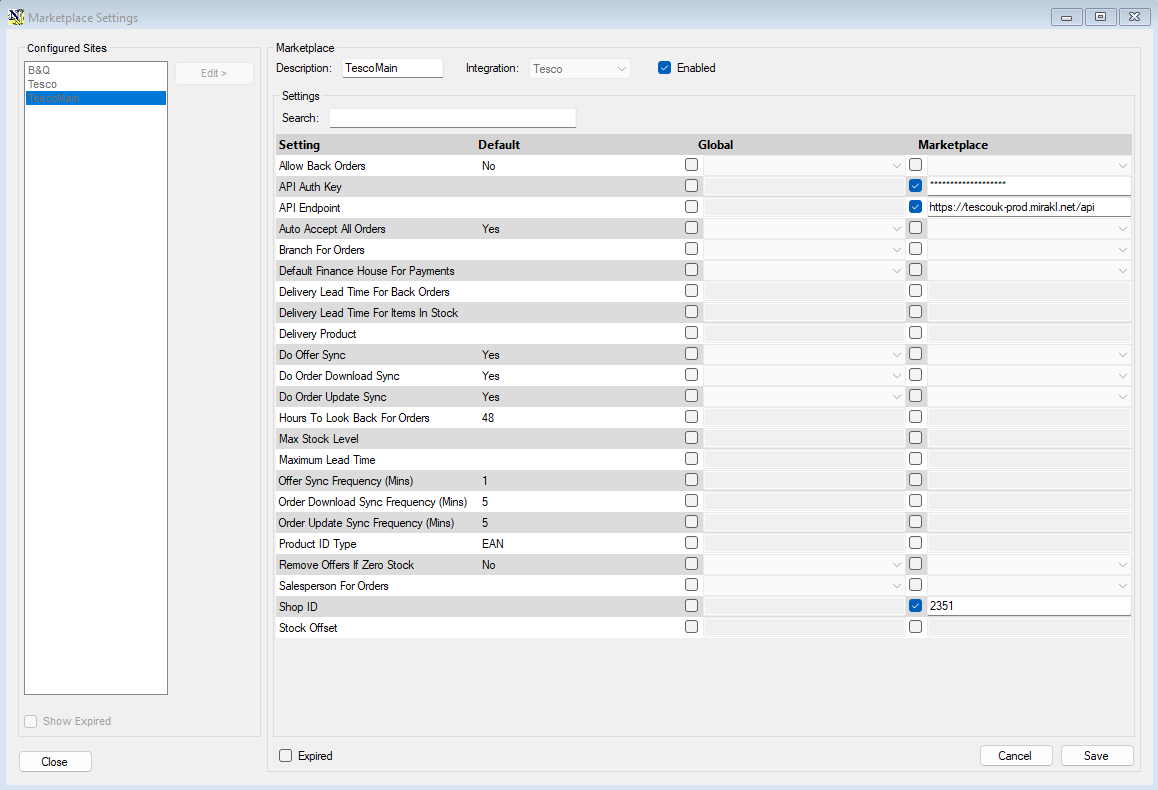
All you need are the 3 settings above for the minimum Tesco setup
The vast majority of marketplace configs will be present within this Tab instead of Tools > Config
Final Considerations:
- Create an unmatched product, ensure there is an unmatched web product linked to an actual unmatched item otherwise downloaded orders without a product link will return a BLANK sundry line
Tesco Marketplace Settings
The minimum setup to send offers should have been completed when the API credentials were entered under marketplace settings. You should have the ability to create and update offers.
This leaves the other marketplace settings which you would want to configure. I have listed the important configs to setup at the top of this guide. The Guide is referencing the section under Administration > Multi-Channel > Marketplace Settings.
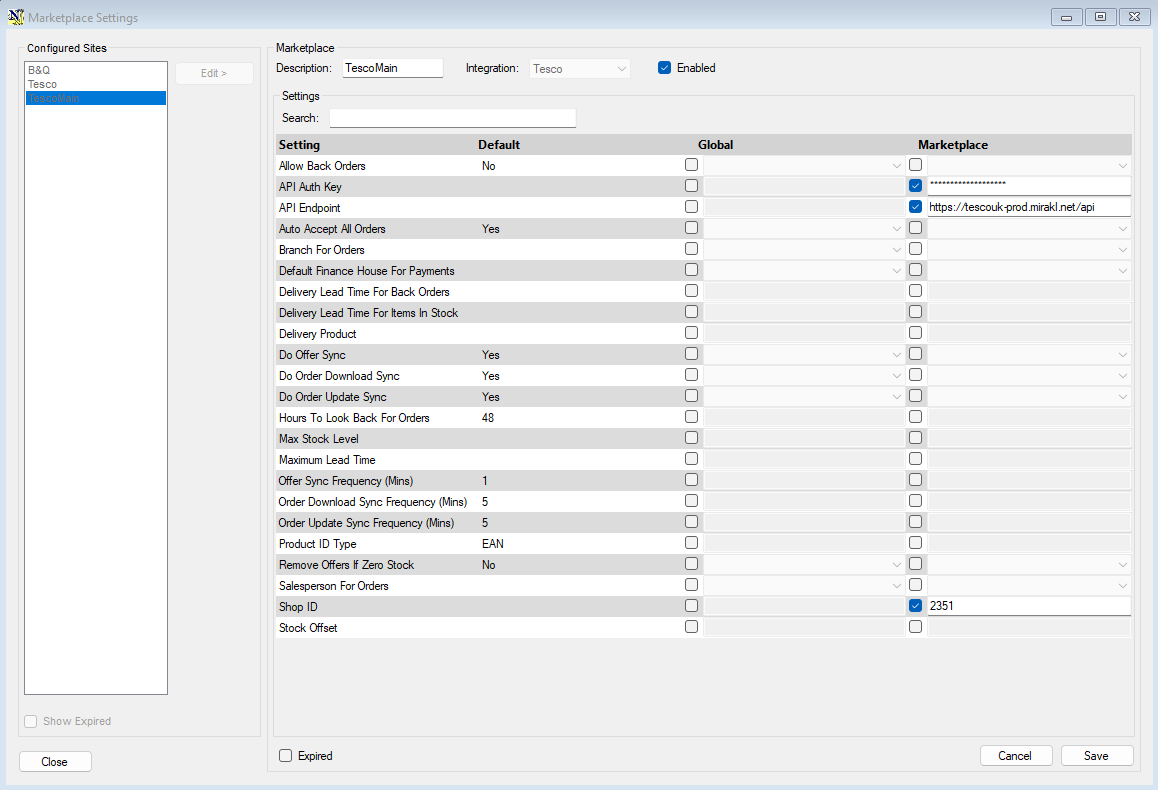
Important settings
| Marketplace Config | Summary |
Example Input (---Do not copy these 1 for 1---) |
| Allow Back Orders | The ability to list product without them being in stock. However, you need to have either Purchase Orders with expected due dates or Supplier Stock Availability for this to work. | Yes |
| Branch For Orders | Which branch to set Web orders against by default | Head Office |
| Default Finance House For Payments | Which finance house should be used for Web order payments from the Marketplace | Tesco Finance House |
| Salesperson For Orders | The Salesperson Web orders get set against | Tesco |
| Offer Sync Frequency (Mins) | How often ServerGUI checks for offer updates in minutes | 10 |
| Order Download Sync Frequency (Mins) | How often ServerGUI checks for new orders in minutes | 10 |
| Order Update Sync Frequency (Mins) | How often ServerGUI checks for order updates in minutes |
10 |
| Do Offer Sync | Should ServerGUI update offers |
Yes |
| Do Order Download Sync | Should ServerGUI download Orders |
Yes |
| Do Order Update Sync | Should ServerGUI send Order Status Updates to Marketplace |
Yes |
| Delivery Product | If the NCompass pulls down an alternate form of shipping/delivery under the Web order, this is the delivery product it will use by default. |
SC219978 |
| Hours To Look Back For Orders | How far back to look for new Orders | 48 |
| Product ID Type | Which Product Identifier is used to match product from the marketplace to NCompass | GTIN (NEEDED FOR TESCO) |
Other Settings
| Marketplace Config | Summary |
Example Input (---Do not copy these 1 for 1---) |
| Auto Accept All Orders |
A config dedicated to evolution, you need to "Accept" orders from their site before you receive payment.
--Not needed-- |
Yes |
| Delivery Lead Time For Back Orders | The lead time for delivery on items which are on Back Order | 5 |
| Delivery Lead Time For Items In Stock | The lead time for delivery on items in stock | 0 |
|
Max Stock Level |
What is the highest stock amount you will send to the marketplace. | --Leave Unset-- |
| Maximum Lead Time | If you have items on backorder, what is the maximum lead time you will offer for any product. It will not offer items above this set lead time | 10 |
| Remove Offers If Zero Stock | Whether ServerGUI should send offer delete requests when you have 0 stock in the system for an item. | No |
| Stock Offset | How much to offset stock by when sending offer updates | 0 |
| Send Future Discount Prices | From version 11.18. When no discount is currently running on an offer, NCompass sends the next upcoming discount price to the marketplace as soon as it is set up, with its start and end dates. The marketplace can then review and approve the promotion before it begins. The price customers pay does not change until the discount starts. Only the earliest upcoming discount is sent; the next one follows once it has started. Start and end times are sent as midnight. | No (default). Set to Yes if the marketplace needs to approve promotions in advance. |
Last update to the guide was made on 17/11/2025 the integration may be subject to change and there may be more settings after this date.
Creating Marketplace Offers Tesco
Creating marketplace offers is done under the Web/Online Details tab of a product, managed next to all other web sections.
NCompass does not manage or sync up web content to the Tesco Marketplace. Only Stock and Price
You do not require any web details or content to submit offers, just a price for the web customer category and basic product information. The integration will use the product catalogue supplied by corresponding marketplaces to autofill the web content. Otherwise, you will need to create the product on Mirakl, create the offer, then back link it to NCompass using the OfferID.
Product Enquiry > Search for a product > Right click product > Select Web/Online Details > Navigate to Marketplace Tab
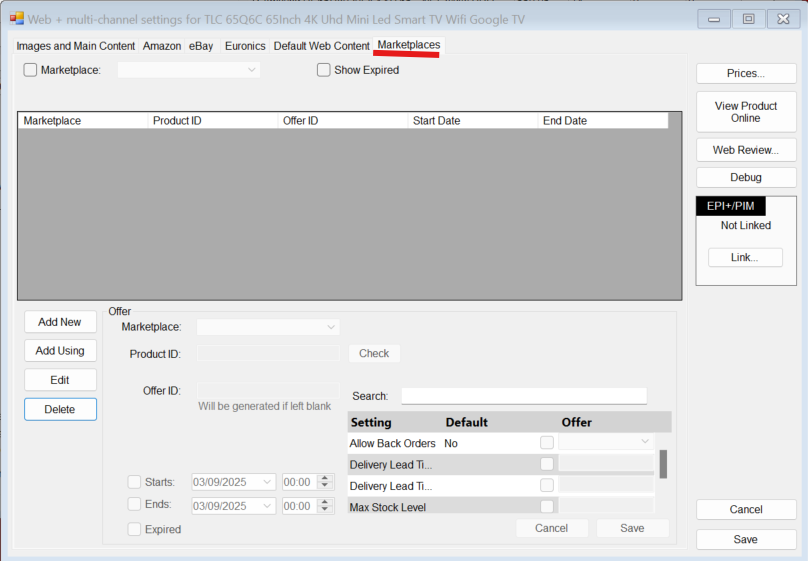
After reaching this tab, to create an offer you just need to press "Add New"
Select the marketplace of your choosing.
If Tesco is selected it will auto populate the Product ID using EAN - You can press "Check" to see if this is a Tesco catalogue product (This sends an API call to Tesco to see if its available)
You can then enter a pre-existing offer ID to link an active Tesco offer or leave it blank and NCompass will make an attempt to match an existing offer otherwise it will create a new one.
Tesco Marketplace links all products using GTIN -> EAN on NCompass
You can then press Save to create the offer -
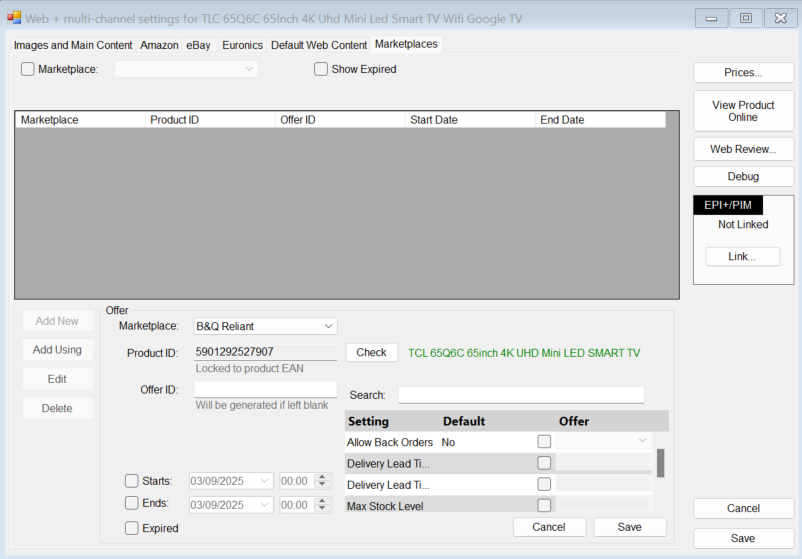
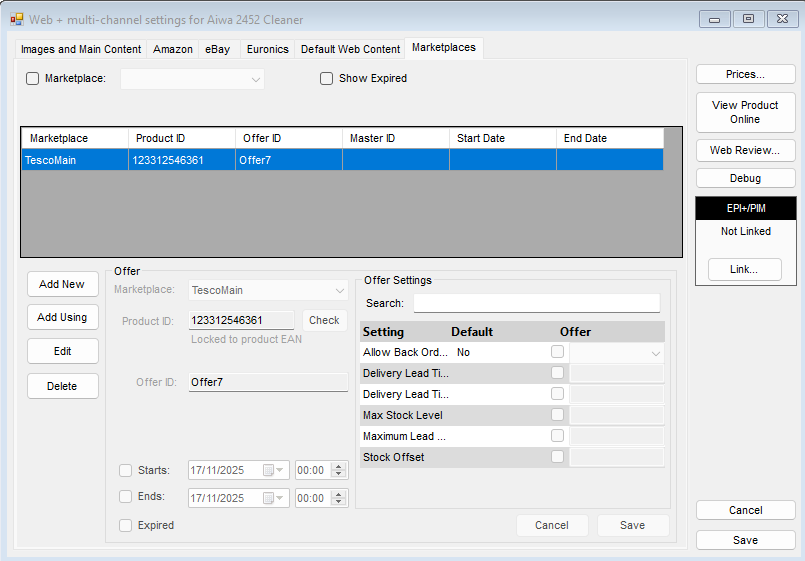
The offer settings in the bottom right are optional.
Downloading Marketplace Orders Tesco
Downloading Orders works similarly to other web channels, marketplace integration does it entirely within ServerGUI. However some settings need to be configured for this to work.
The configs within the marketplace will work by default, importing brand new orders within 48 hours of them being placed. You can change this through marketplace settings.
Anything server related will have to be done by support
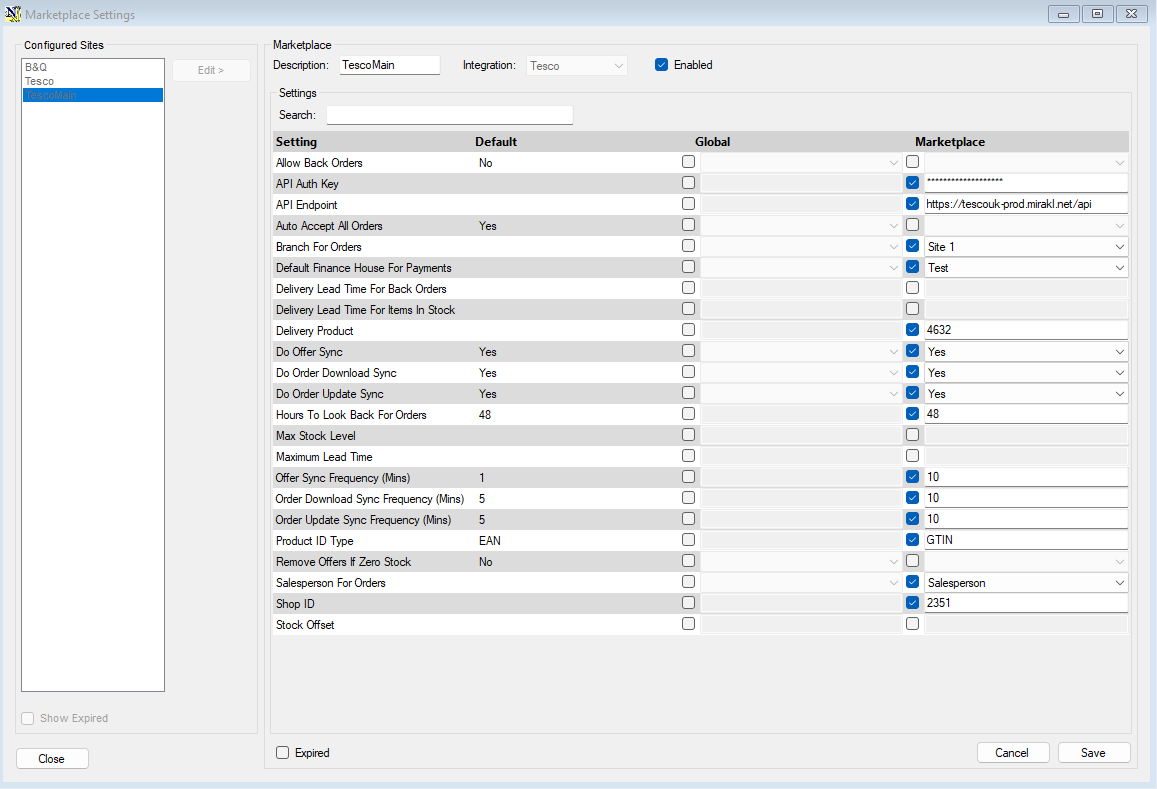
Relevant Configs:
Hours To Look Back For Orders - How far back ServerGUI will look back on Tesco for orders to import
Order Download Sync Frequency - How often ServerGUI checks for new orders in minutes
Default Finance House For Payments - Which finance house is chosen for NCompass Marketplace order payments
- The finance house can be set for marketplace orders within NCompass, otherwise this defaults to the first available Finance House.
Delivery Product - Which NCompass product gets assigned to Web orders for marketplace delivery products
Salesperson For Orders - The Salesperson which gets selected against Web orders
Optional But Likely Wanted:
- Linking Couriers to WebOrders - Linking Couriers to Marketplace
EXAMPLE WEB ORDER
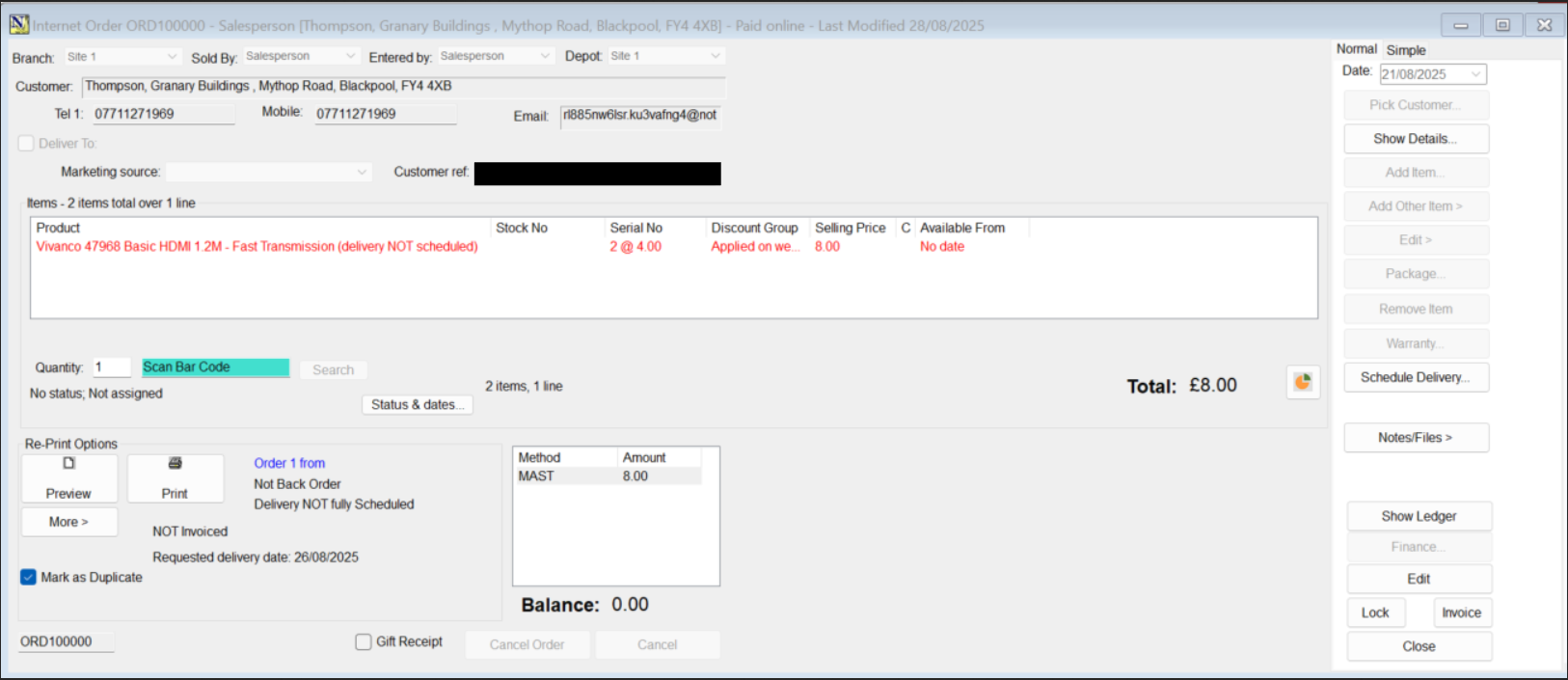
The Requested Delivery date against the sale is set to the earliest date within the customer requested delivery date range, NOT the shipping deadline. (Shipping Deadline - is the deadline the company has to hand off the shipment to the courier)
This date range can be seen on any marketplace order, this will generally be a range of a few days for the customer to receive delivery which can be seen on Tesco.
Marketplace Order Updates Tesco
You can send order updates to the B&Q Marketplace through NCompass. NCompass will handle this automatically as long as the process is followed.
There is only one order status update for Tesco which can be sent. This is sending the order status update of "Shipped" after completing a field call linked to the imported sale.
After a Tesco order is imported into NCompass, a field call will need to be raised for the order. Once this field call is marked as "Completed" NCompass will queue to send a "Shipped" status update to the associated WebOrder.
Steps: Open NCompass Tesco Web order > Book field call > Mark field call as completed > NCompass ServerGUI sends update
NCompass will not send Carrier Tracking Consignments by default and this will need to be setup before you can send any directly to Tesco
Linking Couriers to Marketplace
ServerGUI will handle the sending of any shipping updates and the timings of this can be set within Marketplace Settings
Relevant Settings:
Order Update Sync Frequency - how often to send order updates in minutes
If you're not sure call into Support to ask for more information 01892 342 916