HR Rules & Entitlements
The rule and entitlement screens live under Administration > HR. Set them up in this order: absence types, blackout dates, conflict rules, then entitlements.
Absence types
Administration > HR > Manage Absence Types
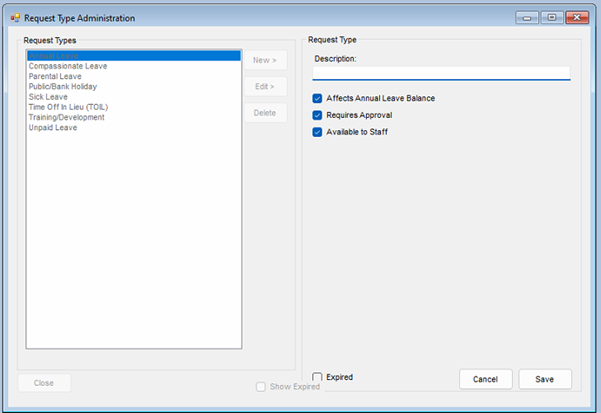
The system ships with a standard set of absence types, which you can edit or add to. For each type you control:
Affects Annual Leave Balance- whether time off of this type is deducted from the person's entitlement.Requires Approval- whether requests of this type go through the approval queues. Ticking this makes both the manager and HR stages required; unticking it makes the type effectively approved as soon as it is recorded.Available to Staff- whether staff can request this type themselves. Only types with this ticked appear on the staff request screen; everything else is recorded by a manager or HR on the staff member's behalf.
The standard types behave like this out of the box:
| Type | Deducts from entitlement | Approval | Staff can request |
|---|---|---|---|
| Annual Leave | Yes | Manager + HR | Yes |
| Sick Leave | No | None - approved on recording | No |
| Compassionate Leave | No | Manager only | No |
| Training / Development | No | Manager only | No |
| Time Off In Lieu (TOIL) | Yes | None - approved on recording | No |
| Parental Leave | No | Manager + HR | No |
| Unpaid Leave | No | Manager + HR | No |
| Public/Bank Holiday | No | None - approved on recording | No |
Note: a few standard types need only manager approval, but the edit screen's single Requires Approval tick sets manager and HR together - a manager-only type cannot currently be created or re-created from the screen.
Blackout dates
Administration > HR > Manage Blackout Dates
Blackouts are date ranges when holiday should not be booked. A staff member booking annual leave over a blackout that applies to them is warned at the point of booking - the warning does not block the request, but approvers see the clash too.
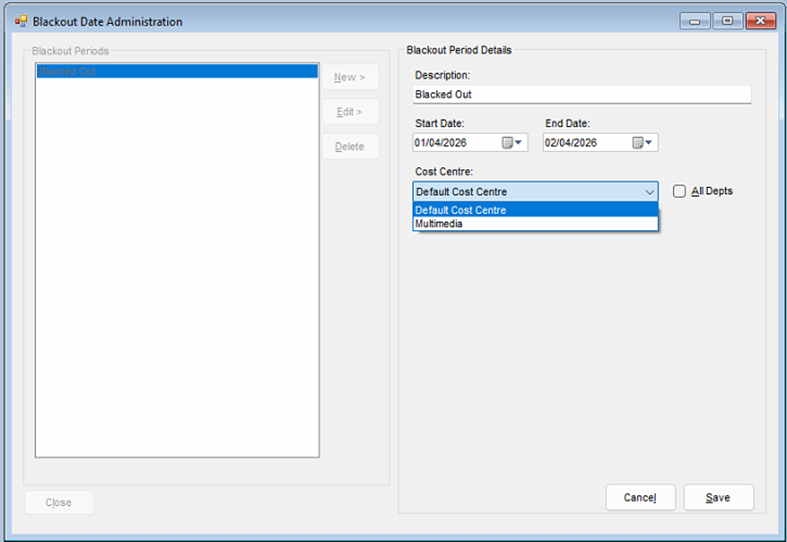
- Click New, or select an existing blackout and click Edit.
- Enter a description and set the start and end dates.
- By default the blackout applies to all departments. If it only applies to one cost centre, untick All Depts and select the cost centre.
- Click Save.
Conflict rules
Administration > HR > Manage Conflict Rules
A conflict rule caps how many people from a cost centre or salesperson group can be absent at the same time. Like blackouts, a breach warns the staff member and the approvers - it does not block the booking.
- Click New, or select an existing rule and click Edit.
- Enter a description.
- Choose whether the rule applies to a Cost Centre or a Salesperson Group, and pick which one.
- Set Max Concurrent Off - the most people from that group who may be absent at once.
- Click Save.
Entitlements
Administration > HR > Manage Entitlements
Entitlement is held per person per holiday year (always 1 January to 31 December). Staff with no entry for the selected year are listed with the default of 25 days annual leave until you save something different. To adjust:
- Pick the holiday year (the current year, two back and two ahead are available) and, optionally, a single employee.
- Click Edit, then click into any cell and make the adjustment. Each row carries the entitlement type, days, hours and hours-per-day.
- Click Save - every row in the grid is saved together.
A person's total entitlement for the year is the sum of all their rows: as well as Annual Leave, rows can be Bonus Days, Time Off In Lieu, Carry Over or Other, so extra time granted through any of those shows up here alongside the base allowance.