# General IT

# DrayTek SmartVPN for Remote Dial-In Users

You are able to utilise a remote dial-in user to connect yourself to a remote network. Doing so allows you to work as if you were at that site in most cases.

Calculus support and offer this service where the routers are leased from us, simply send a request to the [support team](https://kb.findesolutions.com/link/1#bkmrk-department-phone-%23-e).

## Installing the App

Download the [SmartVPN Client](https://www.draytek.com/products/smart-vpn-client/) from the DrayTek website for your platform.

<p class="callout info">Calculus can only provide support for Windows applications, but others do work. This guide covers Windows setup only.</p>

Once you have downloaded the zip file, extact it to your desired location. You'll be presented with 2 files:

[![image.png](https://kb.findesolutions.com/uploads/images/gallery/2025-09/scaled-1680-/LzRUmzRQRtPyK6CB-image.png)](https://kb.findesolutions.com/uploads/images/gallery/2025-09/LzRUmzRQRtPyK6CB-image.png)

Run (by double-clicking) the `SmartVPNClient_X.X.X.msi` where `X.X.X` is the downloaded version. The file is a *Windows Installer Package* and is highlighted above. You will need administrative rights to install this.

You will be presented with the following screen, press `Next`.

[![image.png](https://kb.findesolutions.com/uploads/images/gallery/2025-09/scaled-1680-/dR9tIbaYsOBQeiTt-image.png)](https://kb.findesolutions.com/uploads/images/gallery/2025-09/dR9tIbaYsOBQeiTt-image.png)
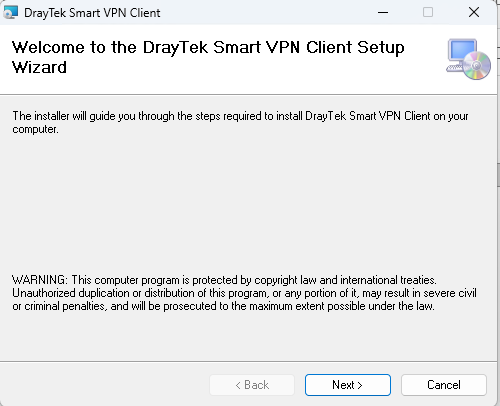
This will install the app, once completed press the `Close` button.

## Running the App

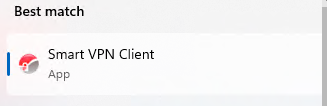
You'll find a `Smart VPN Client` in your start menu, click to open and run.

[![image.png](https://kb.findesolutions.com/uploads/images/gallery/2025-09/scaled-1680-/CD3AwT67lXtpkIBE-image.png)](https://kb.findesolutions.com/uploads/images/gallery/2025-09/CD3AwT67lXtpkIBE-image.png)
### First Run

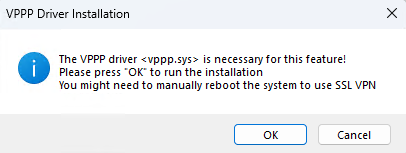
The first time you run the application, you may be prompted to install the VPPP driver "`vppp.sys`" - press `OK` to install, it is a required feature for some VPN types.

[![image.png](https://kb.findesolutions.com/uploads/images/gallery/2025-09/scaled-1680-/fRZadRGu5hpnA9h6-image.png)](https://kb.findesolutions.com/uploads/images/gallery/2025-09/fRZadRGu5hpnA9h6-image.png)
### Configuring a VPN Profile

<p class="callout info">You can have multiple VPN profiles, but may only be connected to one at once.</p>

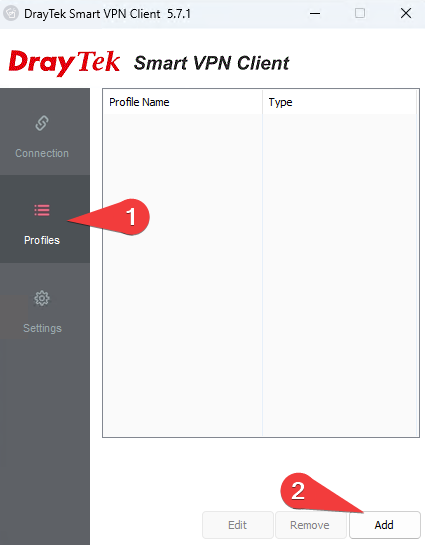
Select `Profiles` on the left-hand side, and press the `Add` button.

[![image.png](https://kb.findesolutions.com/uploads/images/gallery/2025-09/scaled-1680-/qIm71HRNlADk7JP0-image.png)](https://kb.findesolutions.com/uploads/images/gallery/2025-09/qIm71HRNlADk7JP0-image.png)
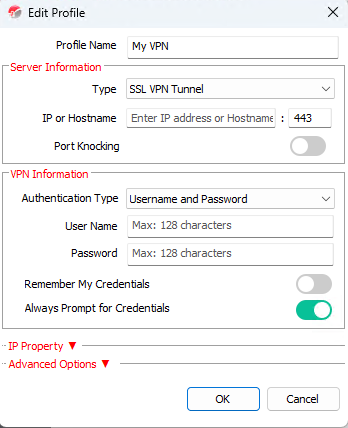
<table id="bkmrk-enter-a-sensible-pro" style="border-collapse:collapse;width:100%;border-width:0px;"><colgroup><col style="width:50%;"></col><col style="width:50%;"></col></colgroup><tbody><tr><td style="border-width:0px;">Enter a sensible profile name, this is purely what you will select to connect to.

<p class="callout info">The details below are for our most commonly used VPN types. If you need another type, details will be provided to you as required.</p>

**Server Information**

These details will be provided to you by the support team.

Select the relevant type. Typically, SSL VPN or IPSec VPN types are what is used.

**VPN Information**

These details will also be provided to you by the support team, enter them in the relevant fields. If using mOTP and SSL, the token and PIN will be provided to you.

You may opt to remember your credentials here, which will mean you do not have to enter them every time. Make sure you turn off `Always Prompt for Credentials` if you do.

**IP Property**

Only make changes in here if expressly instructed.

**Advanced Options**

Only make changes in here if expressly instructed.

</td><td style="border-width:0px;">[![image.png](https://kb.findesolutions.com/uploads/images/gallery/2025-09/scaled-1680-/5mlz9CCwGuQgHy9I-image.png)](https://kb.findesolutions.com/uploads/images/gallery/2025-09/5mlz9CCwGuQgHy9I-image.png)

</td></tr></tbody></table>

### Connecting to the VPN

Once your profile is setup, you can then connect to it.

On the connect tab, ensure your `Active Profile` is selected in the dropdown, and toggle the `Connect` button.

[![image.png](https://kb.findesolutions.com/uploads/images/gallery/2025-09/scaled-1680-/VfOrcVlPFwtodhjW-image.png)](https://kb.findesolutions.com/uploads/images/gallery/2025-09/VfOrcVlPFwtodhjW-image.png)

If this errors at all, please ensure you provide the support team with the error for diagnosing the issue.

## Other Useful Settings

<p class="callout info">These can only be changed when you do not have a VPN connected.</p>

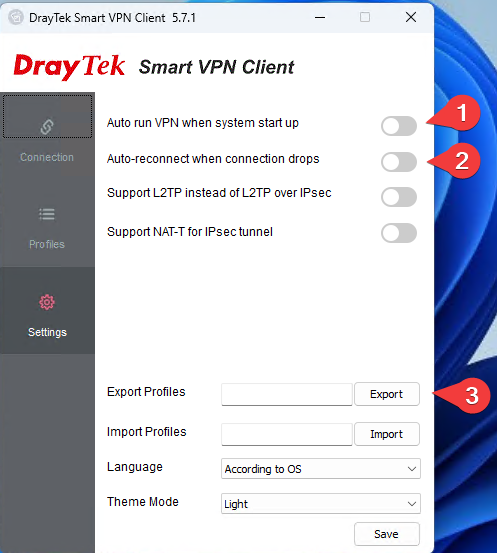
<table id="bkmrk-1.-enable-this-optio" style="border-collapse:collapse;width:100%;border-width:0px;"><colgroup><col style="width:50%;"></col><col style="width:50%;"></col></colgroup><tbody><tr><td style="border-width:0px;">1\. Enable this option to have the Smart VPN Client start with your system.

2\. Enable this option to have the Smart VPN Client attempt to reconnect in the event your VPN loses connection at all.

3\. Press `Export` to save your profiles for importing elsewhere. This may be useful for when you are moving to a new PC for example. Note that the credentials will require inputting again, they are not transferred for security reasons.

</td><td style="border-width:0px;">[![image.png](https://kb.findesolutions.com/uploads/images/gallery/2025-09/scaled-1680-/KiGpPLFMrfcbTVq0-image.png)](https://kb.findesolutions.com/uploads/images/gallery/2025-09/KiGpPLFMrfcbTVq0-image.png)

</td></tr></tbody></table>

# Setting up Google API for Routing and Mapping

### <span class="TextRun SCXW1047896 BCX8" lang="en-gb"><span class="NormalTextRun SCXW1047896 BCX8">Introduction</span></span><span class="EOP SCXW1047896 BCX8"> </span>

<span class="TextRun SCXW1047896 BCX8" lang="en-gb"><span class="NormalTextRun SCXW1047896 BCX8">These instructions are designed to guide customers through </span><span class="NormalTextRun SCXW1047896 BCX8">obtaining a Google API Key, </span><span class="NormalTextRun SCXW1047896 BCX8">which is </span><span class="NormalTextRun SCXW1047896 BCX8">then used through NCompass to use the mapping feature.</span></span><span class="EOP SCXW1047896 BCX8"> </span>

<span class="EOP SCXW1047896 BCX8"> </span>

### <span class="TextRun SCXW1047896 BCX8" lang="en-gb"><span class="NormalTextRun SCXW1047896 BCX8">Adding Google API's to Google Account</span></span><span class="EOP SCXW1047896 BCX8"> </span>

##### Create User / Sign In

<span class="TextRun SCXW104435896 BCX8" lang="en-gb"><span class="NormalTextRun SCXW104435896 BCX8">Open </span></span><span class="TextRun SCXW1047896 BCX8" lang="en-gb"><span class="NormalTextRun SCXW1047896 BCX8">an internet browser on your computer and go to the following URL: </span></span>[<span class="TextRun Underlined SCXW1047896 BCX8" lang="en-gb"><span class="NormalTextRun SCXW1047896 BCX8">http://console.developers.google.com</span></span>](http://console.developers.google.com/)<span class="TextRun SCXW1047896 BCX8" lang="en-gb"><span class="NormalTextRun SCXW1047896 BCX8"> </span></span><span class="EOP SCXW1047896 BCX8"> </span>

<div class="ListContainerWrapper SCXW104435896 BCX8" id="bkmrk-"></div><span class="SCXW1047896 BCX8"><span class="WACImageContainer NoPadding BlobObject SCXW1047896 BCX8">![Graphical user interface, application  Description automatically generated](https://kb.findesolutions.com/uploads/images/gallery/2026-04/mJWTaK0tbipVPj49-embedded-image-495pkdjo.png)</span></span><span class="EOP SCXW1047896 BCX8"> </span>

<span class="TextRun SCXW1047896 BCX8" lang="en-gb"><span class="NormalTextRun SCXW1047896 BCX8">If you already have a Google Account enter your email address and click </span></span><span class="TextRun SCXW1047896 BCX8" lang="en-gb"><span class="NormalTextRun SCXW1047896 BCX8">Next</span></span><span class="TextRun SCXW1047896 BCX8" lang="en-gb"><span class="NormalTextRun SCXW1047896 BCX8">. </span><span class="NormalTextRun SCXW1047896 BCX8"> </span><span class="NormalTextRun SCXW1047896 BCX8">Alternatively click the </span></span><span class="TextRun SCXW1047896 BCX8" lang="en-gb"><span class="NormalTextRun SCXW1047896 BCX8">Create account</span></span><span class="TextRun SCXW1047896 BCX8" lang="en-gb"><span class="NormalTextRun SCXW1047896 BCX8"> option to create a new account.</span></span><span class="EOP SCXW1047896 BCX8"> </span>

##### Create Project

<span class="TextRun SCXW242730968 BCX8" lang="en-gb"><span class="NormalTextRun SCXW242730968 BCX8">When you have created an account / logged into the Google Developers Console</span><span class="NormalTextRun SCXW242730968 BCX8">,</span><span class="NormalTextRun SCXW242730968 BCX8"> click </span><span class="NormalTextRun SCXW242730968 BCX8">on </span></span><span class="TextRun SCXW242730968 BCX8" lang="en-gb"><span class="NormalTextRun SCXW242730968 BCX8">Select a project at the top of the screen</span></span><span class="TextRun SCXW242730968 BCX8" lang="en-gb"><span class="NormalTextRun SCXW242730968 BCX8">.</span></span><span class="TextRun SCXW242730968 BCX8" lang="en-gb"><span class="NormalTextRun SCXW242730968 BCX8"> </span></span><span class="EOP SCXW242730968 BCX8"> </span>

[![image.png](https://kb.findesolutions.com/uploads/images/gallery/2026-04/scaled-1680-/JzuzICbre9XuqetK-image.png)](https://kb.findesolutions.com/uploads/images/gallery/2026-04/JzuzICbre9XuqetK-image.png)

<div class="ListContainerWrapper SCXW242730968 BCX8" id="bkmrk--2"></div><span class="TextRun SCXW142019717 BCX8" lang="en-gb"><span class="NormalTextRun SCXW142019717 BCX8">Click</span><span class="NormalTextRun SCXW142019717 BCX8"> on </span></span><span class="TextRun SCXW142019717 BCX8" lang="en-gb"><span class="NormalTextRun SCXW142019717 BCX8">New Project</span><span class="NormalTextRun SCXW142019717 BCX8"> </span></span><span class="TextRun SCXW142019717 BCX8" lang="en-gb"><span class="NormalTextRun SCXW142019717 BCX8">(at the top right)</span><span class="NormalTextRun SCXW142019717 BCX8">. </span><span class="NormalTextRun SCXW142019717 BCX8">You</span><span class="NormalTextRun SCXW142019717 BCX8"> </span><span class="NormalTextRun SCXW142019717 BCX8">are required to</span><span class="NormalTextRun SCXW142019717 BCX8"> create a new project before you can use the Google APIs</span><span class="NormalTextRun SCXW142019717 BCX8">. </span><span class="NormalTextRun SCXW142019717 BCX8"> </span><span class="NormalTextRun SCXW142019717 BCX8">Set the project name as</span><span class="NormalTextRun SCXW142019717 BCX8"> ‘Route Mapping</span><span class="NormalTextRun SCXW142019717 BCX8">’ or something similar.</span><span class="NormalTextRun SCXW142019717 BCX8"> </span><span class="NormalTextRun SCXW142019717 BCX8"> Click </span><span class="NormalTextRun SCXW142019717 BCX8">on </span></span><span class="TextRun SCXW142019717 BCX8" lang="en-gb"><span class="NormalTextRun SCXW142019717 BCX8">Create</span></span><span class="TextRun SCXW142019717 BCX8" lang="en-gb"><span class="NormalTextRun SCXW142019717 BCX8">. </span><span class="NormalTextRun SCXW142019717 BCX8">Your web </span><span class="NormalTextRun SCXW142019717 BCX8">browser will </span><span class="NormalTextRun SCXW142019717 BCX8">now </span><span class="NormalTextRun SCXW142019717 BCX8">redirect to the Enabled API's &amp; services page.</span></span>

##### Enable API's

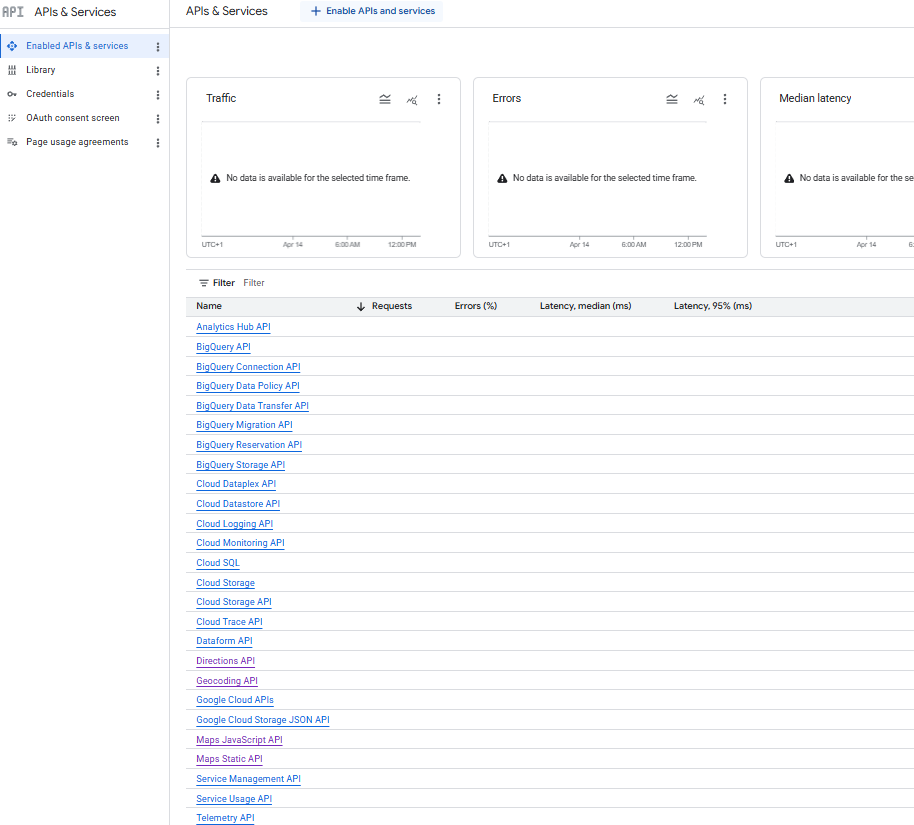
On the <span class="TextRun SCXW142019717 BCX8" lang="en-gb"><span class="NormalTextRun SCXW142019717 BCX8">Enabled API's &amp; services, you will see a list of API's available down the screen. If you don't see this, press Enabled API's &amp; services on the left hand side of the screen</span></span>

[![image.png](https://kb.findesolutions.com/uploads/images/gallery/2026-04/scaled-1680-/yX4PNa3zd86xjIFY-image.png)](https://kb.findesolutions.com/uploads/images/gallery/2026-04/yX4PNa3zd86xjIFY-image.png)

<span class="EOP SCXW3896185 BCX8"> </span>

<span class="TextRun SCXW3896185 BCX8" lang="en-gb"><span class="NormalTextRun SCXW3896185 BCX8">At the top of the screen, press the + Enable APIs and services (or you can press the Library button on the far left) and use the search box to</span></span><span class="TextRun SCXW3896185 BCX8" lang="en-gb"><span class="NormalTextRun SCXW3896185 BCX8"> </span><span class="NormalTextRun SCXW3896185 BCX8">enable </span><span class="NormalTextRun SCXW3896185 BCX8">the following APIs:</span></span><span class="EOP SCXW3896185 BCX8"> </span>

<div class="ListContainerWrapper SCXW232343131 BCX8" id="bkmrk-maps-static%C2%A0api%C2%A0-dir"><div class="ListContainerWrapper SCXW3896185 BCX8">  
</div><div class="ListContainerWrapper SCXW3896185 BCX8">- <span class="TextRun SCXW3896185 BCX8" lang="en-gb"><span class="NormalTextRun SCXW3896185 BCX8">Maps Static</span><span class="NormalTextRun SCXW3896185 BCX8"> API</span></span>
- <span class="TextRun SCXW3896185 BCX8" lang="en-gb"><span class="NormalTextRun SCXW3896185 BCX8">Directions API</span></span>
- <span class="TextRun SCXW3896185 BCX8" lang="en-gb"><span class="NormalTextRun SCXW3896185 BCX8">Maps JavaScript API</span></span>
- Geocoding API

</div></div><span class="EOP SCXW3896185 BCX8">Search for Maps Static API and press the Maps Static API button, then on the next screen, press enable</span>

[![image.png](https://kb.findesolutions.com/uploads/images/gallery/2026-04/scaled-1680-/cSsVAVT7AeO4fTSs-image.png)](https://kb.findesolutions.com/uploads/images/gallery/2026-04/cSsVAVT7AeO4fTSs-image.png)

<div class="ListContainerWrapper SCXW232343131 BCX8" id="bkmrk--5"></div>After pressing Enable, it will ask for account information. The first page is to confirm the country from a dropdown list. Once selected, press Agree &amp; continue.

The second page will ask for contact information and a payment method. Put your company address, save and then add your preferred payment method e.g. credit / debit card

<p class="callout warning"><span class="TextRun SCXW258999206 BCX8" lang="en-gb"><span class="NormalTextRun SCXW258999206 BCX8">Google requires a payment card to </span><span class="NormalTextRun SCXW258999206 BCX8">be able to use the Google API </span><span class="NormalTextRun SCXW258999206 BCX8">features</span><span class="NormalTextRun SCXW258999206 BCX8">. </span><span class="NormalTextRun SCXW258999206 BCX8">However</span><span class="NormalTextRun SCXW258999206 BCX8">,</span><span class="NormalTextRun SCXW258999206 BCX8"> </span><span class="NormalTextRun SCXW258999206 BCX8">they do have a $200 free usage every month</span><span class="NormalTextRun SCXW258999206 BCX8">, and the NCM usage should not come close to </span><span class="NormalTextRun SCXW258999206 BCX8">hitting any charge thresholds.</span></span></p>

<p class="callout danger"><span class="TextRun SCXW258999206 BCX8" lang="en-gb"><span class="NormalTextRun SCXW258999206 BCX8">If any payment details are incorrect or if the billing information has expired, the API will not work until updated</span></span></p>

<span class="TextRun SCXW258999206 BCX8" lang="en-gb"><span class="NormalTextRun SCXW258999206 BCX8">Repeat the same steps for the other API's in the above list</span></span>

Once you've added the API's you will see them in the list of API's &amp; Services from the <span class="TextRun SCXW142019717 BCX8" lang="en-gb"><span class="NormalTextRun SCXW142019717 BCX8">Enabled API's &amp; services window</span></span>

[![image.png](https://kb.findesolutions.com/uploads/images/gallery/2026-04/scaled-1680-/GwVwcP5EBTLsqH3Q-image.png)](https://kb.findesolutions.com/uploads/images/gallery/2026-04/GwVwcP5EBTLsqH3Q-image.png)

### Creating Google API Key

Now you have all the API's required on your account, you need to create an API key that links.

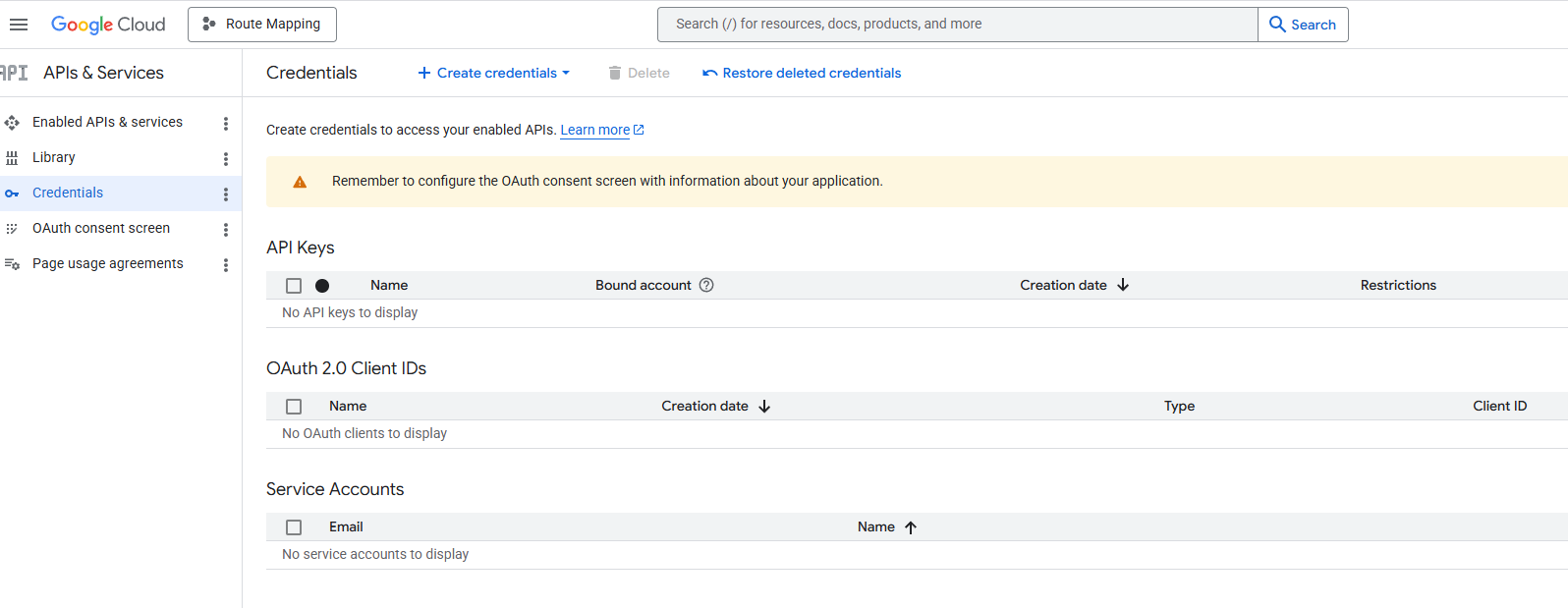
To do this, from the API's &amp; Services page, click on the Credentials button at the left of the screen and then press + Create credentials at the top of the window

[![image.png](https://kb.findesolutions.com/uploads/images/gallery/2026-04/scaled-1680-/cIRo9c6c0qY5Fx8x-image.png)](https://kb.findesolutions.com/uploads/images/gallery/2026-04/cIRo9c6c0qY5Fx8x-image.png)
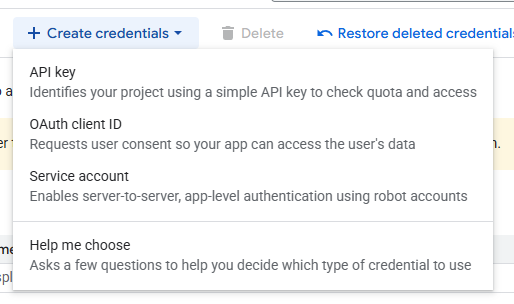
In the dropdown, select API Key

[![image.png](https://kb.findesolutions.com/uploads/images/gallery/2026-04/scaled-1680-/gDWlQusXNbm6CxQr-image.png)](https://kb.findesolutions.com/uploads/images/gallery/2026-04/gDWlQusXNbm6CxQr-image.png)
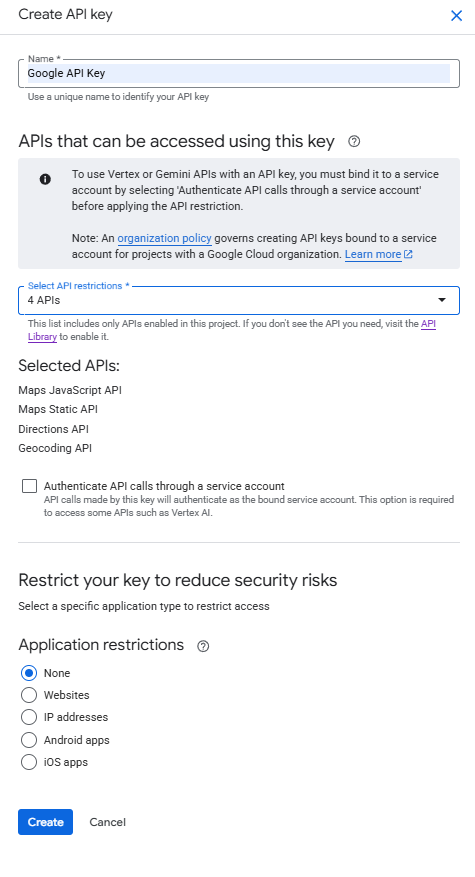
This will then open a side window where you can name the API key and select which API's you want in your key.

Give the API an appropriate name e.g. Google API Key and in the Select API dropdown, tick all 4 API's you added previously:

- <span class="TextRun SCXW3896185 BCX8" lang="en-gb"><span class="NormalTextRun SCXW3896185 BCX8">Maps Static</span><span class="NormalTextRun SCXW3896185 BCX8"> API</span></span>
- <span class="TextRun SCXW3896185 BCX8" lang="en-gb"><span class="NormalTextRun SCXW3896185 BCX8">Directions API</span></span>
- <span class="TextRun SCXW3896185 BCX8" lang="en-gb"><span class="NormalTextRun SCXW3896185 BCX8">Maps JavaScript API</span></span>
- Geocoding API

So the API Key looks like:

[![image.png](https://kb.findesolutions.com/uploads/images/gallery/2026-04/scaled-1680-/0oXqLft3uO57b5I1-image.png)](https://kb.findesolutions.com/uploads/images/gallery/2026-04/0oXqLft3uO57b5I1-image.png)
Once this is done, click create, the side window will update and show you your API key.

Please take a copy of this as it will be required later

If you ever need to get a copy again, in the Credentials window where we went first to start creating the API key, you will now see your Google API Key in the list

[![image.png](https://kb.findesolutions.com/uploads/images/gallery/2026-04/scaled-1680-/TY39Ed8XgBhRnrgD-image.png)](https://kb.findesolutions.com/uploads/images/gallery/2026-04/TY39Ed8XgBhRnrgD-image.png)
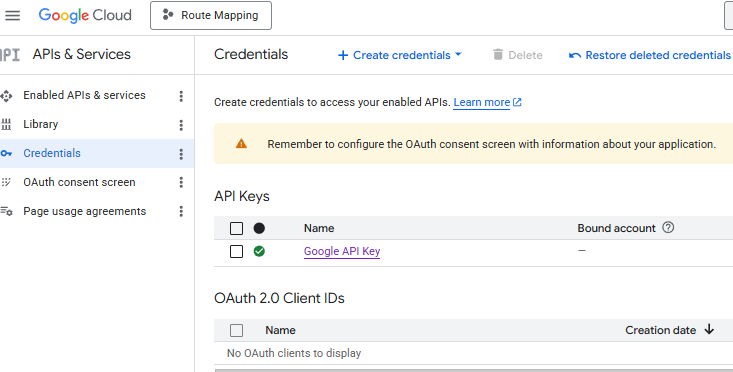
You can click on this link to make any required changes or to see the key again

### Adding Google API Key to NCompass

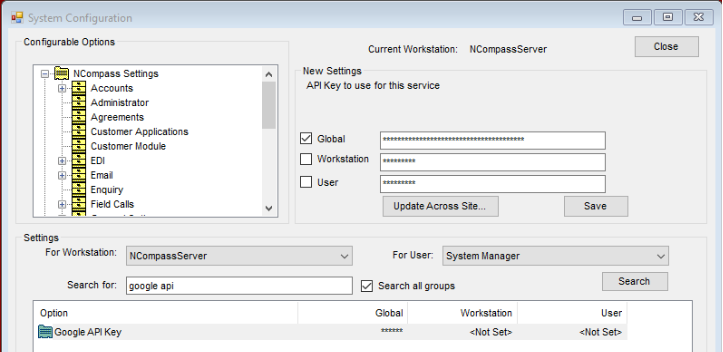
<span class="TextRun SCXW213133095 BCX8" lang="en-gb"><span class="NormalTextRun SCXW213133095 BCX8">Go to NCompass</span><span class="NormalTextRun SCXW213133095 BCX8">. </span><span class="NormalTextRun SCXW213133095 BCX8">You will need to be logged in with </span><span class="NormalTextRun SCXW213133095 BCX8">administrator access</span><span class="NormalTextRun SCXW213133095 BCX8">. </span><span class="NormalTextRun SCXW213133095 BCX8">Click on </span></span><span class="TextRun SCXW213133095 BCX8" lang="en-gb"><span class="NormalTextRun SCXW213133095 BCX8">Tools &gt; </span><span class="NormalTextRun ContextualSpellingAndGrammarErrorV2Themed SCXW213133095 BCX8">Configuration</span></span><span class="TextRun SCXW213133095 BCX8" lang="en-gb"><span class="NormalTextRun ContextualSpellingAndGrammarErrorV2Themed SCXW213133095 BCX8">, and</span><span class="NormalTextRun SCXW213133095 BCX8"> then search for ‘</span><span class="NormalTextRun SCXW213133095 BCX8">Google API’ (ticking the </span></span><span class="TextRun SCXW213133095 BCX8" lang="en-gb"><span class="NormalTextRun SCXW213133095 BCX8">search all groups</span></span><span class="TextRun SCXW213133095 BCX8" lang="en-gb"><span class="NormalTextRun SCXW213133095 BCX8"> box)</span><span class="NormalTextRun SCXW213133095 BCX8">.</span><span class="NormalTextRun SCXW213133095 BCX8"> </span><span class="NormalTextRun SCXW213133095 BCX8">Tick the </span></span><span class="TextRun SCXW213133095 BCX8" lang="en-gb"><span class="NormalTextRun SCXW213133095 BCX8">Global</span></span><span class="TextRun SCXW213133095 BCX8" lang="en-gb"><span class="NormalTextRun SCXW213133095 BCX8"> box and paste in the Google API Key</span><span class="NormalTextRun SCXW213133095 BCX8">. </span><span class="NormalTextRun SCXW213133095 BCX8">Press </span></span><span class="TextRun SCXW213133095 BCX8" lang="en-gb"><span class="NormalTextRun SCXW213133095 BCX8">Save</span></span><span class="TextRun SCXW213133095 BCX8" lang="en-gb"><span class="NormalTextRun SCXW213133095 BCX8">.</span></span><span class="EOP SCXW213133095 BCX8"> </span>

<span class="SCXW213133095 BCX8"><span class="WACImageContainer NoPadding BlobObject SCXW213133095 BCX8">![Graphical user interface, application  Description automatically generated](https://kb.findesolutions.com/uploads/images/gallery/2026-04/hGbibgNkLJkRkwwF-embedded-image-clwedtdn.png)</span></span>

### <span class="SCXW213133095 BCX8"><span class="WACImageContainer NoPadding BlobObject SCXW213133095 BCX8">Adding Billing Details</span></span>

<span class="SCXW213133095 BCX8"><span class="WACImageContainer NoPadding BlobObject SCXW213133095 BCX8">If you didn't add billing details before or if your billing details expire, they need to be added / updated</span></span>

<span class="SCXW213133095 BCX8"><span class="WACImageContainer NoPadding BlobObject SCXW213133095 BCX8">To do this, go to: [https://console.cloud.google.com/](https://console.cloud.google.com/)</span></span>

<p class="callout danger"><span class="SCXW213133095 BCX8"><span class="WACImageContainer NoPadding BlobObject SCXW213133095 BCX8">As mentioned above, if any payment details are incorrect or if the billing information has expired, the API will not work until updated</span></span></p>

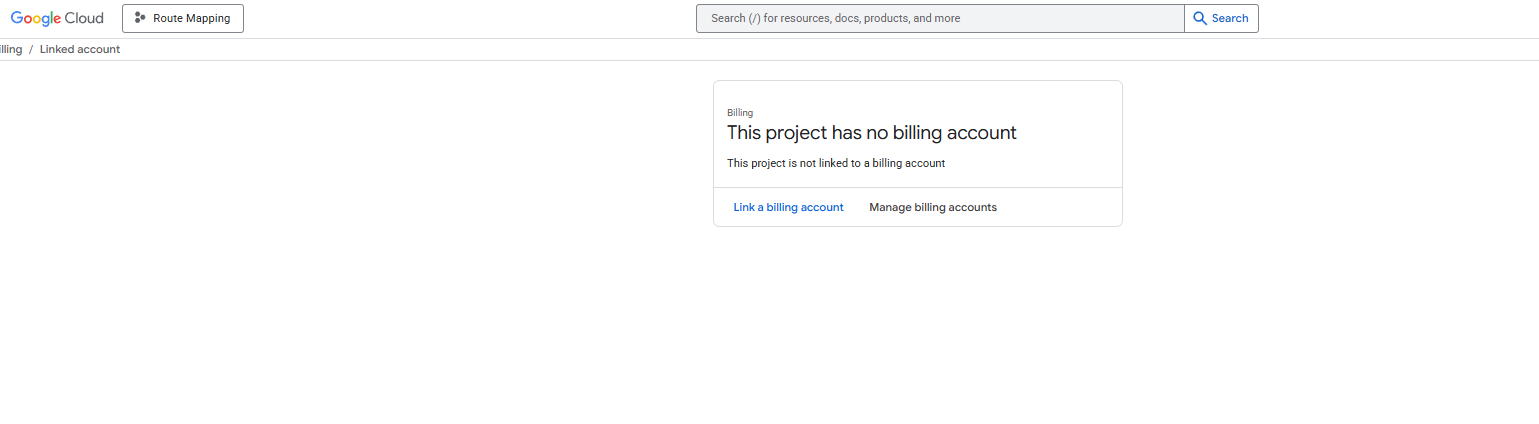
<span class="SCXW213133095 BCX8"><span class="WACImageContainer NoPadding BlobObject SCXW213133095 BCX8">It will likely auto select your route mapping product but if you have multiple, make sure you select the project you created at the start of the guide</span></span>

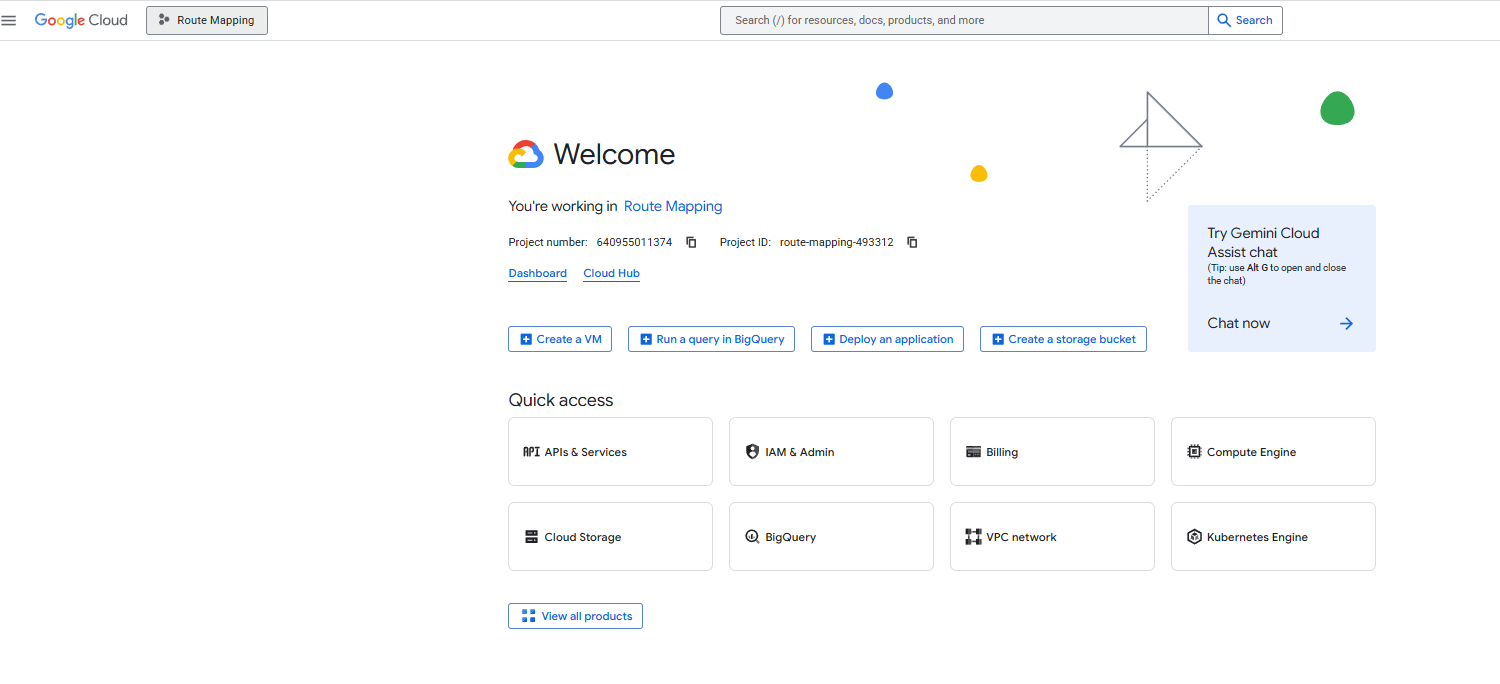
[![image.png](https://kb.findesolutions.com/uploads/images/gallery/2026-04/scaled-1680-/6GRxopMQjkTiW8aj-image.png)](https://kb.findesolutions.com/uploads/images/gallery/2026-04/6GRxopMQjkTiW8aj-image.png)

From this Welcome window, click billing and you can select link billing account if not created or Manage billing accounts if renewing card details. From here, fill in or update details as required

[![image.png](https://kb.findesolutions.com/uploads/images/gallery/2026-04/scaled-1680-/bJrbtrFXNvFM6FVQ-image.png)](https://kb.findesolutions.com/uploads/images/gallery/2026-04/bJrbtrFXNvFM6FVQ-image.png)
# Cyber Security

# Securing Emails After a Security Breach

In today's world, there are unfortunately bad actors which attempt to infiltrate various systems. AI is making this easier then ever, so its important to remain vigilant, however, some of the attack vectors are so convincing that they can fool anyone.

This article will help you re-secure your account if you do become a victim.

<p class="callout info">Whilst our focus here is on Microsoft 365 accounts, the principals can be applied to most email providers.</p>

## Secure Your Account

<table border="1" id="bkmrk-login-to-your%C2%A0micros" style="border-collapse: collapse; width: 100%; height: 390.617px; border-width: 0px;"><colgroup><col style="width: 37.8571%;"></col><col style="width: 62.1429%;"></col></colgroup><tbody><tr style="height: 29.8px;"><td colspan="2" style="height: 29.8px; border-width: 0px;">Login to your [Microsoft Account](https://myaccount.microsoft.com) using your email and password

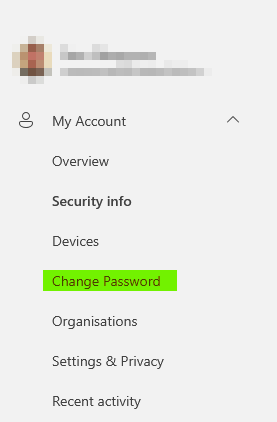
</td></tr><tr style="height: 331.017px;"><td style="height: 331.017px; border-width: 0px;">Select to `Change Password` on the left-hand menu.

</td><td style="height: 331.017px; border-width: 0px;">[![image.png](https://kb.findesolutions.com/uploads/images/gallery/2026-06/scaled-1680-/1gts26W95U1Am5IR-image.png)](https://kb.findesolutions.com/uploads/images/gallery/2026-06/1gts26W95U1Am5IR-image.png)

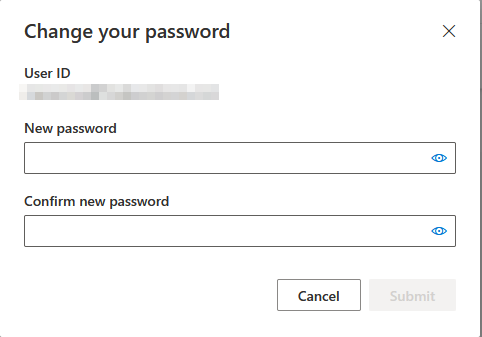
</td></tr><tr style="height: 29.8px;"><td style="height: 29.8px; border-width: 0px;">Enter a new password, and confirm it.

<p class="callout info">A long password is more secure than a complex password. Consider using a [passphrase](https://www.useapassphrase.com/).</p>

</td><td style="height: 29.8px; border-width: 0px;">[![image.png](https://kb.findesolutions.com/uploads/images/gallery/2026-06/scaled-1680-/9tTi2Y5lB79t4ogj-image.png)](https://kb.findesolutions.com/uploads/images/gallery/2026-06/9tTi2Y5lB79t4ogj-image.png)

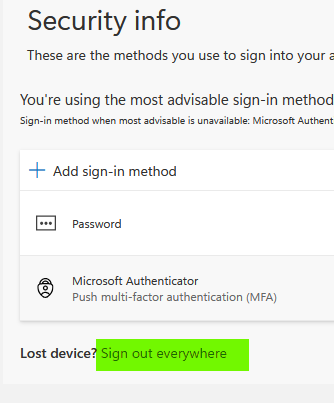
</td></tr><tr><td style="border-width: 0px;">On the `Security info` page, you'll see an option to `Sign out everywhere`. Press this and follow the prompts.

<p class="callout info">This could take up to an hour to be effective.</p>

</td><td style="border-width: 0px;">[![image.png](https://kb.findesolutions.com/uploads/images/gallery/2026-06/scaled-1680-/kD8unkre96BczkZI-image.png)](https://kb.findesolutions.com/uploads/images/gallery/2026-06/kD8unkre96BczkZI-image.png)

</td></tr><tr><td colspan="2" style="border-width: 0px;">On the `Security info` page still, remove any devices you do not recognise that are used for MFA (Multi-Factor Authentication).

</td></tr></tbody></table>

## Check for Email Rules

Often these malicious actors will add in rules to your email inbox to try to hide their activity and to ensure they get the spray to your contacts.

Login to [Outlook](https://outlook.cloud.microsoft) and navigate to `Settings > Email > Rules`.

[![image.png](https://kb.findesolutions.com/uploads/images/gallery/2026-06/scaled-1680-/I1eb1ghyyPk5P9En-image.png)](https://kb.findesolutions.com/uploads/images/gallery/2026-06/I1eb1ghyyPk5P9En-image.png)

In this window you may seem some rules that look out of place, any rules here should be ones you yourself have added so anything that doesn't look right, delete them. For example, a compromised account may have rules that look similar to the below:

[![image.png](https://kb.findesolutions.com/uploads/images/gallery/2026-06/scaled-1680-/ECLwxfLmCBMiSEKY-image.png)](https://kb.findesolutions.com/uploads/images/gallery/2026-06/ECLwxfLmCBMiSEKY-image.png)

Use the `delete` button to restore normal operations.

<p class="callout warning">Its important to be aware that these rules are not restricted to the example above. It is better to remove any rules you are not sure of as these can be re-added later.</p>

## Contacting Affected Recipients

In your Outlook app, review the `Deleted Items` folder - you may find a copy of the phishing email that was sent. You'll then want to:

- Reply again to the email
- Remove the malicious links
- Inform the recipients they link was not from yourself and to not click anything.
- Direct them to this page if they require assistance if they have been phished.

## Further Support

Contact your email provider if you require further support. **Do not delay** - its important to move quickly to limit damage potential.