Please Note: the `System Code` is the same for all Users wanting to login to the App at your Company.
Your Username and Password are the same Username and Password you use to Login to Desktop NCompass. By Default, any existing Login for Desktop NCompass will have access to login to Anywhere. However, it is possible to control which Users do or do not have access to Login to Anywhere, which is covered more in the ['Configuring your NCompass Users for Anywhere'](https://kb.findesolutions.com/books/ncompass-anywhere/page/configuring-your-ncompass-users-for-anywhere) section. #### Running Reports The NCompass Anywhere Application has the ability to run any Report that is configured as an Additional Report inside Desktop NCompass (Reports > Additional Report).Please Note: The user you are logged in as needs to have permissions inside Desktop NCompass to be able to run Additional Reports. The ['Configuring your NCompass Users for Anywhere'](https://kb.findesolutions.com/books/ncompass-anywhere/page/configuring-your-ncompass-users-for-anywhere) section covers in more detail the tools that are available to control if a User does or does not have the ability to run these reports
To run these inside NCompass Anywhere tap the menu ( ☰ ) icon > All Reports > Pick a Report Group > And then select the report you wish to run. The below is an example of All Reports > Field Calls > Incomplete Field Calls 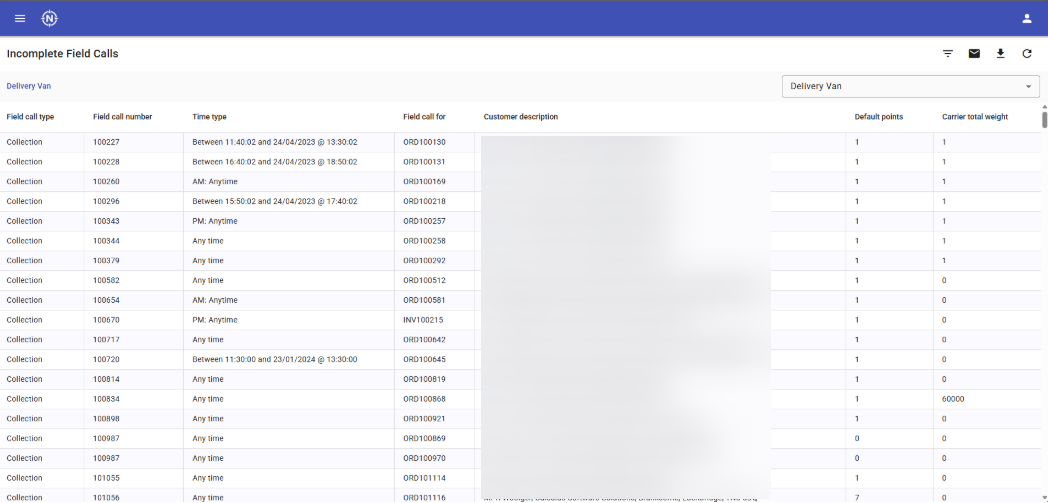 Next to the title of the report, you will see a Filter Icon, an Email Icon, a Download Icon, and a Refresh Icon. The Filter Icon will open a new window that allows you to apply filters to your report: 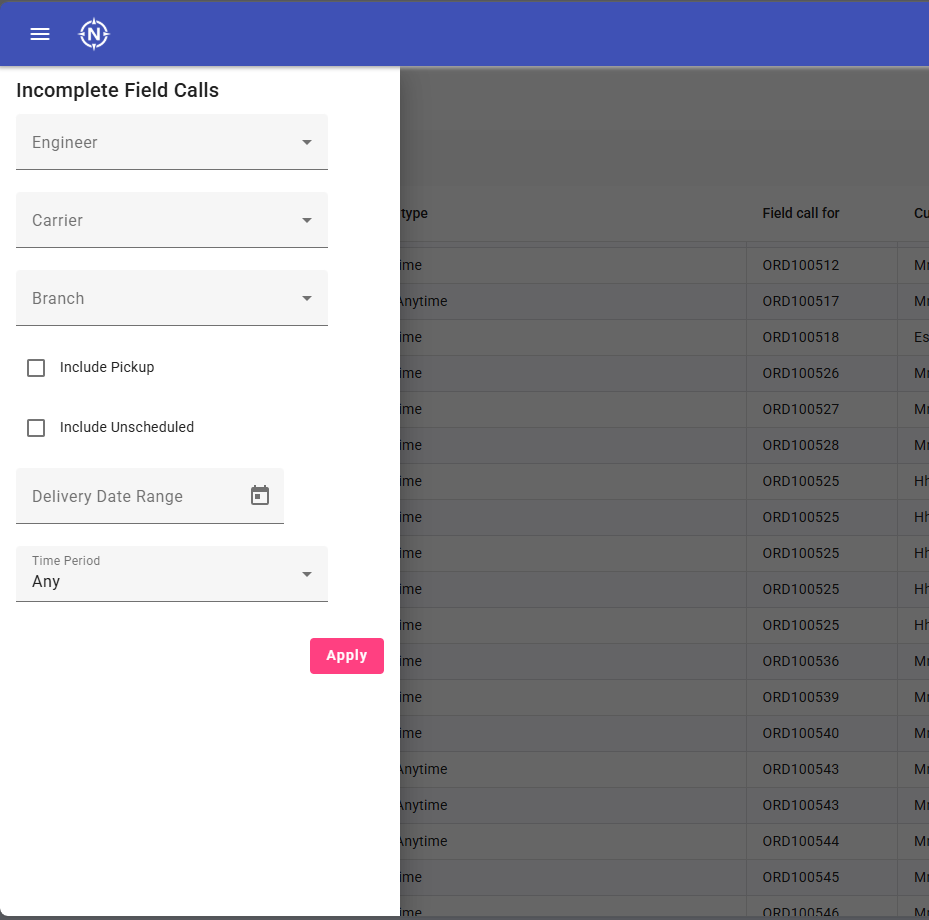 The Email Icon will allow you to send the report to a specific email address, in a specific file format [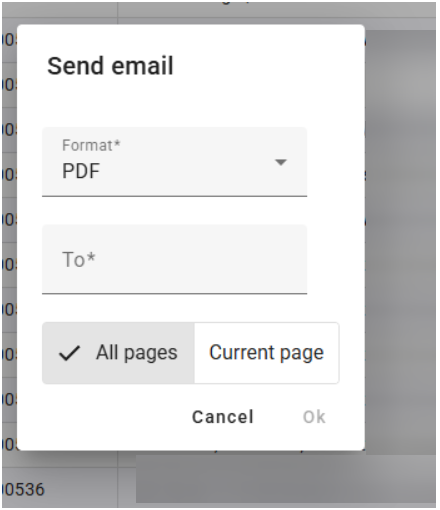](https://kb.findesolutions.com/uploads/images/gallery/2026-04/xGxPtbw3sCasgyF8-image.png) The Download Icon will allow you to download the report either as PDF, or to Excel 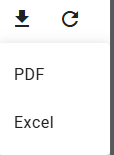 The Refresh Icon will re-run the report, in the event that any data has changed.If you require a new Report adding to the system, please contact our Support team with a Specification of what you require, and we will be happy to review this request further for you
#### Stock Management The Stock Management screen allow you to search for a product either by Entering a Barcode, or by a Search [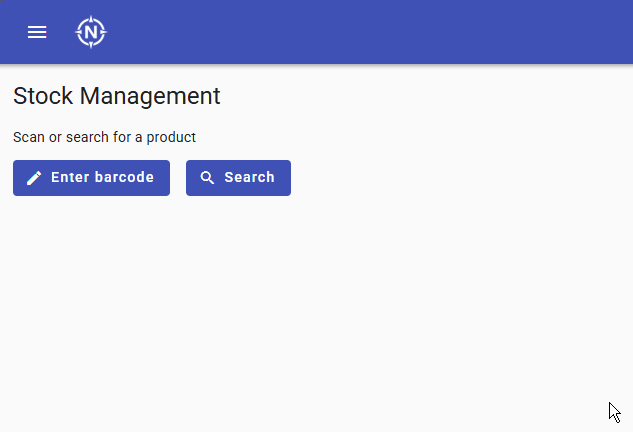](https://kb.findesolutions.com/uploads/images/gallery/2026-04/plrjSbfylboOilAC-image.png) If you know the Barcode/EAN of the product, then you can simply press the Enter barcode button and Press Ok. This will then take you to a page containing information about the product. If not, press the Search button, and in the Search Query box, search for the product in question. If required, you can press the 'Show advanced filters' button to have more granular levels of filtering 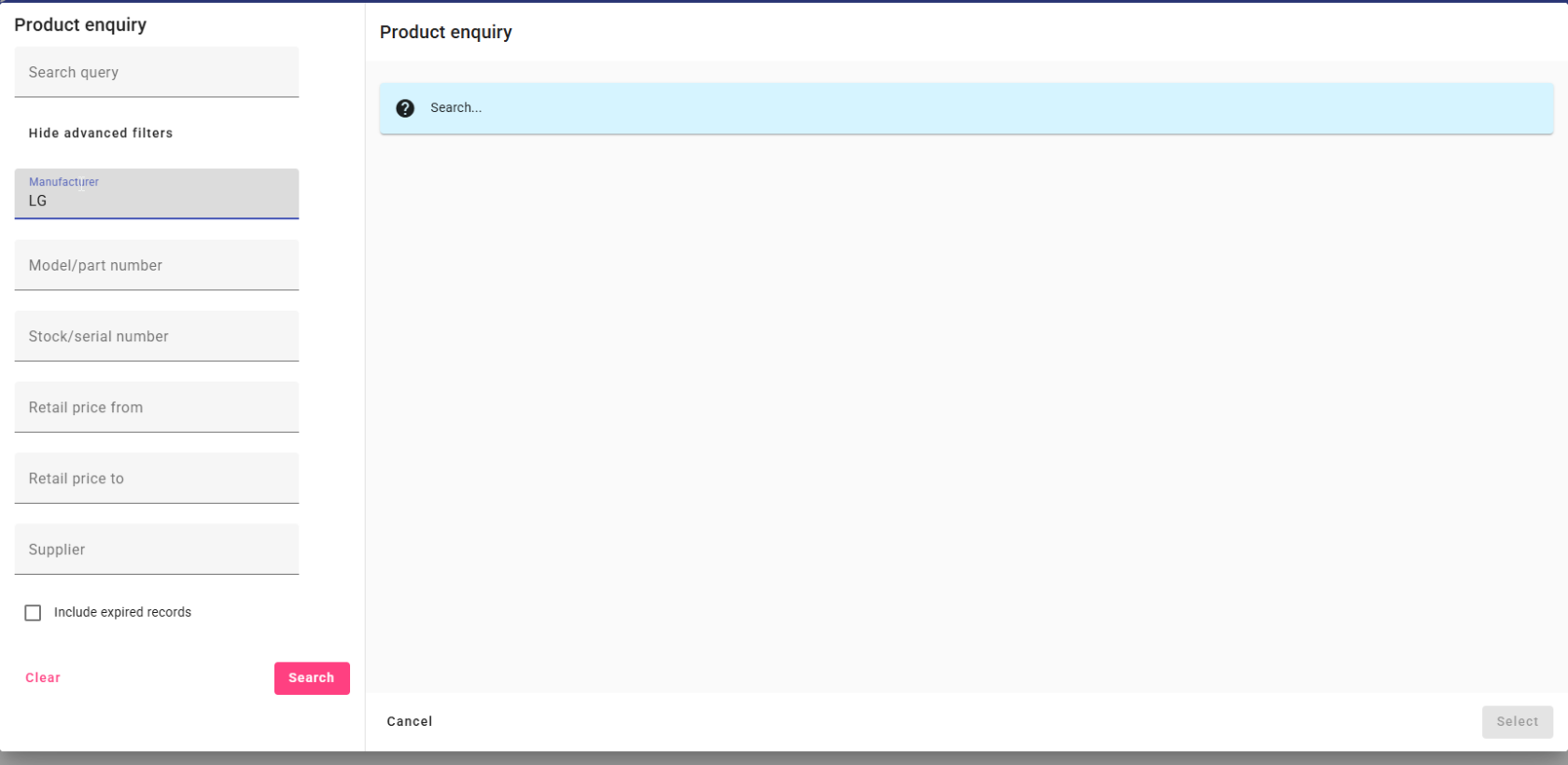 Press Search, and a list of products that match your search criteria will appear. Click onto a search result, and press Select, and you will then be taken to a new screen that shows you information about that Product. From this new screen, you can see information such as: - View the product on your website - Product Pricing - Stock Levels - Print Stock labels [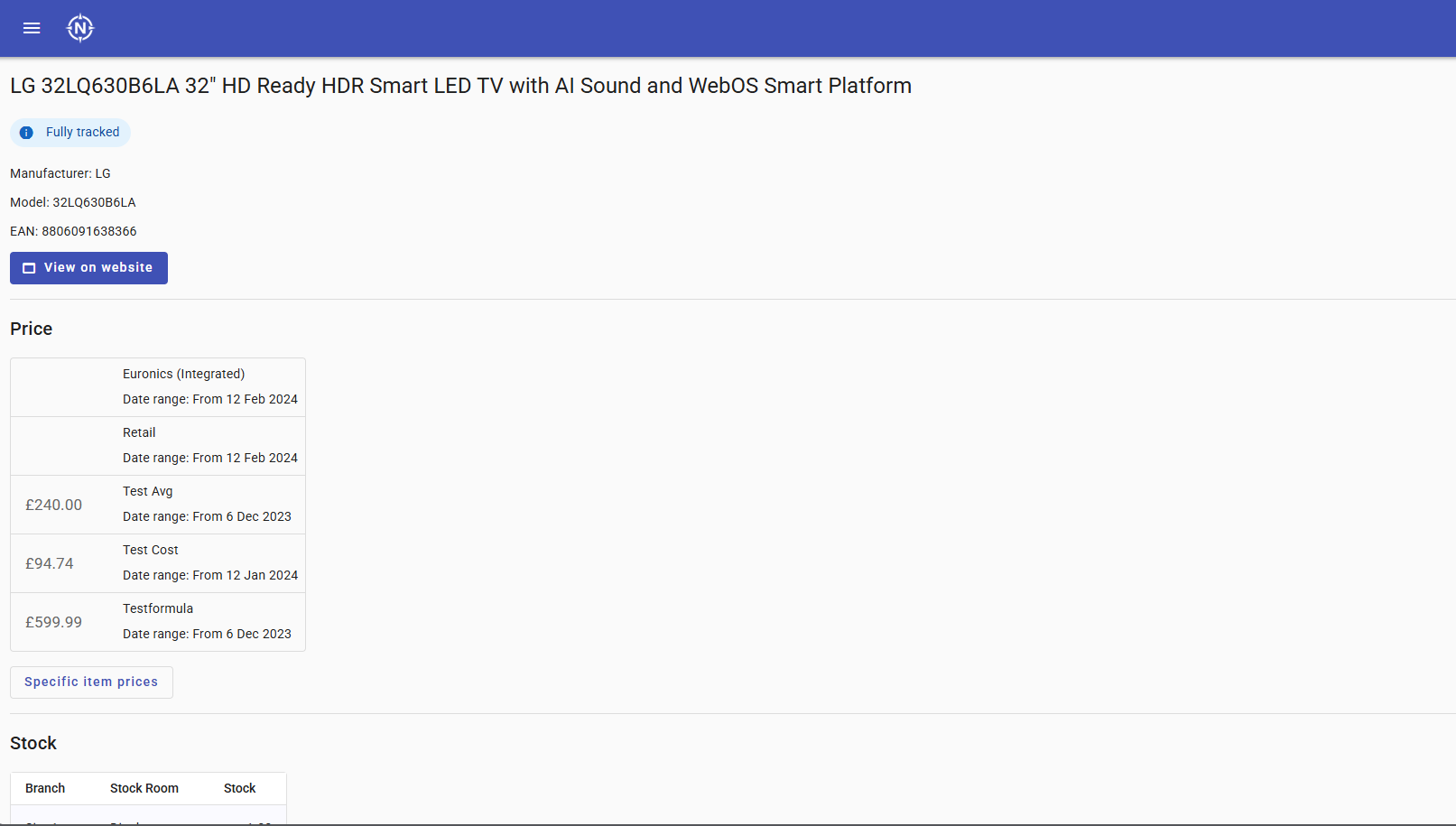](https://kb.findesolutions.com/uploads/images/gallery/2026-04/fslHia9UUSo44mgO-image.png) #### Helpdesk Helpdesk is a new platform that allows you to see any existing tickets you have open with us at the moment, and create new tickets from this platform, without needing to phone our Support team. You do not need to be setup for NCompass Anywhere to be able to use Helpdesk, but we have added the option to be able to login to it through NCompass Anywhere to help have everything in one easy to use place.If you require assistance logging into the Help desk, please contact our Support team who will be happy to assist further