NCompass Anywhere
- What is NCompass Anywhere?
- NCompass Anywhere - Mobile App
- NCompass Anywhere - Website
- Configuring your NCompass Users For Anywhere
What is NCompass Anywhere?
NCompass Anywhere is our latest application that brings essential reporting and management features to your fingertips. Designed to enhance your work on-the-go, the app offers a streamlined and user-friendly experience.
This document will cover how to gain access to the application, and how to use these exciting new features.
Please note: Before using NCompass Anywhere, your NCompass System needs to be running version 11.15 or newer.
If you believe you are not already running this version, you can book a slot for your system to be updated using our booking link here.
What you can do in NCompass Anywhere
The first release of NCompass Anywhere is deliberately focused on the things people most often need when they are away from a desk. It covers:
- Reports - run any report that is set up under Reports > Additional Reports in Desktop NCompass. Reports can be filtered, refreshed, emailed, and downloaded as PDF or Excel.
- Product and stock enquiry - find a product by searching for it or by scanning or entering its barcode, then see its current retail price and how much free stock there is for the company and for the branch.
- View Online - jump straight from a product to that product's page on your own website, so you can check images and technical specification. This option only appears where your system has a website link configured; on systems without one it is not offered.
- Helpdesk - view your open support tickets and raise new ones without having to phone.
The interface is a simplified one designed for smaller screens, so it does not attempt to reproduce everything Desktop NCompass can do.
Two ways to use it
NCompass Anywhere can be used either as an app installed on a phone or tablet, or as a website in any browser - including on a PC. Both use the same login and show the same information, so it is a matter of preference which one a user chooses. Step by step instructions for each are on the NCompass Anywhere - Mobile App and NCompass Anywhere - Website pages.
Logging in
Users log in with their System Code together with their normal NCompass username and password - the same credentials they use for Desktop NCompass. The System Code is found in Desktop NCompass under Help > About NCompass and is the same for everyone at the company.
Every existing Desktop NCompass login is permitted to use NCompass Anywhere by default, and what a user can see and do in Anywhere comes from their Desktop NCompass permissions. Both login access and report access are controlled from Desktop NCompass - see Configuring your NCompass Users For Anywhere.
If NCompass Anywhere has not been enabled for a system
NCompass Anywhere has to be enabled for a customer's system before anyone there can log in. Where it has not been enabled, the user is not shown a login failure or an error - they are shown a message explaining that the app is not yet available for their system and asking them to contact Support. If a customer reports seeing this, they have entered valid details and nothing is wrong with their password; Support need to get NCompass Anywhere enabled for that system before the customer tries again.
NCompass Anywhere - Mobile App
The NCompass Anywhere Mobile App is currently only available on the Play Store for Android Devices, however we are in the process of deploying the application to the App Store so it can be installed on iOS devices.
If you want to use NCompass Anywhere on an iOS device today, you can do so via a Web Browser on the device by following the instructions in the NCompass Anywhere - Webpage section
Getting Logged In
To install the NCompass Anywhere App, simply search for 'NCompass Anywhere' on the Play Store, and tap to install the highlighted option below:
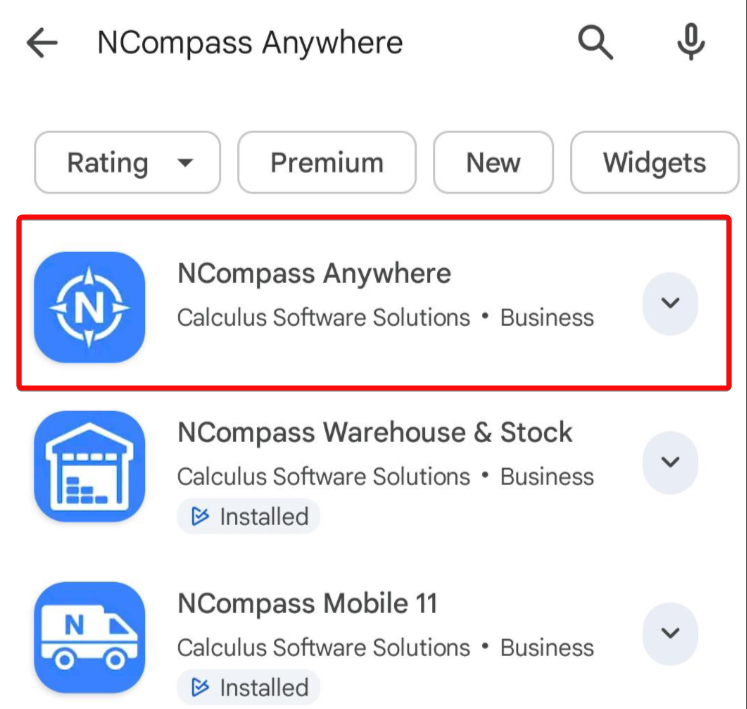
Once the App has been installed, tap onto it to open it.
You will then be presented with the below screen, and prompted to login to the app:
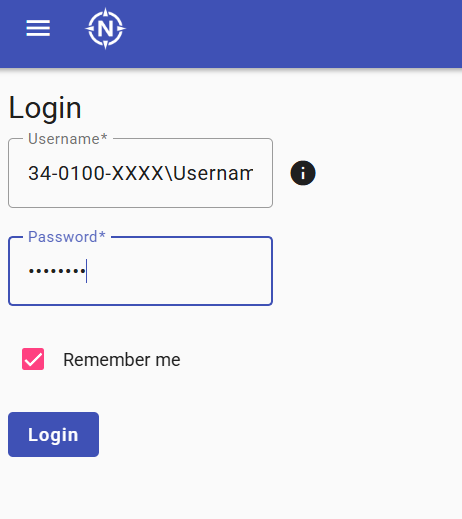
Once the setup has been completed, you can log in using the following format:
SystemCode\UsernameExample:
34-0100-1234\JohnSmithFinding Your System Code
- Open Desktop NCompass.
- Go to Help → About NCompass.
- In the highlighted section of the window, locate your System Code.
- It will look similar to:
34-0100-1234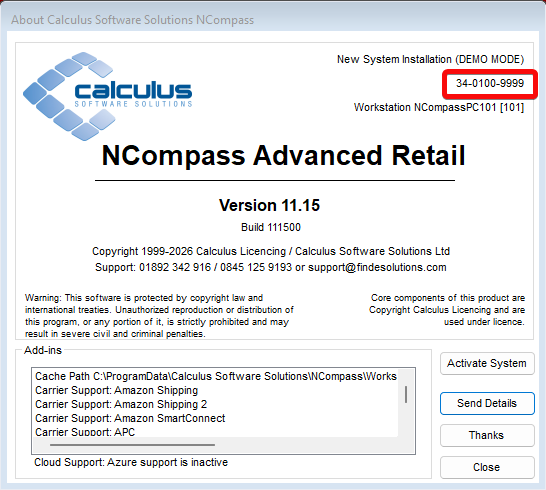
Entering Your Login Details
When prompted to log in:
- Enter your System Code.
- Type a backslash (
\). - Enter your NCompass username, this is the same name you select when logging into the desktop version of NCompass..
Login format:
34-0100-1234\YourUsernameNote: Replace 34-0100-1234 with your own System Code and YourUsername with your NCompass username.
Please Note: the System Code is the same for all Users wanting to login to the App at your Company.
Your Username and Password are the same Username and Password you use to Login to Desktop NCompass.
By Default, any existing Login for Desktop NCompass will have access to login to Anywhere. However, it is possible to control which Users do or do not have access to Login to Anywhere, which is covered more in the 'Configuring your NCompass Users for Anywhere' section.
Once you have successfully logged in, the app will take you to the home page below:

If you need to Logout at any point, simply press the Person Icon in the top left hand screen, and press Logout.
Running Reports
The NCompass Anywhere Application has the ability to run any Report that is configured as an Additional Report inside Desktop NCompass (Reports > Additional Report).
Please Note: The user you are logged in as needs to have permissions inside Desktop NCompass to be able to run Additional Reports.
The 'Configuring your NCompass Users for Anywhere' section covers in more detail the tools that are available to control if a User does or does not have the ability to run these reports
To run these inside NCompass Anywhere tap the menu ( ☰ ) icon > All Reports > Pick a Report Group > And then select the report you wish to run.
The below is an example of All Reports > Field Calls > Incomplete Field Calls
 In the event that a report has multiple columns, you can use your finger to swipe left/right across the screen to scroll through these columns.
Next to the title of the report, you will see a Filter Icon and another Menu Icon (in the form of 3 vertical dots)
The Filter Icon will open a new window that allows you to apply filters to your report:

- Send the report via email
- Download the report as PDF
- Download the report to Excel
- Reload the Data in the report

If you require a new Report adding to the system, please contact our Support team with a Specification of what you require, and we will be happy to review this request further for you
Stock Management
The Stock Management screen allow you to search for a product either Scanning a Barcode, or by a Search
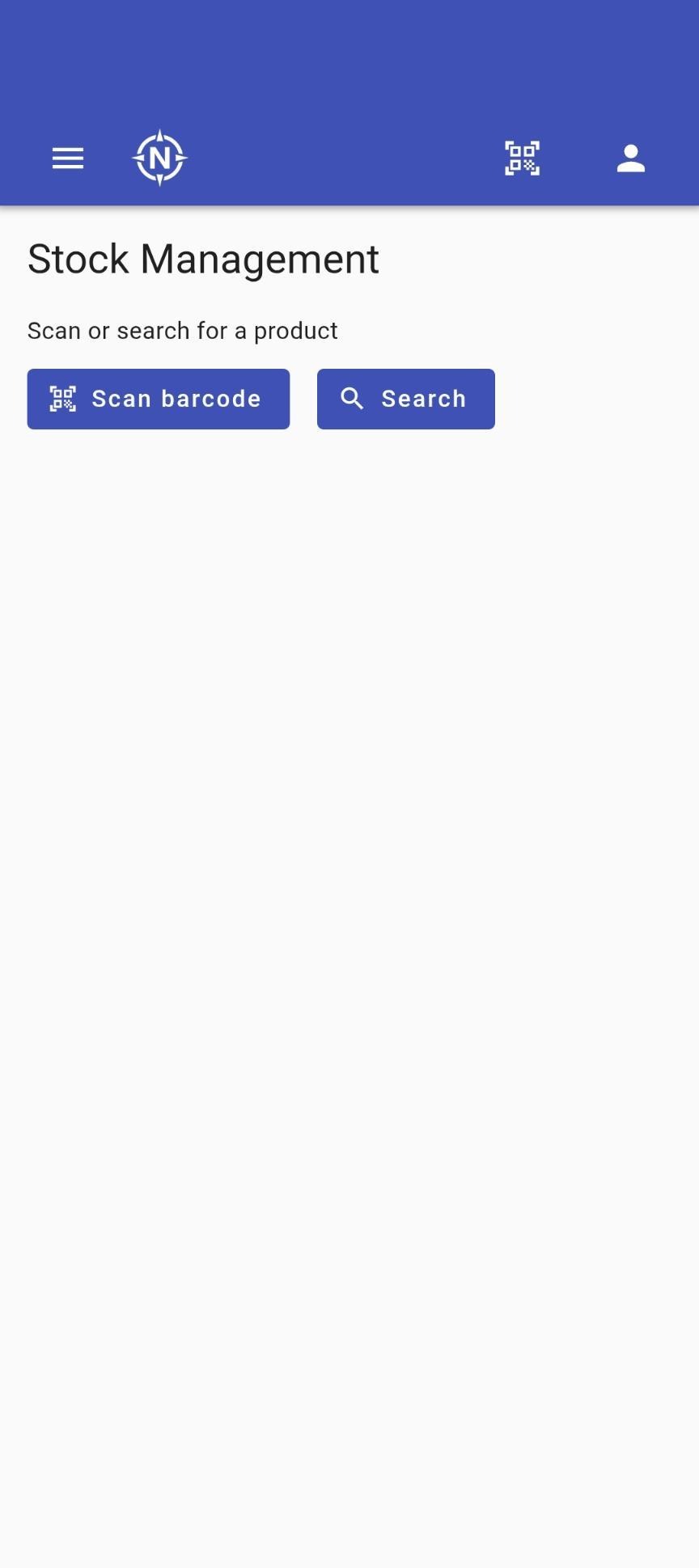
To scan a Barcode, simply press the Scan barcode button, and ensure that you allow NCompass Anywhere the correct permissions to use the Camera on your device if prompted to do so:
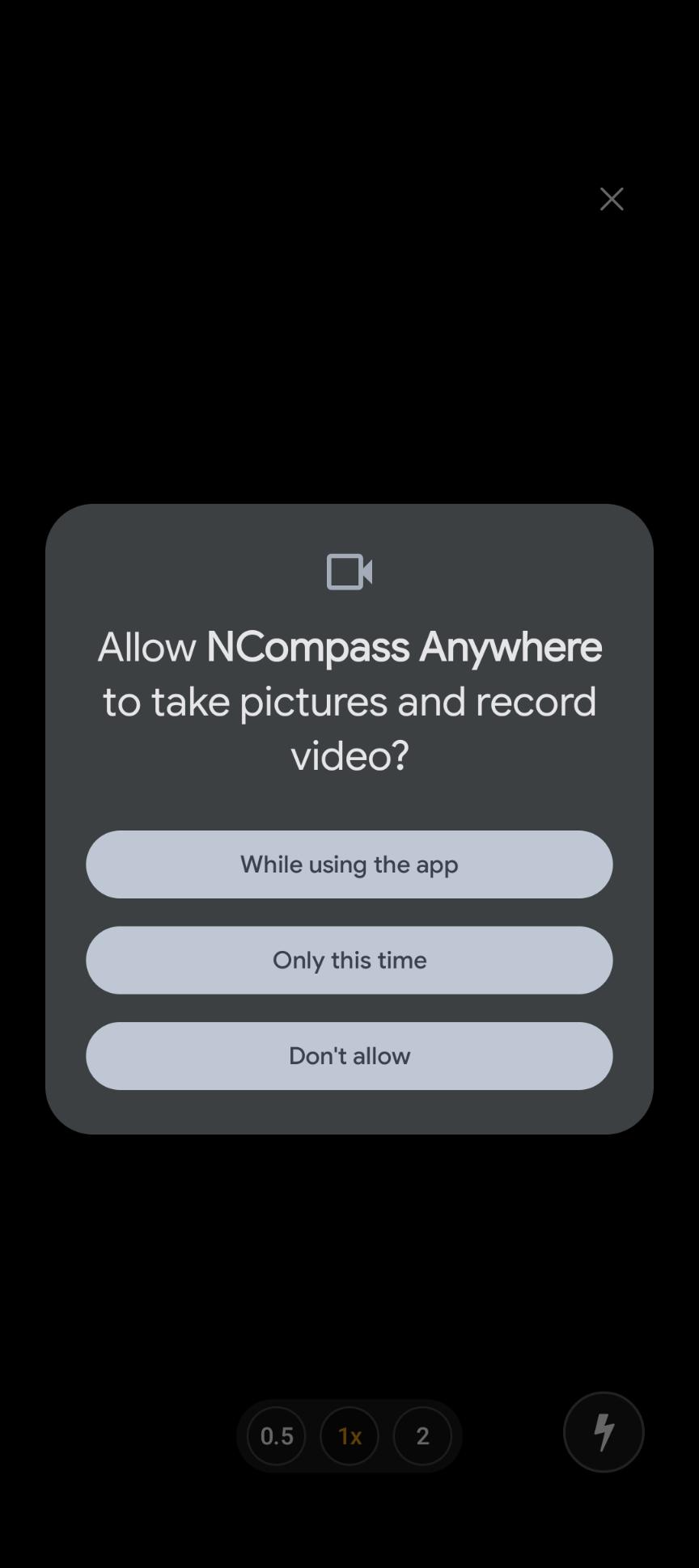
Then, simply place the barcode for the product in front of the camera, and the app will then bring information about that product up on the screen.
To Search for a product without using it's barcode, press the Search button, and in the Search Query box, search for the product in question. If required, you can press the 'Show advanced filters' button to have more granular levels of filtering

Press Search, and a list of products that match your search criteria will appear. Tap onto a search result, and press Select, and you will then be taken to a new screen that shows you information about that Product.
From this new screen, you can see information such as:
- View the product on your website
- Product Pricing
- Stock Levels
- Print Stock labels
Helpdesk
Helpdesk is a new platform that allows you to see any existing tickets you have open with us at the moment, and create new tickets from this platform, without needing to phone our Support team.
You do not need to be setup for NCompass Anywhere to be able to use Helpdesk, but we have added the option to be able to login to it through NCompass Anywhere to help have everything in one easy to use place.
If you require assistance logging into the Help desk, please contact our Support team who will be happy to assist further
NCompass Anywhere - Website
As well as being mobile app, NCompass Anywhere is accessible in a Web Browser of your choosing by visiting anywhere.findesolutions.com
This can be loaded on any device that has a Web Browser installed, be that a mobile phone, tablet, or PC.
Getting Logged In
Browse to anywhere.findesolutions.com and you will be presented with a login screen asking for just two things - a Username and a Password.
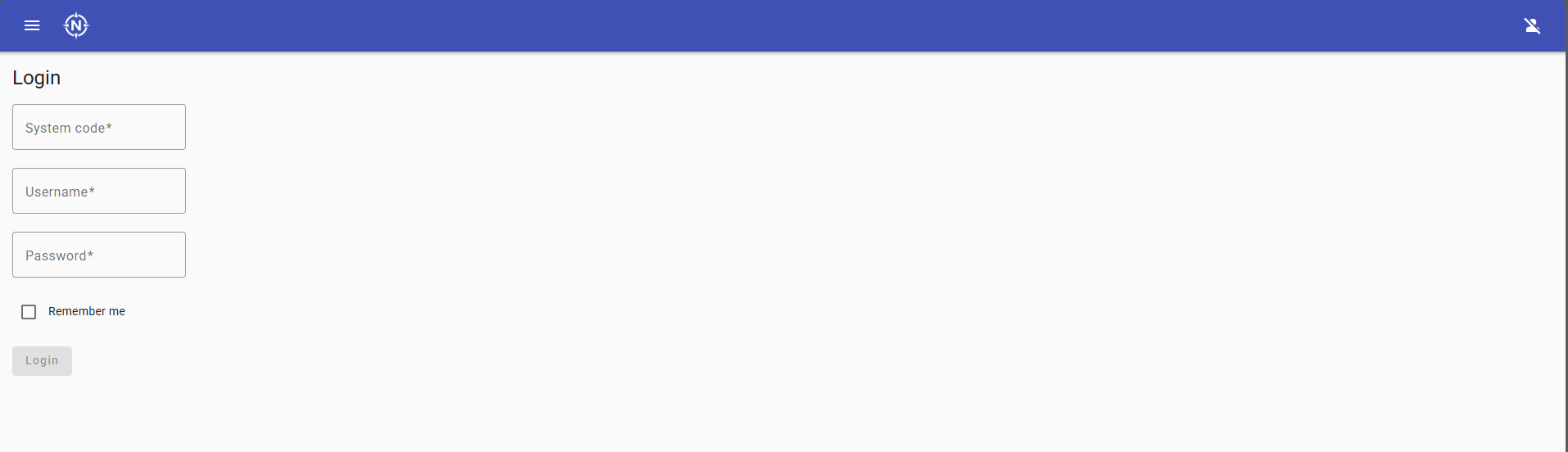
The screenshot above still shows the older login screen with a separate System Code box. The login form now has only the two fields described below - a replacement screenshot is still to be captured.
Entering your username
Your System Code and your NCompass username are typed into the single Username box, separated by a backslash:
SystemCode\UsernameExample:
34-0100-1234\JohnSmithSo, when prompted to log in:
- Enter your System Code.
- Type a backslash (
\). - Enter your NCompass username - the same name you select when logging into the desktop version of NCompass.
- Enter your Password - again, the same password you use for Desktop NCompass.
If you are unsure of the format while you are on the login screen, tap the information icon next to the Username box and a Username format message will explain it.
Because the login screen is now just a username and a password, your browser's built-in password manager can save and autofill your NCompass Anywhere details in the same way it does for any other website. The old three-box login could not be autofilled reliably, so if a browser has remembered a partial set of details from before, clear the saved entry and let it save the new combined username.
Finding your System Code
Your System Code can be found on Desktop NCompass under Help > About NCompass > find in the highlighted section that appears in the new window, and take note of the number that shows (this will be in the format of 34-0100-xxxx):
Please Note: the System Code is the same for all Users wanting to login to the App at your Company.
Your Username and Password are the same Username and Password you use to Login to Desktop NCompass.
By Default, any existing Login for Desktop NCompass will have access to login to Anywhere. However, it is possible to control which Users do or do not have access to Login to Anywhere, which is covered more in the 'Configuring your NCompass Users for Anywhere' section.
Running Reports
The NCompass Anywhere Application has the ability to run any Report that is configured as an Additional Report inside Desktop NCompass (Reports > Additional Report).
Please Note: The user you are logged in as needs to have permissions inside Desktop NCompass to be able to run Additional Reports.
The 'Configuring your NCompass Users for Anywhere' section covers in more detail the tools that are available to control if a User does or does not have the ability to run these reports
To run these inside NCompass Anywhere tap the menu ( ☰ ) icon > All Reports > Pick a Report Group > And then select the report you wish to run.
The below is an example of All Reports > Field Calls > Incomplete Field Calls

Next to the title of the report, you will see a Filter Icon, an Email Icon, a Download Icon, and a Refresh Icon.
The Filter Icon will open a new window that allows you to apply filters to your report:

The Email Icon will allow you to send the report to a specific email address, in a specific file format
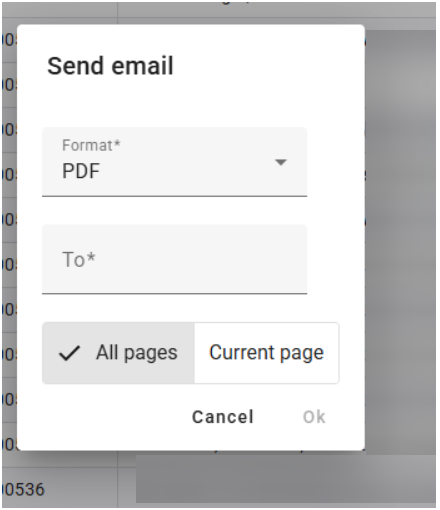
The Download Icon will allow you to download the report either as PDF, or to Excel

The Refresh Icon will re-run the report, in the event that any data has changed.
If you require a new Report adding to the system, please contact our Support team with a Specification of what you require, and we will be happy to review this request further for you
Stock Management
The Stock Management screen allow you to search for a product either by Entering a Barcode, or by a Search
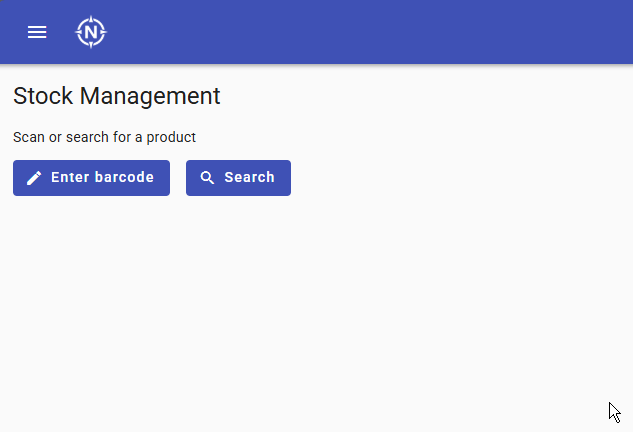
If you know the Barcode/EAN of the product, then you can simply press the Enter barcode button and Press Ok. This will then take you to a page containing information about the product.
If not, press the Search button, and in the Search Query box, search for the product in question. If required, you can press the 'Show advanced filters' button to have more granular levels of filtering

Press Search, and a list of products that match your search criteria will appear. Click onto a search result, and press Select, and you will then be taken to a new screen that shows you information about that Product.
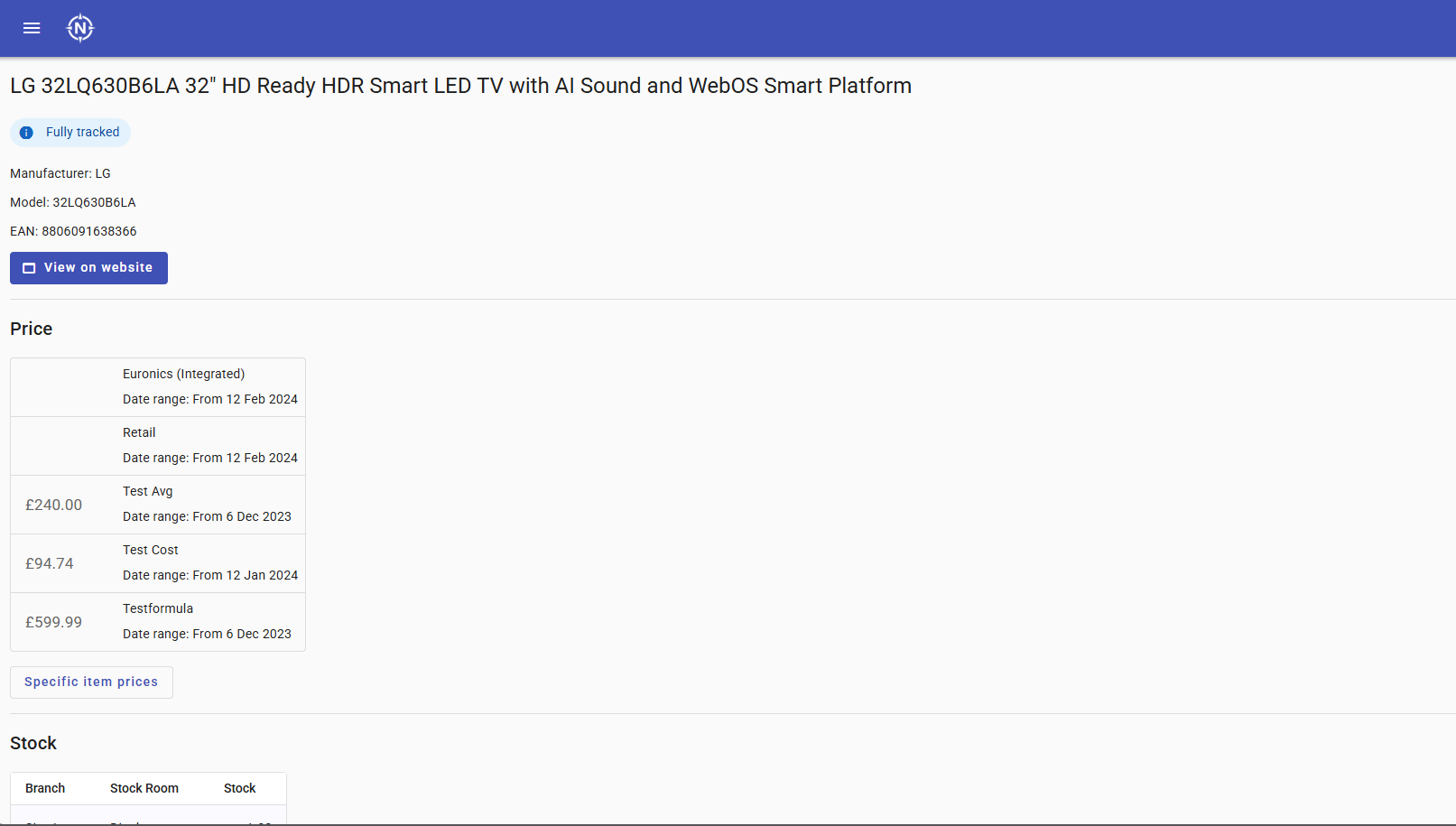
From this new screen, you can see information such as:
- View the product on your website
- Product Pricing
- Stock Levels
- Print Stock labels
Helpdesk
Helpdesk is a new platform that allows you to see any existing tickets you have open with us at the moment, and create new tickets from this platform, without needing to phone our Support team.
You do not need to be setup for NCompass Anywhere to be able to use Helpdesk, but we have added the option to be able to login to it through NCompass Anywhere to help have everything in one easy to use place.
If you require assistance logging into the Help desk, please contact our Support team who will be happy to assist further
Configuring your NCompass Users For Anywhere
As all permissions surrounding what a User can and can not access in NCompass Anywhere are controlled in NCompass Desktop, you will need to be logged into NCompass Desktop as a User that has the relevant permissions to able to access 'Administration > Security > User Management' menu to be able to change these permissions .
Please be aware that NCompass Anywhere inherits the permissions set against a User in NCompass Desktop. So changing any permissions so the User can run Reports in Anywhere, means they will able to run the same reports in Desktop NCompass, as the two systems are linked.
If you do not currently have the relevant permissions to change these settings against a User, pause here, and discuss with your manager to confirm if access can be granted to this section or not.
Please Note: Our Support team are happy to assist you in configuring these permissions if help is required, but will only do so if they have be granted permission by a senior member of staff at your company.
To edit the permissions of a User, first select the User in question and press Edit.
Using the navigation arrows, browse to the 'NCompass Desktop' tab.
From here, you can control if a User has access to run Reports or not via the Reports tickbox highlighted below
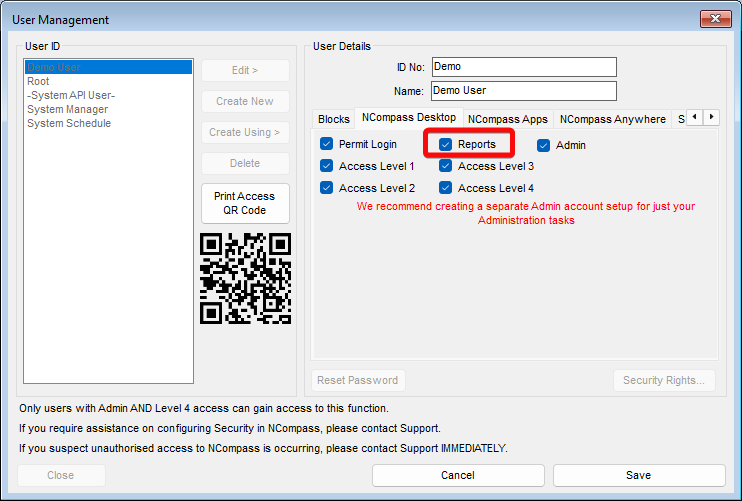
If you require a member of Staff to be able to run any Reports configured under Reports > Additional Reports (which are the reports that can be run on NCompass Anywhere) but not be able to run any other type of report, then it is possible to do this via the Security Rights button in the bottom left hand corner of this screen.
Please contact Support if you require assistance setting this up
If you then use the Navigation Buttons to browse to the NCompass Anywhere tab, you can control if the user can Login to NCompass Anywhere or not via the Permit Login Button
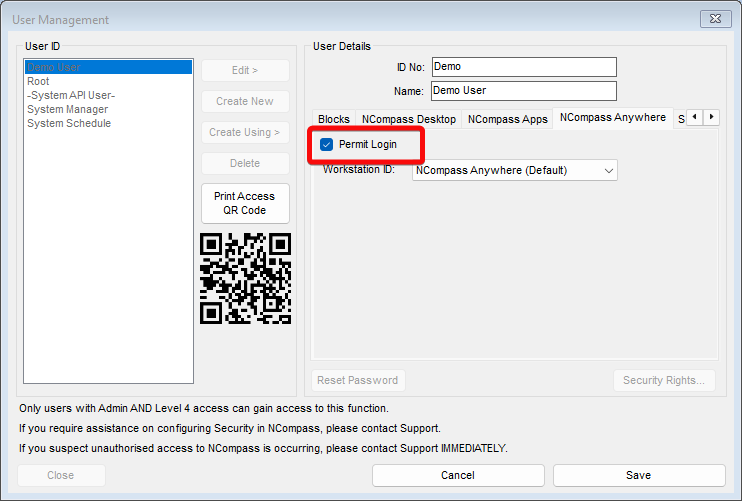
By Default, all users are permitted to login to Anywhere. So if you only want select staff to be able to login to the application, then you will need to change this setting against each user.