# Connecting to the Calculus Cloud
Once you are on our cloud platform, you need to know how to connect so you can run your system.
We try to maintain as much flexibility as possible, whilst also ensuring the environment remains secure in all aspects.
In this article, we'll detail how you connect to your cloud system. You may notice some terminology here that you're unfamiliar with, but we'll explain what it means to help you understand.
## Connecting to the Cloud Network
### Via a Site-to-Site VPN
A site-to-site, sometimes referred to as a LAN-to-LAN VPN is a network connection between 2 physical sites. Your shop and our datacentre, for example - they are both sites that are connected via a special and secure network.
When our engineers setup your cloud platform, it will include configuring a connection between your branch(es) and our cloud platform. If you have a 3rd-party company that looks after this for you then we can liaise with them as well.
Once this is setup, any device you have at the shop connected to that network we have linked to our cloud platform will be able to seemlessly connect to your cloud environment.
### Via a Remote Dial-In User
Sometimes called a point-to-site, this where the remote user is flexible in where they are but are connecting to a static point - the site.
A user could dial-in to your branch which is connected to the cloud via the [Site-to-Site VPN](#bkmrk-via-a-site-to-site-v) and then utilise a device, however, you may require a direct cloud connection, which utilises the same principal. Our team can set these up for users upon request. These may be useful if you have remote workers or are abroad and need direct cloud access.
The [DrayTek SmartVPN for Remote Dial-In Users](https://kb.findesolutions.com/books/general-it/page/draytek-smartvpn-for-remote-dial-in-users "DrayTek SmartVPN for Remote Dial-In Users") can guide you through setting up your connection.
It should be noted that using this method allows greater flexibility on where you can connect from, but it does have some caveats. As we are not joining 2 sites together like we do in a [Site-to-Site VPN](#bkmrk-via-a-site-to-site-v); rather we are placing the local device on another network virtually; peripherals such as card terminals and receipt or label printers do not natively work - those devices are not visible to our cloud network so the network traffic does not know where to go.
## Connecting to your Cloud Environment
Once you have [connected to the cloud network](#bkmrk-connecting-to-the-cl), you'll want to then connect to your remote desktop environment. As part of the setup process an engineer will connnect to each of your workstations and configure a *Remote Desktop Icon* and place this on your desktop - this will be named something like *Calculus Cloud*.
Double clicking the icon will connect you to your session, and then NCompass will automatically start up for you to continue your normal processes.
If, for any reason, this icon does not exist for you (you get a new PC or user for example) you have a couple of options:
- Contact the [support team](https://kb.findesolutions.com/link/1#bkmrk-department-phone-%23-e) who can assist;
- Open the remote desktop app and enter your details.
### Configuring My Connection
In your start menu, search for `Remote Desktop`
The settings on the *Experience* and *Advanced* tabs can be left under their default settings.
Once you have completed the above, go back to the *General* tab and press `Save As...`. Select a location, such as your desktop, and give the file a name.
[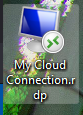](https://kb.findesolutions.com/uploads/images/gallery/2026-05/7ANgOHyyKDhn4WAg-image.png)
Double-clicking this icon will then start your session with the settings you configured.
#### Editing My Connection
If you need to make changes to your connection at all, locate where you saved the icon and right-click. Select the *Edit* option.
## Troubleshooting
My cloud connection is failing to connect.
When your device tries to initiate a connection with the cloud it will present an error message. This message then determines the next steps we take. If it reports that it cannot see or connect to the server, this would indicate that the connection between you and the cloud is broken.
If you are using a [remote dial-in connection](#bkmrk-via-a-remote-dial-in), ensure it is connected and active. Try disconnecting and reconnecting the VPN connection.
If you are using a [site-to-site connection](#bkmrk-via-a-site-to-site-v), it could indicate the VPN is down. The connections try to be self-healing, but sometimes require extra troubleshooting. Verify if the issue is widespread for your other devices, as if it is it would provide evidence that the VPN itself is experiencing issues. This could be down to your IP (the address for your branch on the internet) changing as one example. If the issue is local to your own device, it could indicate you are connected to the wrong network - if you have a guest Wi-Fi network, for example.
For any other issues, please get a screenshot of the error and send to the support team.
My cloud connection is/feels slow.
This can be a sign of poor network conditions. For example, if you are in a remote location with poor network coverage, or someone is exhausting your bandwidth on your network, you may feel the impacts.
You can try lower connection quality in the *Experience* tab of the remote desktop connection, though this should only ever be a temporary measure. Contact support for additional assistance.